
Introduction
This article and its companion on creating a Category in Backend are intended for first time users.To avoid repetition, it is assumed here that you have already read the article Create a Category in Backend (opens in a new window/tab).
A Download consists of many parts and, as would be expected, usually contains a downloadable file.
Downloads have have a Title, a symbol such as PDF indicating type of file. It may also have a description, various images, audio and video. Downloads may have a preview, one can attach a license, and many, many other items. The actual downloadable file is usually associated directly with the Download but it may linked from another Download or an external location or with a service like Google Share.
Select the jDownloads Component
On the Joomla  page click on
  then on
  . Next click on
  . As this will be the first Download there is not much to see!
page click on then on . Next click on . As this will be the first Download there is not much to see!Adding the First Download
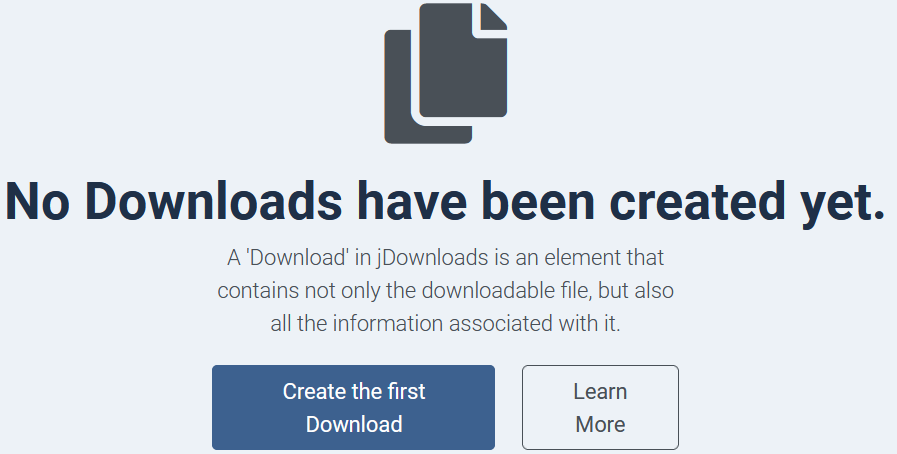
As this is our first Download there will be no Downloads listed!
So click on the
 button to start creating the first Download.
This will open the Add Download view General tab.
Adding Subsequent Downloads
When adding subsequent Downloads you will have a view of the list of existing Categories. This will become paginated when you have a large number of Downloads.
To create another Download click on the
 button.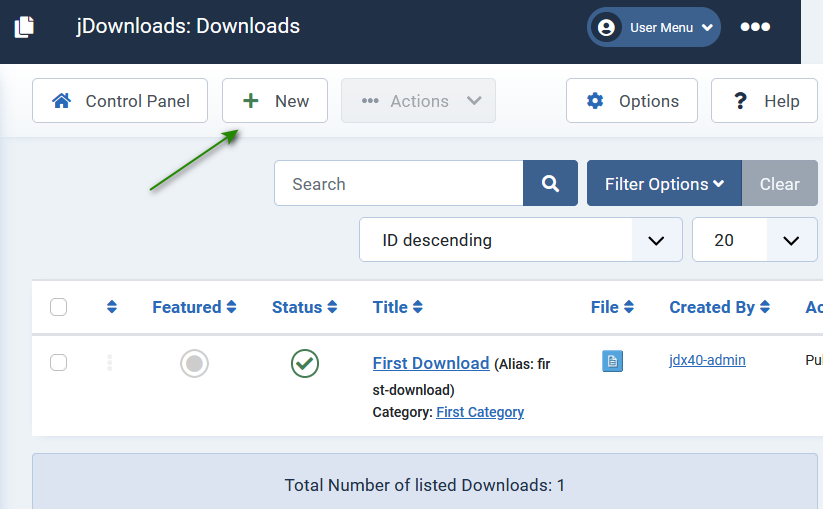
Details
The following describes the basic information for a Download. There are numerous options and other information that may be included. It is suggested that you look at the other available options in each of the tabs.
General tab
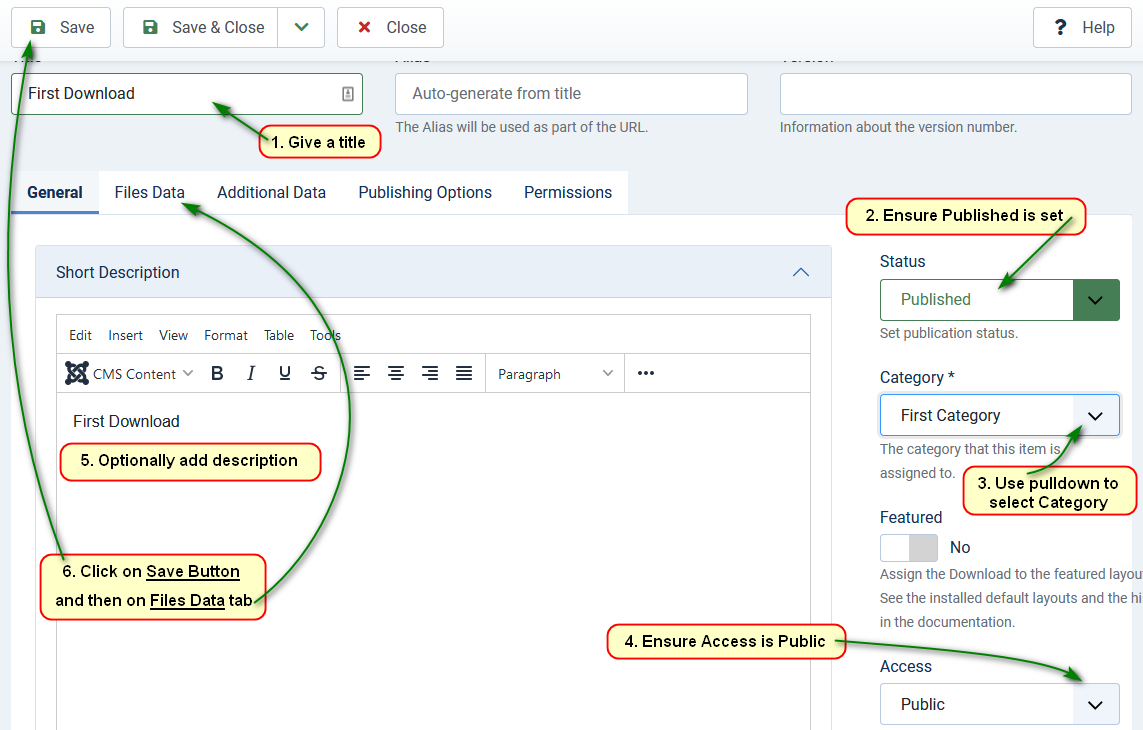
On this 'General' tab the minimum requirements are to:
1. ensure Published;
2. select the desired Category;
3. add a title.
There are several opional fields such as setting the Access, Adding tags, selecting a license, setting the language for multilingual sites, and so on.
Files Data tab
The next step is to click on the Files Data tab as this is where we are able to add a downloadable file.
There are many ways of associating a file with a Download.
Here we will use the most common method which is to upload a file from your device.
So click on the Browse button.
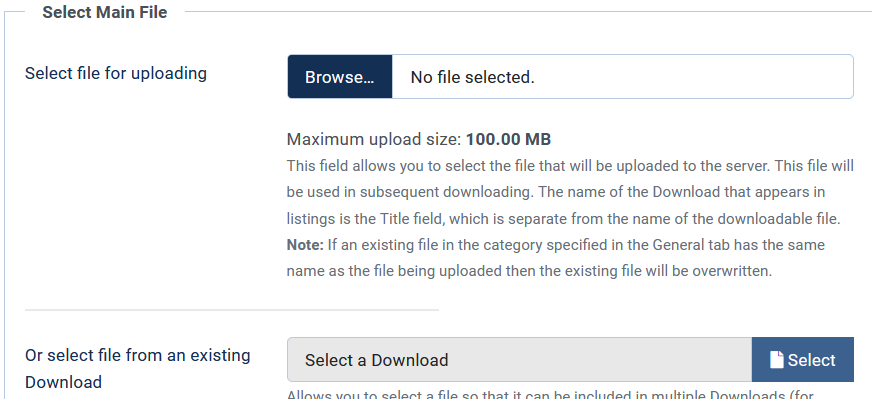
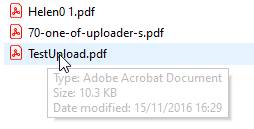
This will open an 'explorer' window in your PC or other device.
So select the file you wish to include in the Download and click on the Open button or its equivalent.
The file will then be uploaded and stored in the relevant directory.
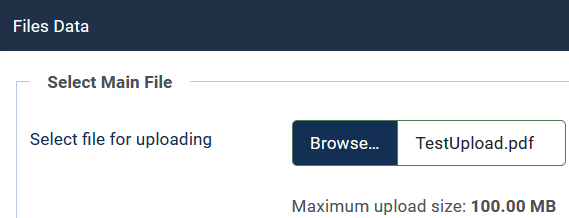
After clicking on the
 button and re-selecting the Files Data tab the view will be as shown opposite.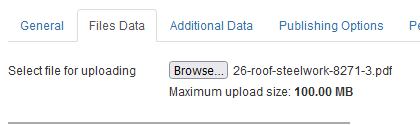
Appropriate information will have been stored in the database to join the Download information together.
If you now go back to look at the Downloads again then the view will be something like that shown opposite.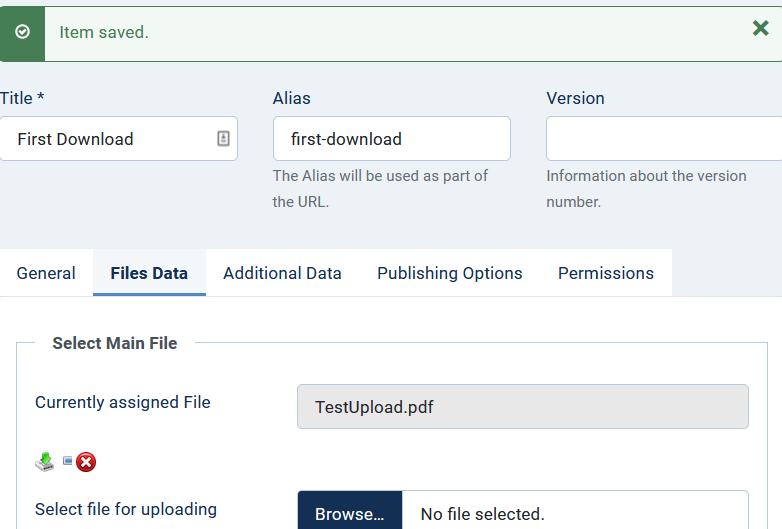
If you now go back to look at the Downloads again then the view will be something like that shown opposite.
There are several articles giving more information on Categories and Downloads.
Colin M April 2022, revised May 2023, February 2026, June 2026, July 2026 -AA



