
Introduction
In the Joomla
 click on
  then on
  and then on
  .
.The brings up a view such as shown opposite.
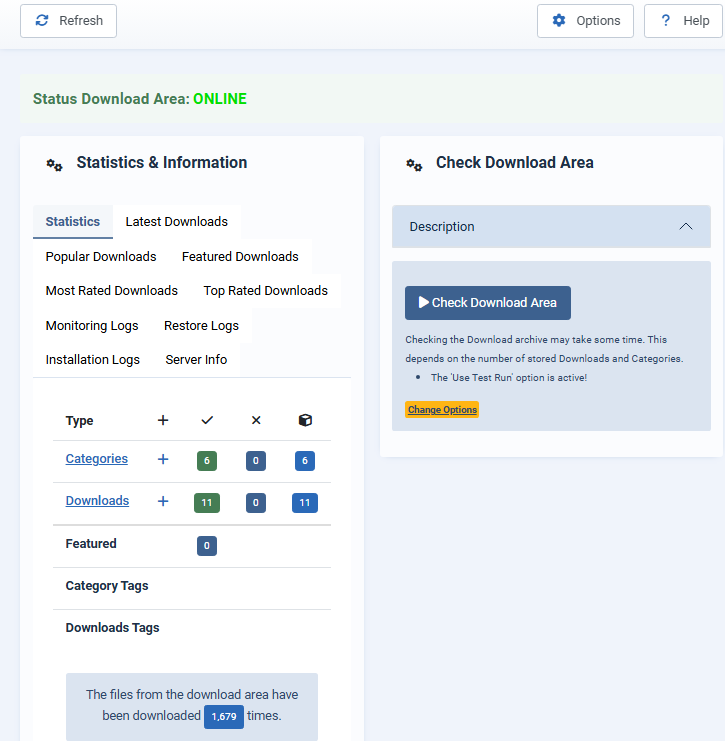
It gives overall details of the Categories and Downloads on the lefthand side and the ability to check the Download Area on the righthand side.
Note
To access the jDownloads Component then in the Joomla click on , then on . Next select the  .
.
The main jDownloads configuration is accessed using the button which is situated at the top right of the It is also on most of the other main pages. This is the standard Joomla! method for accessing a Component's configuration.
Further details on configuring jDownloads are given in the Options & Configuration (opens in a new window/tab) section of the documentation.
There are five basic sections on the control panel. Some are self explanatory.
To access the jDownloads Component then in the Joomla
click on , then on . Next select the .The main jDownloads configuration is accessed using the
button which is situated at the top right of the It is also on most of the other main pages. This is the standard Joomla! method for accessing a Component's configuration. Further details on configuring jDownloads are given in the Options & Configuration (opens in a new window/tab) section of the documentation.
There are five basic sections on the control panel. Some are self explanatory.
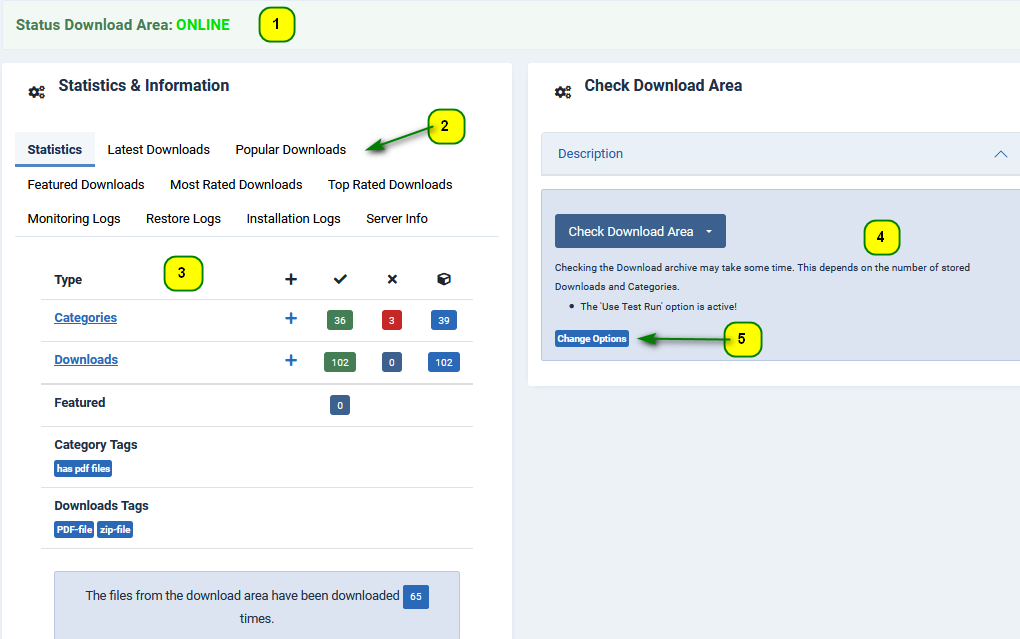
- There is an Overall Status indication.
- There are links to the Statistics & Information Area, which uses the jDownloads admin stats module. It provides various views such as Statistics, Latest Downloads, and so on.
- The default view is the Statistics page as shown. It gives a good overview of the state of the component.
- The Check Download Area button allows directories and files copied into the jdownloads folder to be converted into Categories and Downloads respectively.
- The Change Options Button allows changing the setting in the Check Downloads Area before starting the Download Area check.
These are shown pictorially in the image below.
Check Download Area
After clicking on Check Download Area button the view is like the first image on the right.
This provides the ability to check the database to find if there are any corrupt or missing Categories or Downloads in the Database,
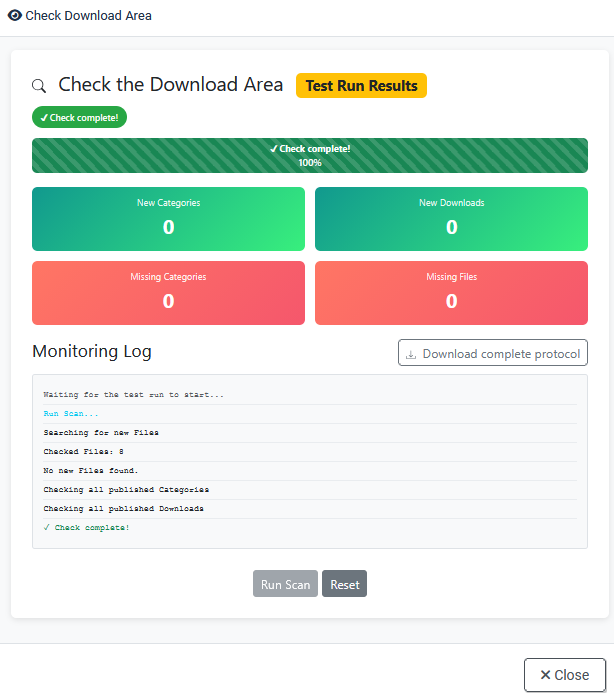
To actually Check the Database click on the
 button. After checking it shows the results as indicated in the image on the far right. In this example the Database is all well.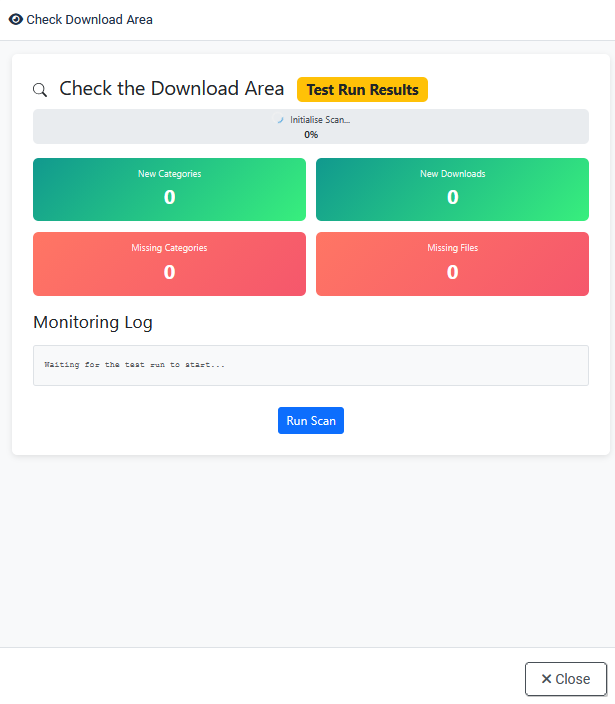
Options (configuration)
Clicking on the
button at the top right hand side of the  gives access to the main jDownloads Options.
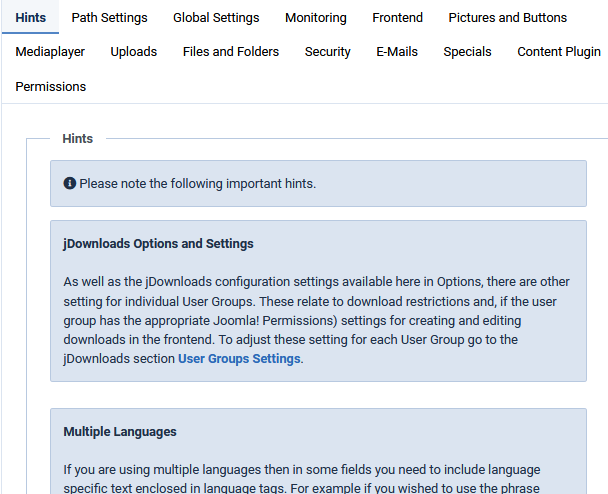
As the picture opposite shows there are multiple tabs for the various sections for setting the jDownloads Options.
There are more details on each of these sections in the Options & Configuration (opens in a new window/tab) part of the Documentation.
Overall Status
This section is very simple and it just shows, as the name suggests, the overall status of the jDownloads component.

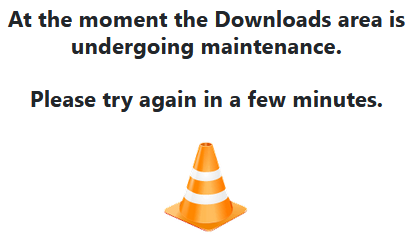
Shoud there be a change such as setting the Front End to Maintenance mode in the Options - Frontend tab, then the status shown in the Front End would become as indicated immediately opposite.
In the Back End a message is shown such as illutrated on the far right.
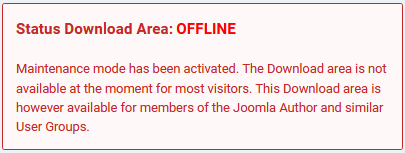
In the Back End a message is shown such as illutrated on the far right.
Backend Access to Other Parts
As well as the Options settings, there are 10 other principal parts of jDownloads as noted below together with the 'Terms of Use'.
- - This gives access to the jDownloads Control Panel.
 - Categories and sub categories form a tree like structure of directories that hold the actual downloadable files together with numerous associated information in the database.
 - creates/edits Downloads which has various information such as Title, Status, associated images and previews, and other information plus the actual downloadable file.
 - uploads files into a special directory so that may be made into Downloads.
 - these are cutomisable views of how the Categories and Downloads are shown in the front end.
 - this link gives access to the various log files maintained by jDownloads.
 - allows selecting what information and questions will be requested when Downloads are created or edited in the front end. It also allows setting what limits apply as to when and how much a user may download.
 - this allows user creation, editting and populating of Joomla! Fields associated with a Download.
 - allows creation and editting of Joomla! Field Groups to be used in jDownloads
 - a collection of useful utilities.
 - the legal bits!
There are several articles in the jDownloads documentation covering the differerent parts.
Information Area
This area allows a quick access to multiple sets of information. It uses the Admin Stats Module (opens in a new window/tab).
- Statistics - theses give an overview of the number of Categories, Downloads, Featured and Tags, and the number as either published or unpublished state.
- Quick look at Latest, Popular, Featured, Most Rated and Top Rated Downloads.
- Monitoring, Restore and Installation Logs.
- Relevant Server settings.
Two of the many possible views are shown as examples below.
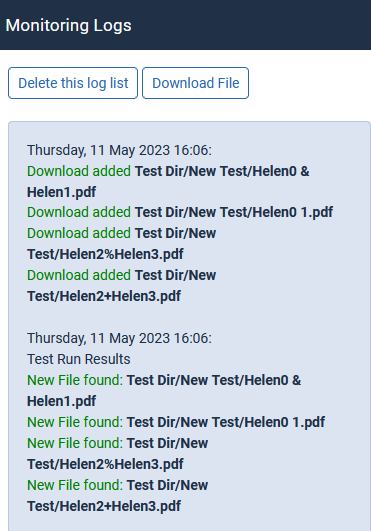
Monitoring log example
After uploading a number of Directories and Files into the jDownloads area and running a Full Scan, the image opposite shows a typical monitoring log.
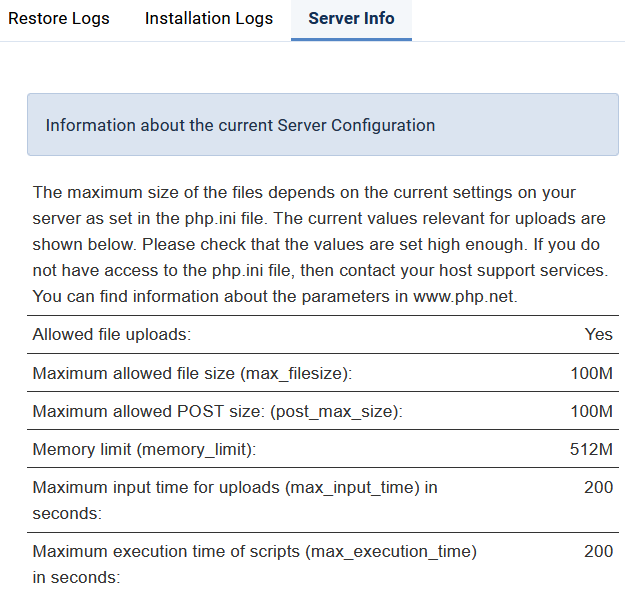
Server Info Example
The picture opposite shows some relevant server settings.
Note the details shown opposite are from an XAMPP based test site so limits such as max execution time are much larger than those of a conventional website server
Special Checks
Some of the checks are fatal but others are just advisory. The information is updated each time you visit the Control Panel.
This is a fatal error as the front end will not work properly and give all sorts of strange problems!

It is essential that you create a 'List All Categories' menu item as jDownloads uses this for navigation. Generally I make this a hidden menu item.
See make hidden menu item 'List All jD Categories' (opens in a new page/tab) .
Then if needed add another 'List All Categories' where convenient for users along with other jDownload Menu items.
See make hidden menu item 'List All jD Categories' (opens in a new page/tab) .
Then if needed add another 'List All Categories' where convenient for users along with other jDownload Menu items.
If the jDownloads System Plugin is disabled then a fatal error occurs but jDownloads automatically corrects it!
This message is an Information item reminding you that you have at least one Joomla! override for jDownloads.

This is important to note if you start getting unexpected errors.
Basically the override will probably be using code based on a previous version. In many situations this is OK but sometimes the override code may need 'revising'.
Basically the override will probably be using code based on a previous version. In many situations this is OK but sometimes the override code may need 'revising'.
Check Downloads feature
One of the many ways of adding multiple directories and files to create Categories and Downloads automatically is to use the 'Check Downloads' feature.
This assumes that you have uploaded the directories and files into the jDownloads 'region' whose default root directory is called 'jdownloads' and whose default location is in the joomla root directory: <joomla-root>/jdownloads. This region is often refered to as the Download Area. The directories and files could have been uploaded using with say an FTP utility such as FileZilla, or by using your c-panel file manager or similar.
As shown opposite, there are five options for checking the Download area. These are designed to allow the checking process to be carried out in stages if appropriate.
Such a situation arrises when there are a large number of directories and files to be converted into Categories and Downloads respectively.
This is because creating the database entries may take a noticeable time and there is a possibility that the time allowed in the php.ini file may not be sufficient. Hence the need to do in two steps.
Further you may set up the Monitoring function to do a test run to see if there are any problems. Note: The default setup for the Check Download Area is to do a 'test run'. Should you need to change this setting then go to Options (top right on Control Panel) and choose the Monitoring tab. Then ensure entry 'Use Test Run First' is set to Yes or No as appropriate.
At the completion of a monitoring run a View Details button that will show the 'log' of the items added. It is advised that you examine these details to confirm all is well.
Actually it is nearly always advisable to do a test run as if it completes successfully then you will be offered the option to make the changes permanent.
For more detailed notes please see the article Monitoring and Checking the Download Area. (opens in a new tab/window)
This also has a section on Check Download not Working
Further you may set up the Monitoring function to do a test run to see if there are any problems. Note: The default setup for the Check Download Area is to do a 'test run'. Should you need to change this setting then go to Options (top right on Control Panel) and choose the Monitoring tab. Then ensure entry 'Use Test Run First' is set to Yes or No as appropriate.
At the completion of a monitoring run a View Details button that will show the 'log' of the items added. It is advised that you examine these details to confirm all is well.
Actually it is nearly always advisable to do a test run as if it completes successfully then you will be offered the option to make the changes permanent.
For more detailed notes please see the article Monitoring and Checking the Download Area. (opens in a new tab/window)
This also has a section on Check Download not Working
ColinM November 2018, updated September 2020, May 2023, May 2025, March 2026, July 2026



