
Introduction
There are three types of limit on the maximum file size that may be uploaded as listed below.
1. jDownloads Backend max size - set in jDownloads Upload tab - field 'Maximum File Size (MB)';
2. jDownloads Frontend limit set on a User Group basior more details on settis - User Group Settings - tab 'Group Creation/Editing Settings' - field 'Maximum File Size in KB:'
3. Web site limit - set in the PHP configuration file php.ini. These are the post_max_size and the upload_max_filesize
2. jDownloads Frontend limit set on a User Group basior more details on settis - User Group Settings - tab 'Group Creation/Editing Settings' - field 'Maximum File Size in KB:'
3. Web site limit - set in the PHP configuration file php.ini. These are the post_max_size and the upload_max_filesize
Set Maxsize in jDownload backend
To find the Maximum Size allowed when creating Downloads in the backend go to  and select
  . Next near the top right select
  then select the
  tab and scroll down to find the setting 'Maximum File Size (MB)' as shown below.
 Change the setting to suit your needs but the but beware that the PHP Setting as noted below might limit the actual maximum.
and select . Next near the top right select then select the tab and scroll down to find the setting 'Maximum File Size (MB)' as shown below.Change the setting to suit your needs but the but beware that the PHP Setting as noted below might limit the actual maximum.Set Maximum Size for Front End Upload
Clearly this has to be limited as we would not like just anyone to create Downloads in the Front End! This control is carried out by setting up a suitable 'User Group'. An appropriate UG would be 'Publisher'or perhap one of your own creation. Generally I create a User Group call 'uploaderUG'. So if you want to be able to upload from the frontend a user would need to be a member of the Publisher User Group.
For more details of Use Groups see the documentation section Access &User Group Settings (opens in a new window/tab). A suitable starting document would be An Initial View of Permissions (opens in a new window/tab). My personal preference is to create my own User Group, uploaderUG, and set the Access as uploader-view.
For more details of Use Groups see the documentation section Access &User Group Settings (opens in a new window/tab). A suitable starting document would be An Initial View of Permissions (opens in a new window/tab). My personal preference is to create my own User Group, uploaderUG, and set the Access as uploader-view.
The initial step is to add a jDownloads menu item 'Create Download'. Ensure you set its access to Publisher, or in my case to uploaderUG.
When you click on the 'Create Download' menu item you will see a large 'Create Download' form as illustrated opposite.
Fill out the form as appropriate.

When you click on the 'Create Download' menu item you will see a large 'Create Download' form as illustrated opposite.
Fill out the form as appropriate.
For convenience when creating a Download in the front end then jDownloads shows the maximum upload size allowed by the current users ranking User Group limit together with your web server limit. This is shown in the Files section.

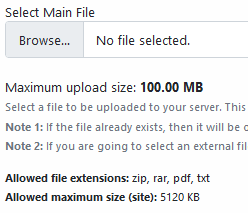 A typical entry is shown opposite.
This means, for example, that if you set a maximum file size for uploads in the jDownloads Configuation - Uploads that is say 5Mb and the maximum file size in your webservers global settings is 100Mb then the actual limit is 5Mb. That is the maximum upload size is the smaller of the two settings. A similar message is shown when creating a Download in the Backend.
Like most Joomla! components, the majority of jDownloads code is written in PHP, which means the code executes on your webserver. This works quite differently from a client side Java applet, which excutes on your machine after it was downloaded together with the page you requested to view. Hence, you may easily influence the behavior of Java based script, for example by enabling or disabling options in the configuration of your web browser. This isn't at all the case with PHP: everything runs on the webserver; PHP configuration settings can only be changed there; and on some sites you may require administrative access to that server. On some servers there may be additional setting which are webserver specific.
If your server is cPanel based with Apache, which is the most common situation in our experience, then you may create a local 'supplementary' php.ini file to resolve the situation. At the present time we are not aware of any extra non PHP related limit on Apache based servers. To create a suitable php.ini file see Appendix -Local php.ini
If your site is using Microsoft IIS based server then see the IIS Server section below as there is a known limitation of about 28M. This may have been raised in later versions of IIS.
Please note that this has nothing to do with your Joomla! backend, nor with your access to the control panel of your hosting account. Administrative access, or root access, to the global configuration settings of a webserver is often reserved to the people who own and/or professionally administer it, which in most cases is your webhosting service provider.
A typical entry is shown opposite.This means, for example, that if you set a maximum file size for uploads in the jDownloads Configuation - Uploads that is say 5Mb and the maximum file size in your webservers global settings is 100Mb then the actual limit is 5Mb. That is the maximum upload size is the smaller of the two settings. A similar message is shown when creating a Download in the Backend.
Like most Joomla! components, the majority of jDownloads code is written in PHP, which means the code executes on your webserver. This works quite differently from a client side Java applet, which excutes on your machine after it was downloaded together with the page you requested to view. Hence, you may easily influence the behavior of Java based script, for example by enabling or disabling options in the configuration of your web browser. This isn't at all the case with PHP: everything runs on the webserver; PHP configuration settings can only be changed there; and on some sites you may require administrative access to that server. On some servers there may be additional setting which are webserver specific.
If your server is cPanel based with Apache, which is the most common situation in our experience, then you may create a local 'supplementary' php.ini file to resolve the situation. At the present time we are not aware of any extra non PHP related limit on Apache based servers. To create a suitable php.ini file see Appendix -Local php.ini
If your site is using Microsoft IIS based server then see the IIS Server section below as there is a known limitation of about 28M. This may have been raised in later versions of IIS.
Please note that this has nothing to do with your Joomla! backend, nor with your access to the control panel of your hosting account. Administrative access, or root access, to the global configuration settings of a webserver is often reserved to the people who own and/or professionally administer it, which in most cases is your webhosting service provider.
PHP Configuration
PHP configuration settings are within a file called php.ini, which is located on the webserver. The location of this file is displayed in the entry:
System >> System Info >> PHP Information >> "Configuration File (php.ini) path"
or
System >> System Info >> PHP Information >>"Loaded Configuration File".
As noted earlier, in some servers you can only see this file if you have administrative access. In practice, this means that it's entirely out of reach for you and tyou will need to contact your web hosting service. You may, however, view the current settings made within php.ini. But Note Usually cPanel based servers allow a 'local' php.ini file - see Appendix - Local php.ini file
With Joomla!, a quick way to do this is to look them up in your backend under System >> System Info >> PHP Info.
Alternatively, you may also create a simple text file, call it myinfo.php (or similar), and place the following lines into it:
Then, upload this file to your server and point your browser to it. For example suppose you called your file myinfo.php and placed it in directory called test, then give your browser the command http://www.yoursite.com/test/myinfo.php The result is only slightly different from the info displayed in your Joomla! backend. In both cases, you'll be able to examine the specific settings made by the system administrator in regard to PHP.
System >> System Info >> PHP Information >> "Configuration File (php.ini) path"
or
System >> System Info >> PHP Information >>"Loaded Configuration File".
As noted earlier, in some servers you can only see this file if you have administrative access. In practice, this means that it's entirely out of reach for you and tyou will need to contact your web hosting service. You may, however, view the current settings made within php.ini. But Note Usually cPanel based servers allow a 'local' php.ini file - see Appendix - Local php.ini file
With Joomla!, a quick way to do this is to look them up in your backend under System >> System Info >> PHP Info.
Alternatively, you may also create a simple text file, call it myinfo.php (or similar), and place the following lines into it:
<?php
 phpinfo();
?>
Then, upload this file to your server and point your browser to it. For example suppose you called your file myinfo.php and placed it in directory called test, then give your browser the command http://www.yoursite.com/test/myinfo.php The result is only slightly different from the info displayed in your Joomla! backend. In both cases, you'll be able to examine the specific settings made by the system administrator in regard to PHP.
Note Never leave the file with the phpinfo() comand on your site. It gives valuable info to hackers!
jDownloads Settings
This brings us back to jDownloads: no matter which upload setting you chose in your jDownloads configuration panel, all will be executed by PHP and hence ultimately obey the global PHP settings made by the webserver system administrator. Many of such general settings exist, and they often influence one another as well.
Before going into detail on the particular parameters related to file upload, another important note:
The jDownloads configuration manager provides you with an option to determine user rights in regard to the size and the amount of files they may upload. Please note that these settings are exclusively in regard to the jDownloads frontend-upload, and their only purpose is to allow you to place limitations on your users.
Hence, you won't be able to expect a setting for a a very large file size you make in your jDownloads backend to have an effect unless the settings inside php.ini allow for it. If the settings within your servers php.ini determine a maximum file size for uploads which is smaller than the one you entered in your jDownloads backend, the setting in php.ini is the one that counts!
Before going into detail on the particular parameters related to file upload, another important note:
The jDownloads configuration manager provides you with an option to determine user rights in regard to the size and the amount of files they may upload. Please note that these settings are exclusively in regard to the jDownloads frontend-upload, and their only purpose is to allow you to place limitations on your users.
Hence, you won't be able to expect a setting for a a very large file size you make in your jDownloads backend to have an effect unless the settings inside php.ini allow for it. If the settings within your servers php.ini determine a maximum file size for uploads which is smaller than the one you entered in your jDownloads backend, the setting in php.ini is the one that counts!
php-ini settings for uploading
file_uploads
The 'file_uploads' setting determines whether uploads can or cannot be made to the server via HTTP. If this is set to OFF, no uploads of any kind are allowed.
upload_max_filesize
The 'upload_max_filesize' setting limits the maximum size of an individual file be uploaded. Normally, this value is entered in MB (Megabyte). During FTP upload this value concerns the size of each individual file. During batch upload, however, this value concerns the size of the entire zip file you upload, which is where limitations can make themselves more easily apparent.
post_max_size
The 'upload_max_filesize' setting is not the only value that determines the maximum size of a file to be uploaded. The 'post_max_size' setting influences upload_max_filesize. It determines the maximum size of POST files. Usually, file uploads are POST files. To allow the upload of larger files, the value given in post_max_size must be larger than the value in upload_max_filesize.
memory_limit
The 'memory_limit' determines the maximum amount of memory that a script may take up during an operation. The value is usually given in bytes. This value should be larger than the one given in post_max_size. A value of -1 means that there are no limitatons. As the exact amount of memory used by a script during upload is difficult to predict, memory_limit is a setting to watch out for.The above three settings are essential in configuring file uploads.
Their relation should always be as such that:
memory_limit >> post_max_size > upload_max_filesize
If upload_max_filesize was set to 2 MB, a batch upload of 4MB zip file for example would simply be bound to fail.
Their relation should always be as such that:
memory_limit >> post_max_size > upload_max_filesize
If upload_max_filesize was set to 2 MB, a batch upload of 4MB zip file for example would simply be bound to fail.
max_execution_time
These above 3 settings are not the only ones that determine a smooth functioning of your file uploads. Another important setting, well capable of ruining your uploads even if correct values were set for the above is: max_execution_time. It defines the maximum time (in seconds, or rather miliseconds!) that a script is allowed to take up in order to perform an operation. If it takes any longer, the parser (=server side software that interpretates the script in accordance to the current settings) will halt the execution. This is a critical matter especially for uploads, as upload and extraction of a large zipfile, image copying and resizing and the like, all take their time.
Add a slow internet connection to this, and the end is in sight rather quickly. jDownloads will go throught the tasks until it hits the time limit set in php.ini and then stops. This is why sometimes only a part of zip file is processed during a batch upload with jDownloads: The time limit has been reached and the parser has halted the execution of script. If this is happening then you need to increase max_execution_time.
Add a slow internet connection to this, and the end is in sight rather quickly. jDownloads will go throught the tasks until it hits the time limit set in php.ini and then stops. This is why sometimes only a part of zip file is processed during a batch upload with jDownloads: The time limit has been reached and the parser has halted the execution of script. If this is happening then you need to increase max_execution_time.
Server Settings
PHP settings are not the only settings on a server that can have an impact on your uploads. Even with correct values for the settings we've just discussed, server configuration parameters that rank even higher than PHP settings may interfere. You'll know that this was the case when the error message you see is no longer issued by PHP but by another application, most likely Apache, the webserver software itself. It shouldn't come as a surprise that access to base settings is even more restricted than access to PHP settings, and that hosts are rarely willing to make changes to them. It's worth noting here that host related issues of that sort would be of a rather general nature, and would cause problems not with one particular PHP script but many others as well.
Apache Settings
At the time of writing there are no known limits placed on uploads by Apache based servers.
IIS Servers
We have recently become aware of a limitation on uploads set in the IIS based servers - many thanks to user Wahone for bringing this to our attention.
In IIS servers there is a limit called maxAllowedContentLength. IIS version 7 has a default value of 28.6 Mbyte. Earlier IIS versions had a much lower limit and the variable concerned is maxRequestLength. Versions later than version 7 have a similar limit. Uploading files greater than that may result in a 403 or 404 error, a system reset message, or similar. The actual error message depends on which browser you are using. Note the current version of IIS is 10.0
There are several ways to fix the problem - search the web for 'large file upload in IIS' or similar.
Alternatively it may be better to contact your webhosting service provider!
Final Remarks
It is hoped that these notes have helped to add some clarity regarding the the processes involved in the upload functionality of jDownloads. Many factors are at play, and hardly any lie within the reach or the responsibility of jDownloads.
If you run into problems, keep in mind that you can also upload your files via FTP. With the jDownloads monitoring function, you can easily add the new uploaded folders or files to jDownloads.
If you run into problems, keep in mind that you can also upload your files via FTP. With the jDownloads monitoring function, you can easily add the new uploaded folders or files to jDownloads.
Appendix - Local php.ini file
The local php.ini would be placed in your Joomla! root directory, typically in a cPanel site this is in directory /public_html
The contents of a local php.ini file could be as shown below. There are three size related items and two that are needed for Joomla!. The timezone one is useful if your server is situated in another area.
The contents of a local php.ini file could be as shown below. There are three size related items and two that are needed for Joomla!. The timezone one is useful if your server is situated in another area.
date.timezone = "Europe/London"
allow_url_fopen= On
max_filesize= 115M
upload_max_filesize=115M
post_max_size=117M
output_buffering = Off
allow_url_fopen= On
max_filesize= 115M
upload_max_filesize=115M
post_max_size=117M
output_buffering = Off
As many users continue to have difficulties related to file size while uploading images, it was thought helpful to try to shed some light on the difference between the upload settings in your backend and the global configuration settings of the webserver where your site is hosted. This means, for example, that you won't be able to set a maximum file size for uploads that is larger than the value for maximum file size in your webservers global settings.
Most Joomla! components, are written in PHP. Now PHP is a server side application, which means that all functions of a PHP script are executed on the server where your web pages are located. This works quite differently from a client side Java applet, which excutes on your machine after it was is downloaded together with the page you requested to view. Hence, you may easily influence the behavior of Java based script, for example by enabling or disabling options in the configuration of your web browser. This isn't at all the case with PHP as everything runs on the webserver, PHP configuration settings can only be changed there, and only so if you have administrative access to that server.
Please note, by the way, that this has nothing to do with your Joomla! backend, nor with your access to the control panel of your hosting account. Administrative access, or root access, to the global configuration settings of a webserver is reserved to the people who own and/or professionally administer it which in most cases is your webhost.
PHP configuration settings are within a file called php.ini, which is located on the webserver. The exact location of this file is displayed under System >> System Info >> PHP Info >> Configuration File php.ini path.
As I said earlier, you can only lay your hands upon this file if you have administrative access. In practice, this means that it's entirely out of reach for you. You may, however, view the current settings made within php.ini.
If you have Joomla!, a quick way to do this is to look them up in your backend under System >> System Info >> PHP Info.
Alternatively, you may also create a simple text file, call it info.php (or the likes), and place the following lines into it:
Most Joomla! components, are written in PHP. Now PHP is a server side application, which means that all functions of a PHP script are executed on the server where your web pages are located. This works quite differently from a client side Java applet, which excutes on your machine after it was is downloaded together with the page you requested to view. Hence, you may easily influence the behavior of Java based script, for example by enabling or disabling options in the configuration of your web browser. This isn't at all the case with PHP as everything runs on the webserver, PHP configuration settings can only be changed there, and only so if you have administrative access to that server.
Please note, by the way, that this has nothing to do with your Joomla! backend, nor with your access to the control panel of your hosting account. Administrative access, or root access, to the global configuration settings of a webserver is reserved to the people who own and/or professionally administer it which in most cases is your webhost.
PHP configuration settings are within a file called php.ini, which is located on the webserver. The exact location of this file is displayed under System >> System Info >> PHP Info >> Configuration File php.ini path.
As I said earlier, you can only lay your hands upon this file if you have administrative access. In practice, this means that it's entirely out of reach for you. You may, however, view the current settings made within php.ini.
If you have Joomla!, a quick way to do this is to look them up in your backend under System >> System Info >> PHP Info.
Alternatively, you may also create a simple text file, call it info.php (or the likes), and place the following lines into it:
<?php phpinfo(); ?>
Then, upload this file to your server and point your browser to it. The result is only slightly different from the info displayed in your Joomla! backend. In both cases, you'll be able to examine the specific settings made by the system administrator in regard to PHP....
Many of such general settings exist, and they often influence one another as well.
Before going into detail on the particular parameters related to file upload, another important note:
Now, one of php-ini settings regarding upload is file_uploads. The parameter file_uploads determines whether uploads can be made to the server via HTTP or not. If this is set to OFF, no uploads of any kind are allowed.
Another parameter is upload_max_filesize. This limits the maximum size of an individual file be uploaded. Normally, this value is entered in MB (Megabyte). During FTP upload or the upload of single images through PGML, this value concerns the size of each individual file. During batch upload, however, this value concerns the size of the entire zip file you upload, which is where limitations can make themselves more easily apparent.
Another parameter is post_max_size upload_max_filesize is not the only value that determines the maximum size of a file to be uploaded. post_max_size is among the settings that influence upload_max_filesize. It determines the maximum size of POST files. Usually, file uploads are POST files. To allow the upload of larger files, the value given in post_max_size must be larger than the value in upload_max_filesize.
Parameter memory_limitt determines the maximum amount of memory that a script may take up during an operation. The value is usually given in bytes. This value should be larger than the one given in post_max_size. A value of -1 means that there are no limitatons. The exact amount of memory used by a script during upload is difficult to predict, memory_limit is a setting to watch out for.
Many of such general settings exist, and they often influence one another as well.
Before going into detail on the particular parameters related to file upload, another important note:
Now, one of php-ini settings regarding upload is file_uploads. The parameter file_uploads determines whether uploads can be made to the server via HTTP or not. If this is set to OFF, no uploads of any kind are allowed.
Another parameter is upload_max_filesize. This limits the maximum size of an individual file be uploaded. Normally, this value is entered in MB (Megabyte). During FTP upload or the upload of single images through PGML, this value concerns the size of each individual file. During batch upload, however, this value concerns the size of the entire zip file you upload, which is where limitations can make themselves more easily apparent.
Another parameter is post_max_size upload_max_filesize is not the only value that determines the maximum size of a file to be uploaded. post_max_size is among the settings that influence upload_max_filesize. It determines the maximum size of POST files. Usually, file uploads are POST files. To allow the upload of larger files, the value given in post_max_size must be larger than the value in upload_max_filesize.
Parameter memory_limitt determines the maximum amount of memory that a script may take up during an operation. The value is usually given in bytes. This value should be larger than the one given in post_max_size. A value of -1 means that there are no limitatons. The exact amount of memory used by a script during upload is difficult to predict, memory_limit is a setting to watch out for.
An approximate estimate of required virtual memory when the resizing images can be derived by using the following formula:
image width in pixel * image height in pixel * bit depth in byte = required memory in byte
As you see, memory load is determined by the dimensions of the image and its bit depth, rather than by the space it takes up on your hard disk. Say we had the server resize an image of 2272 x 1704 px and a depth of 24 bit (24 bit = 3 bytes), then the result would turn out to be 11 MB of required memory (2272 x 1704 x 3 = 11.614.464 bytes). That's for the resizing alone, to which we'd still need to add the memory required for the actual scripts, typically 8 MB. This already gives us around 20 MB alltogether, and if the memory_limit has been set to 16 MB, then it will fail.
The above 3 settings are essential in configuring file upload.
Their relation should always be as such:
memory_limit >> post_max_size > upload_max_filesize
If upload_max_filesize was set to 2 MB, a batch upload of 4MB zip file for example would simply be bound to fail.
These 3 settings, however, are not the only ones that determine a smooth functioning of your file uploads. Another important setting, well capable of ruining your uploads even if correct values were set for upload_max_files, post_max_size and memory_limit, is this:max_execution_time defines the maximum time (in seconds, or rather miliseconds!) that a script is allowed to take up in order to perform an operation. If it takes any longer, the parser (=server side software that interpretates the script in accordance to the current settings) will halt the execution. This is a critical matter especially for uploads, as upload and extraction of a large zipfile, image copying and resizing and the like all take their time.
Add a slow internet connection to this and execution time is used up, so the processing stops. The time limit has been reached and the parser has halted the execution of the script.
Apache Settings
PHP settings are not the only settings on a server that can have an impact on your uploads. Even with correct values for the settings we've just discussed, server configuration parameters that rank even higher than PHP settings may interfere. You'll know that this was the case when the error message you see is no longer issued by PHP but by another application, most likely Apache, the webserver software itself. It shouldn't come as a surprize that access to Apache settings is even more restricted than access to PHP settings, and that hosts are rarely willing to make changes to them.
It's worth noting here that host related issues of that sort would be of a rather general nature, and would cause problems not with one particular PHP script but many others as well.
Return to PHP Configuration
Their relation should always be as such:
memory_limit >> post_max_size > upload_max_filesize
If upload_max_filesize was set to 2 MB, a batch upload of 4MB zip file for example would simply be bound to fail.
These 3 settings, however, are not the only ones that determine a smooth functioning of your file uploads. Another important setting, well capable of ruining your uploads even if correct values were set for upload_max_files, post_max_size and memory_limit, is this:max_execution_time defines the maximum time (in seconds, or rather miliseconds!) that a script is allowed to take up in order to perform an operation. If it takes any longer, the parser (=server side software that interpretates the script in accordance to the current settings) will halt the execution. This is a critical matter especially for uploads, as upload and extraction of a large zipfile, image copying and resizing and the like all take their time.
Add a slow internet connection to this and execution time is used up, so the processing stops. The time limit has been reached and the parser has halted the execution of the script.
Apache Settings
PHP settings are not the only settings on a server that can have an impact on your uploads. Even with correct values for the settings we've just discussed, server configuration parameters that rank even higher than PHP settings may interfere. You'll know that this was the case when the error message you see is no longer issued by PHP but by another application, most likely Apache, the webserver software itself. It shouldn't come as a surprize that access to Apache settings is even more restricted than access to PHP settings, and that hosts are rarely willing to make changes to them.
It's worth noting here that host related issues of that sort would be of a rather general nature, and would cause problems not with one particular PHP script but many others as well.
Return to PHP Configuration
ColinM- Updated January 2019, modified may 2022, June 2023, October 2024, May 2025.


