
Introduction
jDownloads supports downloadable files stored on the web on regular web locations (a Remote Location) and on services such as DropBox, g-drive and similar.
Remote location
Remember that the Download itself with all the information about type, descriptions, symbols, date, size and so on is still on your site.
It is the downloadable file that may be located elsewhere.
Getting the link for an External File to include in a jD Download is not always obvious especially on service providers!
The image opposite shows the 'Files' tab of the front end upload form.
It gives an overview of how to add a a so called external file to a Download. You should also add the file size and date.

When the file to be downloaded is an External File then jDownloads cannot always determine either the file size or its date. So you may need to enter that information into the 'File Size' and 'File Date' fields. For 'internal' files then jDownloads finds the information automatically.
In this article we illustrate setting up a Download with an external file on a regular website , Drop Box
 and g-drive
 .
.
In this article we illustrate setting up a Download with an external file on a regular website
, Drop Box and g-drive.Web site Server
This is the simplest case as all that is necessary is to find the location of the file on the external web site. Note that the file could be on your main web site where the file is not associated with a Download.
The relevant part of the 'Files' section would appear as shown opposite.
An example would be your file:
https://www.some-website/uploads/Website-Brochure-2023.pdf.
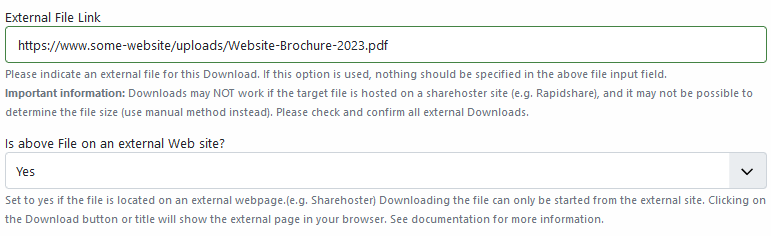
An example would be your file:
https://www.some-website/uploads/Website-Brochure-2023.pdf.
You also need to consider the setting of the field "Is the above File on an External Web site".
In almost all cases this should be set to Yes. This facility controls whether it is downloaded to a separate page or to the same page. The actual way in which the remote server responds does depend however on the type of file extension.
In almost all cases this should be set to Yes. This facility controls whether it is downloaded to a separate page or to the same page. The actual way in which the remote server responds does depend however on the type of file extension.
- setting Yes then a separate page/tab
- setting No uses same page/tab but for some hosts the server will not respond so change to Yes.
Please remember you may need to add the file date and size manually to the Download itself.
Note: If you set the php option "allow_url_fopen= On" then jDownloads is usually able to determine the file size and date automatically. This is dependant on the external site in use so it is advised that you do an initial check.
Note: If you set the php option "allow_url_fopen= On" then jDownloads is usually able to determine the file size and date automatically. This is dependant on the external site in use so it is advised that you do an initial check.
DropBox
Here is is assumed you have setup a DropBox account and have loaded up relevant files into your 'myShareFolder' .
Getting the file link from DropBox has more steps to go through than for a direct link.
Getting the file link from DropBox has more steps to go through than for a direct link.
To get the link is to simply right click on the relevant file name in your Drop Box account.
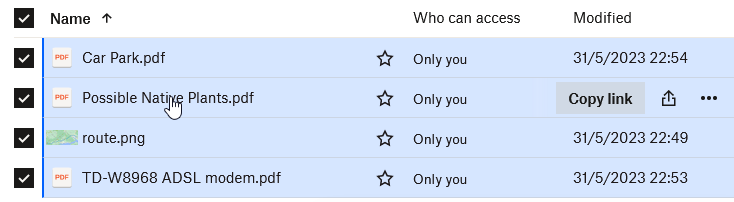
Now use the  to get the required link
The link in the clip board will be something like the one below.
https://www.dropbox.com/s/boqqqqqqqjyh/IMP60%20details.pdf?dl=0 Note that for security the link shown is not a valid link.
Please also remember to set the file date and size manually in the Download.
to get the required linkThe link in the clip board will be something like the one below.
https://www.dropbox.com/s/boqqqqqqqjyh/IMP60%20details.pdf?dl=0 Note that for security the link shown is not a valid link.
Please also remember to set the file date and size manually in the Download.
Google Drive
Setting up an External link for a g-drive file is similar to that for Dropbox.
Go to your g-drive which is typically a link such as https://drive.google.com/drive/my-drive, then locate the file in g-drive and Right click on the file name.
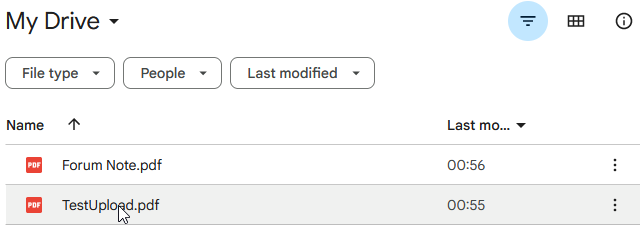
This time the link can be copied in directly into the 'External Link' field as no changes are required.
Note that the link ends with
"/view?usp=sharing".
Ensure you have set the field "Is the main file on an external web page?" to Yes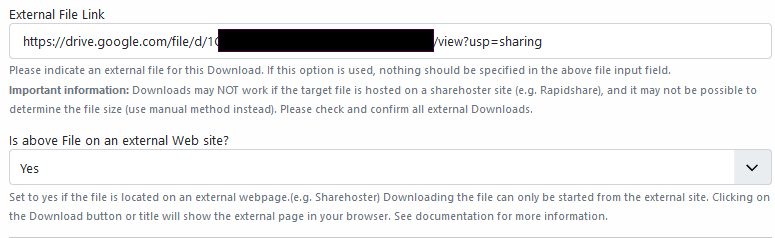
Note that the link ends with
"/view?usp=sharing".
Ensure you have set the field "Is the main file on an external web page?" to Yes
Also please remember to add the file date and size manually.
External File example - Synology Drive
One of the most popular 'home' based NAS drive units are those in the Synology suite. So as a practical example of using an external file Download this section describes one of the many ways of using a Synology drive as an external downloadable file location.
Create an account
The first step is to set up a Synology account. (I found that this is the most 'awkward' part of the entire process!!).
Log in to your Synology Drive as usual and click on the Main Menu button . Then select the Control Panel
  When the Control panel appears select Info Centre
  . A new panel will be shown that will have a Synology Account tab
  . This gives access to creating and managing your Synology account. It seems to take quite a while to create the account and have it recognised so you might need to exit the system and come back several minutes later!
Log in to your Synology Drive as usual and click on the Main Menu button
. Then select the Control Panel When the Control panel appears select Info Centre . A new panel will be shown that will have a Synology Account tab . This gives access to creating and managing your Synology account. It seems to take quite a while to create the account and have it recognised so you might need to exit the system and come back several minutes later!Enable gofile.me links
Once again select the Main Menu
and then select the Control Panel.
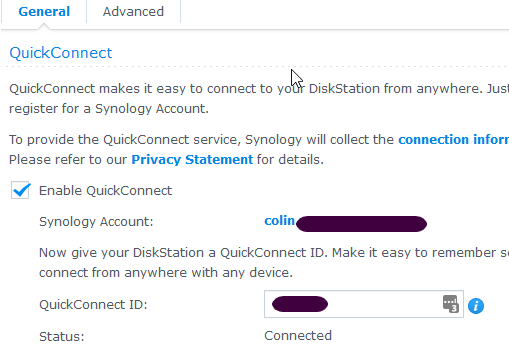
Next select Quick Connect . You should now see details of your Synology account with a Quick Conect ID and details of links. Also the Status should say 'Connected'.
and then select the Control Panel
.Next select Quick Connect
. You should now see details of your Synology account with a Quick Conect ID and details of links. Also the Status should say 'Connected'.The format of the Disc Storage Manager (DSM) link is "http://QuickConnect.to/qwerty" where qwerty is the Quick Connect ID (this one is a dummy!!).
Adding Shareable Files
For practical reasons it is suggested that you first make a specific folder for your downloadable files.
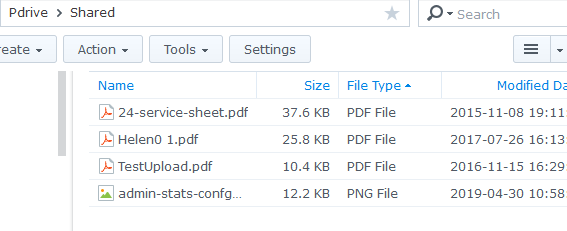
So in this example a location /Pdrive/Shared/ is used where Pdrive is one of the top level Folders in the Disk Station.
On the main Synology page select and then folder Pdrive/Shared.
So in this example a location /Pdrive/Shared/ is used where Pdrive is one of the top level Folders in the Disk Station.
On the main Synology page select
and then folder Pdrive/Shared.As show opposite some files to be used external downloadable files have been placed in the folder as usual.
Select a file, for example TestUpload.pdf, and right click on it. This will give a long drop-down list. One of these items, typically the last one is the button.
Select a file, for example TestUpload.pdf, and right click on it. This will give a long drop-down list. One of these items, typically the last one is the
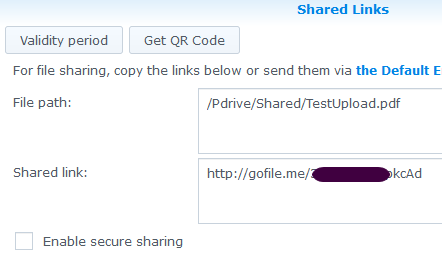
button.Clicking on the Share button gives the File Path and the Shared Link as ilustrated opposite'.
The full link we need to insert into the external file option is the combination of the Shared Link and the File Path:
.
http://gofile.me/XXXXXkcAd/Pdrive/Shared/TestUpload.pdf
The full link we need to insert into the external file option is the combination of the Shared Link and the File Path:
.
http://gofile.me/XXXXXkcAd/Pdrive/Shared/TestUpload.pdf
Downloading
Add the complete link into the 'External File Link'.
And set the 'Is the main file on an external web page' to Yes.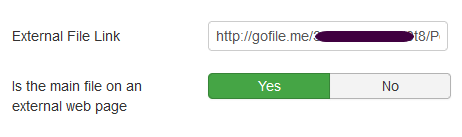
And set the 'Is the main file on an external web page' to Yes.
After clicking on the Download Button or similar you will see a message such as the one opposite.
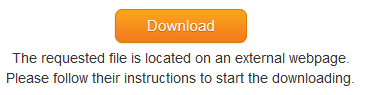
Clicking yet again on the
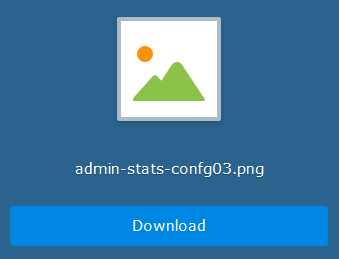
 button will then cause Synology to show a new Download page as illustrated opposite.
Clicking on the new Download button will initiate downloading the required file.
Note that jDownloads has no access to the file itself. So you need to add items like filesize, file pic and similar manually when creating the Download.
ColinM January 2020, updated July 2021, June 2023, July 2023,March 2025, May 2025, June 2026-AA