
Introduction
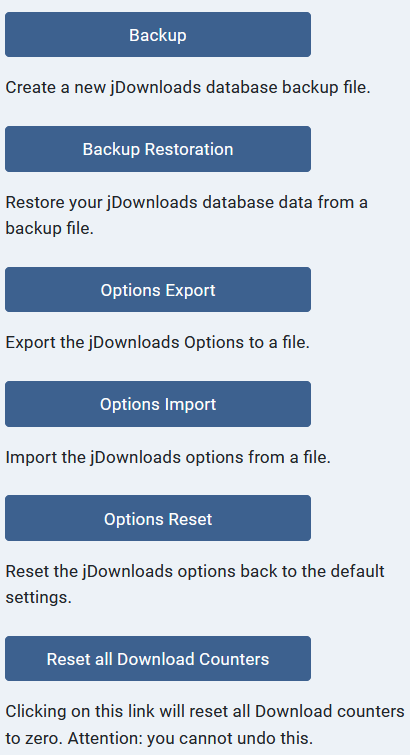
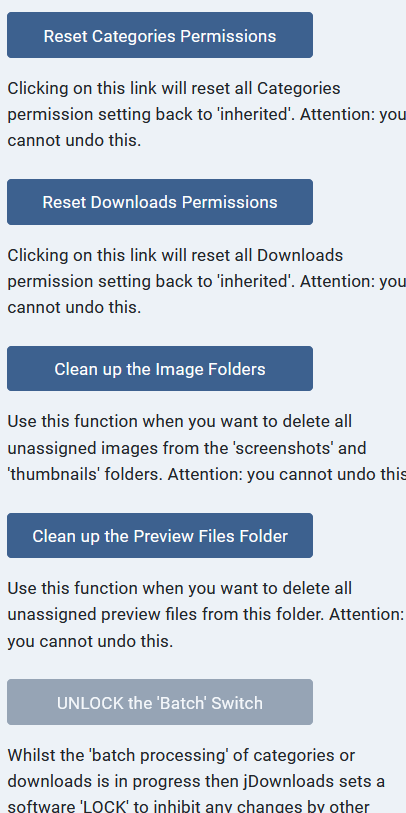
jDownloads has a set of 12 Tools, as shown opposite, that assist in various ways.
They maybe considered in sets:
1. Backup & Backup Restoration
2. Options Export, Import and Reset
3. Install Sample Data
4. Reset Downloads Counters
5. Reset Categories and Downloads Permissions
6.Clean up the Image and Preview File Folders
7. Batch Processing Lock (this is the 'grey' one at the end of the list).
Backup & Backup Restore
The Backup is of the jD database tables. After clicking on 'Backup' you are taken to a new screen with explanatory text and a  button which will start the backup. There is also a
  button that returns to the list of Tools.
At the foot of the form there is an option which is to include or not the data logs. The log file concerned is only required when, in the User Group Settings, you have defined downloading limits in the Limits tab and also in the Group Settings tab you have set the option 'View User Limits' is set to Yes. For more information about User Limits click on Setting User Limits (opens in a separate window/tab).
After clicking on the Create backup File button jD will generate a txt file whose name is formed from the text 'backup', the version of jDownloads and the date and time for saving on your device. An example file would be "backup_jdownloads_v4.1.7_Stable_date_2026-07-27_22 51 18.txt".
It contains the data base entries for Categories, Downloads, Licenses, Layouts, Logs (if selected), User Groups Settings and the Permission settings.
There is also a warning that Tags and Fields cannot be stored in the backup.
button which will start the backup. There is also a button that returns to the list of Tools.At the foot of the form there is an option
which is to include or not the data logs. The log file concerned is only required when, in the User Group Settings, you have defined downloading limits in the Limits tab and also in the Group Settings tab you have set the option 'View User Limits' is set to Yes. For more information about User Limits click on Setting User Limits (opens in a separate window/tab).After clicking on the Create backup File button jD will generate a txt file whose name is formed from the text 'backup', the version of jDownloads and the date and time for saving on your device. An example file would be "backup_jdownloads_v4.1.7_Stable_date_2026-07-27_22 51 18.txt".
It contains the data base entries for Categories, Downloads, Licenses, Layouts, Logs (if selected), User Groups Settings and the Permission settings.
There is also a warning that Tags and Fields cannot be stored in the backup.

After clicking on the tool you are taken to a page with a
  button to allow selecting the relevant file. After selecting the correct backup file, click on the
  button. You will be asked "Are you sure?. Select
  to continue or
  to abort.
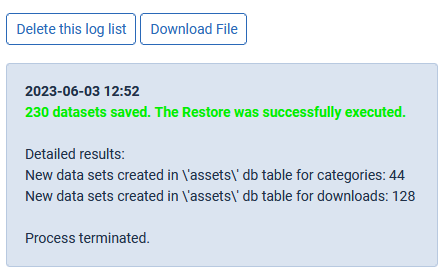
tool you are taken to a page with a button to allow selecting the relevant file. After selecting the correct backup file, click on the button. You will be asked "Are you sure?. Select to continue or to abort. After the restore has completed there will be a message such as
If you go to the jD Control panel and click on the
 tab you will see an entry such as shown opposite.
Options Export, Import and Reset
Export Options
Options Export will create a copy of all the jDownload Options as shown in the  button on the jDownloads Control Panel. After clicking on
  you are taken to the main Options Export screen with explanatiory text and an
  button which will initiate the export of the option settings and also a
  button that returns to the list of Tools. Please note that the User Group settings are not included in the export.
After clicking on the button jDownloads will generate a txt file whose name is formed from the the site name', the version of jDownloads and the date and time for saving on your device.
An example file would be "jdx39B_options__jD_v4.0.47_Stable_date_2025-05-21_13-21-39.txt".
button on the jDownloads Control Panel. After clicking on you are taken to the main Options Export screen with explanatiory text and an button which will initiate the export of the option settings and also a button that returns to the list of Tools. Please note that the User Group settings are not included in the export.After clicking on the
button jDownloads will generate a txt file whose name is formed from the the site name', the version of jDownloads and the date and time for saving on your device.An example file would be "jdx39B_options__jD_v4.0.47_Stable_date_2025-05-21_13-21-39.txt".
Import Options
After clicking on the Options Import tool you are taken to a page with a browse button,  , to allow selecting the relevant file. After browsing for the file then click on the
  button.
You will be asked "Are you sure?". Select OK to continue or Cancel to abort.
, to allow selecting the relevant file. After browsing for the file then click on the button.You will be asked "Are you sure?". Select OK to continue or Cancel to abort.
After a successful import you are taken to jDownloads Control Panel and should see a message such as shown opposite.

If there is an error you should see a message such as shown opposite.

Reset Options
Reset Options is setting the Options to their original settings when jDownloads was installed or updated. After clicking on  you are taken to a new screen with explanatiory text and another
  button which will actually start the reset. There is also a
  button that returns to the list of Tools.
After initiating the restore an 'Are you sure?' popup message will appear. Click OK to continue.
On completion you will see a message such as .
.
you are taken to a new screen with explanatiory text and another button which will actually start the reset. There is also a button that returns to the list of Tools.After initiating the restore an 'Are you sure?' popup message will appear. Click OK to continue.
On completion you will see a message such as
.Reset Downloads Counters
Clicking on  will reset all Download counters to zero. There is a
 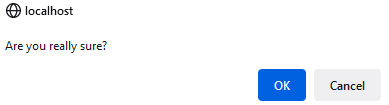 If you click on then the Dowloads counts are set to zero. That is for example if the number of times downloaded for a Download was
 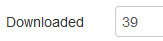 then after the reset it will be zero
 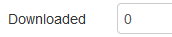 . You cannot undo this reset.
will reset all Download counters to zero. There is a If you click on then the Dowloads counts are set to zero. That is for example if the number of times downloaded for a Download was then after the reset it will be zero . You cannot undo this reset.Reset Permissions
These two tools,  and
and  , respectively reset the permisions of all jDownloads Categories and all Downloads to 'inherited'. As with 'Reset All Downloads Counters' above there is a 'Are you really sure?' message box.
There is no recovery except to once again set the permissions as required.
and , respectively reset the permisions of all jDownloads Categories and all Downloads to 'inherited'. As with 'Reset All Downloads Counters' above there is a 'Are you really sure?' message box.There is no recovery except to once again set the permissions as required.
The Permisions are inherited from the root, also refered to as the 'Component Permissions' and cascaded down the tree through the various category levels until they ultimatley reach the Downloads as illustrated opposite.
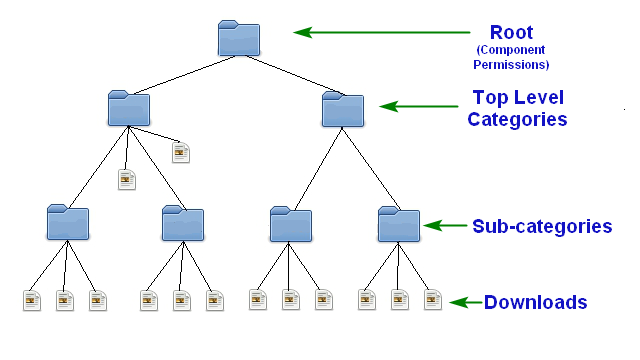
Note that the Permissions start at the Root or Component Level. However the Reset Permissions Tools does not change any Root permission setting.
Before the button was used note that the 'Edit State' permission for the Registered user group was set to 'Allowed'.
Afterwards the permission was reset to 'inherited'.
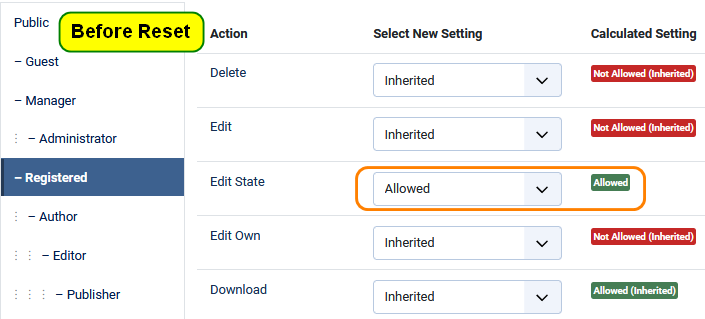
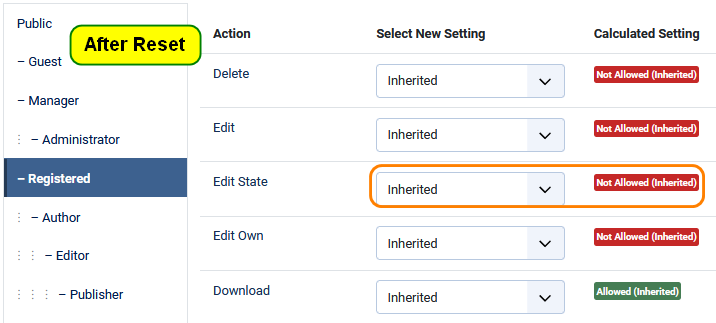
button was used note that the 'Edit State' permission for the Registered user group was set to 'Allowed'.Afterwards the permission was reset to 'inherited'.
We can now be confident about the Downloads Permission Settings. If there were any Deny or other permissions set explicitly in a Download, these will have been removed.
Clicking on the
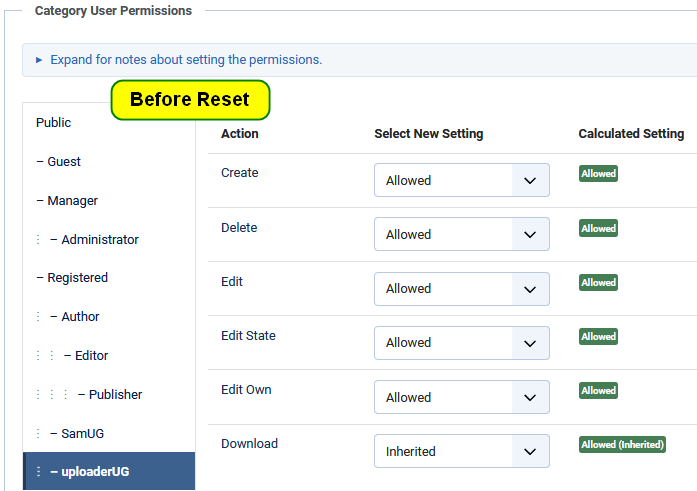
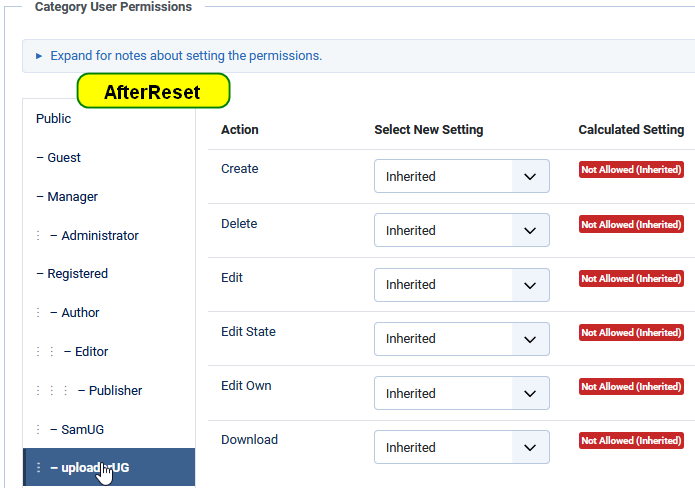
has a significant effect as in the example the Create, Edit, Edit State and Edit Own were all set explicitly to 'Allowed' in each top level Category so that they cascade down to the sub-categories and then the Downloads.All are now, as expected, set to 'Inherited'. This is not desirable in most permission schemes!
However if you have used Deny permission anywhere or the permissions are 'messed up' this does give a new starting place to set them properly.
Clean up Images and Previews
jDownloads stores all images in the directory images/jdownloads/screenshots. The corresponding thumbnails are stored in images/jdownloads/screenshots/thumbnails.
Clicking on the Button will delete all those image files, and the corresponding thumbnail files, that are not linked to any Download. This situation arrises when a Download is deleted and Options setting in Global Settings - 'Delete images from deleted Downloads' is set to the default of No.
Preview files, both audio and video, are stored in directory jdownloads/_preview_files.
Similarly Clicking on the Button will delete all those preview files that are not linked to any Download. This situation arrises when a Download is deleted and Options setting in Global Settings - 'Delete preview files from any deleted Download' is set to the default of No.
Clicking on the
Button will delete all those image files, and the corresponding thumbnail files, that are not linked to any Download. This situation arrises when a Download is deleted and Options setting in Global Settings - 'Delete images from deleted Downloads' is set to the default of No.Preview files, both audio and video, are stored in directory jdownloads/_preview_files.
Similarly Clicking on the
Button will delete all those preview files that are not linked to any Download. This situation arrises when a Download is deleted and Options setting in Global Settings - 'Delete preview files from any deleted Download' is set to the default of No.Batch Processing Lock
During batch processing jDownloads sets a "lock" on the relevant database tables so that only one instance at a time may modify the tables.
Whilst the 'batch processing' of categories or downloads is in progress then jDownloads sets a software 'LOCK' to inhibit any changes by other users. If something should cause the batch processing to fail then the 'LOCK' may remain set, thus inhibiting other changes. Attempting to make a change will, after a delay, result in an error message like 'Another batch operation is still in progress. Please try again later'.
To recover from the situation the software 'LOCK' can be reset manually here. It is only active when the 'LOCK' is set.
Whilst the 'batch processing' of categories or downloads is in progress then jDownloads sets a software 'LOCK' to inhibit any changes by other users. If something should cause the batch processing to fail then the 'LOCK' may remain set, thus inhibiting other changes. Attempting to make a change will, after a delay, result in an error message like 'Another batch operation is still in progress. Please try again later'.
To recover from the situation the software 'LOCK' can be reset manually here. It is only active when the 'LOCK' is set.
ColinM July 2021, modified June 2023, May 2025 -AA



