
Introduction
jDownloads 3.9, 4, 5 and 6 support Joomla! Fields and Field Groups. They may of course be multilingual but the default is a single language.
Historically version jD3.2 and earlier provided a limited number of what were called 'jDownloads Custom Fields'.
When upgrading from the jD3.2 series to the 3.9 series the old style jD Custom fields are automatically converted to Joomla Fields.
The Fields and Field Groups discussed here are those that have been created in jDownloads. There are 16 different Feld types as noted below:
Calendar, Checkboxes, Colour, Editor, Integer, List, List of Images, Media, Radio, Repeatable, SQL Text, Text Area, URL, User and User Group.
Historically version jD3.2 and earlier provided a limited number of what were called 'jDownloads Custom Fields'.
When upgrading from the jD3.2 series to the 3.9 series the old style jD Custom fields are automatically converted to Joomla Fields.
The Fields and Field Groups discussed here are those that have been created in jDownloads. There are 16 different Feld types as noted below:
Calendar, Checkboxes, Colour, Editor, Integer, List, List of Images, Media, Radio, Repeatable, SQL Text, Text Area, URL, User and User Group.
There are several articles onthe Web giving details.
Field titles and contents are displayed in the frontend using placeholder variables {jd_field_title id} and {jd_field id} where id is the relevant id of the required Field created in jDownloads.
Fields do not have to be in a Field Group, in effect when not in an explicit group they then belong in the 'ungrouped' group!
In this example we will first create a Field Group as placing Fields in a group simplifies using them when subsequently creating or editing Downloads.
Field titles and contents are displayed in the frontend using placeholder variables {jd_field_title id} and {jd_field id} where id is the relevant id of the required Field created in jDownloads.
Fields do not have to be in a Field Group, in effect when not in an explicit group they then belong in the 'ungrouped' group!
In this example we will first create a Field Group as placing Fields in a group simplifies using them when subsequently creating or editing Downloads.
One instance is that when creating a Field then the permissions are taken from those set in its Field Group. Another is that when editting in the frontend all the Fields in a Field Group are shown in a single tab.
If you are only using say half a dozen or so Fields then it is simpler to just create the Fields by themselves without having to set up any Field Groups.
In that case skip to the Fields Section .
If you are only using say half a dozen or so Fields then it is simpler to just create the Fields by themselves without having to set up any Field Groups.
In that case skip to the Fields Section .
Creating Field Groups
In the  click on
  then on
  . Next click on
  . We are now able to create a new Field Group. Select
  in the jDownloads Control Panel and then click on
  . The Field Group Create panel will appear.
This has four tabs .
.
The relevant setting will, by default, be inherited by any Field that is a member of the Field Group.
click on then on . Next click on . We are now able to create a new Field Group. Select in the jDownloads Control Panel and then click on . The Field Group Create panel will appear. This has four tabs
.The relevant setting will, by default, be inherited by any Field that is a member of the Field Group.
Field Group - General tab
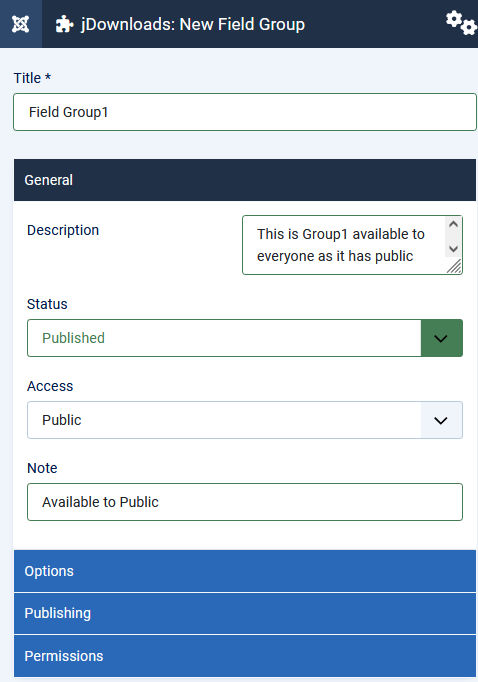
In the General tab ensure the Field Group is Published.
As the site is not multilingual there is no language option.
Also set the Access as required, which would usually be Public so everyone will see the group.
Give the group a Description as that will guide users in the Frontend who are able to edit fields.
Also add a comment in the Note as that will appear in the Backend.
Also, as shown in the second image on the far right, if your screen view is 'narrow' then the links to the other options are show in blue at the bottom.

As the site is not multilingual there is no language option.
Also set the Access as required, which would usually be Public so everyone will see the group.
Give the group a Description as that will guide users in the Frontend who are able to edit fields.
Also add a comment in the Note as that will appear in the Backend.
Also, as shown in the second image on the far right, if your screen view is 'narrow' then the links to the other options are show in blue at the bottom.
Field Group - Options tab
The
 tab has only one option, namely to show or not when the view is Read-Only.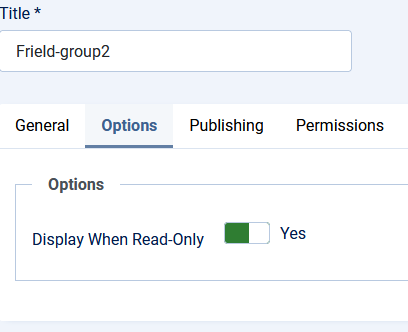
Field-Group-Publishing tab
The only settings in the
 tab that can be changed is the 'Created Date'.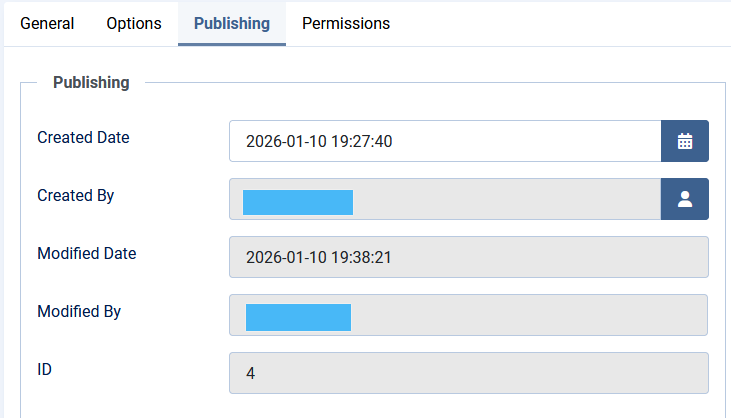
Field-Group-Permissions tab
On the
 Tab set up the relevant permissions for those User Groups that are to be allowed to create/edit in the Front End. In this example the Publisher User Group is shown
The default permission for front end users is
 so if you want Frontend users in a specific user-group to be able to manage Field Groups then you need to setup the permissions appropriately as illustrated opposite for User Group 'Publisher'.
One of the significant features of Field Groups is that these permissions will then be inherited by all the Fields that belong to the Field Group.
For Fields that do not belong to a Field Group then you have to set Permissions for each Field individually!

Creating Fields
The next step is to create the relevant Fields. There are sixteen different 'field types'. In this article three Fields are illustrated: a simple 'Text' field, a 'Colour' field and a 'Radio' field.
So select and then click on which will open the Fields create/edit form. Here we initially show details of creating a Text type as that covers most required fields. Field types like Text and Colour only have one Text and one Value to enter. Later we also show creating a Radio field as it has multiple text/value possibilities.
So select
and then click on which will open the Fields create/edit form. Here we initially show details of creating a Text type as that covers most required fields. Field types like Text and Colour only have one Text and one Value to enter. Later we also show creating a Radio field as it has multiple text/value possibilities.General tab
On the General tab, as shown opposite, give a suitable title. In this article we have used 'Text Field 1'.
Note that this will also automatically fill the 'Label' option.
When the Field is Saved then the Name option, which is like the 'alias', will be generated from the title.
The Type pulldown sets the type of the Field from the pulldown list of those available. Once saved it cannot be changed. Here the Type is set to
'Text (text)'.
It is strongly suggested that you leave the Default Value option empty.
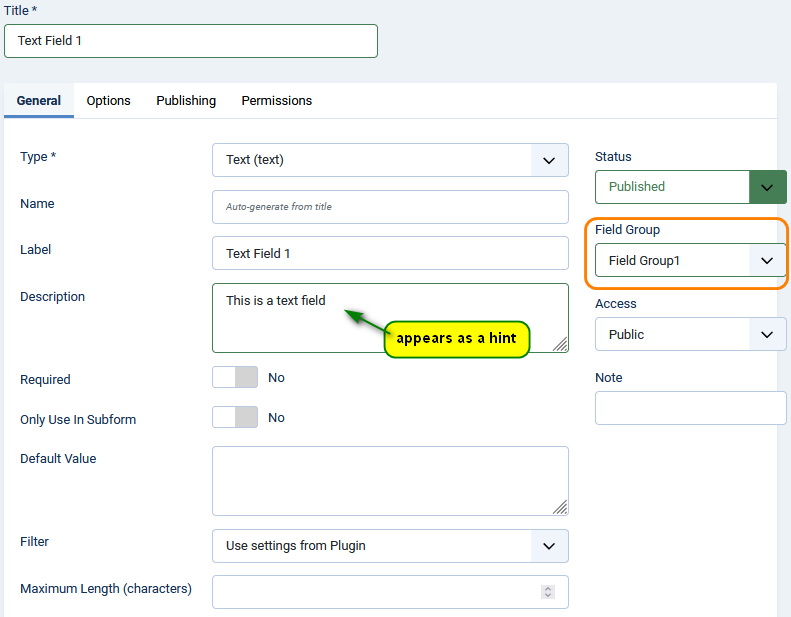
When there is no Default Value then the Field will not be shown until it is editted and given a value in the relevant Download.
If you do specify a Default Value then this value will appear in all Downloads that have not had an explicit value entered.
Ensure you set the Field Group by using the pull down.
If you do specify a Default Value then this value will appear in all Downloads that have not had an explicit value entered.
Ensure you set the Field Group by using the pull down.
Options Tab
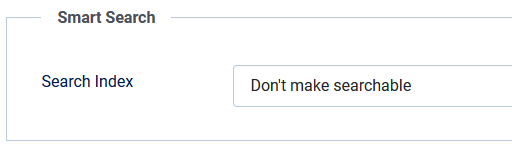
The Options tab basically deals with how the Field text and value are to be shown in the Front End. It is in three sections: Form Options, Display Options and Smart Search as shown opposite.
The items in the 'Form Options' section allow styling how the text and value will appear in the Edit Form.
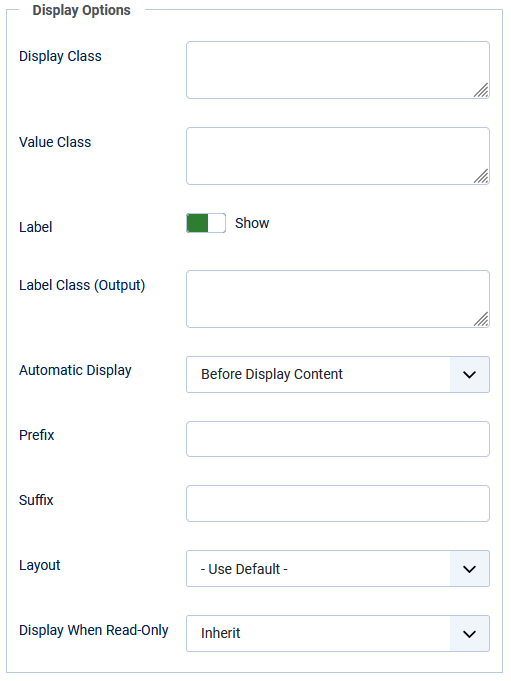
The settings in the 'Render Options' section mainly style the look of the Text and Value as they are to appear in the frontend view.
However the Automatic Display setting controls where the text and value will appear in the Front End.
As a starting point it is strongly suggested the 'Automatic Display' option is set to 'Do not Automatically Display' as indicated.
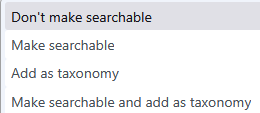
Smart seach has 4 settings.
 Author Note: An example 'taxonomy'.is to set the seach with say
Type: project | Category: Libraries | Language: en-GB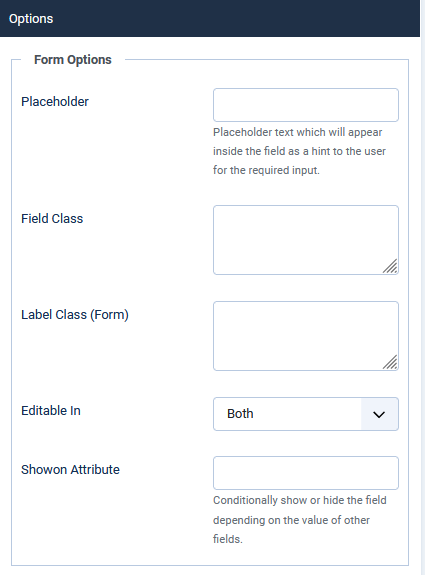
The items in the 'Form Options' section allow styling how the text and value will appear in the Edit Form.
The settings in the 'Render Options' section mainly style the look of the Text and Value as they are to appear in the frontend view.
However the Automatic Display setting controls where the text and value will appear in the Front End.
As a starting point it is strongly suggested the 'Automatic Display' option is set to 'Do not Automatically Display' as indicated.
Smart seach has 4 settings.
Author Note: An example 'taxonomy'.is to set the seach with sayType: project | Category: Libraries | Language: en-GB
Publishing Tab
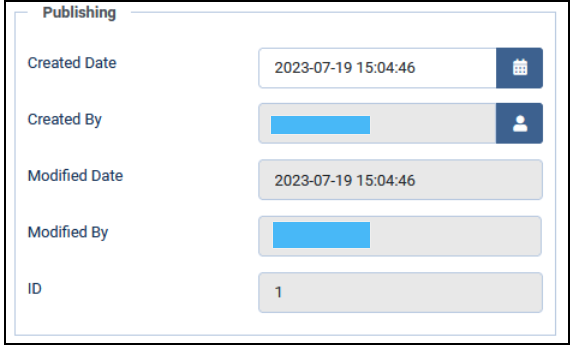
The Publishing Tab allows setting or changing the created Date. by clicking on the
 button.
The Created By, Modified Date and Modified By entries are auto filled.
 '
'Permissions Tab
The default setting for permissions is that they are inherited from the Permissions set in the Field Group. But they do need to be set separately if the Field is not in a Field Group.
Radio Field Example
Setting up the Options, Publishing and Permissions tabs is similar for all Field types.
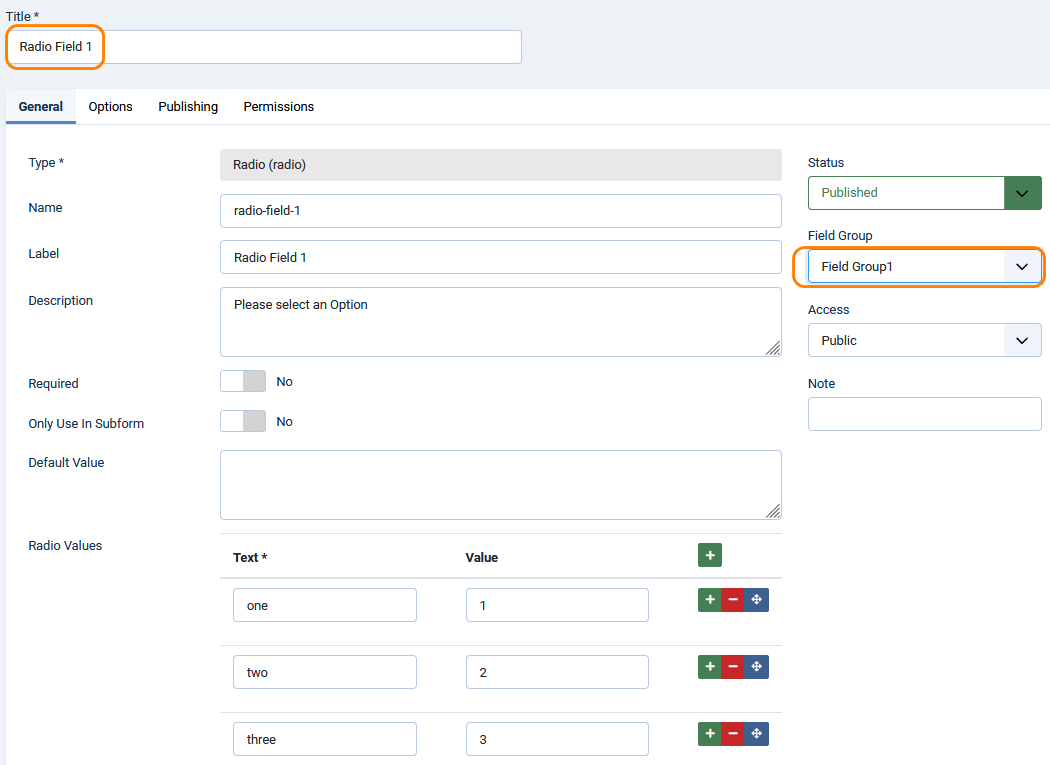
Give the Field a suitable title. When you
 , the Name and Label options will be filled automatically from the title.
To add the Radio Text and Values click on the
 button for each radio button you wish to have.
 Enter in the Text column the 'question' that the user will see, and in the Value column specify the vaue, which is actually text, that will be returned to the code when the button is selected in the front end.
Ensure you select the relevant Field Group from the pulldown
Field types like Text and Colour only have one Text and one Value to enter.
Editing in Frontend
Diferent views occur for non-multilingual sites, where all content has ALL for the Download Language, and Multilingual sites which use language specifiers, such as {de-DE}, are used.
Multilingual sites
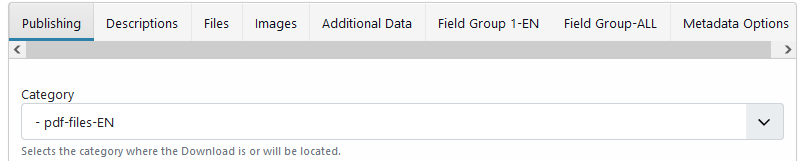
Example views of the tabs that are present when editing/creating a Download in the frontend for a multilingual site are shown below.
The first one is where the Download was set to English.
The second one is where the Download was set to the German language.
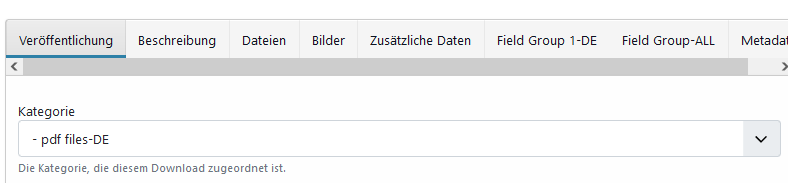
Each tab in the edit form for the Field Groups is shown opposite.
The 'English' and 'German' are logically identical to the others. This was not done by Joomla! or jDownloads but by the author for consistency.
One is free to set completely different 'questions' and response values.
Whilst the response values would be different in different Downloads, it is clearly good practice to make the 'question' text logically identical across languages.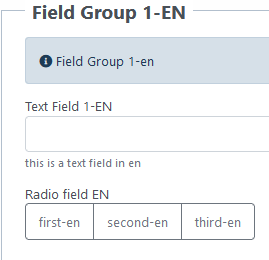
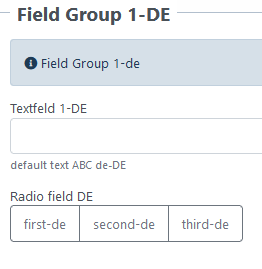
The 'English' and 'German' are logically identical to the others. This was not done by Joomla! or jDownloads but by the author for consistency.
One is free to set completely different 'questions' and response values.
Whilst the response values would be different in different Downloads, it is clearly good practice to make the 'question' text logically identical across languages.
Viewing Fields in Frontend
There are three situations for showing jDownloads fields in the front end:
(i) in a Download or Download Details layout information block;
Downloads and Download Details layouts use the place holders {jd_field_title id} and {jd_field id} where id is the relevant id of the required field.
(ii) in a Description;
(iii) in an article.
(i) in a Download or Download Details layout information block;
Downloads and Download Details layouts use the place holders {jd_field_title id} and {jd_field id} where id is the relevant id of the required field.
(ii) in a Description;
(iii) in an article.
In Layouts
In this example the Fields are shown as part of the Information section of the Compact layout.
The image opposite is the frontend view.
In the first Download the Field Titles and the Field Values are shown.
In the second image only the Field Titles are shown. This is because no value has been set.
One may of course set a Default Value so that a value is always shown.
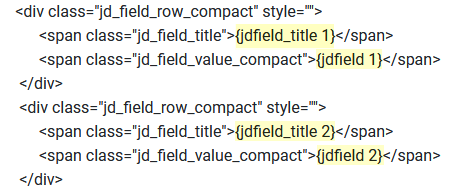
The image opposite shows the code included in the information block section of the layout. It follows the regular style of the layouts.
The 'macros'{jdfield_title id} and {jdfield id} are highlighted.
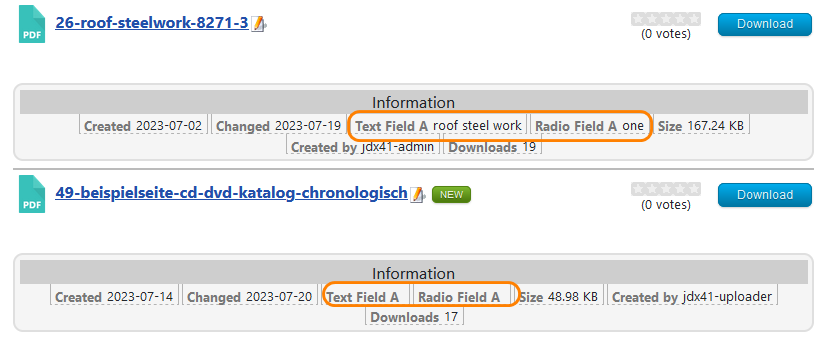
In the first Download the Field Titles and the Field Values are shown.
In the second image only the Field Titles are shown. This is because no value has been set.
One may of course set a Default Value so that a value is always shown.
The image opposite shows the code included in the information block section of the layout. It follows the regular style of the layouts.
The 'macros'{jdfield_title id} and {jdfield id} are highlighted.
The image opposite shows an fr-FR information block in a multilingual site.

In a Download Description
Opposite is an example of the view in the Frontend of a Download with Fields in the Description.
In this example the same fields are shown in the 'Information' section.
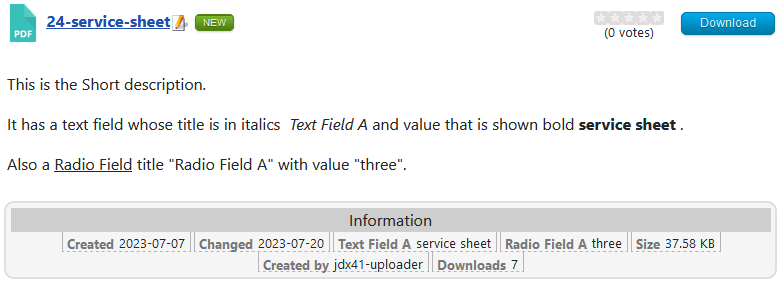
The actual text in the Description is shown opposite.

In an Article
The Joomla! Content-Fields plugin has two placeholders for use in articles
(i) shows an individual field and (ii) to show the whole field group, that is all the fields in that group.
(i) shows an individual field and (ii) to show the whole field group, that is all the fields in that group.
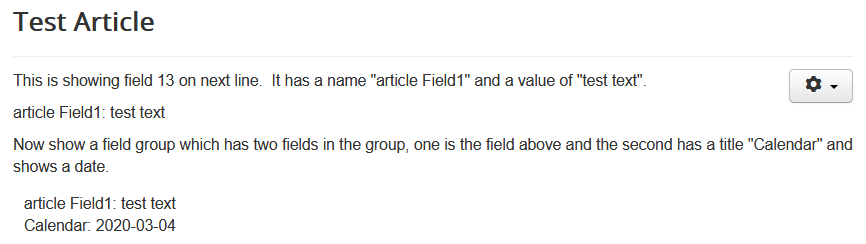
For example shows the field title and the field value with id 13;
lists all the fields in the field group with id 2 .
In the example shown opposite each field had the 'Automatic Display' option set to 'Do not automatically display'.
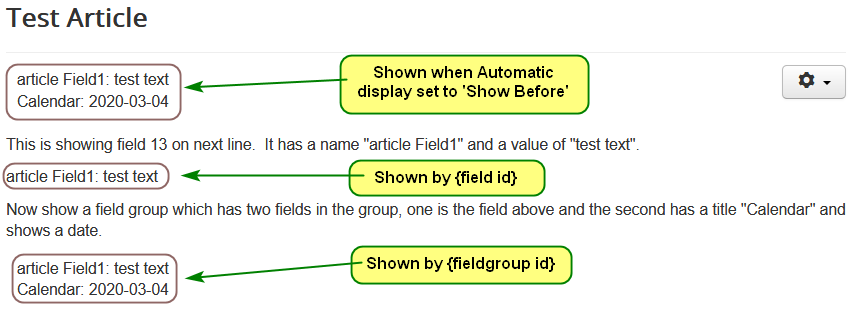
The effect of changing the 'Automatic Display' option to one of the other settings, such as 'Before Display' is shown opposite.
The 'Automatic Display' setting 'Show Before' will also show the fields in Downloads but this is rarely useful.
Colin M March 2022, April 2023,July 2023, November 2024, May 2025, January 2026, July 2026 -AA



