
Introduction
A license may be associated with a Download and a user may optionally be asked to accept a license before being able to download.
There are seven licenses as standard and additional licenses may be added.
Please note any enforcement of a license is solely the resposibility of the website owner or operator. jDownloads just provides the facilities and can take no part whatsoever in enforcing the terms of the licence.
There are seven licenses as standard and additional licenses may be added.
Please note any enforcement of a license is solely the resposibility of the website owner or operator. jDownloads just provides the facilities and can take no part whatsoever in enforcing the terms of the licence.
License types
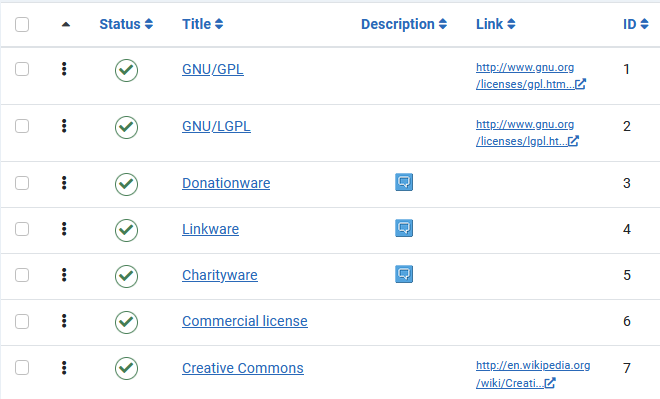
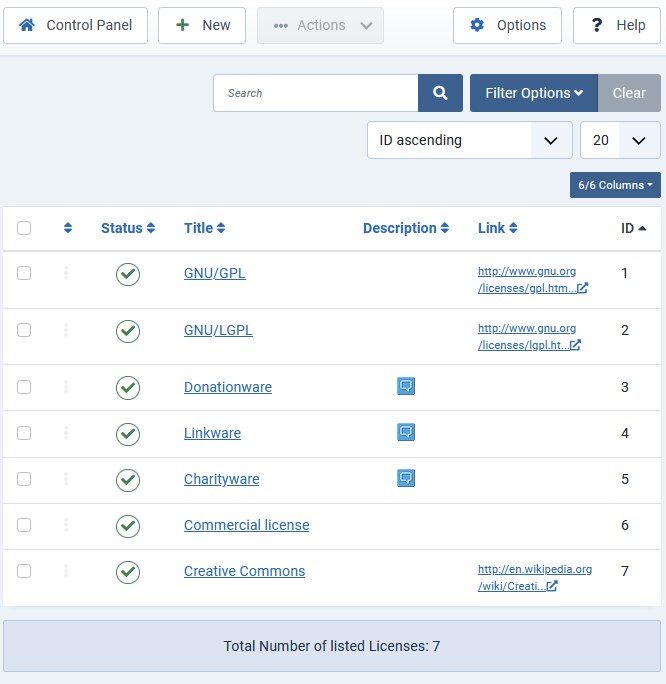
The six standard licenses may be grouped into two classes. There is also a seventh license, the Commercial license, which is a blank one for testing your own license.
1. Those that are linked to a document such as the GNU/GPL, GNU/LGPL and the Creative Commons licenses. A Description may also be included in these licenses. These licenses cannot be modified.
2. Those that only have a description that contains the text of the license, examples are Donationware, Linkware and Charityware. The text may contain HTML code.
1. Those that are linked to a document such as the GNU/GPL, GNU/LGPL and the Creative Commons licenses. A Description may also be included in these licenses. These licenses cannot be modified.
2. Those that only have a description that contains the text of the license, examples are Donationware, Linkware and Charityware. The text may contain HTML code.
To access the licenses view go to the main Joomla! menu panel then in the
 click on
 then click on
 . Next click on
  .
. This opens up the panel of licences as shown opposite.
Adding a License to a Download
Adding a licence to a Download can be carried out in the Frontend or the Backend.
Adding a license in Backend
First select the Download that is to have a license added to it. To do this then in the panel click on  and then on
  . Next click on
  . This lists all of your Downloads. So scroll down to find the one that is to have a license added to it. Next click on the Title of the Downoad to which you are adding a license.
Then In the sidebar of the section of the Download scroll down to find the License and Confirm License section as indicated in the first image opposite - it is quite a long way down!
Use the Select button as shown in the first image on the far right to select the appropriate license.
Generally it is advisable to set the Confirm License to YES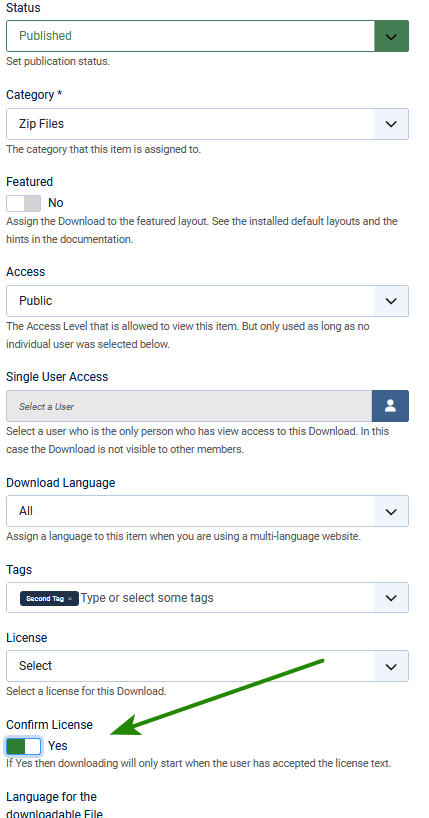
panel click on and then on . Next click on . This lists all of your Downloads. So scroll down to find the one that is to have a license added to it. Next click on the Title of the Downoad to which you are adding a license. Then In the sidebar of the
section of the Download scroll down to find the License and Confirm License section as indicated in the first image opposite - it is quite a long way down!Use the Select button as shown in the first image on the far right to select the appropriate license.
Generally it is advisable to set the Confirm License to YES
Adding License in Front End
When editting an existing Download in the Front End select the relevant Download from a menu item such as List all Downloads. Obviously you will need to login and have edit permission as shown by the edit pencil icon  . If you are creatng a new download then use the
  button at the top of the view.
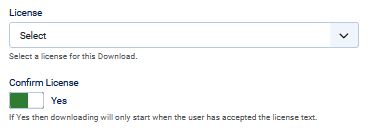
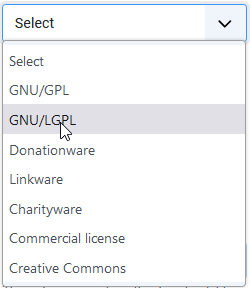
. If you are creatng a new download then use the button at the top of the view.In either case click on the  tab. Scroll down to find the options License Select and Confirm as shown in the first image on the right. Use the Select pull down to choose the license as shown in image on the far right.
To ensure that the user has to accept the license then set the 'Confirm License' to Yes.
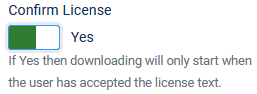 If you leave it at No then the user may simply ignore the License.
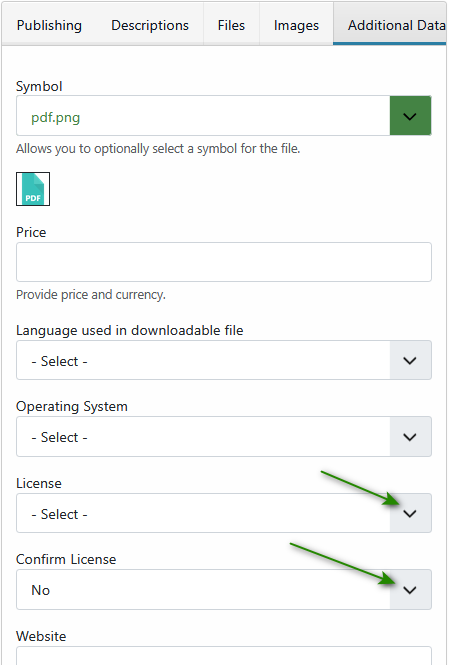

tab. Scroll down to find the options License Select and Confirm as shown in the first image on the right. Use the Select pull down to choose the license as shown in image on the far right.To ensure that the user has to accept the license then set the 'Confirm License' to Yes.
If you leave it at No then the user may simply ignore the License.Front End View
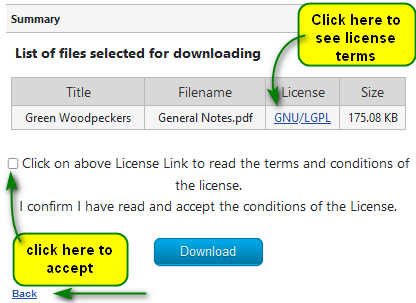
The license 'acceptance' occurs in the Summary view which will be automatically shown if you have selected 'Confirm License' as Yes.
The license as shown in the Summary differs depending whether the license is a Description type, as shown immediately opposite, or a Link type as shown on the far right.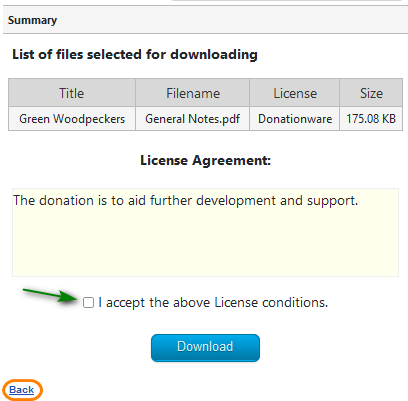
The license as shown in the Summary differs depending whether the license is a Description type, as shown immediately opposite, or a Link type as shown on the far right.
Whilst the  button is shown it remains inactive until the license is accepted. There is a 'Back' button to return the user back to the Downloads Detail view.
button is shown it remains inactive until the license is accepted. There is a 'Back' button to return the user back to the Downloads Detail view.Creating a New License/Editting Existing License
Licenses are accessed in the backend in the  . First click on and then on . Then click on .
. First click on and then on . Then click on .This shows a panel like the one opposite.
To edit an existing license then just click on its title.
A license may have a link and a description but if it does have a link then that takes precedence.
Generally 'link type' licenses are used with what might be refered to as an 'established' or generally accepted licence.
Clicking on the
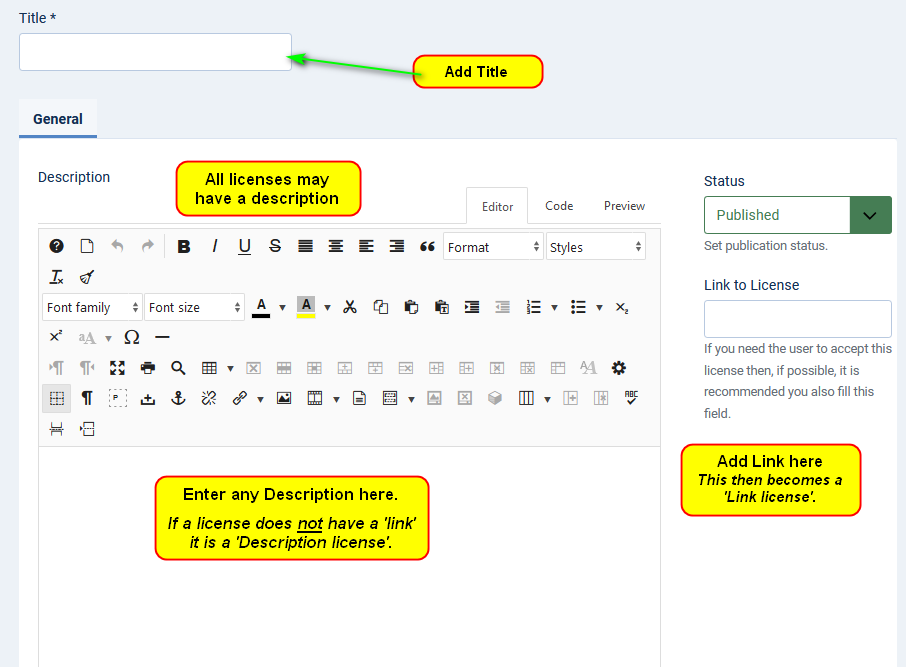
 gives a view as shown opposite
If a link is present jDownloads uses it as the license location otherwise it just shows the description.
Give the license a Title. If it is a Link type licence then paste the link in the 'Link to License' field. Then Save and Close.
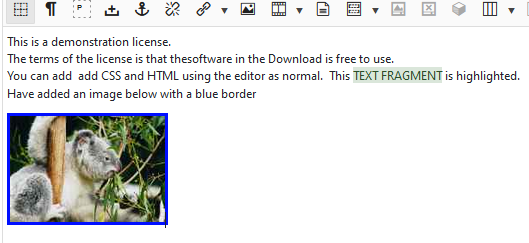
An example of a Description license is shown below.
To enter the description just type in the text as if you were writing an article with any appropriate colours, images and so on.
The view in the Editor of an example is shown opposite.
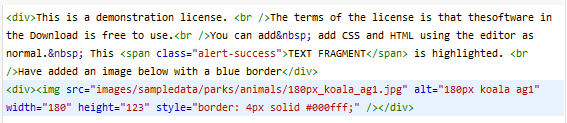
The equivalent code generated is illustrated opposite.
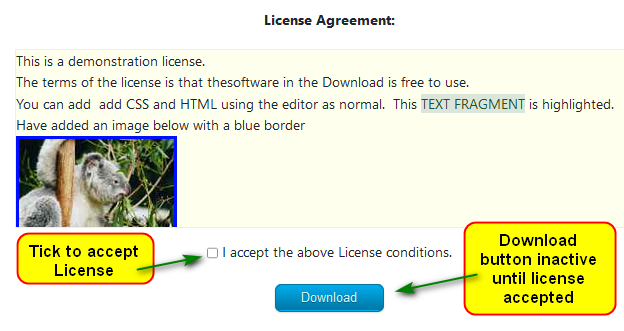
Assuming you have selected that the license must be accepted, then the view as it would appear in the front end is shown opposite.
The Download button is inactive until the user ticks the 'I accept box'.
ColinM October 2020 updated July 2021, April 2023, July 2023, March 2026, July 2026 -AA