
Introduction
Creating a new or editting an existing Download from the Frontend is a standard jDownloads feature. There are two principle aspects
(a) setting permissions of who is allowed to create Downloads in the front end;
(b) setting which users will be able to see the front end menu item 'Create Download'.
It is clear that there is a need to control who is allowed to create and upload from the front end. So we first create a new user group called 'uploaderUG' and its corresponding view Access level 'uploader-view'. Of course we could have multipe sets of user-groups.
Often the first thought is to use the existing Editor user group but experience shows that it is wise to separate the creation and editting of aticles from the creation and editting of Downloads. Users may of course be members of more than one user group.
Another aspect is to consider which top level Category, and its sub categories, will a member of the uploaderUG be allowed to add Downloads from the Frontend. Again there could be several such Categories
In this example we will first create a new user group called 'uploaderUG' and its corresponding view Access Level 'uploader-view'. Then a regular jDownloads category called 'UploaderCat' will also be created. It will also create a new usergroup go to The first step is to use the Joomla User Manager to create a new User Group. In this example we will setup a User Group with the name 'uploaderUG'.
This will be the User Group for those users who will be able to create, edit and publish Downloads from the front end. We will also create an Access Level called uploader-view so that only members of the uploaderUG will see the Create Download menu item.
Note also that in creating the usergroup we are also able to extend the file types that may be uploaded, for example we could add file type 'docx' and so on.
Whilst the new usergroup could have in principle any parent group, it is usually best to create the required user group with Registered as its parent. This avoids unintended consequences such as an 'uploader' user being able to edit articles and similar if you use the Editor user group or any higher ranked user group.
NEVER set a permission to Deny. The ramifications of that setting are wide spread and often render your site almost impossible to use. Also recovery is usually 'difficult'.
(a) setting permissions of who is allowed to create Downloads in the front end;
(b) setting which users will be able to see the front end menu item 'Create Download'.
It is clear that there is a need to control who is allowed to create and upload from the front end. So we first create a new user group called 'uploaderUG' and its corresponding view Access level 'uploader-view'. Of course we could have multipe sets of user-groups.
Often the first thought is to use the existing Editor user group but experience shows that it is wise to separate the creation and editting of aticles from the creation and editting of Downloads. Users may of course be members of more than one user group.
Another aspect is to consider which top level Category, and its sub categories, will a member of the uploaderUG be allowed to add Downloads from the Frontend. Again there could be several such Categories
In this example we will first create a new user group called 'uploaderUG' and its corresponding view Access Level 'uploader-view'. Then a regular jDownloads category called 'UploaderCat' will also be created. It will also create a new usergroup go to
This will be the User Group for those users who will be able to create, edit and publish Downloads from the front end. We will also create an Access Level called uploader-view so that only members of the uploaderUG will see the Create Download menu item.
Note also that in creating the usergroup we are also able to extend the file types that may be uploaded, for example we could add file type 'docx' and so on.
Whilst the new usergroup could have in principle any parent group, it is usually best to create the required user group with Registered as its parent. This avoids unintended consequences such as an 'uploader' user being able to edit articles and similar if you use the Editor user group or any higher ranked user group.
NEVER set a permission to Deny. The ramifications of that setting are wide spread and often render your site almost impossible to use. Also recovery is usually 'difficult'.
Create a New User Group
In the Joomla
 click on
  and select
  . Then click on
  . The usergroup details form will appear.
Enter the Group Title, uploaderUG in this example. And use the pull down
 on the righthand side to select Registered as the Group Parent.
 Finally use
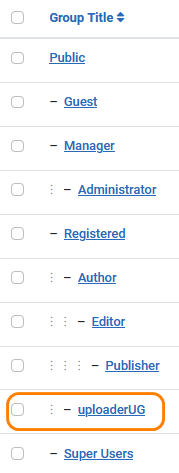
 .This will then show the updated list of User Groups as illustrated in the second image opposite.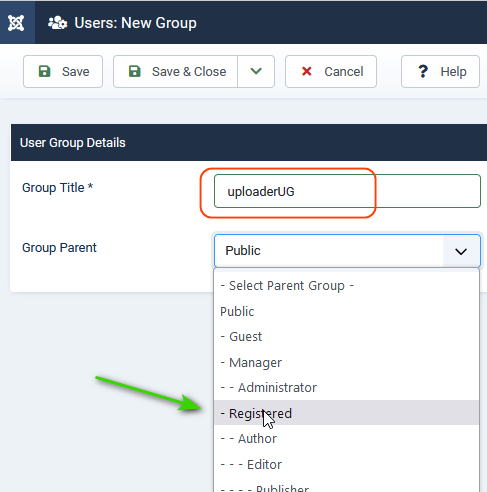
Set Ranking Value
Go to  and then click on
  . This opens up the jDownloads main panel. Click on
  , then on
  . Set the ranking to an appropriate value, say 129 so that it is higher than the rank of any other user group.
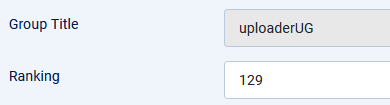
and then click on . This opens up the jDownloads main panel. Click on , then on . Set the ranking to an appropriate value, say 129 so that it is higher than the rank of any other user group. For reference the standard range of Joomla user groups are ranking values from 0 to 100.
If a user belongs to more than one user-group, jDownloads uses the group which has the highest ranking to select which User Group Settings are to be used. That is jDownloads does not use the Rank value to select which set of permissions apply. It is used to select which set of jDownloads User Group Settings will be used. This is significant as it is the User Group Settings that control the questions asked in the upload form and elsewhere.
If a user belongs to more than one user-group, jDownloads uses the group which has the highest ranking to select which User Group Settings are to be used. That is jDownloads does not use the Rank value to select which set of permissions apply. It is used to select which set of jDownloads User Group Settings will be used. This is significant as it is the User Group Settings that control the questions asked in the upload form and elsewhere.
Create View Access Level
From the Joomla main panel click on then on  .
.
then on .Click on. This will open the Level Details form. So first enter the name 'uploader-view' as shown below.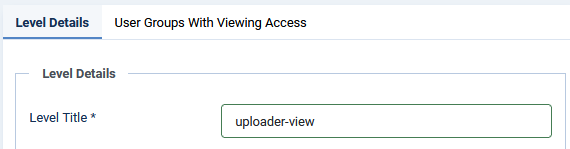
. This will open the Level Details form. So first enter the name 'uploader-view' as shown below.Next select the
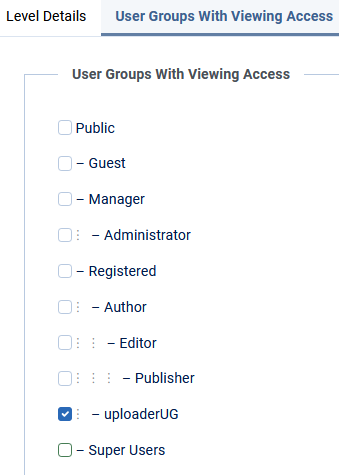
 tab and select 'uploaderUG' as shown opposite.
Finally click on
.
Set jDownloads Category Permissions
Whatever group name that you decide to use, the important aspect is to set the permissions on the relevant top level Category, which is 'Uploadercat' in this example. Any permissions set in 'UploaderCat' will automatically cascade down its subcategories and on to the Downloads in those categories.
Also bear in mind that if you select a user group parent other than Registered then you may inadvertently give the user edit or similar rights to articles and other items on your website.
This is also explained in more detail in the article Controlled Access to Categories and Downloads.(opens in new window/tab)
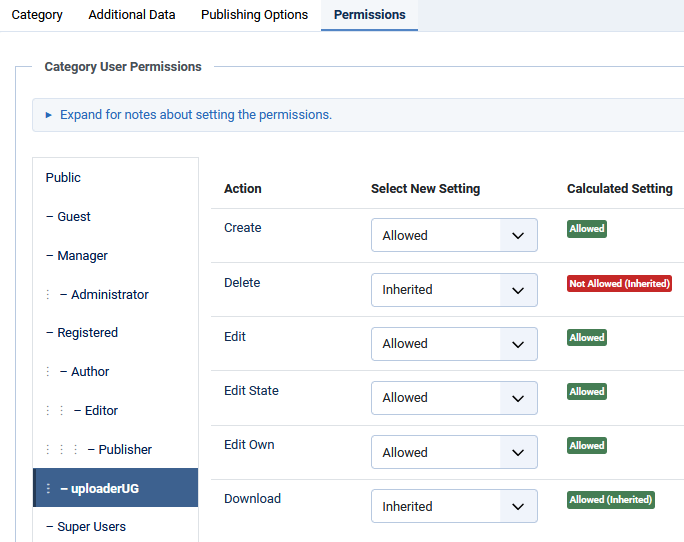
The next thing to do is to check that the permissions allows Creation of Downloads in category Uploadercat. So in the jDownloads main panel click on and find category 'Uploadercat'. Then on the
  Tab click on 'uploaderUG'. This will produce a view like the one opposite. Ensure that the relevant actions are Allowed. Pesonally I do not allow the Delete action so that the only SuperUsers are able to delete in the FrontEnd
The important point is that Create is allowed. Usually I set the Delete permission to Inherited so once created only a SuperUser or similar may delete.
The next stage is configuring the jDownloads User Group Settings. This maybe accessed from the jDownloads Control Panel. Much of what is needed here is covered in detail in Introduction to User Group Settings (opens in new window/tab).
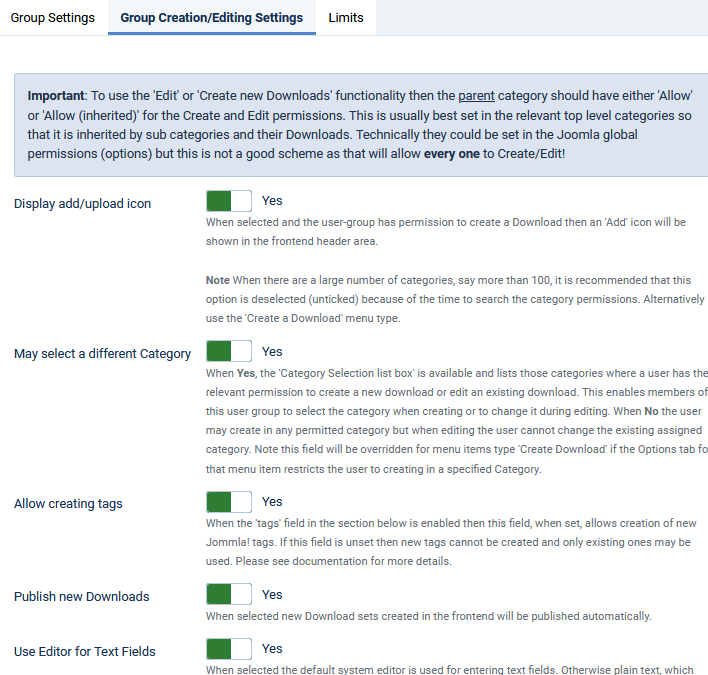
So rather than go through those details here we will look at some specific points. Go to then click on 'uploaderUG'. Then select the Group Creation/Editing Settings as illustrated opposite.
The 'May select a different Category' checkbox would normally be set to Yes.
The 'Publish new Downloads' checkbox would also be set to Yes.
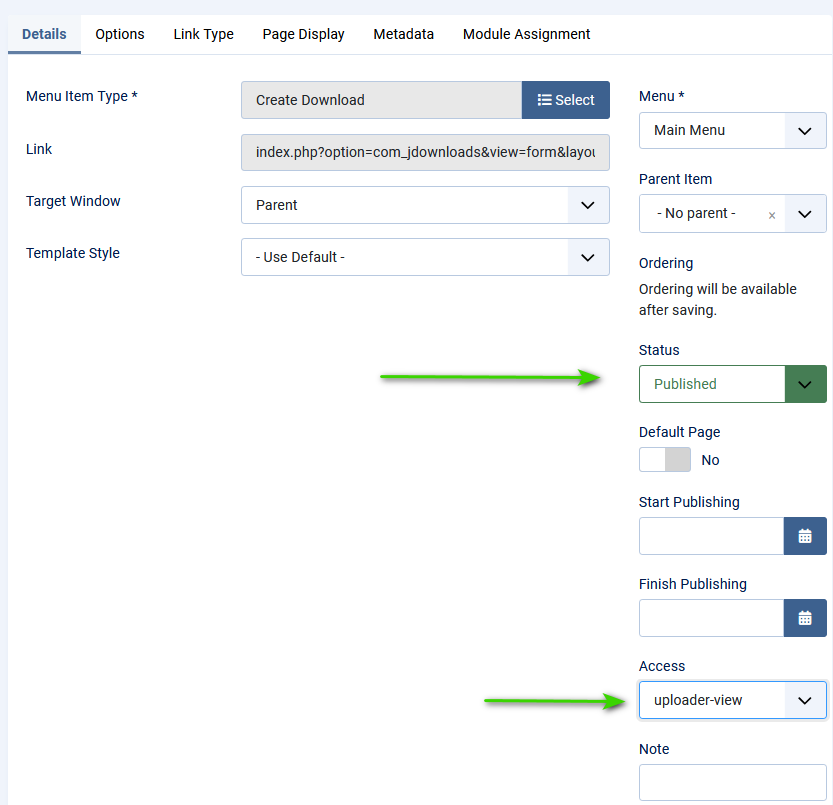
We will create the menu item in the Main Menu. So click on the . Select jDownloads and then click on 'Create Download'.
This will open a form as shown opposite.
The first tab, Details, is generally the same as any of the jDownload Menu Items. But it is essential to set the Access to the the user group that is allowed to create Downloads in the Frontend.
Ensure it is Published and by using the pull down ensure that Access is set to uploader-view as shown opposite.
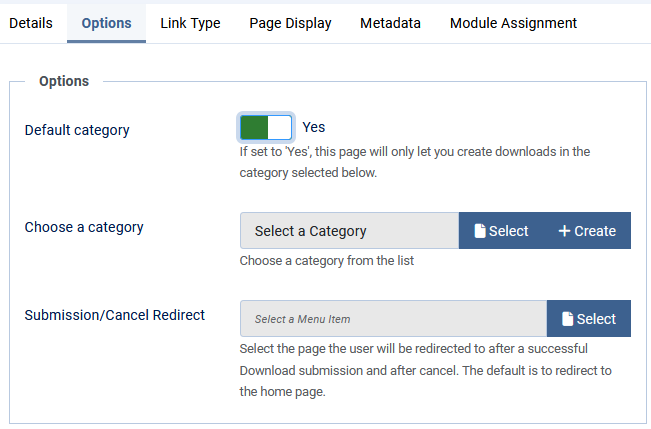
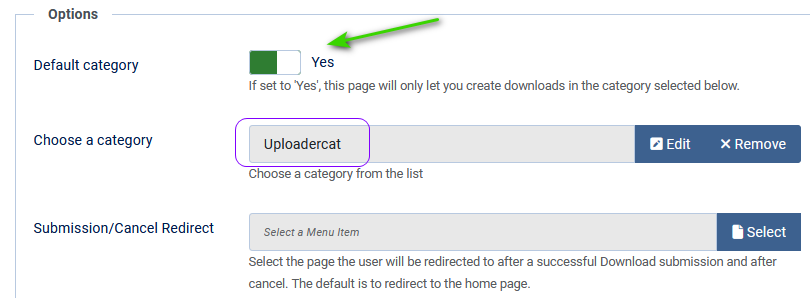
Now select the Options tab. Ensure that Default Category is set to Yes as illustrated opposite.
In 'Choose a category' use the Select button to choose category 'UploaderCat'.
We are done!
Also bear in mind that if you select a user group parent other than Registered then you may inadvertently give the user edit or similar rights to articles and other items on your website.
This is also explained in more detail in the article Controlled Access to Categories and Downloads.(opens in new window/tab)
Click on and select and then click on . This gives a view as shown opposite.
As indicated set the title to UploaderCat as indicated.
Ensure the status is Published.
Set the category Access to Registered. For example if it is left as Public then anyone may Download.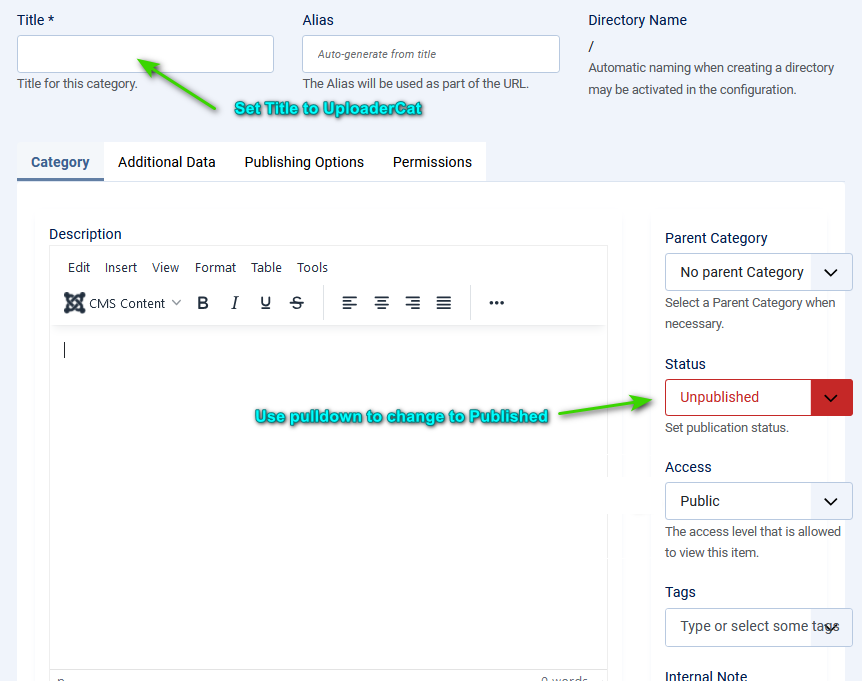
and select and then click on . This gives a view as shown opposite.As indicated set the title to UploaderCat as indicated.
Ensure the status is Published.
Set the category Access to Registered. For example if it is left as Public then anyone may Download.
Add extra Download file types
Presently the file types uploadable in the frontend are zip,rar,pdf and txt. Sometimes there is a need to allow extra file types such as say docx to the set of uploadable files.
So in jDownloads main panel click on . Then click on 'uploaderUG'. Then after the Group Title and Ranking sections click on the  tab. Scroll down to Allowed File types as shown opposite. Now add any extra file types, each separated with a comma and no spaces as indicated opposite where file types docx and xslx have been added.
You may also wish to add extra Preview File Types such as wav, oga, webm and similar.
For more details see Adding Preview Files (opens in a new window/tab).

. Then click on 'uploaderUG'. Then after the Group Title and Ranking sections click on the tab. Scroll down to Allowed File types as shown opposite. Now add any extra file types, each separated with a comma and no spaces as indicated opposite where file types docx and xslx have been added.You may also wish to add extra Preview File Types such as wav, oga, webm and similar.
For more details see Adding Preview Files (opens in a new window/tab).
Menu Items
The next step is to create the menu item. Select  then
then  . Next click on the
  . This brings up the main menu creation page
For more details see Create Download Menu item (opens in a new window/tab).
As shown opposite the key point is that the Access is set up to only show the menu item to members of a specific group, which in this example is 'uploader-view'.
In the Options tab you can limit the created Downoads to a specific Category, and its sub-categories, as shown below.
then . Next click on the . This brings up the main menu creation pageFor more details see Create Download Menu item (opens in a new window/tab).
As shown opposite the key point is that the Access is set up to only show the menu item to members of a specific group, which in this example is 'uploader-view'.
In the Options tab you can limit the created Downoads to a specific Category, and its sub-categories, as shown below.
Setting jDownloads items
Check for Create Permission in Category 'Uploadercat'
The next thing to do is to check that the permissions allows Creation of Downloads in category Uploadercat. So in the jDownloads main panel click on
and find category 'Uploadercat'. Then on the Tab click on 'uploaderUG'. This will produce a view like the one opposite. Ensure that the relevant actions are Allowed. Pesonally I do not allow the Delete action so that the only SuperUsers are able to delete in the FrontEndThe important point is that Create is allowed. Usually I set the Delete permission to Inherited so once created only a SuperUser or similar may delete.
jDownloads User Group settings
The next stage is configuring the jDownloads User Group Settings. This maybe accessed from the jDownloads Control Panel. Much of what is needed here is covered in detail in Introduction to User Group Settings (opens in new window/tab).
So rather than go through those details here we will look at some specific points. Go to
then click on 'uploaderUG'. Then select the Group Creation/Editing Settings as illustrated opposite. The 'May select a different Category' checkbox would normally be set to Yes.
The 'Publish new Downloads' checkbox would also be set to Yes.
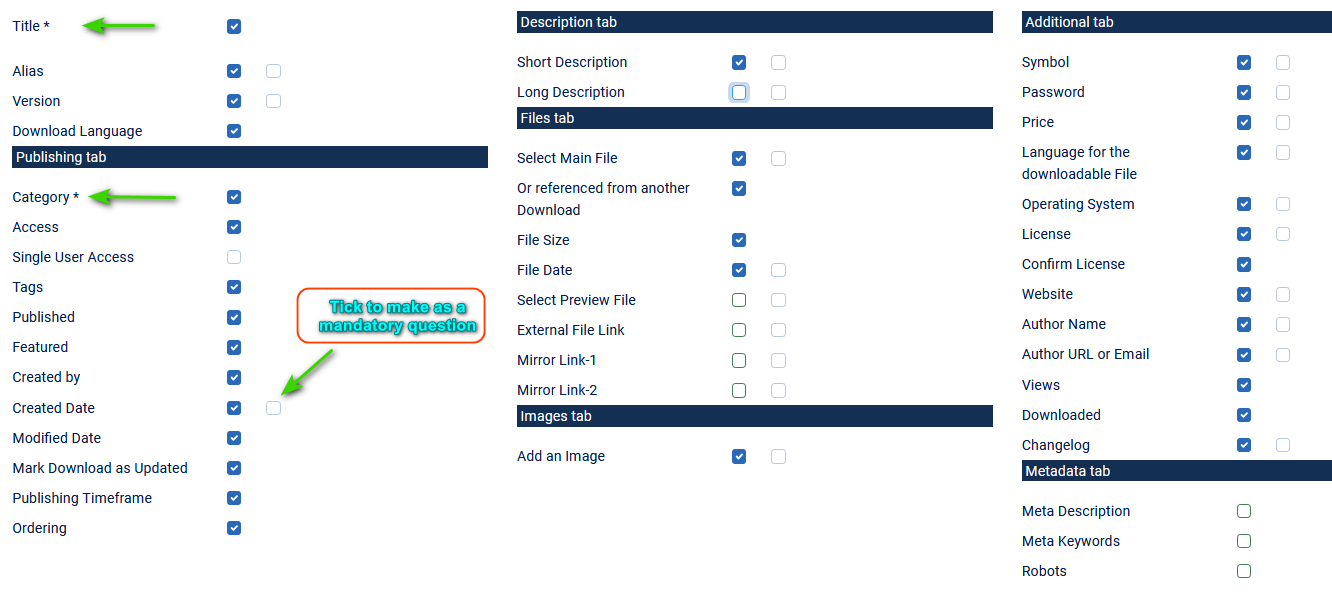
Scroll down until you get to the Data Field Selection
The three columns below allow control over what questions are presented to 'uploaderUG' members.
The title and category have an * to denote they are mandatory. The first column of checkboxes is checked if the question is to be asked. The second checkbox alongside a question, if present, makes the question mandatory if checked.
The three columns below allow control over what questions are presented to 'uploaderUG' members.
The title and category have an * to denote they are mandatory. The first column of checkboxes is checked if the question is to be asked. The second checkbox alongside a question, if present, makes the question mandatory if checked.
Create Download menu item
We will create the menu item in the Main Menu. So click on the
. Select jDownloads and then click on 'Create Download'.This will open a form as shown opposite.
The first tab, Details, is generally the same as any of the jDownload Menu Items. But it is essential to set the Access to the the user group that is allowed to create Downloads in the Frontend.
Ensure it is Published and by using the pull down ensure that Access is set to uploader-view as shown opposite.
Now select the Options tab. Ensure that Default Category is set to Yes as illustrated opposite.
In 'Choose a category' use the Select button to choose category 'UploaderCat'.
We are done!
ColinM November 2019, modified June 2023, revised August 2024, May 2025, June 2026


