
Introduction
As its name suggests the Related Module lists Downloads that are 'related'. In this context the Download being shown in the current Download Details view is called the 'reference' Download.
But what does 'related' mean? In jDownloads "Related Downloads" are
either
(i) those Downloads in the same category as the reference Download and, optionally, those Downloads in its child subcategories,
or
(ii) Downloads with the same date as the reference Download. Note: one can select either the Creation date, the Modified date, the Published From date or the Published To date.
The related Downloads may of course be selected by a combination of category and date.
But what does 'related' mean? In jDownloads "Related Downloads" are
either
(i) those Downloads in the same category as the reference Download and, optionally, those Downloads in its child subcategories,
or
(ii) Downloads with the same date as the reference Download. Note: one can select either the Creation date, the Modified date, the Published From date or the Published To date.
The related Downloads may of course be selected by a combination of category and date.
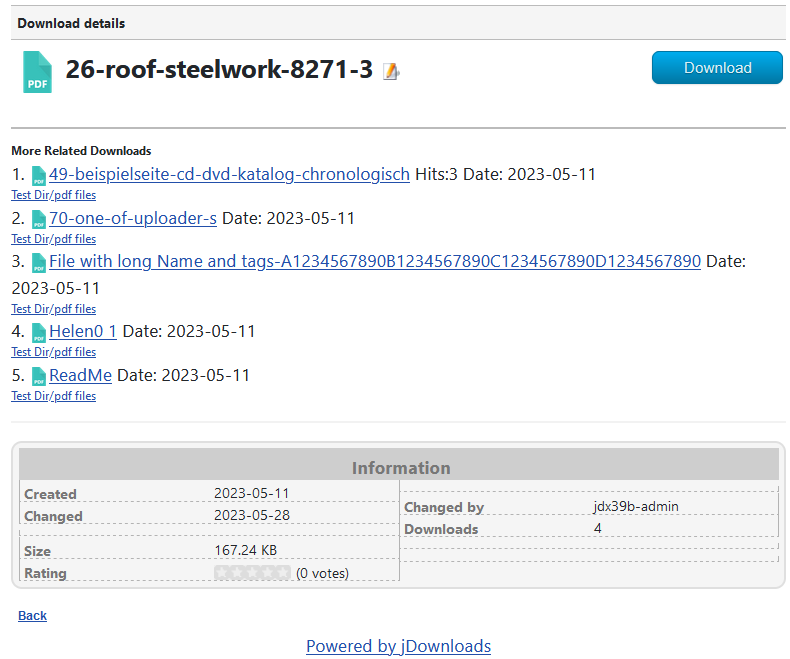
The module is designed to be only shown on the Downloads Details page as indicated opposite.
As noted later the Related Downloads may also be sorted in several ways, including by popularity, Title, Created Date, Modified Date and so on.
An example of the Related module is shown opposite.
It may also be shown as part of the Download Description but again it is only visible when the Description is being shown on the Download Details page.
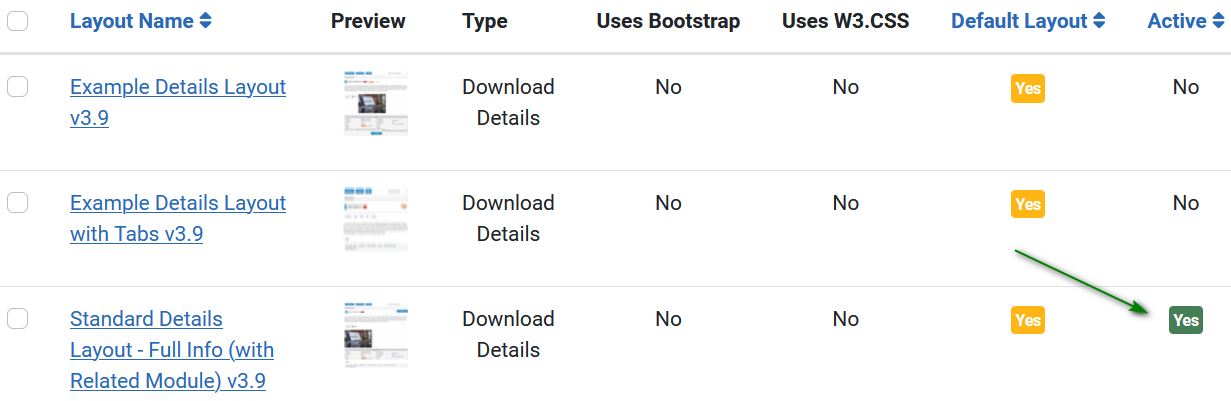
As noted later you need to have Download Details layout 'Standard Details Layout - Full Info (with Related Module) v3.9' set as the Active layout.
As noted later the Related Downloads may also be sorted in several ways, including by popularity, Title, Created Date, Modified Date and so on.
An example of the Related module is shown opposite.
It may also be shown as part of the Download Description but again it is only visible when the Description is being shown on the Download Details page.
As noted later you need to have Download Details layout 'Standard Details Layout - Full Info (with Related Module) v3.9' set as the Active layout.
If you would like to use the Related module elsewhere then it is worthwhile looking at the Regular Labs 'Modules Anywhere' plugin.
Setting Up the Module
The principle parts to set up in the module itself are in the Module tab, the Menu Assignment tab and the Filter tab as described below.
Module tab
The most important items on the Module tab are listed below. As described in more detail in the Download Details Layout section the Related module is displayed using the standard Joomla! loadmodule plugin.
Please also note that the selection of which Downloads are shown by a combination of category and date is setup in the Filter Tab. The Module tab primarily determines the information about each related Download that is shown in the frontend view.
Please also note that the selection of which Downloads are shown by a combination of category and date is setup in the Filter Tab. The Module tab primarily determines the information about each related Download that is shown in the frontend view.
Essentials
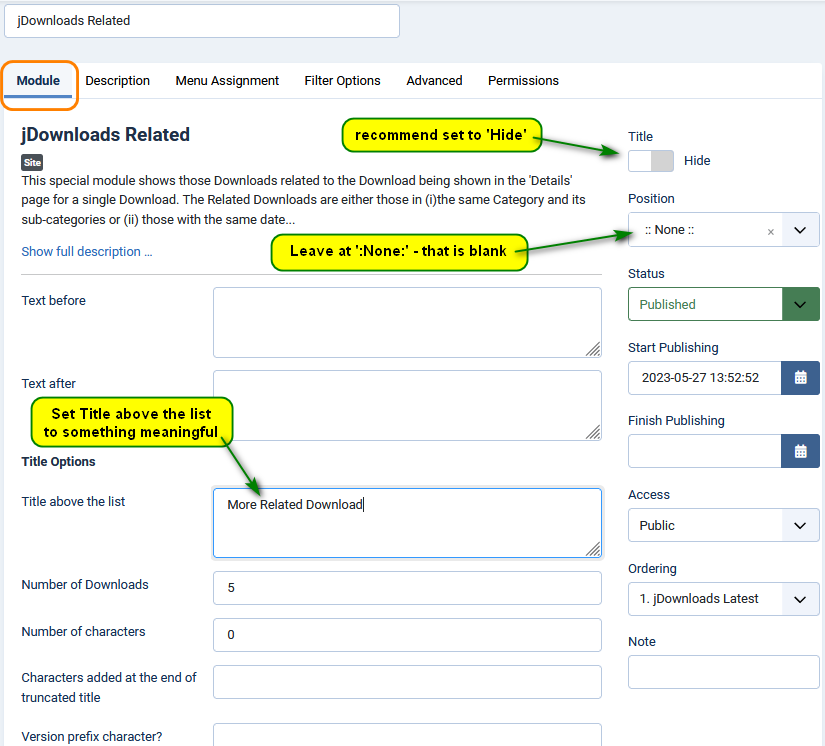
It is essential to leave the Position field blank, that is at::None:: as shown opposite.
This is because the position where the actual page will be displayed is not a fixed template position.
Hide the Module title by setting the 'Show Title' option to Hide. This is strongly recommended, particularly if you are using multiple copies of the module or you have a multilingual site as discussed later.
In the Main Options section add suitable text to the Title that is effectively a short description of the module.
Also of course set the Status to Published.
Title Options
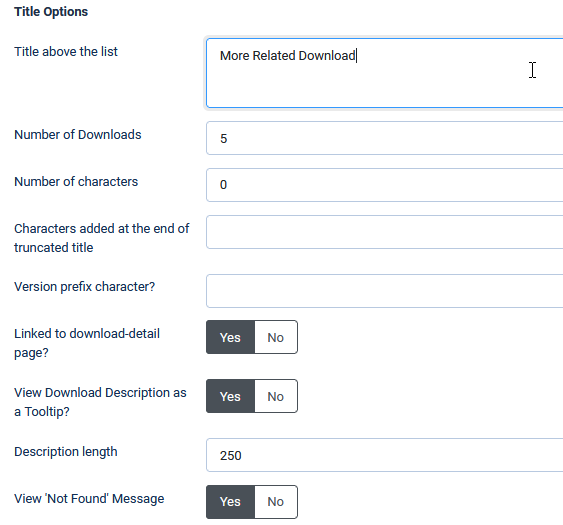
The 'Title above the list' option is essentially a very short description of the Related Downloads.
Obviously 'Number of Downloads' determines the maximum number of Downloads that will be listed. This is limited to a maximum of 99 Downloads
'Number of characters' Setting a value will limit the maximum length of the Download title that will be shown to users. Leave as zero for the full title.
When a title is truncated then field 'Characters added at end of truncated title' may be set to some text such as ... to indicate it has been truncated. Upto 10 characters maybe used.
The 'Version prefix character?' field allows setting say a V in front of the Download version. Upto 10 characters maybe used.
When set to Yes the 'Link to download- detail page?' field will make the titles as a link to their own respective Download Details view.
The 'View Download Description as a Tooltip?' will show any description in the Download as a hint when the mouse hovers over the title.
'Description Length' contols how many characters of the Description are shown.
When the 'View 'Not Found' Message' setting is set to Yes then an appropriate message, such as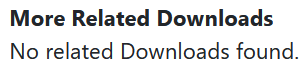 , is shown if there are no related Downloads. If set to No then nothing is shown.
Obviously 'Number of Downloads' determines the maximum number of Downloads that will be listed. This is limited to a maximum of 99 Downloads
'Number of characters' Setting a value will limit the maximum length of the Download title that will be shown to users. Leave as zero for the full title.
When a title is truncated then field 'Characters added at end of truncated title' may be set to some text such as ... to indicate it has been truncated. Upto 10 characters maybe used.
The 'Version prefix character?' field allows setting say a V in front of the Download version. Upto 10 characters maybe used.
When set to Yes the 'Link to download- detail page?' field will make the titles as a link to their own respective Download Details view.
The 'View Download Description as a Tooltip?' will show any description in the Download as a hint when the mouse hovers over the title.
'Description Length' contols how many characters of the Description are shown.
When the 'View 'Not Found' Message' setting is set to Yes then an appropriate message, such as
, is shown if there are no related Downloads. If set to No then nothing is shown.Hits Options
Set the 'Show Hits?' field to Yes to show the number of hits, that is the number of times the Download has actually been downloaded.
The 'Label for Hits Values' setting lets you choose suitable text to denote the number of times it has been downloaded.
Setting the 'Display hits in the same line?' to No shows them on a separate line. Setting to Yes will display them on the same line.
The 'Alignment of the hits' is only used when they are displayed on a new line.
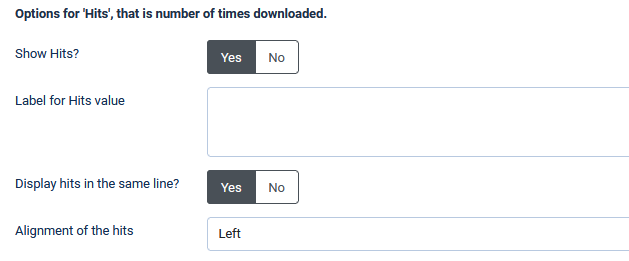
The 'Label for Hits Values' setting lets you choose suitable text to denote the number of times it has been downloaded.
Setting the 'Display hits in the same line?' to No shows them on a separate line. Setting to Yes will display them on the same line.
The 'Alignment of the hits' is only used when they are displayed on a new line.
Date Options
'Show Creation date?' turns the view on or off.
Setting the 'Display date in the same line?' to shows the date on a separate line. Setting to
  will display them on the same line.
'Date format' sets the way the date is displayed.
For more information about the format see: http://www.php.net/manual/en/function.date.php (opens in a new window/tab).
The 'Date alignment' is only used when the date is displayed on a new line.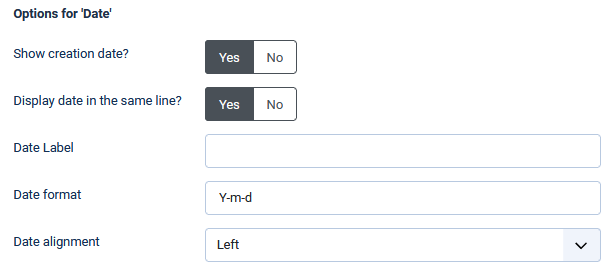
Setting the 'Display date in the same line?' to
shows the date on a separate line. Setting to will display them on the same line.'Date format' sets the way the date is displayed.
For more information about the format see: http://www.php.net/manual/en/function.date.php (opens in a new window/tab).
The 'Date alignment' is only used when the date is displayed on a new line.
Icon Options
When set to the 'View assigned icon?' field shows the icon associiated with the file type.
The icon size, if being shown, is set in the 'Size of the Icon' field.
Setting 'View as a numerical list? list to precedes each related Download with an integer index. For example the title line could look like  where 'Helen0 1' is the fourth download in the list.
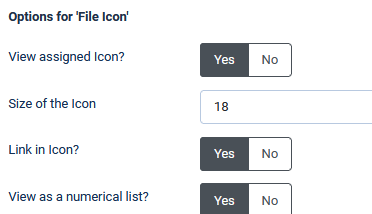
the 'View assigned icon?' field shows the icon associiated with the file type.The icon size, if being shown, is set in the 'Size of the Icon' field.
Setting 'View as a numerical list? list to
precedes each related Download with an integer index. For example the title line could look like where 'Helen0 1' is the fourth download in the list. Thumbnail Options
When 'View assigned Thumbnail?' is set to
and if the Download has anny associated images then a thumbnail of the first image is shown.The 'Show the No Picture thumbnail?' field, when set to Yes, will show the no-pic image,
 , if the Download has no associated images.
The 'Size of the Thumbnail' field sets the size in pixels.
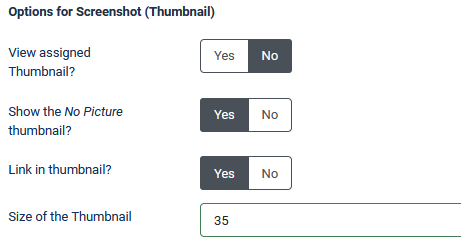
Categories Options
The 'Show Categories?' setting determines if Categories are shown as part of the frontend view. If set to all the other settings in this section are ignored.
'Category type' has two settings: All Categories and Containing Category. If All Categories is selected then Downloads in sub categories are also included.
The setting 'Text before category name' allows a prefix such as
'Category: ' so that the category link would look like:
' '.
'.
'Category Font Color' is used when a link is not set.
'Category Font size' obviously sets the size of the text.
Option 'View Category Title as a Link?' will if set to Yes show a link to the containing Category.
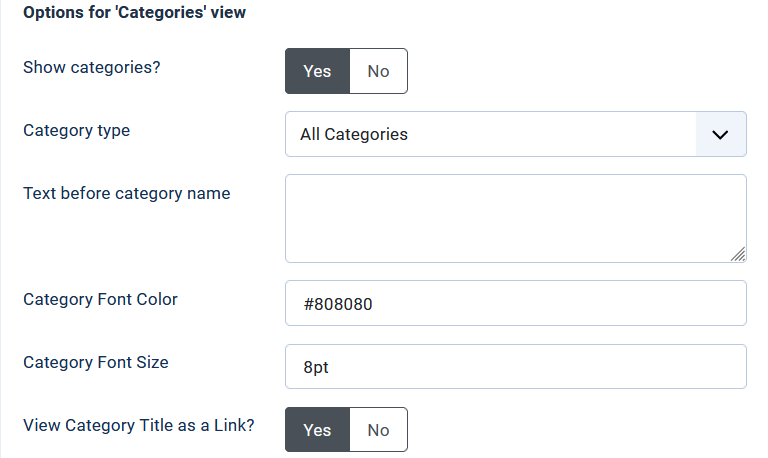
all the other settings in this section are ignored.'Category type' has two settings: All Categories and Containing Category. If All Categories is selected then Downloads in sub categories are also included.
The setting 'Text before category name' allows a prefix such as
'Category: ' so that the category link would look like:
'
'.'Category Font Color' is used when a link is not set.
'Category Font size' obviously sets the size of the text.
Option 'View Category Title as a Link?' will if set to Yes show a link to the containing Category.
Multilingual Support
The method of multilingual support for Modules in Joomla! is to have a seperate copy of the module for each language.
As shown opposite it is important that each version has an identical main Title but a different language.
Note: it is not necessary to include the language, such as (de) in the title.
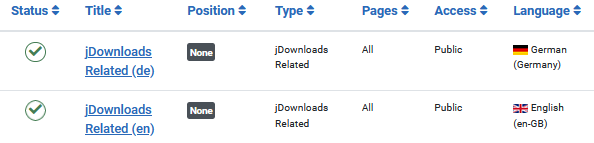
Note: it is not necessary to include the language, such as (de) in the title.
A general procedure would be to setup the module in one language and when done to use the  button.
If theTitle of the original module was 'jDownloads Related' then the name of the copied module would be be something like 'jDownloads Related (2)' so remove the added part of the name.
A critical part is of course to set the language option appropriately and of course to modify the various text related options to the equivalent phrase.
That is the content of options: 'Text before'; Text after'; ' Title above the list'; 'Characters added at the end of truncated title'; 'Version prefix character'; 'Label for Hits value'; and 'Text before category name'.
button.If theTitle of the original module was 'jDownloads Related' then the name of the copied module would be be something like 'jDownloads Related (2)' so remove the added part of the name.
A critical part is of course to set the language option appropriately and of course to modify the various text related options to the equivalent phrase.
That is the content of options: 'Text before'; Text after'; ' Title above the list'; 'Characters added at the end of truncated title'; 'Version prefix character'; 'Label for Hits value'; and 'Text before category name'.
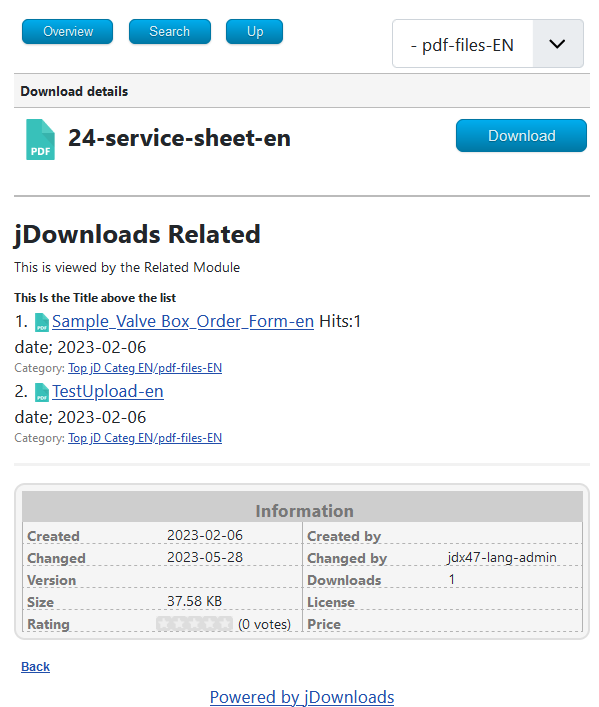
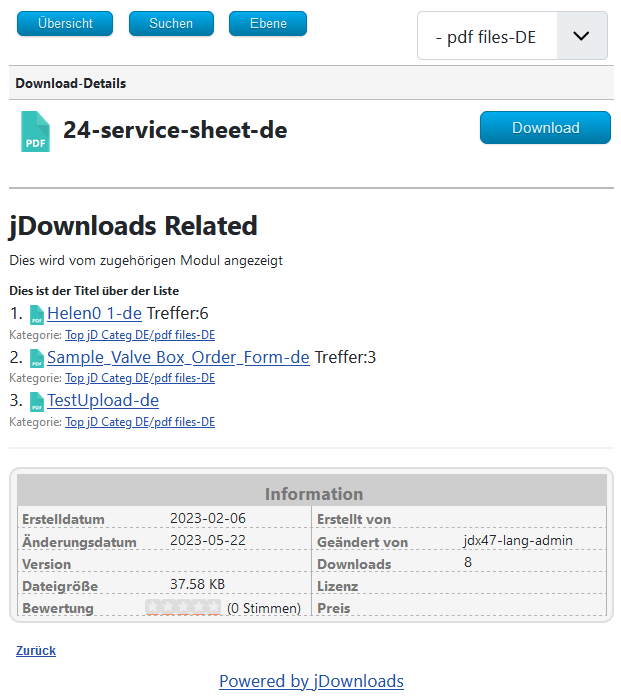
The two examples shown opposite illustrate the result of a multilingual setup.
Just for demonstration purposes the names of the categories and files in my multilingual test site had '-en' or similar appended to them when they were created.
The associated items in German had '-de' or similar.
Menu Tab
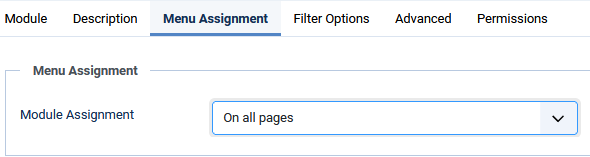
The next important step is to check that the module will be shown on all pages. This is on the module Menu Assignment tab.
This does not actually show the Module on all pages as the Related module is usually shown on the Download Details page.
The default setting is 'No pages'
This does not actually show the Module on all pages as the Related module is usually shown on the Download Details page.
The default setting is 'No pages'
Another situation is when a Download is being shown with the Content plugin.
Also of course if one uses theRegular Labs 'Modules Anywhere' then it may be shown anywhere.
Also of course if one uses theRegular Labs 'Modules Anywhere' then it may be shown anywhere.
Filter Options Tab
The final stage in setting up the module is to select which of the Related Downloads are to be shown:
by date and category; by date only or by category only.
The reference date is the corresponding date in the reference Download.
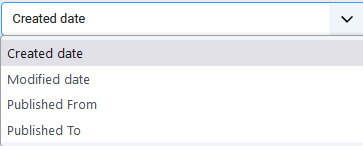
First consider the setup for filtering by date and category. Set option 'Filter on related date' to Yes. The option 'Choose the related date' will then appear. This pull down has 4 options to select the type of date:
In all cases the selection may be extended to include subcategories, and also the 'depth' of the subcategories categories to be included.
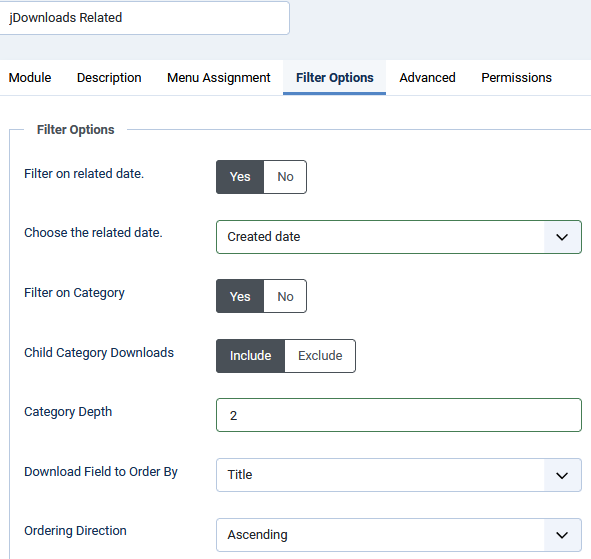
The 'Download Field to Order By' determines how the Downloads in the Related set are selected.
To show the most popular Downloads then use the 'Hits' setting. Also remember to set the 'Ordering Direction' field to Descending otherwise it will show the Downloads that have been downloaded the least number of times!
The Created and Modified Date options basically allow the most recent uploads to be shown. Essentially just experiment!
After Publishing and Close & Save, the Module Manager should look like the picture opposite.
Note that for the jDownloads Related module the 'Position' field shows 'None' entry and the 'Pages' field shows 'All'.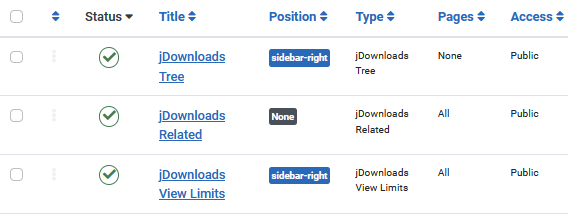
To show the most popular Downloads then use the 'Hits' setting. Also remember to set the 'Ordering Direction' field to Descending otherwise it will show the Downloads that have been downloaded the least number of times!
The Created and Modified Date options basically allow the most recent uploads to be shown. Essentially just experiment!
After Publishing and Close & Save, the Module Manager should look like the picture opposite.
Note that for the jDownloads Related module the 'Position' field shows 'None' entry and the 'Pages' field shows 'All'.
jDownloads Options Setup
To find this click on  and then on
  . Next at top right click on
 the click on
  tab. Now scroll down to the 'Download Sequence' section and set option 'View Download detail page' to Yes.
If you do not do this the Related Module will not appear because the Download Details page will not be shown!
It is also useful to set the 'Use files title as download link' option to Yes as well.
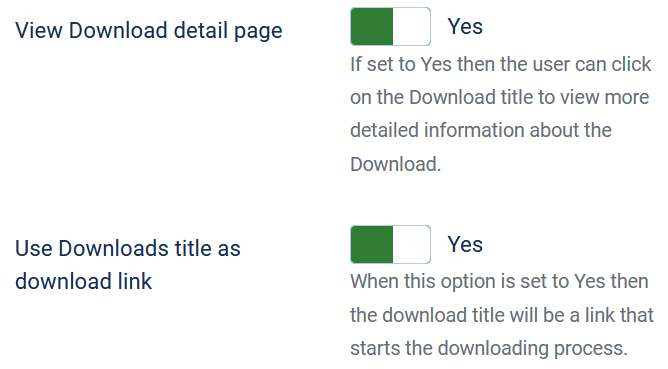
and then on . Next at top right click on the click on tab. Now scroll down to the 'Download Sequence' section and set option 'View Download detail page' to Yes.If you do not do this the Related Module will not appear because the Download Details page will not be shown!
It is also useful to set the 'Use files title as download link' option to Yes as well.
The other essential setting is 'Activate support for all Joomla content plugins'. To find this click on and then on . Next at top right click on the click on tab.

and then on . Next at top right click on the click on tab. Now scroll down to the 'Other Options' section and set 'Activate support for all Joomla content plugins' option to Yes. This must be set to Yes, as shown above, because support for the standard Joomla! plugin is required.
Download Details Layout
The following notes describe how to modify a Download Details layout to include the Related module. Pease note that the layout "Standard Details Layout - Full Info (with Related Module)" already contains the necessary code.
To view the Related Module use is made of the standard Joomla! loadmodule plugin in the Download Deials layout.
Now the syntax of the loadmodule plugin may be written as [[loadmodule module-formal-name, Title]] where the [[ are replaced by { and ]] by }. The Title is the name set in the module title field, which is jDownloads Featured by default. Note that Title may not be unique as there may be multiple versions of the same module. The module-formal-name of the Related Module is mod_jdownloads_related.
So the required plugin would look like [[ loadmodule mod_jdownloads_related, jDownloads Related]] with { replacing [[ and } replacing]].
An example of the code in the layout is shown below.
To view the Related Module use is made of the standard Joomla! loadmodule plugin in the Download Deials layout.
Now the syntax of the loadmodule plugin may be written as [[loadmodule module-formal-name, Title]] where the [[ are replaced by { and ]] by }. The Title is the name set in the module title field, which is jDownloads Featured by default. Note that Title may not be unique as there may be multiple versions of the same module. The module-formal-name of the Related Module is mod_jdownloads_related.
So the required plugin would look like [[ loadmodule mod_jdownloads_related, jDownloads Related]] with { replacing [[ and } replacing]].
An example of the code in the layout is shown below.

As mentioned earlier a standard layout called "Standard Details Layout - Full Info (with Related)" is included in jDownloads 4. You will, of course, need to make the Download Details layout that supports the Related module the active layout.
If you prefer to use another Download Details layout, it will need to be edited as shown in the Appendix below.
If you prefer to use another Download Details layout, it will need to be edited as shown in the Appendix below.
An example view of the Download Details with Related module support is shown opposite
Including Related module in the Description
An alternative to using a Layout that supports the Related module is to include the 'loadmodule' line in the description section of the Download.
When the regular Download view occurs, such as shown opposite, the Related module does not appear!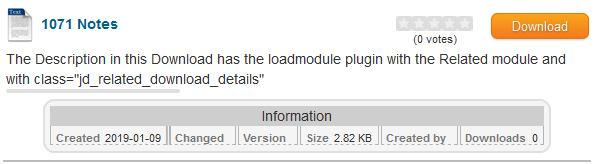
When the regular Download view occurs, such as shown opposite, the Related module does not appear!
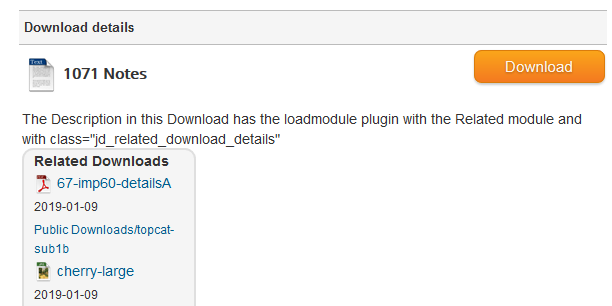
However it does appear when any Download detail view of this particular Download is shown.
That is using the loadmodule plugin in the Description can be more selective as you may choose which Downloads are to show the Related module.
Using Multiple Related Modules
It is straightforward to create multiple copies of the Related Module, each with a different Title, as described below.
The first step is to go to  -
-  and click on the standard Related module to open it up.
Click on Save As Copy and this will generate another version with a different title as shown on the far right.
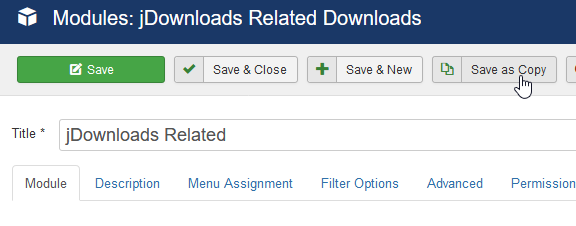
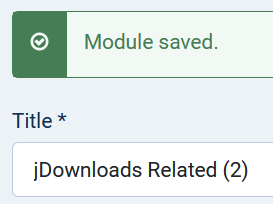
- and click on the standard Related module to open it up.Click on Save As Copy and this will generate another version with a different title as shown on the far right.
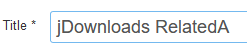
Change the Title to say 'jDownloadsRelatedA' and click on Save & Close.
This will show we now have another module called 'jDownloads RelatedA'.
This new module may be setup as required, ensure it is published.
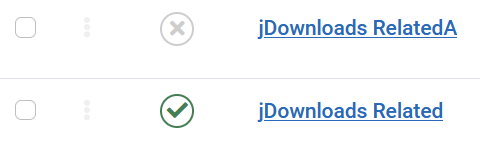
This will show we now have another module called 'jDownloads RelatedA'.
This new module may be setup as required, ensure it is published.
To use it we just change the plugin code inserted into the layout to have the new Title 'jDownloads RelatedA',
[[loadmodule mod_jdownloads_related,jDownloads RelatedA]] where the brackets [[ and ]] are replaced with { and } respectively.Appendix Editing a Layout
The next step is to edit one of the Download Details layouts. NOTE: A layout called "Standard Details Layout - Full Info (with Related)" with the changes described below is available as standard in jDownloads 4 series.
Adding in the Related module just requires adding in one line of HTML code in the relevant Download Details Layout.
Adding in the Related module just requires adding in one line of HTML code in the relevant Download Details Layout.
To see what is required go to Layouts - Detail Downloads. Click on "Standard Details Layout - Full Info(with Related)" which will show the main layout code.
If you wish to edit one of the other Download Details layouts then select the layout.
In the main toolbar first make a copy by clicking on the button located in the header. Note that the is located in the  pulldown as indicated opposite.
This will make an identical copy of the selected layout except that the title will have a " (2)" addeded to it. Suggest that the title is changed to something appropriate.
In the Description box, which is on the right hand side, enter a description such as "download details with related module".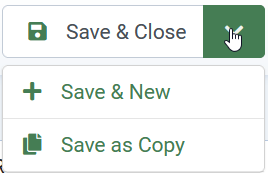
In the main toolbar first make a copy by clicking on the
button located in the header. Note that the is located in the pulldown as indicated opposite.This will make an identical copy of the selected layout except that the title will have a " (2)" addeded to it. Suggest that the title is changed to something appropriate.
In the Description box, which is on the right hand side, enter a description such as "download details with related module".
Now in the main layout section, search for the line which contains 'information section' as indicated opposite. Then insert the relevant line just above <!-- Information section -->.

For convenience the relevant line is shown below so that it may be copied.
Then change the [ to { and ] to } .
Now click Save & Close and most importantly set the new Download Details layout as the Active one by using the button which is in the
  pulldown on the tool bar.
<div class="jd_related_download_details" style=""> [loadmodule mod_jdownloads_related,jDownloads Related ]</div>Then change the [ to { and ] to } .
Now click Save & Close and most importantly set the new Download Details layout as the Active one by using the
button which is in the pulldown on the tool bar.Colin M December 2019, modified August 2020, minor corrections Nov 2021, May 2023, April 2025, July 2026



