
Introduction
General
There are four module parameters that must be set up, except for the Related module where no position is specified.
Here we show setting up the jDownloads Latest module. In the click on
  . then in the
  section, select
  . This lists all of the Modules. So in the Module tab select
  ,and then click on the search button
  . Next scroll down to find the jD module you are searching . In this example click on
  .
.
Next Select the position, such as the module is to use. Also set the status as
 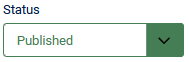 .
.
Here we show setting up the jDownloads Latest module. In the
click on . then in the section, select . This lists all of the Modules. So in the Module tab select ,and then click on the search button . Next scroll down to find the jD module you are searching . In this example click on .Next Select the position, such as
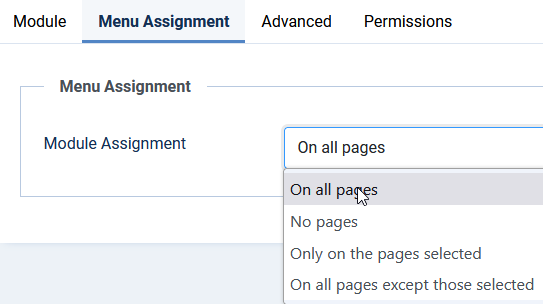
the module is to use. Also set the status as .On the Menu Assignment tab select 'on all pages' as shown.
The module should now appear in the front end.
Each module has many setup facilites to cusomise the view. These are decribed in section 'Setting up Modules' further below.
Brief overview of each jDownloads module.
An image of a typical item in the list is shown for most of the modules listed below. Some have specific articles.
The Top module shows those Downloads that have been downloaded the largest number of times. This could also be described as showing the set of the Most Popular Downloads. This is not subject to any time limit.
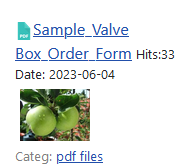
The Latest module shows the most recently created Downloads.
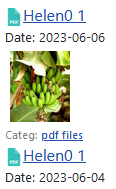
The Last Updated module shows the most recently updated Downloads. That is those Downloads that have been modified. It is necessary to mark the Downloads as updated in righthand column of the General tab and to set the modification date if you wish them to be shown in this module.
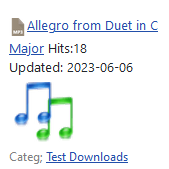
The Most Recently Downloaded module shows those Downloads that have just been downloaded. Optionally it also shows the user who downloaded the item.
Requires that 'Options - Gobal Settings - Activate log function for Downloads' is set to Yes.
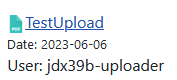
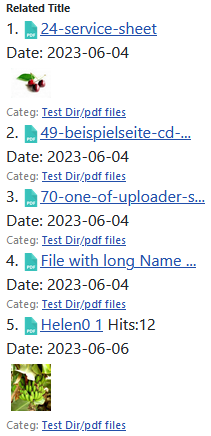
The Related Downloads module shows those Downloads related to the Download being shown. The Related Downloads are selectable as either those in the same Category or its sub-categories as the Download being shown on the details page or those with the same creation date.
It is most frequently used in the Download Details view but it may also be used in Descriptions and elsewhere. There is an article Related Module (opens in new tab/window) on this module. It is a slightly unusual module as it is not assigned to a position.
It also requres a Download Details layout that suppors the 'related functon'.
The Most Rated Downloads module has two variants: the Top Rated version lists the Downloads by the highest number of stars; the Most Rated version lists the Downloads by the highest number of votes. You can have both versions as separate modules by making a duplicate.

To show the ratings it is necceasary to include the placeholder {rating} in the active layout and in the Options- Front End tab - Ratings to set option 'Activate ratings' to Yes.
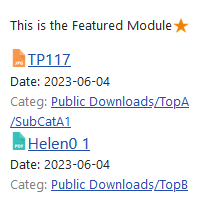
The Featured module shows Downloads that have been 'featured' and are typically listed with a yellow star. This is most useful to pick out the featured Downloads in one or more categories.
In jD Options select the Pictures and Buttons tab. Then scoll down to the Select 'Feature' Symbol and use the pull down to select the symbol to use, and set the size appropriately.
Next go to each Download you wish to feature. In the General tab, scroll down to Featured and set Featured to Yes.
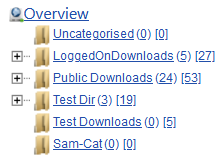
The very useful Tree module shows the Categories and Sub Categories in a tree structure. It gives an alternate navigation aid. There is an article on the Tree module (opens on a sepate window/tab).
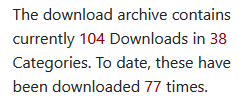
The Stats module shows the statistics: how many Downloads; the number of Categories; and the total number of times files have been downloaded.
The View Limits module shows a logged on user their current download limits. These include daily, weekly and monthly limits. See View Limits Module (opens in anew window/tab) for more details.

Setting up Modules
Setup of most modules is very similar.
- There is the ability to add text before and after the module list;
- to select from which category or categories the information is shown;
- the number of entries in the list;
- set as a link to Download Details page, subject of course to the Permissions;
- view Description as a tool-tip; and so on.
Of course only those Downloads which have the appropriate view access are shown. For example with the View Limits module then one would set the view access to Registered.
There are four module parameters that must be set up, except for the Related module where no position is specified:
On the Module tab Title: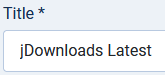 Position and Status: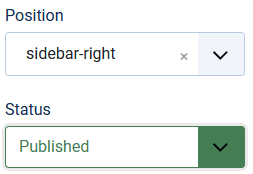
and on the Menu Assignment tab Module Assignment
On the Module tab Title:
Position and Status: and on the Menu Assignment tab Module Assignment
Further Notes
1. A neat way to show several modules without using a lot of screen space is to show in a 'Tabs' module.
2. The Before and After text fields are very useful to add in extra information.
3. Most modules ask if you wish to view the assigned thumbnail. This is actually the Symbol in the  tab in the
  section of the Download.
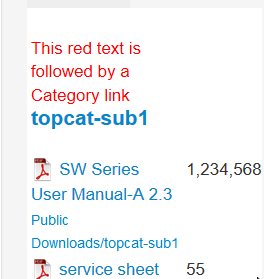
tab in the section of the Download.4. Sometimes you may wish to add in not just text but some html code. However jD removes regular html enclosed in < ... >. But if you use the Sourcerer plugin,available free from www.regularlabs.com (opens in a new tab/window), then it is possible. The code below gives the result shown in the picture. Note the use of [[ and ]] in place of < and >.

ColinM Nov 2019,modified June 2023, Sept 2024, May 2025,July 2026