
Introduction
This article concentrates on more advanced aspects of the Content Plugin facilities such as configuring Joomla Editors. The Content Plugin may be used in Custom Modules and in Download Descriptions.as well as in articles.
It is recommended that you first read article Introduction to jD Content in Articles (opens in a new window/tab)
It is recommended that you first read article Introduction to jD Content in Articles (opens in a new window/tab)
Note: If you have allowed Registered Users to create Content then be aware that in Joomla! Global Configuration - Text Filters that the default for Registered is 'No HTML'. You need to set to say 'Default Forbidden List'.
On the click on
  . Then in the
  section at top left, click on
  . Next click on tab
 and change the Registered entry from
  by using the pull down to
 .
.
On the
click on . Then in the section at top left, click on . Next click on tab and change the Registered entry from by using the pull down to.Configure jDownloads Content Options
This part of the Content Plugin setup is treated in more detail in the article Introduction to the Content Plugin (opens in a new wndow/tab)
It is recommended that you first read the that article.
It is recommended that you first read the that article.
On the click on  . Then click on
  , next click on
  . Next, at top right, click on the
  finally cick on
  . which is the 13th tab from the left. This lists the relevant setup otions - there are only 3 options.
click on . Then click on , next click on . Next, at top right, click on the finally cick on . which is the 13th tab from the left. This lists the relevant setup otions - there are only 3 options.Select Default Layout
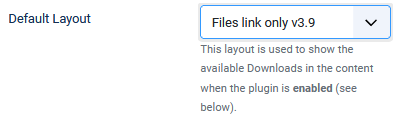
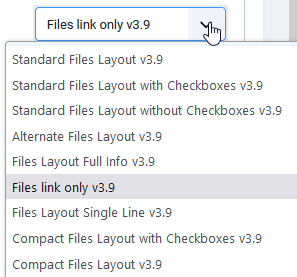
The first option 'Default Layout' allows you to select which layout to use as the default.
In this example the default Content Plugin layout was set to 'Files link only 3.9' as shown below.
Other Options
Enable Plugin locally
Setting to ' Yes' is recommended. It enables the plugin locally but you still need to enable the plugin itself as noted later. Basically for the plugin to work, both this setting and the usual enabling of a plugin need to be set.
Setting ' No' disables the plugin locally and reveals two further parameters. With one of these you can inform users that the Content Plugin is locally disabled in the two additional fields that will appear below.
One of these is the 'Show disabled message?' which, when set to 'Yes' will let the user know about the local disabling.
The other parameter is Show a truncated Downloads Description. It is a pulldown specifying how many of the characters in the Short Description are to be shown. The defalt is 0 which actually means that all of the Short Descrpition in the Download will be shown.
Setting to '
Yes' is recommended. It enables the plugin locally but you still need to enable the plugin itself as noted later. Basically for the plugin to work, both this setting and the usual enabling of a plugin need to be set.Setting '
No' disables the plugin locally and reveals two further parameters. With one of these you can inform users that the Content Plugin is locally disabled in the two additional fields that will appear below. One of these is the 'Show disabled message?' which, when set to '
Yes' will let the user know about the local disabling.The other parameter is Show a truncated Downloads Description. It is a pulldown specifying how many of the characters in the Short Description are to be shown. The defalt is 0 which actually means that all of the Short Descrpition in the Download will be shown.
Select Download using Content Button
In the following the actual code needed in an article or module to reference a Download looks like the following .png) where the value 25 is the id of the required Download. This means finding the id value of the Download which can be tedious in the frontend. A much easier way in the front end is to use the 'Extended Editor' plugins as decribed below.
where the value 25 is the id of the required Download. This means finding the id value of the Download which can be tedious in the frontend. A much easier way in the front end is to use the 'Extended Editor' plugins as decribed below.
Remembering later what is say Download 48 in can be annoying. But note you can also write
  where TestUpload-en is a reminder of the name. This works because the Content plugin ignores text following the file ID, so it does not 'interfer' with with the action by the plugin.
where the value 25 is the id of the required Download. This means finding the id value of the Download which can be tedious in the frontend. A much easier way in the front end is to use the 'Extended Editor' plugins as decribed below.Remembering later what is say Download 48 in
can be annoying. But note you can also write where TestUpload-en is a reminder of the name. This works because the Content plugin ignores text following the file ID, so it does not 'interfer' with with the action by the plugin.Using Extended Editor-xtd buttons
The first step is to enable the 'editors extended' plugins.
So on the
click on the button then in the  section click on
  . Next, click on
  , then in the
 pulldown choose 'editors-xtd'.
 Next enable the required plugins, including
 . The image opposite shows all the editors-exd have been enabled.
 Some items such as
 ,
,  and
and  may not be required, so it is not essential to enable them. Basically it is worthwhile experimenting initially to see what you require for your site and its users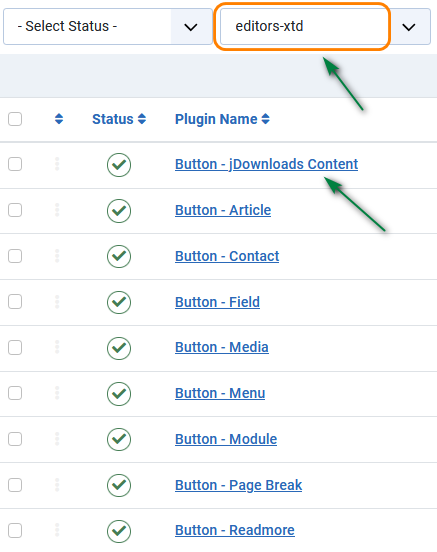
Configure Site Editor
The next step is to configure the Editor you use on your site. To find the Editor or Editors you use the on the click on and then select the actul Editor, such as  .
.
click on and then select the actul Editor, such as .Tiny MCE Editor
If you are using the 'Tiny MCE Editor' to edit in the frontend, the view is like the first image opposite.
Clicking on the
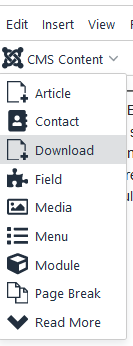
 lists the available extended editor plugins, as shown on the far right. So to set a link to a Download click on
  as indicated in the image on far right. This enables you to select the desired Download.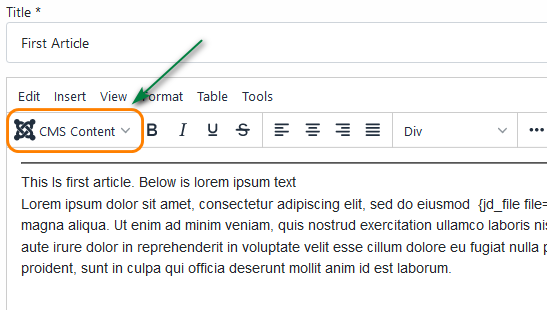
CodeMirror Editor
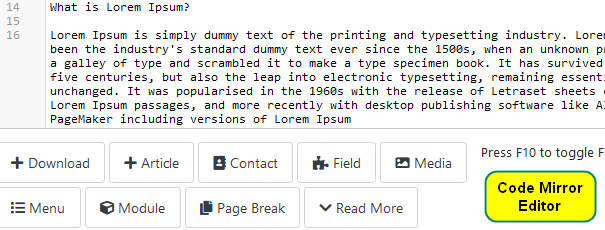
With the CodeMirror editor the buttons appear at the bottom of the edit page.
So to add a Download click on '+Download' to select the relevant Download
JCE Editor
For the JCE Editor there is just a  button on the front end toolbar in a position that is selectable in the JCE Editor Profiles. Soon on the click on then on . Next click on
  then on
  . In this article we use the
  profile so click on . This takes us to the
  page. First select the
  tab. Scroll down and ensure (a) Status is Published, (b) Ordering is Default, (c) Area has both Front-end and Back-end set, (d) Device is set as required (actually I tick all three options) and (e) Components is set to All Components.
The next item is the User Group
button on the front end toolbar in a position that is selectable in the JCE Editor Profiles. Soon on the click on then on . Next click on then on . In this article we use the profile so click on . This takes us to the page. First select the tab. Scroll down and ensure (a) Status is Published, (b) Ordering is Default, (c) Area has both Front-end and Back-end set, (d) Device is set as required (actually I tick all three options) and (e) Components is set to All Components. The next item is the User Group
Choose the relevant Profile such as Default and select the
 tab. Scroll down to the 'Current Editor Layout' section.
 Drag the
 button from the 'Available Buttons & Toolbars' section to a suitable position in the current JCE Editor layout. See JCE Setup - Features and Layout section (opens in a new window/tab).
When you click on the button during editting it gives a pulldown like the one as shown opposite.
To insert a link to a Download click on the
.png) entry. This will then give a view such as opposite, which enables searching for the Download by title.
entry. This will then give a view such as opposite, which enables searching for the Download by title.As an example we have selected Download 'Tubes 1', which has an id of 131. This will then generate {jd_file file==131}.
Note the double '=' symbol.
Here the default layout specified in jDownloads
 -
- tab is 'Files Layout Single Line v3.9'.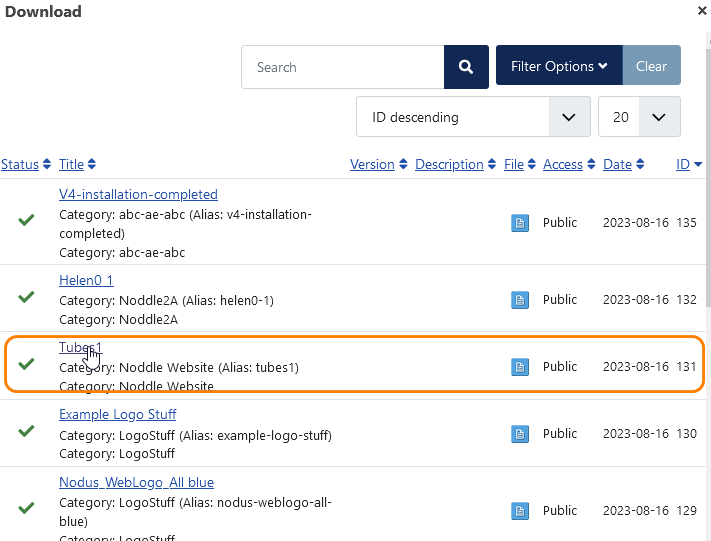
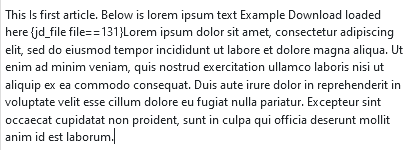
The text in the editor view looks like that shown opposite when the relevant Download is selected.
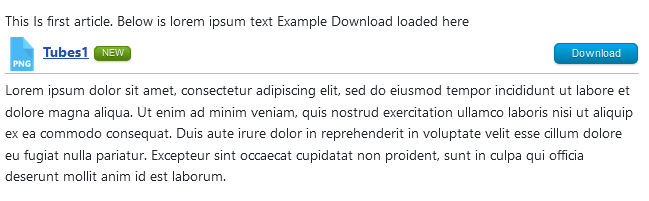
And in the frontend we have the view as shown opposite.
It is only a single line as the selected layout is 'Files Layout Single Line v3.9'.
View in Articles, Modules and Descriptions
Use <div> not <p>
If you are using a basic editor such as Code Mirror or similar then the Content Plugin code would appear as opposite, where in this example the id of the Download is 25.
Using a conventional WYSIWYG type editor such as JCE the entry in the article would look like the image opposite.
Again the Download and its surrounding text is in a <div> ... </div> block.
Note that the JCE editor may be set to show the type of 'block' element.

Again the Download and its surrounding text is in a <div> ... </div> block.
Note that the JCE editor may be set to show the type of 'block' element.
So, as might be expected, the result appears as a single line in the Front End.
In this example the Download layout
is 'Files link only v3.9'
In this example the Download layout
is 'Files link only v3.9'
Now let us see what happens if a Paragraph block <p> ... </p> is used instead of a Div block <div>...</div>.
The direct code as entered is shown below.
 But in this case there is a line break immediately before the Download link in the front-end view!

The direct code as entered is shown below.
But in this case there is a line break immediately before the Download link in the front-end view!The reason is quite simple. The basic HTML definition of a Paragraph is that it cannot hold another block element such as <div>. This is consistent with ordinary language where a Paragraph does not contain an 'internal paragraph'. Hence the browser automaticly generates a line break.
Use In Custom Modules
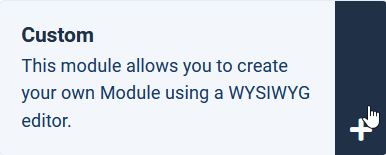
To create a Custom Module go to → →  select the
  button. Search until you find the Custom panel as shown opposite. Then click on the
  button.
Adding a Download link to a custom module is the mostly the same as adding into an article.
→ → select the button. Search until you find the Custom panel as shown opposite. Then click on the button. Adding a Download link to a custom module is the mostly the same as adding into an article.
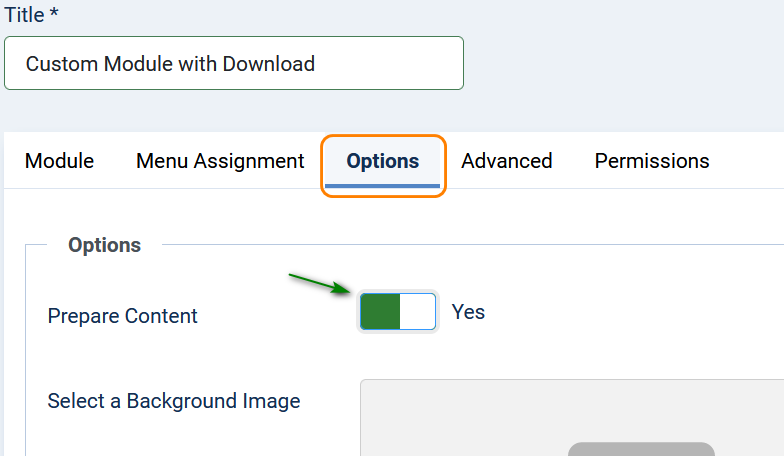
But there is one more action required!
Select the Options tab, then ensure that the 'Prepare Content' field is set to Yes as indicated opposite.
Layout selection
The default layout for use in content is set in the jDownload Options - Plugin Tab.
A more flexible solution is to select the required layout in the content itself by using the form: jd_file onlinelayout=='layout name'
For example, . This must of course appear in the article before the first actual Download that is to use the layout.
A more flexible solution is to select the required layout in the content itself by using the form: jd_file onlinelayout=='layout name'
For example,
. This must of course appear in the article before the first actual Download that is to use the layout.Any Download layout may be used. In these notes we use the simplest layout called 'Files link only' which comes as standard with jDownloads.
There are two other variations of this layout: 'Files Link and icon' and 'File link icon and featured' layouts. These are available either by downloading from Extra jD 3.9 Download Layouts (opens in a new window/tab) and using the Layouts button or by simply editing the Files link version as noted in the Edit layout Appendix below.
The examples below are the views when using a Download whose title is 'decorative products'.
There are two other variations of this layout: 'Files Link and icon' and 'File link icon and featured' layouts. These are available either by downloading from Extra jD 3.9 Download Layouts (opens in a new window/tab) and using the Layouts
button or by simply editing the Files link version as noted in the Edit layout Appendix below.The examples below are the views when using a Download whose title is 'decorative products'.
- Files link only -----------------
 This is a standard default Downloads layout which comes with jDownloads.
 - Files link and icon --------------
 Never shows the featured star.
 - Files icon link and featured ---
 Only shows feature star if Download is featured.
Some Examples
Individual Downloads
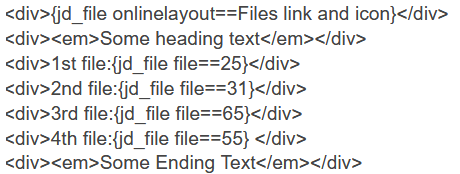
It maybe that the Downloads are to be listed with some text as shown opposite.
Layout "Files link and icon" is used in this example.
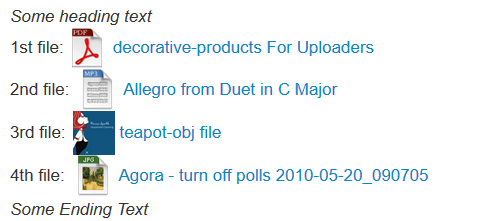
The direct code is shown opposite.
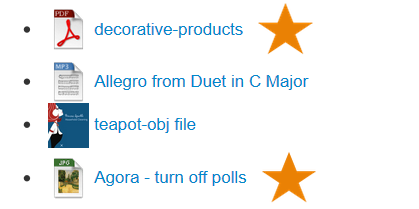
It is also possible to show several Downloads as an unordered list.
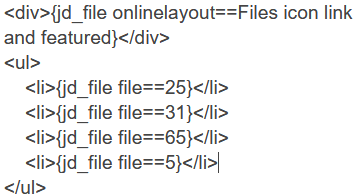
Here the Downloads are contained in a <ul> ...</ul> rather than a <div> sequence.
It could of course be an Ordered list by using <ol> ... </ol>.
The direct entry or code view would be:
From Categories
As well as inserting individual Download links there are also Content Plugin calls to list Downloads from Categories
- Show Downloads from a single or several Categories: For example
 will list upto 12 Downloads from those categories with IDs 15, 3, 41 and 6.
 - Listing latest, top and last updated from any category:
 lists the 6 most recently updated Downloads selected from the categories with IDs 17, 3 and 15.
 - Listing latest, top and last updated from multiple categories:
 lists the 5 most downloaded Downloads from the categories with IDs 12,13 and 3.
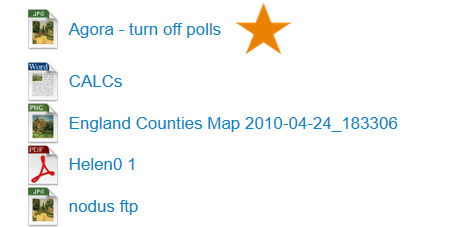
This example shows a listing of all the Downloads in a specific category.
Again the layout "Files icon link and featured" is used.
The code used is simply

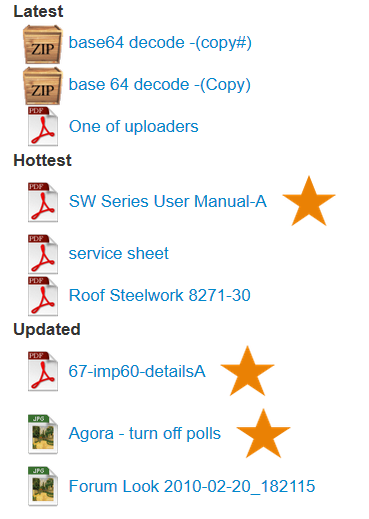
And now examples of Latest, Hottest and Updated.
Only the top 3 in each case are shown in this example.
Layout "Files icon link and featured" was used.
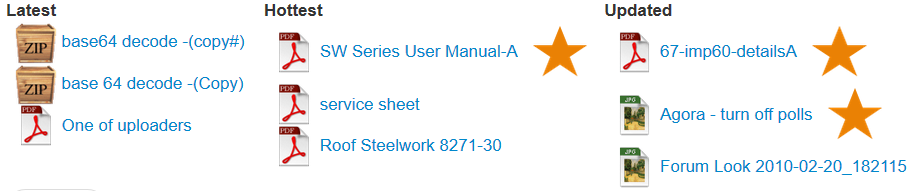
With a little more effort the sequential listing could be arranged in columns as illustrated.
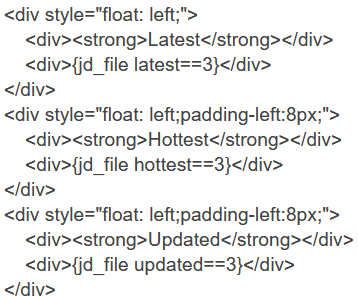
In this case the direct code would be as opposite.
Some Technical Details
When the Plugin code is generated from the short code { ... } then jDownloads adds specific CSS class names to the plugin's enclosing <div> dependent upon the actual form of the plugin.
For example with a file short code such as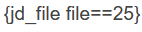 then the plugin code itself starts with
For example with a file short code such as
then the plugin code itself starts withFor say a Hottest short code  the plugin code starts with

This then allows each type of Content plugin to have its own styling. For instance in the three column example above each column could have had its own background colour.For say a Hottest short code.
the plugin code starts withThis then allows each type of Content plugin to have its own styling. For instance in the three column example above each column could have had its own background colour.For say a Hottest short code.
Appendix 1 - Editing Layout
The standard 'Files Link Only' layout is very simple. It is straightforward to edit the existing layout to create the other two layouts.
The first step is in the backend go to the and select  . Next select the
  layouts and click on 'Files link only V3.9'. This shows the line
  .
.
Now click on the button which will create a new layout called
 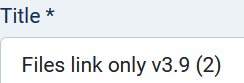 .
.
So edit the title to become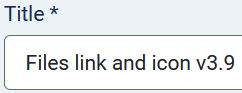 .
.
Edit the layout code layout by adding where indicated by the yellow background to give

Next click on and you now have the additional layout.
Whilst the details of the layout are still on screen click on.
This will create a new layout called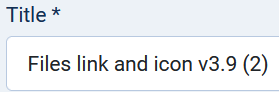 so edit the title to become
 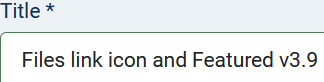 .
.
The next step is to add the code to give
 where the code has been inserted as idicated by the yellow background.
Finally click on the .
.
The first step is in the backend go to the
and select . Next select the layouts and click on 'Files link only V3.9'. This shows the line . Now click on the
button which will create a new layout called .So edit the title to become
. Edit the layout code layout by adding where indicated by the yellow background to give
Next click on
and you now have the additional layout. Whilst the details of the layout are still on screen click on
. This will create a new layout called
so edit the title to become .The next step is to add the code
to givewhere the code has been inserted as idicated by the yellow background.Finally click on the
. Appendix 2 - Extended Capabilities
The jDownloads 4 series Content Plugin can display Downloads in other Joomla! content such as articles.
Originally created by Marco Pelozzi -This email address is being protected from spambots. You need JavaScript enabled to view it. - www.redorion.com
The plugin is automatically installed/updated when installing/updating the jDownloads component.
Modified and reworked for Joomla 3.x/4.x by Arno Betz - jDownloads.com - 2022-08-16
In the following *DID is the ID number of the Download to be shown, eg 52.
*CIDLIST is a comma separated list of the ID numbers of those Categories whose Downloads are to be shown, eg 3,12.
count==*N is the maximum number of Downloads to be shown from this category or category list. If count==0 is specified then all Downloads in the category are listed.
Show a Single Download: {jd_file file==*DID} eg {jd_file file==31} shows the Download with ID of 31 NB this is the style auto entered by the jD Content Button plugin
Show Downloads from a single or several Categories: {jd_file category==*CIDlist count==*N} eg {jd_file category==15 count==5} will list upto 5 Downloads from the category whose ID is 15.
eg {jd_file category==15,2 count==0} will list all the Downloads in the categories with IDs 15 and 2.
eg {jd_file category==15,3,41,6 count==12} will list upto 12 Downloads from those categories with IDs 15, 3, 41 and 6.
Listing latest, top and last updated from any category: {jd_file latest==*N} {jd_file hottest==*N} {jd_file updated==*N}
{jd_file latest==5} lists the 5 latest Downloads.
{jd_file hottest==4} lists the 4 most popular Downloads.
{jd_file updated==5} list the 5 most recently updated Downloads.
Listing latest, top and last updated only from select categories
{jd_file cat_hottest==*CID1,*CID2,*CID3 count==*N}
eg {jd_file cat_hottest==12,13,3 count==5} lists the 5 most downloaded Downloads from the categories with IDs 12,13 and 3.
{jd_file cat_latest==*CID1,*CID2,*CID3 count==*N} eg {jd_file cat_latest==12 count==3} lists the 3 latest downloaded Downloads from the category with ID 12.
{jd_file cat_updated==*CID1,*CID2,*CID3 count==*N} eg {jd_file cat_updated==17,35 count==6} lists the 6 most recently updated Downloads from the categories with IDs 17 and 35.
Selecting layouts
{jd_file onlinelayout==layout name} you can use this to select the which layout to use when showing Downloads.
That is it is possible to use specific layouts rather than the layout selected in the Configuration - Plugin tab.
Example: {jd_file onlinelayout==Simple File List}{jd_file latest==5 count==3}
return
Originally created by Marco Pelozzi -
The plugin is automatically installed/updated when installing/updating the jDownloads component.
Modified and reworked for Joomla 3.x/4.x by Arno Betz - jDownloads.com - 2022-08-16
In the following *DID is the ID number of the Download to be shown, eg 52.
*CIDLIST is a comma separated list of the ID numbers of those Categories whose Downloads are to be shown, eg 3,12.
count==*N is the maximum number of Downloads to be shown from this category or category list. If count==0 is specified then all Downloads in the category are listed.
Show a Single Download: {jd_file file==*DID} eg {jd_file file==31} shows the Download with ID of 31 NB this is the style auto entered by the jD Content Button plugin
Show Downloads from a single or several Categories: {jd_file category==*CIDlist count==*N} eg {jd_file category==15 count==5} will list upto 5 Downloads from the category whose ID is 15.
eg {jd_file category==15,2 count==0} will list all the Downloads in the categories with IDs 15 and 2.
eg {jd_file category==15,3,41,6 count==12} will list upto 12 Downloads from those categories with IDs 15, 3, 41 and 6.
Listing latest, top and last updated from any category: {jd_file latest==*N} {jd_file hottest==*N} {jd_file updated==*N}
{jd_file latest==5} lists the 5 latest Downloads.
{jd_file hottest==4} lists the 4 most popular Downloads.
{jd_file updated==5} list the 5 most recently updated Downloads.
Listing latest, top and last updated only from select categories
{jd_file cat_hottest==*CID1,*CID2,*CID3 count==*N}
eg {jd_file cat_hottest==12,13,3 count==5} lists the 5 most downloaded Downloads from the categories with IDs 12,13 and 3.
{jd_file cat_latest==*CID1,*CID2,*CID3 count==*N} eg {jd_file cat_latest==12 count==3} lists the 3 latest downloaded Downloads from the category with ID 12.
{jd_file cat_updated==*CID1,*CID2,*CID3 count==*N} eg {jd_file cat_updated==17,35 count==6} lists the 6 most recently updated Downloads from the categories with IDs 17 and 35.
Selecting layouts
{jd_file onlinelayout==layout name} you can use this to select the which layout to use when showing Downloads.
That is it is possible to use specific layouts rather than the layout selected in the Configuration - Plugin tab.
Example: {jd_file onlinelayout==Simple File List}{jd_file latest==5 count==3}
return
Colin Mercer February 2019, updated July 2020, May 2023, August 2023, September 2024, April 2025, May 2025 -AA



