
Introduction
Global Setting are a collection of options that do not sit well in any more specific tab! They are Options that once set are rarely changed.
To find the Global Option go to the panel, click on
  and then on
  . Next click on the
  button then, at top right, click on the
  button. Finally click on the
  tab. which is the third tab from the left.
To find the Global Option go to the
panel, click on and then on . Next click on the button then, at top right, click on the button. Finally click on the tab. which is the third tab from the left.Fields
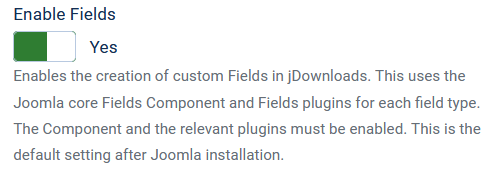
jD4 supports Joomla! Fields and Field Groups when the 'Enable Fields' option is set to Yes, which is the default.
Date format
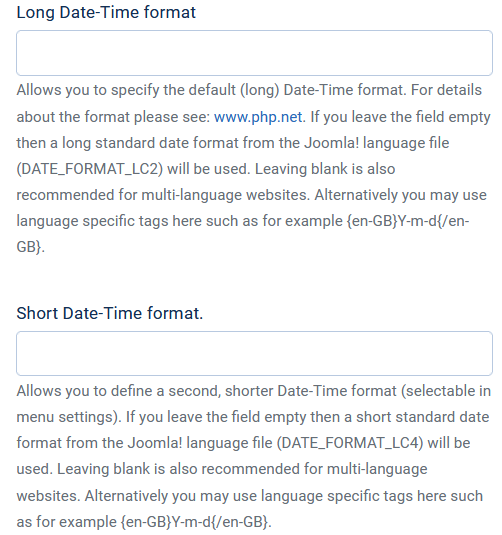
The two options 'Long Date-Time format' and 'Short Date-Time format' allow specifying the way in which the date will appear. The Short Date is selectable in some jD Menu items.
If the Long Date option is left blank then Joomla format "LC2" is used which is like "Saturday, 18 April 2023 16:09".
Similarly if the Short Date option is left blank then Joomla format "LC4" is used which is actually the same as the default Y-m-d.
For details of the various date and time formats see PHP dates. (opens in a new tab/window)
Download method
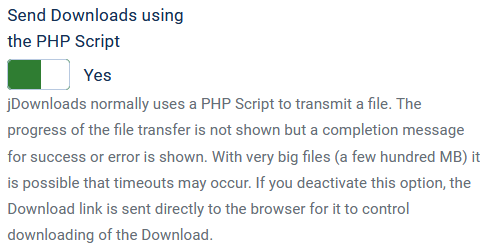
The option 'Send Downloads using the PHP script' is the default method of downloading.
The progress of the file transfer is not shown but a completion message for success or error is shown.
With very big files (a few hundred MB) it is possible that timeouts may occur.
If you set this option to No, the download link is sent directly to the browser for it to control downloading the Download.
Logging
If the 'Activate log function for Downloads' is set to Yes then all Download activities are logged in the database.
Important Please note that some functions, such as the User Group Limits in User Groups Settings, need this logged data to work properly.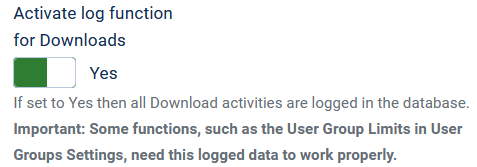
Important Please note that some functions, such as the User Group Limits in User Groups Settings, need this logged data to work properly.
Deleting Images etc
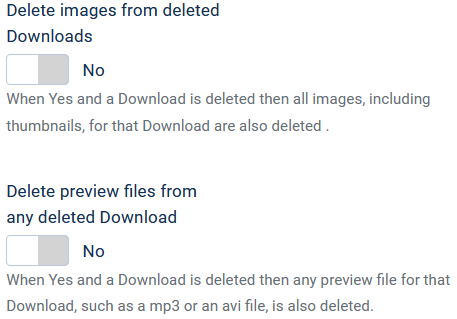
The options 'Delete images from deleted Downloads' and 'Delete preview files from any deleted Downloads' allows deleting any images or previews linked with the Download if the Download is deleteted.
The Default for both options is purposely set to No. This is because jDownloads stores images and preview files separately from the downloadable file as they may be in use with other Downloads or they may be required for replacement Downloads.
Specifically images, often refered to as 'Screenshots', are stored in /images/jdownloads/screenshots
and the corresponding thumbnails are stored in /images/jdownloads/screenshots/thumbnails.
Audio and video preview files are stored in /jdownloads/_previews.
The Option title 'Which file types are opened in the Browser' is perhaps not the best description of what this option does!!
If the Download has an extension which matches one of those specified in the list then jDownloads adds target="_blank" to the link so that it opens in a new tab/window.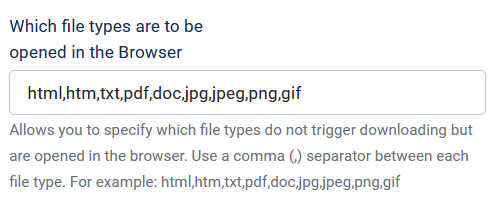
When using Download layouts that support Checkboxes then multiple files may be selected for downloading. In this process the selected files are automatically stored into a temporary ZIP file. It is this zip file that will be downloaded.
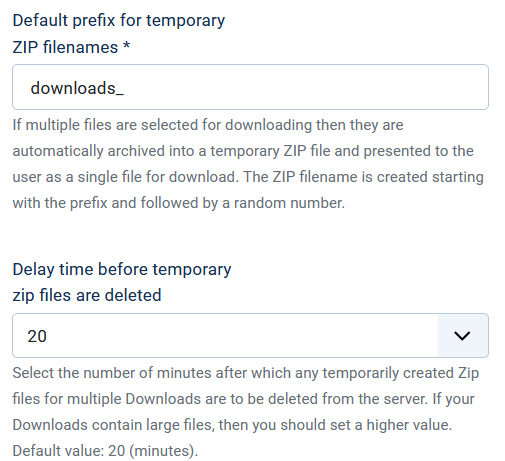
The ZIP filename is created starting with the specified prefix and followed by a random number.
Option 'Default prefix for temporary ZIP filenames' allows you to choose suitable text for the prefix.
The other option 'Delay time before temporay zip files are deleted' specifies the time, in minutes, for a system 'interupt' for jDownloads to delete the file.
This reasonably long delay covers downloading large files on slow links. It is recommended to leave this value unchanged unless you find it is too short for some situations.
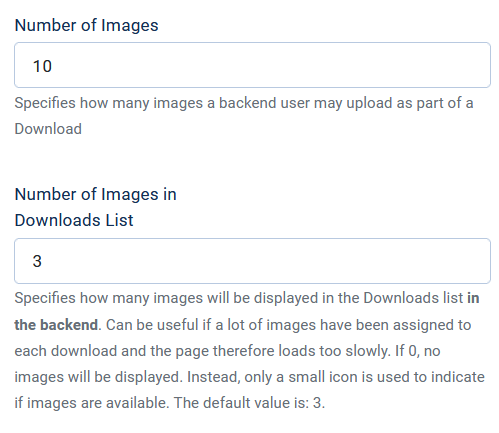
The option 'Number of Images' specifies the maximum number of 'screenshot' images that you will allow to be added to a Download on your site.
The default is set to the absolute jDownload limit of 10.
Note When creating or editing a Download from the frontend there is a limit on the number of images allowed. This is specified in the User Groups Settings, specifically in the Group Creation/Editing Settings option 'How many Images'. This also has a default of 3. It is not related to the options here.
Option 'Number of Images in Downloads List' sets the limit for the number of icons to show in the backend listing.
and the corresponding thumbnails are stored in /images/jdownloads/screenshots/thumbnails.
Audio and video preview files are stored in /jdownloads/_previews.
File Types in Browser
The Option title 'Which file types are opened in the Browser' is perhaps not the best description of what this option does!!
If the Download has an extension which matches one of those specified in the list then jDownloads adds target="_blank" to the link so that it opens in a new tab/window.
Temporary ZIP files
When using Download layouts that support Checkboxes then multiple files may be selected for downloading. In this process the selected files are automatically stored into a temporary ZIP file. It is this zip file that will be downloaded.
The ZIP filename is created starting with the specified prefix and followed by a random number.
Option 'Default prefix for temporary ZIP filenames' allows you to choose suitable text for the prefix.
The other option 'Delay time before temporay zip files are deleted' specifies the time, in minutes, for a system 'interupt' for jDownloads to delete the file.
This reasonably long delay covers downloading large files on slow links. It is recommended to leave this value unchanged unless you find it is too short for some situations.
Number of Images
The option 'Number of Images' specifies the maximum number of 'screenshot' images that you will allow to be added to a Download on your site.
The default is set to the absolute jDownload limit of 10.
Note When creating or editing a Download from the frontend there is a limit on the number of images allowed. This is specified in the User Groups Settings, specifically in the Group Creation/Editing Settings option 'How many Images'. This also has a default of 3. It is not related to the options here.
Option 'Number of Images in Downloads List' sets the limit for the number of icons to show in the backend listing.
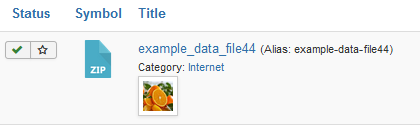
If this option is set to zero and there are images associated with the Download then a small icon,  , will be shown. Note this image has been magnified as it is indeed very small in practice!!
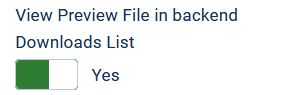
If 'View Preview File in Download List' is:
1) set to yes; AND
2) the Download has one or more images; AND
3) option 'Number of Images in Download List' is non zero.
then small preview images are shown in the backend Downloads listing.
.
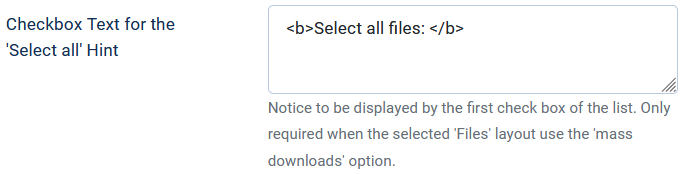
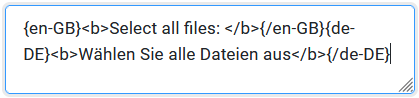
The option 'Checkbox Text for the 'select all' Hint' only appears in the Frontend view when using a Downloads layout that supports checkboxes. It appears in the subheader part of the view and would look like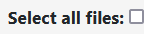 .
.
Note that this option supports the language placeholders as indicated opposite.
, will be shown. Note this image has been magnified as it is indeed very small in practice!!If 'View Preview File in Download List' is:
1) set to yes; AND
2) the Download has one or more images; AND
3) option 'Number of Images in Download List' is non zero.
then small preview images are shown in the backend Downloads listing.
.
If 'View Price Field' in Download List' is Yes then the price, if set, shows in the backend listing. 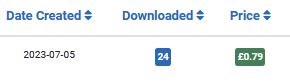 But if the Price Field is empty then a simple
 is shown.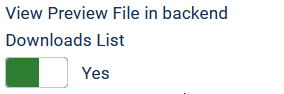
But if the Price Field is empty then a simple is shown.Operating System List
The option 'Add entry to list of Operating Systems' allows you to modify existing entries or extend the list from which a user may select.
Use a , (comma) separator between each option. Always add new values at the end of the list.
Use a , (comma) separator between each option. Always add new values at the end of the list.
Language of Downloadable file
The 'Add entry to list of Languages for downloadable File' should not be confused with the Download Language. It allows modifing or extending the list.
The language here is the language used in the downloadable file. It could of course be a programming language! This option is clearly only useful when the language used in the file is different to that set for the Download Language.
Use a , (comma) separator between each option. Always add new values at the end of the list.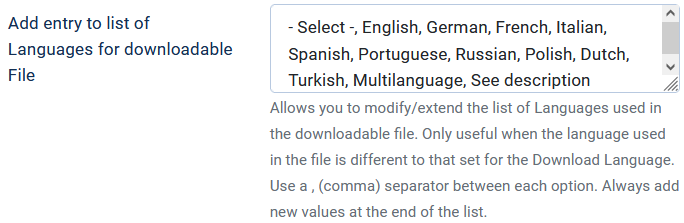
The language here is the language used in the downloadable file. It could of course be a programming language! This option is clearly only useful when the language used in the file is different to that set for the Download Language.
Use a , (comma) separator between each option. Always add new values at the end of the list.
Checkbox text
The option 'Checkbox Text for the 'select all' Hint' only appears in the Frontend view when using a Downloads layout that supports checkboxes. It appears in the subheader part of the view and would look like
.Note that this option supports the language placeholders as indicated opposite.
Robots text
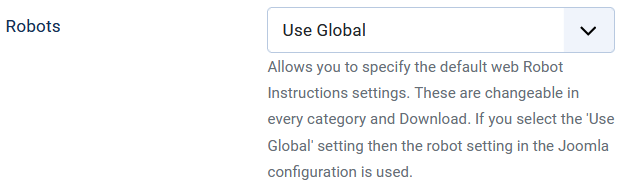
The option 'Robots' allows you to specify the default web Robot Meta-tag settings. These are changeable in every Category and Download. These are the instructions of how web-crawlers will index your site.
If you select the 'Use Global' setting then the robot setting in the Joomla configuration is used. This setting is recommended.
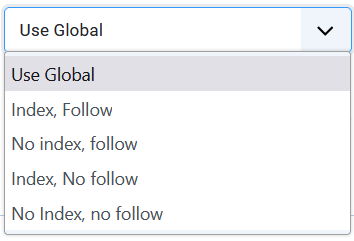
The other possible settings are shown opposite.
This is quite a complex subject. As well as the Robot Meta tags there is also a similar protection using a 'Robots.txt' site facility.
For more guidance see for example robots-meta-tags (opens in new window/tab)
If you select the 'Use Global' setting then the robot setting in the Joomla configuration is used. This setting is recommended.
The other possible settings are shown opposite.
This is quite a complex subject. As well as the Robot Meta tags there is also a similar protection using a 'Robots.txt' site facility.
For more guidance see for example robots-meta-tags (opens in new window/tab)
ColinM June 2020, Modified July 2023 , May 2025, July 2026



