
Introduction
This article shows how to restrict creation of a Download in the Front End to a specified Category that the creator/editor cannot change.
This is different from the situation through User Group Settings where the Download 'creator' may select a category but when editing that category cannot be changed.
This is different from the situation through User Group Settings where the Download 'creator' may select a category but when editing that category cannot be changed.
Most of the work is in Joomla! as noted below.
- in Joomla! backend, in the User Permissions section create a User Group;
- then create a View Access level;
- in jDownloads backend create a jD Category and set its Permissions;
- in Joomla! backend construct a Menu Item to allow creating new Downloads from the frontend;
- set up the jDownloads User Group with relevant options.
Create a User Group
The first step is to create a Joomla User Group whose members will only be able to create Downloads in a specified Category.
So on the Joomla! click on
  then in the
  section click on
  . Next, at top left, click on
  to create a new User Group called for example 'FixedCatUG' and set its parent as Registered.
Then from the Joomla! backend Users tab add the relevant users to that User Group.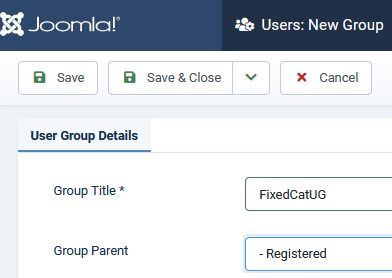
So on the Joomla!
click on then in the section click on . Next, at top left, click on to create a new User Group called for example 'FixedCatUG' and set its parent as Registered. Then from the Joomla! backend Users tab add the relevant users to that User Group.
Create a View Access Level
Part of the setup is to create a menu item so it is convenient at this stage to also create a specific Joomla! View Access Level so that only the FixedCatUG members will see the menu item.
So in the Joomla! backend click on
 and then on the button Next click on the
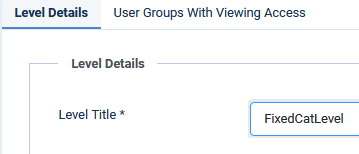
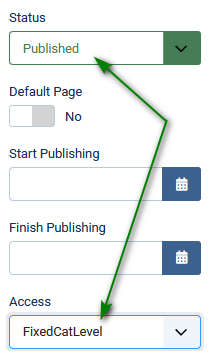
  tab. Set the name of the level appropriately, such as FixedCatLevel' as shown in the first image opposite.
Next on the click on
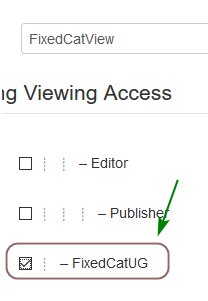
 Tab and 'tick' the the relevant user group, which in this example is 'FixedCatUG'.
 It may also be convenient to join the Super User to the view level.
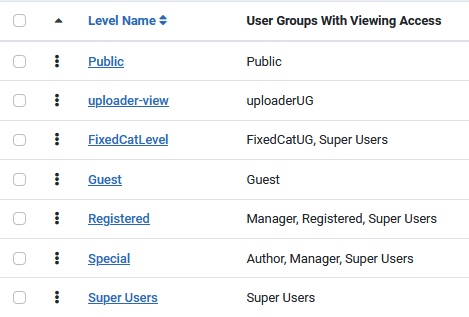
If we now look at the Access Levels it will be like the image opposite.
That is if we set the viewing acccess level on a Category or Download to 'FixedCatLevel' then only members of the FixedCatUG and Super User groups will seem them.
Create a jD Category
If it does not exist already then go to the jDownloads backend and create a suitable category, called in this example FixedCat, and ensure its Access is FixedCatLevel.
Here we create the jD category as a top level category, that is one with no parent Category. This is the simplest situation as it is straight forward to set up the Joomla! permissions. There could of course be subcategories and these and their Downloads will inherit the same permissions from their top level category.
Note When creating a Category it needs to be Saved before you can set the permissions
Here we create the jD category as a top level category, that is one with no parent Category. This is the simplest situation as it is straight forward to set up the Joomla! permissions. There could of course be subcategories and these and their Downloads will inherit the same permissions from their top level category.
Note When creating a Category it needs to be Saved before you can set the permissions
Set Permissions
We need to set Permissions so that the members of the 'FixedCatUG' are able to create and edit.
After selecting 'Allowed' in the relevant permissions box for user group FixedCatUG then tick marks appear.
After clicking on Save the green ticks disappear indicating that the permissions have been set and have propagated. 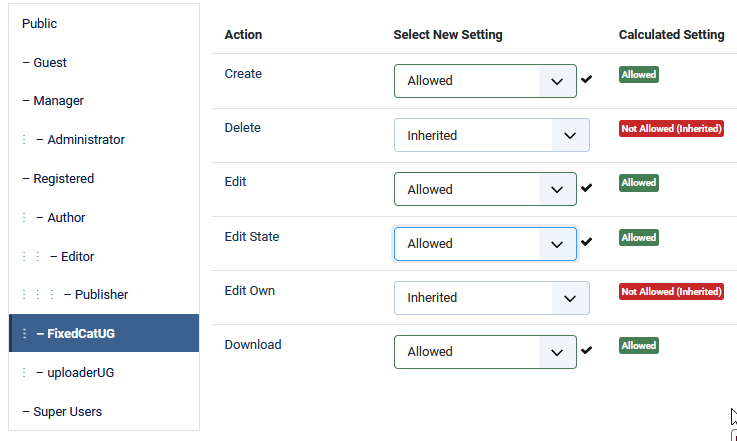
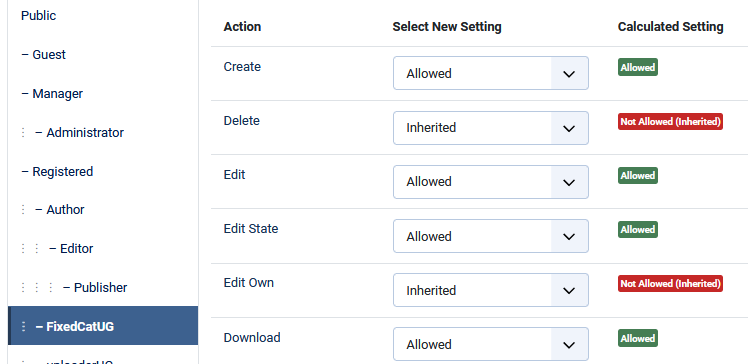
After selecting 'Allowed' in the relevant permissions box for user group FixedCatUG then
tick marks appear.After clicking on Save the green ticks
disappear indicating that the permissions have been set and have propagated. Create a Menu Item
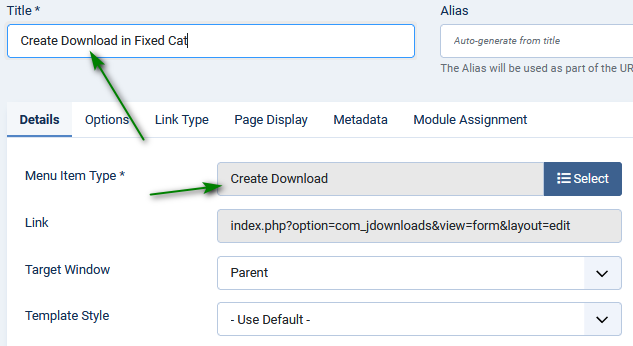
The next step is to create a menu item of jD Menu Item Type 'Create Download' in an appropriate menu. Give it a suitable title, such as 'Create Download in FixedCat' in this example.
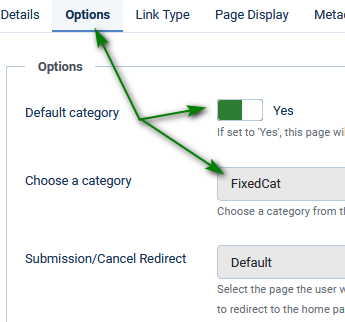
Set the Access level to 'FixedCatView' so that only members of the 'FixedCatUG' will see the create menu item. Most importantly in the the Options tab set the Default Category to Yes and from the 'Choose a category' option pull down select the relevant category, such as 'FixedCat' in this example.
Set the Access level to 'FixedCatView' so that only members of the 'FixedCatUG' will see the create menu item. Most importantly in the the Options tab set the Default Category to Yes and from the 'Choose a category' option pull down select the relevant category, such as 'FixedCat' in this example.
Setup the User Group Settings
The final stage is setting up 'FixedCatUG' in the jD User Groups Settings. Clicking on 'FixedCatUG' in the User Groups Settings page will show the detailed settings for the user group.
The Ranking is immediately after theGroup Title. Obviously one needs to set the Ranking to a sufficiently high level, say 135.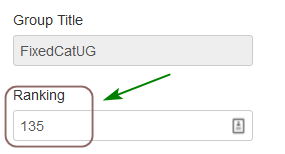
The Ranking is immediately after theGroup Title. Obviously one needs to set the Ranking to a sufficiently high level, say 135.
The relevant questions are readily 'ticked' in the 'Group Creation/Editing Settings' tab.
The Display Add/Upload icon may be selected as required as it will produce the same result as the menu item when a member of the 'FixedCatUG' is logged in.
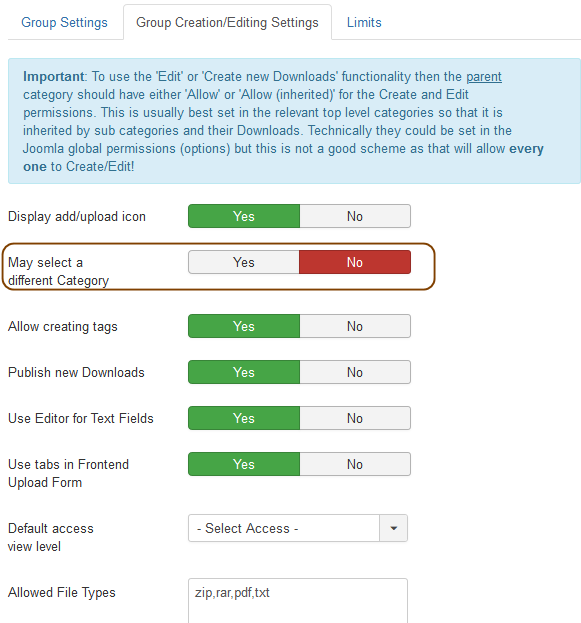
The 'May select a different Category' option can be set as either Yes or No as it is overruled by the menu setting.
But in case the menu option gets 'unpublished' I would suggest you set this option to 'No'.
The Create Download menu item, or the
 button, will now show the name of the fixed Category as illustrated opposite. The field is not editable so members of the 'FixedCatUG' cannot change it.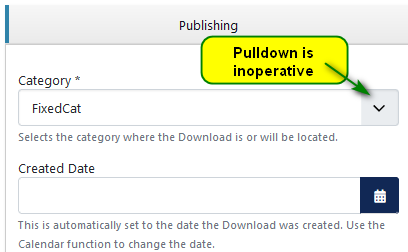
ColinM November 2019 modified July 2023, May 2025, July 2026



