
Introduction
Layouts control how jDownloads shows Categories and Downloads on the front end. They are very flexible and allow customising in a simple and practical manner.
The objective of this article is to show which layout or part of a layout is used when showing jDownloads Categories and Downloads.
There are seven layout types as listed below, most have several versions. Only one layout of each type is the 'active' one.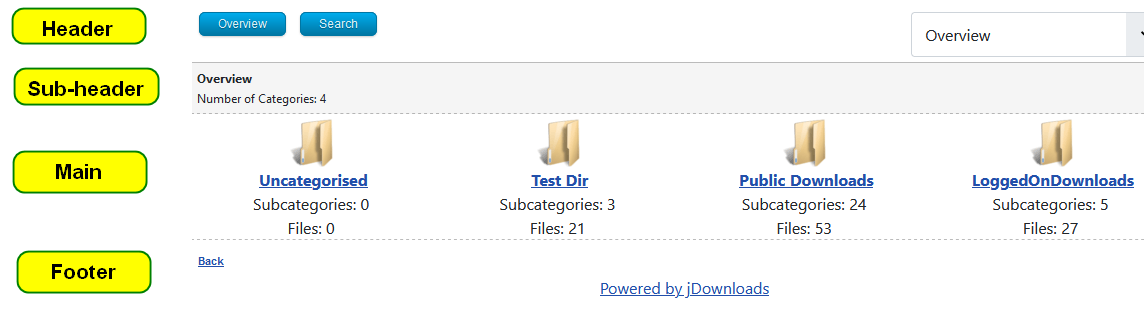
ColinM, December 2019, modified March 2021, May 2023, May 2025, July 2026
The objective of this article is to show which layout or part of a layout is used when showing jDownloads Categories and Downloads.
There are seven layout types as listed below, most have several versions. Only one layout of each type is the 'active' one.
- Categories: Defines the layout of the Categories view. No Downloads are listed, only the Root Categories.
- Subcategories: Defines the layout when showing multiple Subcategories.
- Category: Defines the layout of a single Category.
- Downloads: Defines the layout of each Download that is listed.
- Download Details: Defines the layout of the detailed view of a Download.
- Summary: Defines the layout of the Download summary page which may be shown in various circumstances such as supplying a password, confirming a licence and so on. If it is shown then this is the page where actual downloading is initiated.
- Search form: Defines how the form and the results from the frontend search function are shown.
New Layouts in jD 4.1
In jDownloads 4.1 additional layouts were added in each of the six layout types. For example in the Downloads section layouts 'Standard Bootstrap 5 Files Layout - Minimal Compact v4.1' and 'Standard Bootstrap 5 Files Layout - Minimal Compact with Checkboxes v4.1' have been introduced.
A single Standard Bootstrap 5 Layout has been included in the other five layout types.
Which layout is used
Which Layout is used depends upon how the view was called.
There are up to six parts in a layout
There are up to six parts in a layout
- main - this is the central part of the layout, it is often used multiple times on a page for example once for every Download
- header - appears as the heading, used once per page
- sub-header - appears below the header, used once per page
- footer - shown below the last item on each page, used once per page
- use before - this is used once per page and occurs just before the main part of the layout, normally empty
- use after - this is used once per page and occurs after all uses of the main part of the layout, normally empty
The four principle parts are the Header, the Sub-header, the Main part and the Footer. In a layout the Main part may be used multiple times.
Showing Download Details, Summary or Search
When showing the Download Details, Summary or Search views then it is quite straight forward:
- viewing Download Details uses the active Download Details layout for all four principle parts;
- viewing the Summary uses the active Summary layout for all four principle parts;
- viewing a Search uses the active Search layout. Only the header, subheader and footer parts are used.
Showing List All Categories
Another straight forward situation is when using the List all Categories menu item. This always uses the active Categories layout such as illustrated below. In this example it was a Catergories layout "Categories Example with 4 columns". Note that some details of the view are dependant upon the Options Front End tab settings. For instance in the example below the option 'Number of entries per Categories page' was set at 6. So as the test site used in these examples has 10 top level categories, then six are shown on the first page and the other four would be on the next page. For reference the actual setup values used in this article are noted at the end of this article in Options Setup.
Other views
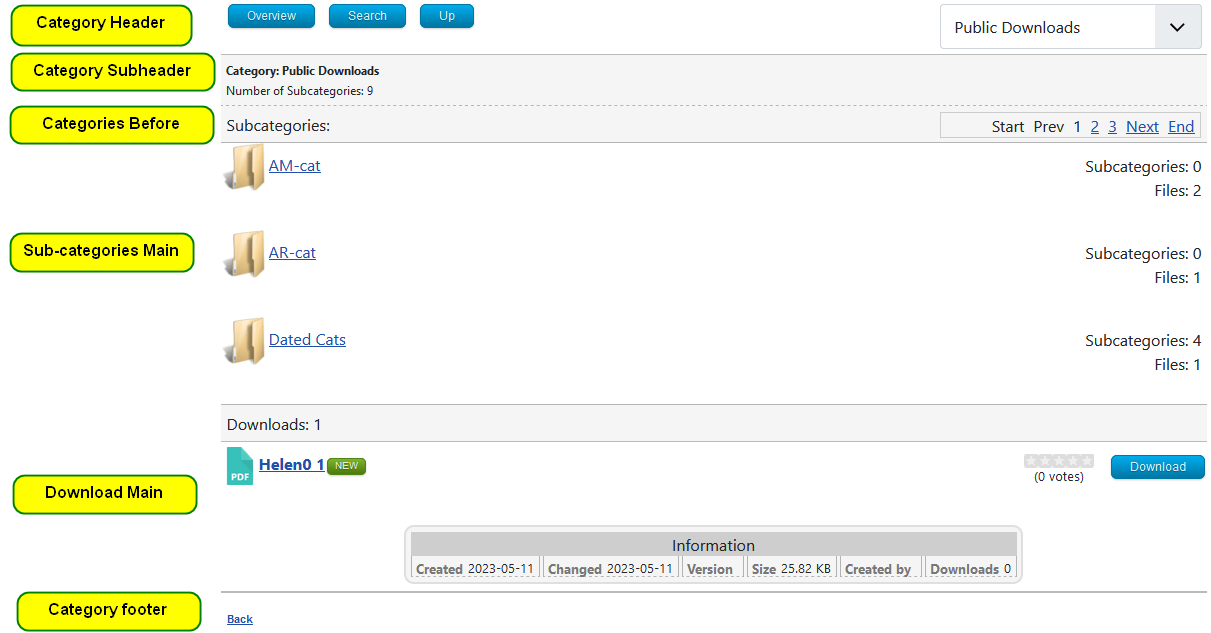
For other views which Layout is used depends upon how the view was called. For example if we click on say Public Downloads in this example the next view would be like the one below. Note that now the view is made up from parts of several different active layouts, some from the Category layout, some from the Sub-categories layout and some from the Downloads layout. This may appear to be strange but it is to ensure consistency of style throughout. For instance all Downloads are shown using the relevant part of the Downloads layout. As there are three subcategories then the Sub-categories 'main' part is used three times, That is it is used once per subcategory being shown.
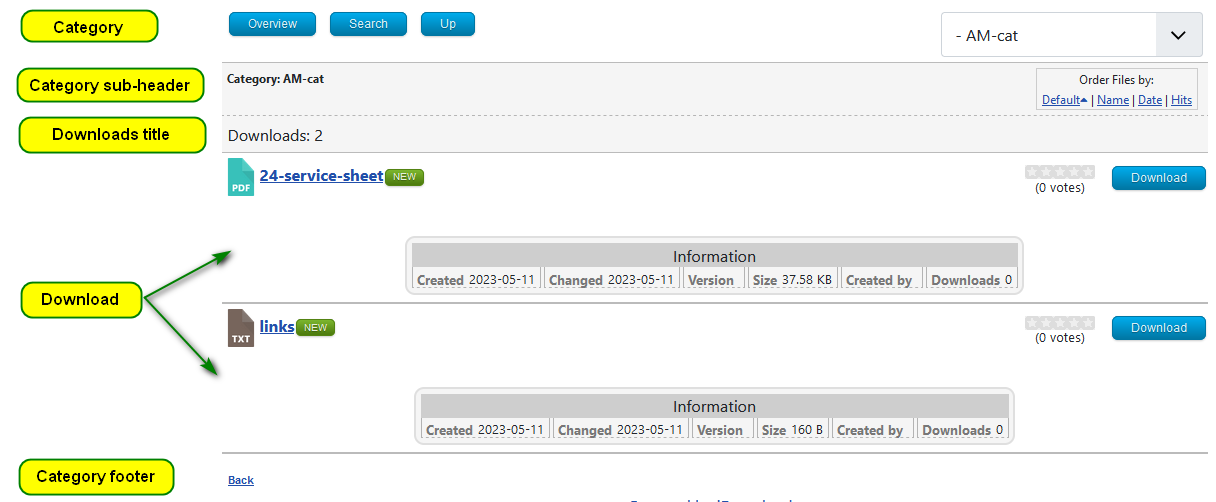
If next we were to click on the topcat-sub1 link the view would be very similar to the one above except it would show a different number of sub categories and Downloads. But clicking on topcat-sub1a has no categories so its view is shown below. This time there are no subcategories but two Downloads so the main part is used twice.
Appendix: Options Front End Tab Setup Details
In the above examples the settings for various configuration values in the Front End section of the Options are as shown below.
For details of all the front end option see the article A Tutorial on Front End Options span style="font-family: verdana, geneva; font-size: 10pt;"(opens in a new window/tab)
For details of all the front end option see the article A Tutorial on Front End Options span style="font-family: verdana, geneva; font-size: 10pt;"(opens in a new window/tab)
| Front End Parameter | Value | |
| Number of Categories to show per page * | 6 | Allows you to specify the maximum number of category entries that will be displayed per page by the front-end. |
| Number of Downloads to show per page * | 6 | Allows you to specify the maximum number of Downloads entries that will be displayed on each page by the front-end. |
| Categories default frontend sort order | Title Reverse Alphabetical | Select the default frontend sort order for Categories. Select 'Categories Manager Order' to use the backend default order. |
| Downloads default frontend sort order | Title Alphabetical | Select the default frontend sort order for Downloads. Select 'Downloads Manager Order' to use the backend default order. |
| Use files title as download link | Yes | When this option is set to Yes then the download title will be a link that starts the downloading process. |
| Show navigation at the top | Yes | If set to Yes, a page navigation bar for the 'downloads' is displayed at the top of the page. |
| Show navigation at the bottom | Yes | If set to Yes, a page navigation bar for the 'downloads' is displayed at the bottom of the page. |
| Show navigation for Subcategories | Yes | If set to Yes then an extra field is shown below allowing you to specify the 'Number of Subcategories/Page'. A subcategories navigation bar will be displayed in the front end view. |
| Number of Subcategories | 4 | Allows you to select the maximum number of subcategories that will be displayed per page. |
| Show empty Categories | Yes | If set to Yes then all categories are shown including those without any Downloads. |
ColinM, December 2019, modified March 2021, May 2023, May 2025, July 2026



