
Introduction
The organisation Remositry has a Joomla 4, 5 and 6 compatible version of a 'points system', called UserPoints, It is based on the now defunct Alpha User Points and Alta User Points used in Joomla 3. Critically UserPoints uses the same database structure as the Alpha and Alta versions.
This article just deals with the interaction between jDownloads and UserPoints. Numerous other aspects of UserPoints are available.
Tests were carried out using Joomla 5.2.4
This article just deals with the interaction between jDownloads and UserPoints. Numerous other aspects of UserPoints are available.
Tests were carried out using Joomla 5.2.4
jDownloads 4.1.7 (released 24 July 2026) and UserPoints 5.0.23 (released 10 August 2026) are compatible with each other.
This article assumes you are using the above or later versions.
This article assumes you are using the above or later versions.
User Points has exactly the same database structure as the Joomla 3 versions of 'Alta User Points' or 'Alpha User Points' so upgrading from either of the Joomla 3 User Points versions, that is changing from either 'Alta User Points' or 'Alpha User Points', is staight forward. It is understood that when Uninstalling then the database is retained. See the Apendix below for details about Joomla 3 versions.
User Points is supported in jDownloads though the use of five jD specific 'rules'. The official User Points documentation often refers to these 'rules' as plugins which is very confusing as they are not plugins in the normal Joomla! sense. However there is no cause for concern as User Points has a function in its control panel to connect up these rules.
The objective here is to provide a guide on setting up User Points as far as interaction with jDownloads is concerned. These notes are not a guide to using User Points in other situations. Basically each time a user downloads then their User Points 'account' is reduced by a certain number of points. This may be a fixed number of points per download or it may be the amount specified in the jD 'Price' field associated with that Download.
Users may gain points by creating a new Download. Also points may be given to the Download 'creator' each time a user downloads one of their Downloads.
UserPoints often mentions registered users. If the word 'registered' has a lower case 'r' at the start it means the user is registered in UserPoints. It does not mean that the user is a member of the Joomla Registered User Group.
User Points is supported in jDownloads though the use of five jD specific 'rules'. The official User Points documentation often refers to these 'rules' as plugins which is very confusing as they are not plugins in the normal Joomla! sense. However there is no cause for concern as User Points has a function in its control panel to connect up these rules.
The objective here is to provide a guide on setting up User Points as far as interaction with jDownloads is concerned. These notes are not a guide to using User Points in other situations. Basically each time a user downloads then their User Points 'account' is reduced by a certain number of points. This may be a fixed number of points per download or it may be the amount specified in the jD 'Price' field associated with that Download.
Users may gain points by creating a new Download. Also points may be given to the Download 'creator' each time a user downloads one of their Downloads.
UserPoints often mentions registered users. If the word 'registered' has a lower case 'r' at the start it means the user is registered in UserPoints. It does not mean that the user is a member of the Joomla Registered User Group.
Become a Remository Observer
To download User Points, you will need to create an Account on Remositry as a Remository Observer.
Go to Remository Membership (opens in a new tab/window).
Then Click on
 This takes you to a New User form. So fill in the relevant details and when done click on the
  button.
UserPoints Installation
Installation, and updating, of the User Points component is quite straight forward and is similar to installing jDownloads.
To get User Points go to
https://remository.com/downloads/A-Place-for-User-Points/ (opens in a new window/tab).
Scroll down to the 'Files in A Place for User Points' and click on 'User Points 5.0.21' or later.
The latest release of User Points from Remositry at the time of updating this article is version 5.0.21 .
After installing User Points and before using it there are a few things to set up in both jDownloads and User Points configurations.
Add jDownloads Rules
There are 5 specific jDownloads related rules that need to be included in UserPoints.To install these then click on  . Next click on the
  .The five jDownloads rules are noted below:
. Next click on the .The five jDownloads rules are noted below:1. User Upload Published This assign points when a user has an uploaded file published in jDownloads (may also be negative to reduce points) . The price is set in the Rule itself.
2. User downloads a fileAssign points when a registered user downloads a file from jDownloads (may also be negative to reduce points).. The Price is set in the Rule itself.
3. User downloads a file (uses price).Reduce points when a registered user downloads a file from jDownloads. Uses the 'price' field from the Download for the number of points.
4. Uploader gets points for downloaded files.Assign points to the file uploader when a user downloads this file from jDownloads. Uses a fixed number of points as defined here. The Price is set in the Rule itself..
5. Uploader gets points for downloaded files (uses price).Assign points to the file uploader when a user downloads this file from jDownloads. Uses the 'price' field from the Download for the number of points.
Setup jDownloads for User Points
In the  click on
  then click on
  . Next click on the
  and then, at top right, select
  , then click on the
  tab, which is the twelth tab from the left. Now scroll down to section
  .
.
click on then click on . Next click on the and then, at top right, select , then click on the tab, which is the twelth tab from the left. Now scroll down to section . 1. Set 'Use User Points rules?' to Yes if you want to use the jDownloads 'rules' in conjunction with UserPoints. When set to Yes it reveals the next two settings.
2. With option 'Use Downloads Price Field for Points?' select No to use a fixed number of points per download or Yes to use the number of points per download as specified in the Price field associated with every Download individually.
3. The final item is setting the 'hint' that is shown to the user if they do not have enough points to actually download.
2. With option 'Use Downloads Price Field for Points?' select No to use a fixed number of points per download or Yes to use the number of points per download as specified in the Price field associated with every Download individually.
3. The final item is setting the 'hint' that is shown to the user if they do not have enough points to actually download.
Please note we have not tested the UserPoints 'Purchase Points for money' as that is not related to jDownloads.
Publish Rules
To access the UsePoints rules, then in the dasboard, then click on . Next click on  then either on
  or by clicking on
  and then on
  . Before you are able to use a rule it must be published. As indicated in the image below click on the
  to publish a rule. When a rule has been published it shows a.
 symbol. The heading is

dasboard, then click on . Next click on then either on or by clicking on and then on . Before you are able to use a rule it must be published. As indicated in the image below click on the to publish a rule. When a rule has been published it shows a. symbol. The heading is
Set Price in a Download
There are two options here: one is to use a fixed price for a Download, the other is to use the Price field in the Download itself so it is specific for individual Downloads. Just for clarity a price of 0.00 is not empty, it signifies a 'free' Download file.
The User Points points dialogue is shown by the Summary Layout through the place holder {aup_points_info}.
This is already present in the Standard Summary layout as illustrated opposite.
The next jD item to set is to ensure that the Summary page will be shown so that the user knows the number of points they are "paying".
In the panel click on . Next click on Then click on
  .Then at top right click on
 - then on the
  tab. Scroll down to the Download Sequence.
Set 'Activate Direct Downloading' to No as shown opposite. The other three fields may be set as required. For more information please see the article Download actions: Direct, via Summary Page or via Download Details (opens in new widow/tab).
On the, click on Then on . Next click on
  to show existing members.
As would be expected they have no points.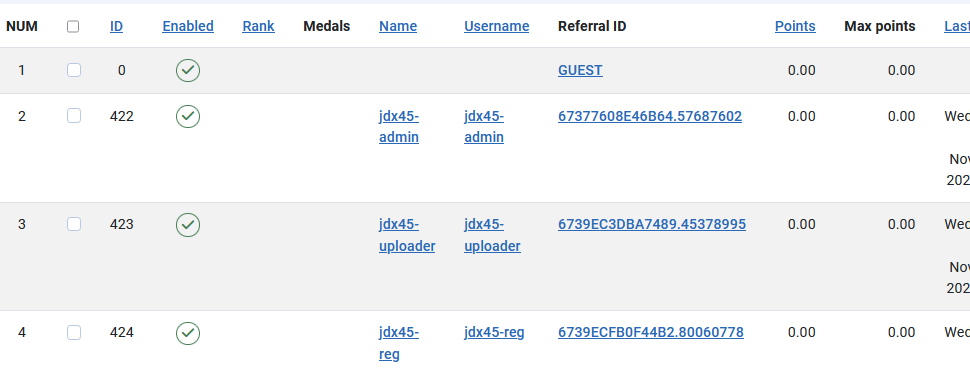

Next click on the New User link, as indiated above. This brings up the the details section of the New User rule as shown opposite.
So if you are going to give all new users a starter number of points then edit the Points field as appropriate, say set to 5.00 as a 'welcome'.
Note this field has two decimal places like most "currencies".
When done click on the button at the top of the screen.

Because a site may have many users who are able to login then before stating the very first time it gives a warning, as shown opposite, about the time it might take.
Click on OK to start the process.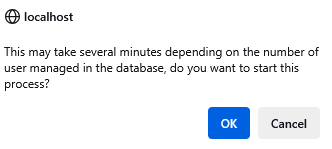
When UserPoints was installed the Joomla test site had 3 users as shown opposite. Each had been given 5 new 'welcome' points.
If you are using a download manager on your local machine then you might find that multiple 'charges' are being made against the user points.
This is because many 'download managers' open multiple 'streams'. Unless you set things up in an appropriate manner then each 'stream' appears as if it were a fresh downloading of the original file.
Hence there is a danger of multiple download charges!
The solution is to change the Method field of the 'User downloads a file (uses price)' rule so that the user is only charged once/day for downloading that file, or another appropriate selection, such as illustrated below.


When you get to the Summary view, there is now an additional message "This Download costs 1.70 points. You currently have 5 points."
As we have sufficient points then the button is present so we can proceed.

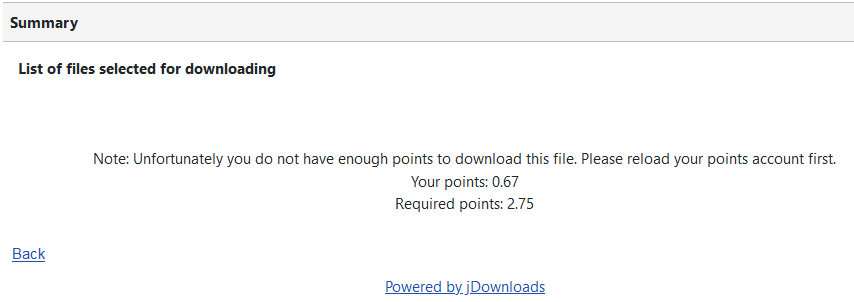
When you do not have suficient points Then a message appears advising you about the situation as illustrated opposite.
There is of course no Download button.
To set the price field in a Download, the field is the first item in the  tab,which is the third tab horizontally, of each Download.
The Administration Downloads list shows the Price, which is in User Points. It is the thirteenth from the left. You are also able to sort by price, as shown on the far right, by clicking on the tab.
tab.
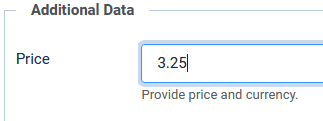
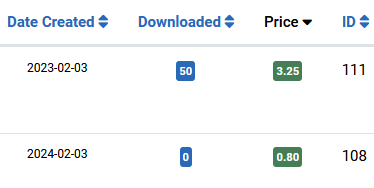
tab,which is the third tab horizontally, of each Download.The Administration Downloads list shows the Price, which is in User Points. It is the thirteenth from the left. You are also able to sort by price, as shown on the far right, by clicking on the
tab. To avoid potential 'confusion' always include two decimal places, even if they are both zero when setting an integer number of points.
Viewing User Points
The User Points points dialogue is shown by the Summary Layout through the place holder {aup_points_info}.
This is already present in the Standard Summary layout as illustrated opposite.
The next jD item to set is to ensure that the Summary page will be shown so that the user knows the number of points they are "paying".
In the
panel click on . Next click on Then click on .Then at top right click on- then on the tab. Scroll down to the Download Sequence.Set 'Activate Direct Downloading' to No as shown opposite. The other three fields may be set as required. For more information please see the article Download actions: Direct, via Summary Page or via Download Details (opens in new widow/tab).
As noted above, the Summary page will inform the user of the cost of the Download in points. In this example, as shown opposite, the cost is 2.15 points and the user's 'credit' is 5.00 points. The Download button is shown.
Note: jDownloads shows a maximum of 2 decimal places.
Note: jDownloads shows a maximum of 2 decimal places.
However if the user does not have sufficient points then an advisory 'error' message shows the shortfall.
Also, of course, the Download button is not present.
Also, of course, the Download button is not present.
Another situation is where users are not logged in or they have not yet been registered with UserPoints but the Download appears downloadable as a Download button is being shown.
In this case because User Points is active and set up so that only members, sometimes refered to as registered users, may download. This is detected and jD generates a message such as the one opposite. 
There is one more aspect of jDownloads that may need to be considered. This is the 'Download Duration Restriction' in the  tab of
  . This setting allows a grace perod in which a user may make multiple downloads of the same item without incurring additional 'charges'. The default period is 60 minutes. The objective of this parameter is to cover situations where a download may fail and may need to be repeated with no further points being charged. You need to set this for each User Group that is allowed to Download from the front end. Typically this would be the Registered and Super User Groups.
See the note below about Download Managers. In practice it means that if you are testing do not download the same Download each time as it will seem that the system is faulty! Also do not confuse with the 'Activate Waiting Time' value in the 'Group Settings' tab of User Groups Settings. The 'Activate Waiting Time' merely introduces a count down time before downloading starts.
tab of . This setting allows a grace perod in which a user may make multiple downloads of the same item without incurring additional 'charges'. The default period is 60 minutes. The objective of this parameter is to cover situations where a download may fail and may need to be repeated with no further points being charged. You need to set this for each User Group that is allowed to Download from the front end. Typically this would be the Registered and Super User Groups.See the note below about Download Managers. In practice it means that if you are testing do not download the same Download each time as it will seem that the system is faulty! Also do not confuse with the 'Activate Waiting Time' value in the 'Group Settings' tab of User Groups Settings. The 'Activate Waiting Time' merely introduces a count down time before downloading starts.
Setting Up UserPoints
After installing UserPoints you may also have a message about Synchronising Users with User Points. But do not do this now. Please first read the notes below.
After installing go to the . This shows a large number of icons to give access to various actions as illustrated opposite.
If you click on the Rules icon as indicated opposite, you will see the detailed list of rules. Also note that the five specific jDownload related rules have been added.
An alternative way of accesing the Detailed Rules is to click on the Button.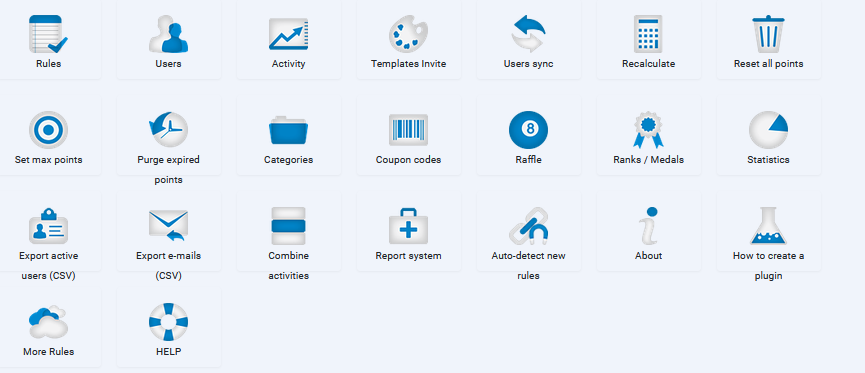
go to the . This shows a large number of icons to give access to various actions as illustrated opposite.If you click on the Rules icon as indicated opposite, you will see the detailed list of rules. Also note that the five specific jDownload related rules have been added.
An alternative way of accesing the Detailed Rules is to click on the
Button. The first thing to do with UserPoints is on the panel click on , then on . Next click on the and then use the button which is located at the top righthand side of the Control Panel.
NB The images shown on the right are actually shown as one long form!
Select the tab as it allows setting the Points Format, and whether accounts are allowed to go negative.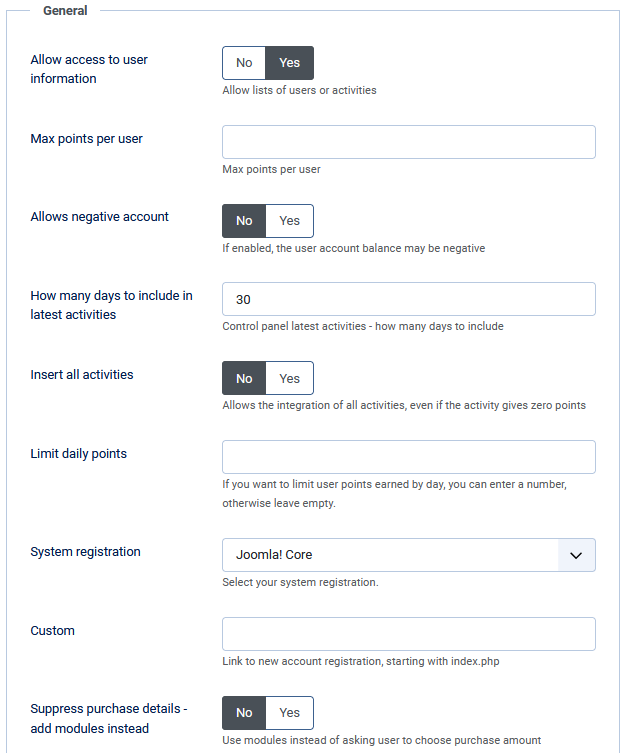

panel click on , then on . Next click on the and then use the button which is located at the top righthand side of the Control Panel. NB The images shown on the right are actually shown as one long form!
Select the
tab as it allows setting the Points Format, and whether accounts are allowed to go negative.Allowing negative accounts is generally a poor idea as it can lead to users being able to download multiple items at no cost to themselves!
Setting the default format is sensible if you are equating points to a financial charge.
Note that jDownloads only shows 2 decimal places with UserPoints items.
Setting the default format is sensible if you are equating points to a financial charge.
Note that jDownloads only shows 2 decimal places with UserPoints items.
At the top of the General tab you may also set your Update Key. User Points does not use the Regular Joomla update mechanism.

User Points actions are controlled by a set of Rules which give it a very wide variety of uses.
To access these click on thethen on  at the top.
There are presently 23 rules in UserPoints, initially many are 'Unpublished".
To modify the rule parameters click on the Rule name.
Note the jDownloads rules do not have an icon but they do of course appear in the detailed rule list.
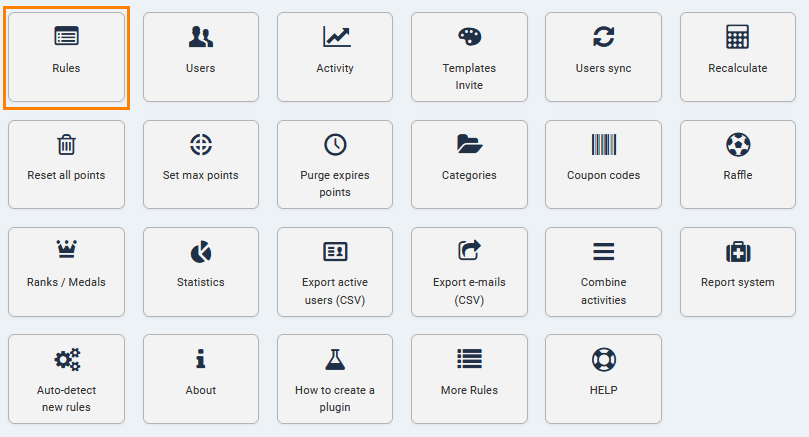
To access these click on the
then on at the top.There are presently 23 rules in UserPoints, initially many are 'Unpublished".
To modify the rule parameters click on the Rule name.
Note the jDownloads rules do not have an icon but they do of course appear in the detailed rule list.
Give Existing Members Points
On the
, click on Then on. Next click on to show existing members.As would be expected they have no points.
To add points select one of the users, jdx45-admin as shown below.

Then click on the button at the top of the screen and enter the number of point to allocate to that user.
Now click on the button.
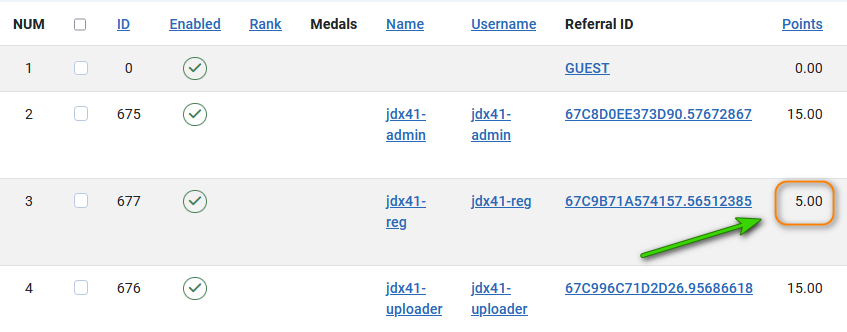
Then click on the
button at the top of the screen and enter the number of point to allocate to that user. Now click on the
button.As shown opposite jdx45-admin now has 15 points.
Of course one could have selected all of the existing users and given each the same number points.
Of course one could have selected all of the existing users and given each the same number points.
Give New User 'starter' points
When UserPoints is installed, it automaticaly interogates the Joomla User list. Subsequently UserPoints is automatically notified of newly created Joomla users.
In order to give new users an initial grant of starter points then it is necessary to edit the appropriate rule. Click on either or . There are 22 rules when jDownloads is installed. Note that many of the rules are initially unpublished. Scroll down the list of rules until you find the  Rule as illustrated below. Presently it is at the bottom of the list. Make sure it is Published, that is it shows the UserPoints published icon . If it shows the unpublished icon then click on the icon to change status to Published.
or . There are 22 rules when jDownloads is installed. Note that many of the rules are initially unpublished. Scroll down the list of rules until you find the Rule as illustrated below. Presently it is at the bottom of the list. Make sure it is Published, that is it shows the UserPoints published icon . If it shows the unpublished icon then click on the icon to change status to Published.Next click on the New User link, as indiated above. This brings up the the details section of the New User rule as shown opposite.
So if you are going to give all new users a starter number of points then edit the Points field as appropriate, say set to 5.00 as a 'welcome'.
Note this field has two decimal places like most "currencies".
When done click on the
button at the top of the screen.Click on or  to find the list of users, often referred to a registered or members.
UserPoints searches automatically for all users who are able to login in to Joomla. It creates a report such as shown opposite.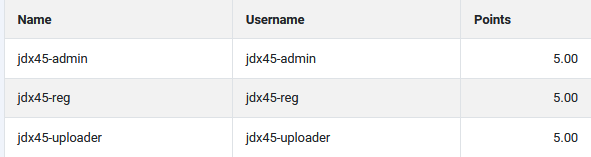
or to find the list of users, often referred to a registered or members.UserPoints searches automatically for all users who are able to login in to Joomla. It creates a report such as shown opposite.
Because a site may have many users who are able to login then before stating the very first time it gives a warning, as shown opposite, about the time it might take.
Click on OK to start the process.
Add Users
When UserPoints was installed the Joomla test site had 3 users as shown opposite. Each had been given 5 new 'welcome' points.
Later another user was added to Joomla.
The user was added to UserPoints without any action.
Note that the new user, jdx45-reg, has the 5 welcome points added.
As users are added to Joomla then they are automatically added to UsePoints if the New User Rule is enabled. To inhibit this automatic action then disable the rule.
Of course if some users have been added in error then disable them in UserPoints.
The user was added to UserPoints without any action.
Note that the new user, jdx45-reg, has the 5 welcome points added.
As users are added to Joomla then they are automatically added to UsePoints if the New User Rule is enabled. To inhibit this automatic action then disable the rule.
Of course if some users have been added in error then disable them in UserPoints.
Give Users Bonus Points
There are a variety of ways to give users points. One simple method is to add 'Bonus' points after setting some value, 3.00 in this example, in the Bonus rule as shown opposite.

To give bonus Points to a user goto the  and select the users by clicking on the 'tick' box. Then click on the
  button at the top of the view.

and select the users by clicking on the 'tick' box. Then click on the button at the top of the view.If you click on again it shows that user jdx46-uploader now has 7.30 points, that is 3.00 more. You may of course select multiple users.

again it shows that user jdx46-uploader now has 7.30 points, that is 3.00 more. You may of course select multiple users.Using a Download Manager
If you are using a download manager on your local machine then you might find that multiple 'charges' are being made against the user points.
This is because many 'download managers' open multiple 'streams'. Unless you set things up in an appropriate manner then each 'stream' appears as if it were a fresh downloading of the original file.
Hence there is a danger of multiple download charges!
The solution is to change the Method field of the 'User downloads a file (uses price)' rule so that the user is only charged once/day for downloading that file, or another appropriate selection, such as illustrated below.
Note the 'charge once/day' attribute is applicable to each download individually.
That is if a user makes multiple downloads of the same Download they will only be charged once that day for that Download.
If that user downloads another Download then they will be charged for the second Download. If the user downloads multiple times in the selected period then these do not create an User Points event.
Other options include 'once per user' meaning that file is free for that user forever after. Further choices include once/week, once/month and once/year. This period could be the duration of free updates after the initial purchase.
That is if a user makes multiple downloads of the same Download they will only be charged once that day for that Download.
If that user downloads another Download then they will be charged for the second Download. If the user downloads multiple times in the selected period then these do not create an User Points event.
Other options include 'once per user' meaning that file is free for that user forever after. Further choices include once/week, once/month and once/year. This period could be the duration of free updates after the initial purchase.
Example
When you get to the Summary view, there is now an additional message "This Download costs 1.70 points. You currently have 5 points."
As we have sufficient points then the
button is present so we can proceed.When you do not have suficient points Then a message appears advising you about the situation as illustrated opposite.
There is of course no Download button.
Updating UserPoints
Get update key
There are two stages, the first is getting your personal update Key - this Stage is a one time activity. The key is located in UserPoints profile on the Remository web site.
The second Stage is the usual Joomla update.
The second Stage is the usual Joomla update.
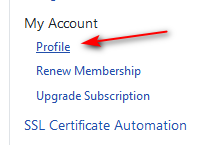
So after logging in to Remository, the Main Menu will show 'My Account' as illustrated in the first image opposite. Click on Profile as indicated.
This will then show your personal update server key - which is in this example is partially blocked out!
Use Cntl-V or similar to take a copy of the key.

This will then show your personal update server key - which is in this example is partially blocked out!
Use Cntl-V or similar to take a copy of the key.
Next click on the UserPoints . Then click on thebutton which is at top right.
Then in the General tab copy your personal update key into the Update Key field as illustrated opposite.
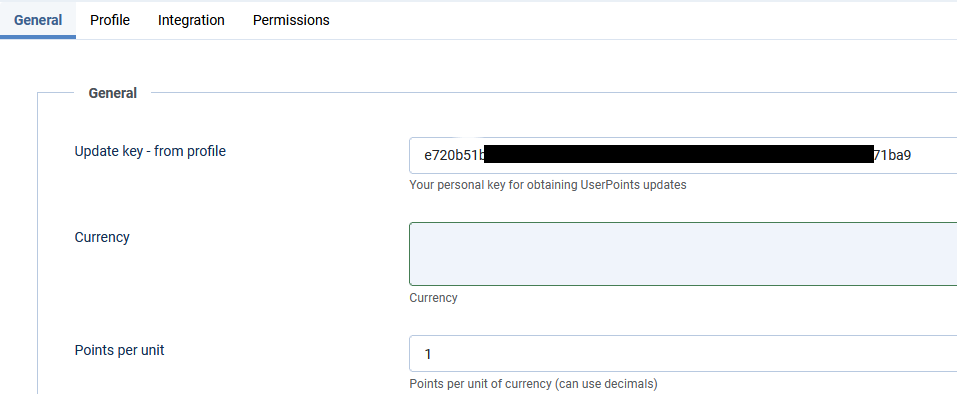
. Then click on thebutton which is at top right. Then in the General tab copy your personal update key into the Update Key field as illustrated opposite.
UserPoints Update
Click on the  button then in the
  section. Wait while Joomla searches if there are any Extension updates outstanding.
In this example there is one extension that has an outstanding Extension update available.
button then in the section. Wait while Joomla searches if there are any Extension updates outstanding.In this example there is one extension that has an outstanding Extension update available.
Click on  which in this example shows that there is an updated version of UserPoints.
So click on the tick and then on the link as indicated opposite.

which in this example shows that there is an updated version of UserPoints.So click on the tick and then on the link as indicated opposite.
Then click on the  button, which, if all is OK, will give a message such as shown opposite.

button, which, if all is OK, will give a message such as shown opposite. Joomla only checks for updates periodically, so if no update is indicated then as a double check click on button.
This will take you to the Check for Updates page as indicated opposite.
So click on Button.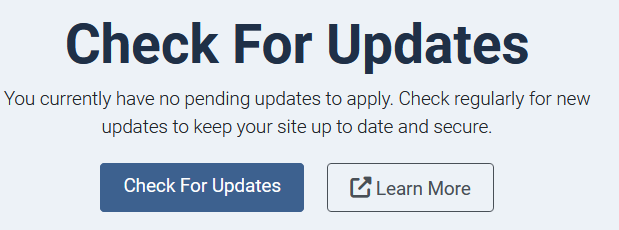
button. This will take you to the Check for Updates page as indicated opposite.
So click on
Button. Appendix - Uninstalling User Points
To uninstall all of UserPoints then, like jDownloads, just uninstall the Component.
First click on , then in the  section click on the
  . Then in the Search field enter userpoints as shown below and click on the search button.
 Scroll down to find the UserPoints Component.
Select the Component
This shows a view as illustrated opposite.

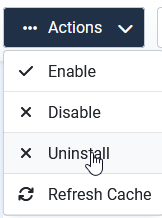
, then in the section click on the . Then in the Search field enter userpoints as shown below and click on the search button.Scroll down to find the UserPoints Component.Select the Component
This shows a view as illustrated opposite.
At the top of the page use the  pulldown and click on the
  button.
pulldown and click on the button.After accepting an 'Are you sure' message, all parts of UserPoints, except the database, will be uninstalled.

Appendix - User Points for Joomla 3
The original User Points developers, Alphauserpoints, are no longer active.
A free Joomla V3 version of AltaUserPoints is supported by Nordmograph who are specialist Joomla Extension Suppliers, www.nordmograph.com/extensions/ (opens in a new window/tab). There is a Tag Cloud on the page so click on either the FREE or the ALTAUSERPOINTS tag. Nordmograph also have some free and paid extensions for extra User Points facilities if you should wish to use elsewhere.
A free Joomla V3 version of AltaUserPoints is supported by Nordmograph who are specialist Joomla Extension Suppliers, www.nordmograph.com/extensions/ (opens in a new window/tab). There is a Tag Cloud on the page so click on either the FREE or the ALTAUSERPOINTS tag. Nordmograph also have some free and paid extensions for extra User Points facilities if you should wish to use elsewhere.
Changing from AltaUserPoints or Alpha UserPoints to UserPoints in Joomla 4 and above
The actual change is really simple because:
- AltaUserPoints, Alpha UserPoints and User Points all use the same database structure;
- Also they do not remove the database tables when they are uninstalled.
The procedure is:
- Make a site backup just in case!
- Uninstall Alpha/Alta user Points whilst still on Joomla 3 as below
- Go to Joomla! Extensions - Manage, and then select Manage on the pulldown.
- Search for Alpha, which will list the AlphaUserPoints Component and several plugins and modules.
- Select All and then Uninstall. You should get messages for the component uninstall and for multiple plugin and module uninstalls.
- Now convert to Joomla 4/5/6.
- Use normal sequence to install UserPoints, this will pick up the previous entries from the database.
ColinM Rewritten September 2019 updated August 2021, restructured July 2023, revisedV4 January 2024, March 2024, June 2024, November 2024, February 2025, May 2025, July 2026.


