
Introduction
Adding another language to jDownloads is a straight forward operation.
Note that you can only add the jDownloads specific Language files to an existing Joomla Multilingual Site. Further if for example you want to add say the jD translation package for Itatian then the Joomla site must itself have the Joomla Italian files
This article does not cover creating a new multilingual site or converting an existing 'single language' site to a multilingual site.
To make a multilingual site please see the article Multilingual support (opens in a new tab/window).
In this article we will use loading the specific French language pack for jDownloads.
Note that you can only add the jDownloads specific Language files to an existing Joomla Multilingual Site. Further if for example you want to add say the jD translation package for Itatian then the Joomla site must itself have the Joomla Italian files
This article does not cover creating a new multilingual site or converting an existing 'single language' site to a multilingual site.
To make a multilingual site please see the article Multilingual support (opens in a new tab/window).
In this article we will use loading the specific French language pack for jDownloads.
Install the Joomla! languages
The first step however is to ensure that the relevant Joomla! language pack has been installed. This is essential as otherwise Joomla! will not 'find' the 'component' language packs!
So on the  select
  - then in the
  section click on
  . This will give a view like the one opposite which is usually English.

select - then in the section click on . This will give a view like the one opposite which is usually English.Now click the  .
.
This will open up a long list of all the available Joomla! languages for the Joomla! Administrator and the Joomla! Content views as shown opposite.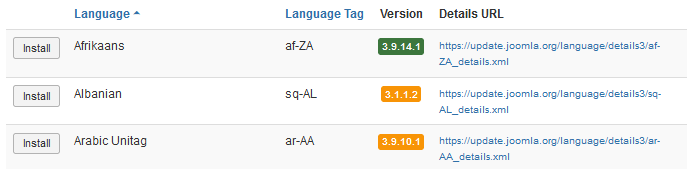
. This will open up a long list of all the available Joomla! languages for the Joomla! Administrator and the Joomla! Content views as shown opposite.
So scroll down to the desired language, French in this example, and click on the  button.
NOTE - as at September 2026 the French language is now version 6.1.3.1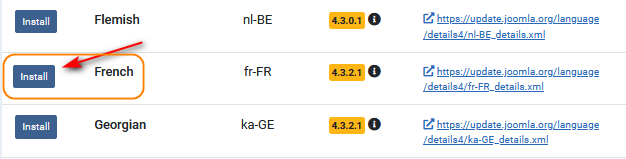
button.NOTE - as at September 2026 the French language is now version 6.1.3.1
After a delay whilst the language is installed there will be a suitable message indicating completion.
Scroll down again and check that there is now a button for the French language. This confirms it has been installed.
button for the French language. This confirms it has been installed.Install jD Language Pack
First please note that installing a language for jDownloads, or any other non core component, does not use the Install Languages in the Extensions Manager. That is just for installing languages for Joomla! itself.
Basically the process is to download the appropriate jDownloads language pack and then install as if it were a regular extension.
Also note that the same translations are used for both jDownloads 3.9 and jDownloads 4.x
Basically the process is to download the appropriate jDownloads language pack and then install as if it were a regular extension.
Also note that the same translations are used for both jDownloads 3.9 and jDownloads 4.x
Find jD Translation
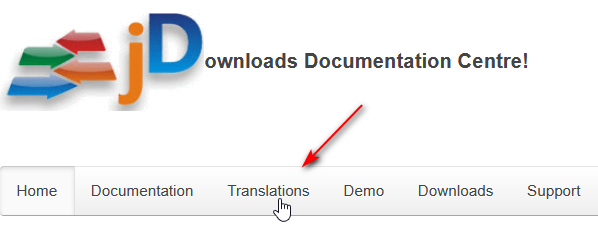
The first step is to go to the jDownloads documentation site (opens in a new tab/window) and then click on the Translations menu item as illustrated opposite.
The tranlations are for the jDownloads Component, all the modules and all the plugins.
Each language pack is a zip file with about 50 language files in it.
We are very gratefull to the volunteer translators from all over the world for these translations.
Just scroll down to find the required language and click on the Title of the required language.
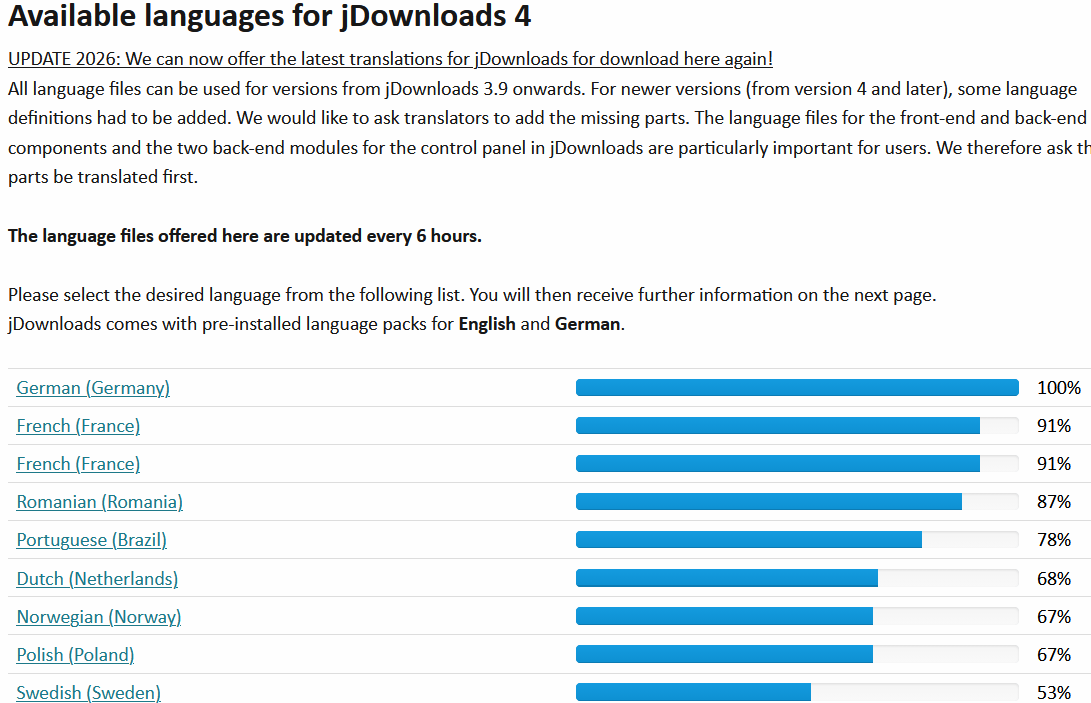
Some translations may be incomplete. What happens is that if a particular language string is missing then jDownloads uses the corresponding one from the English language pack. From time to time you should recheck the jDownloads language files to see if they have been updated.
NB If you are familar with English as well as your native language you might like to join, or even create, a language team to help finish. Initially please contact us through the Forum (opens in a new tab/window).
NB If you are familar with English as well as your native language you might like to join, or even create, a language team to help finish. Initially please contact us through the Forum (opens in a new tab/window).
After clicking on a language file, say French, you will see a summary such as shown opposite for the appropriate jDownloads translation files.
Click on the button.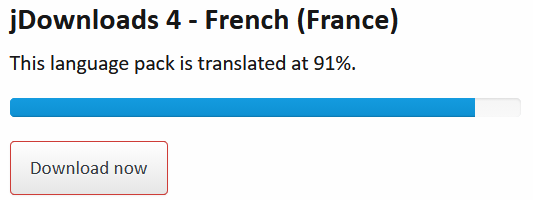
Click on the
button.This initiates the usual download sequence. Click on the  icon which is usually on the right of the top bar. This will show a zip file such as
  . Next click on the
  symbol, which is the show in folder symbol. This shows the downloaded zip file
  . Now right click on the filename and select either
  or
or  . Save (Paste) the file on your device in a suitable folder such as 'jD-languages-files'.

icon which is usually on the right of the top bar. This will show a zip file such as . Next click on the symbol, which is the show in folder symbol. This shows the downloaded zip file . Now right click on the filename and select either or . Save (Paste) the file on your device in a suitable folder such as 'jD-languages-files'.After selecting the required language, you will then see a list of the various translation parts of jDownloads, followed by a 'bar' indicating how much of each individual part has been translated as indicated opposite.

Download jD language
Scroll down to the  button near the bottom of the page.
After clicking on the button, you will be able to Save the zip file in a suitable folder by clicking on the
  button.
Personally I use a folder called 'jD Language Files'.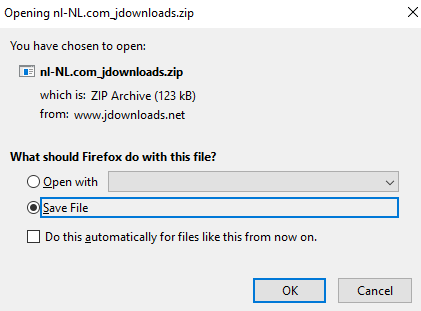
button near the bottom of the page.After clicking on the
button, you will be able to Save the zip file in a suitable folder by clicking on the button. Personally I use a folder called 'jD Language Files'.
Install jD language
The downloaded language pack is self installing.
So use the normal Install as you would for any extension as indicated opposite.
Do NOT use the 'Install Languages'
On the page click on , then in the  section click on and then
  , locate the downloaded language zip file and load into the upload area as illusrated opposite. The installation starts as usual.
You now have the specific jDownloads language files in place.
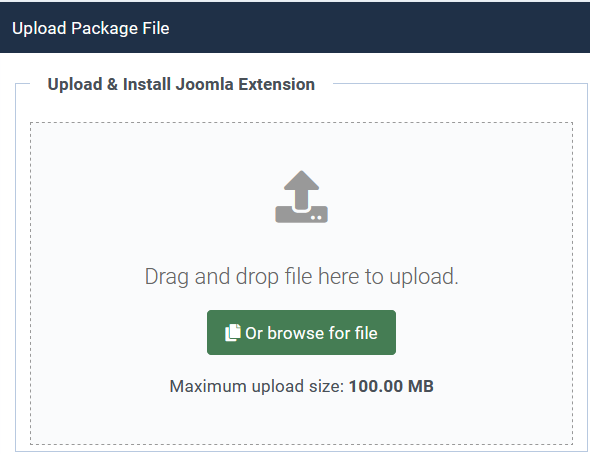
So use the normal Install as you would for any extension as indicated opposite.
Do NOT use the 'Install Languages'
On the
page click on , then in the section click on and then , locate the downloaded language zip file and load into the upload area as illusrated opposite. The installation starts as usual.You now have the specific jDownloads language files in place.
For example, the French language files for the jD component, modules and plugins are then installed in 'administrator/language/fr-FR' files.
These are organised by the language codes so for example the French language file for the component would be in 'administrator/language/fr-FR/fr-FR.com_jdownloads.ini' and similarly the Top Module language is in 'administrator/language/fr-FR/fr-FR.mod_jdownloads_top.ini' .
These are organised by the language codes so for example the French language file for the component would be in 'administrator/language/fr-FR/fr-FR.com_jdownloads.ini' and similarly the Top Module language is in 'administrator/language/fr-FR/fr-FR.mod_jdownloads_top.ini' .
ColinM 28 September 2019, modified August 2020, June 2023, November 2024, Feb 2025, April 2025, May 2025, March 2026, June 2026 -AAA



