 ownloads Documentation Centre!
Adding symbol image to a Download -May 2025
Introduction
A regular view of a Download has an icon image indicating the type of file in the Download. An example sybol is  which indicates that the file in the Download is a pdf file. Actually jDownloads has three sets of symbol files: Iconset 1 ; Iconset 2
  and the original set.
  .
.
By default jDownloads uses Iconset 1. Changing to one of the other Iconsets and adding your own icon are described below.
The scheme works by jDownloads taking the extension part of the file, such as pdf, in the Download and then searching in the active icon set for an image called 'pdf.png'. If the search is unsuccessful then image 'unknown.png', , is used.
Also note that the original set has several 'diverse' images that are useful elsewhere for specific purposes.
It is recommended that that either Iconset1 or Iconset2 is used for showing the Download file type graphically.
which indicates that the file in the Download is a pdf file. Actually jDownloads has three sets of symbol files: Iconset 1 ; Iconset 2 and the original set. .By default jDownloads uses Iconset 1. Changing to one of the other Iconsets and adding your own icon are described below.
The scheme works by jDownloads taking the extension part of the file, such as pdf, in the Download and then searching in the active icon set for an image called 'pdf.png'. If the search is unsuccessful then image 'unknown.png',
, is used.Also note that the original set has several 'diverse' images that are useful elsewhere for specific purposes.
It is recommended that that either Iconset1 or Iconset2 is used for showing the Download file type graphically.
Selecting Icon set to use
To select which icon set to use go to the  then select
  (near top right). Then select the
  tab and scoll down to the
  section.
Use the 'Select File Type Icon Set' pulldown
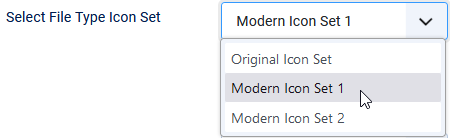 to select the icon set to be used. When the Downloads are viewed all the icons shown will now come from the selected set.
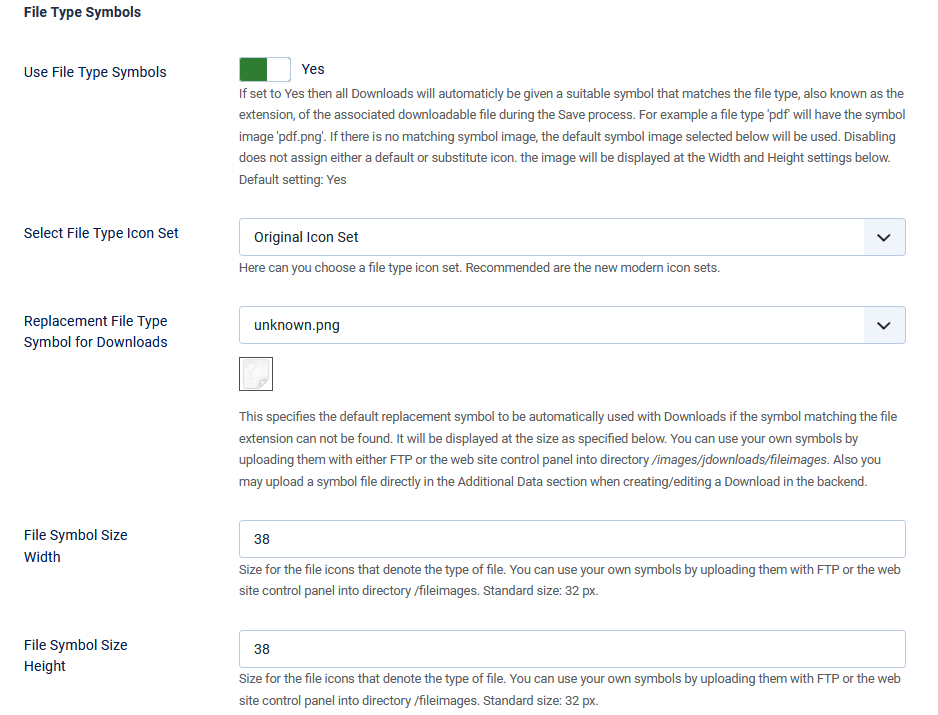
then select (near top right). Then select the tab and scoll down to the section.Use the 'Select File Type Icon Set' pulldown
to select the icon set to be used. When the Downloads are viewed all the icons shown will now come from the selected set.You may select the size of the symbols by using the height and width selectors.
jDownload will match the sizes choosen with actual size of the image and maintain the correct aspect ratio.

jDownload will match the sizes choosen with actual size of the image and maintain the correct aspect ratio.
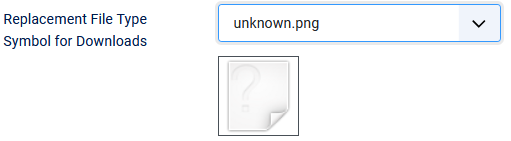
If the file extension image cannot be found, then the Symboll selected in the 'Replacement File Type Symbol for Downloads' is used. The default symbol is the unknown.png image as illusrated opposite. You may of course select other symbols by using the pull down button.
Adding Own Symbols
There are two methods of adding extra symbols.
1. uploading them with either FTP or the web site control panel into Joomla directory "/images/jdownloads/fileimages/flat_1"
or "/images/jdownloads/fileimagesflat_2" as appropriate.
2. upload the symbol file directly in the Additional Data section when creating/editing a Download in the backend.
In both cases you will need to search the web for an appropriate png image file. If you look at the png files in each directory you will see they both have a simple style. It is of course possible to edit the one of the existing png files and add it to the existing set.
1. uploading them with either FTP or the web site control panel into Joomla directory "/images/jdownloads/fileimages/flat_1"
or "/images/jdownloads/fileimagesflat_2" as appropriate.
2. upload the symbol file directly in the Additional Data section when creating/editing a Download in the backend.
In both cases you will need to search the web for an appropriate png image file. If you look at the png files in each directory you will see they both have a simple style. It is of course possible to edit the one of the existing png files and add it to the existing set.
ColinM June 2024, May 2025
 jDownloads is an extensive Download Manager for the award winning Content Management System (CMS) Joomla. It is a free GPL Extension with many