 ownloads Documentation Centre!
Featured Downloads -May 2025
Introduction
Downloads may be featured just like Joomla! articles with an  symbol. There are eleven 'star' images to choose from. Each has the same shape but has a different colour. Also you may upload your own 'feature' image.
The frontend view of a featured Download is controlled by three placholders in the active layout; {featured_pic}, {featured_class} and {featured_detail_class}. These placeholders are already in the default layouts. Basically the placeholders generate specific code. The {featured_pic} placeholder always adds the selected image in the header setion of the frontend view if the Download is marked as featured. The other two placeholders only generate code if the Download is marked as featured and, as described later, the option 'Use the additional Placeholders' is set to Yes. The {featured_class} and {featured_detail_class} placeholders also need relevant CSS code to be added in say jdownloads_custom.css as describe in more detail later in this article.
symbol. There are eleven 'star' images to choose from. Each has the same shape but has a different colour. Also you may upload your own 'feature' image.The frontend view of a featured Download is controlled by three placholders in the active layout; {featured_pic}, {featured_class} and {featured_detail_class}. These placeholders are already in the default layouts. Basically the placeholders generate specific code. The {featured_pic} placeholder always adds the selected image in the header setion of the frontend view if the Download is marked as featured. The other two placeholders only generate code if the Download is marked as featured and, as described later, the option 'Use the additional Placeholders' is set to Yes. The {featured_class} and {featured_detail_class} placeholders also need relevant CSS code to be added in say jdownloads_custom.css as describe in more detail later in this article.
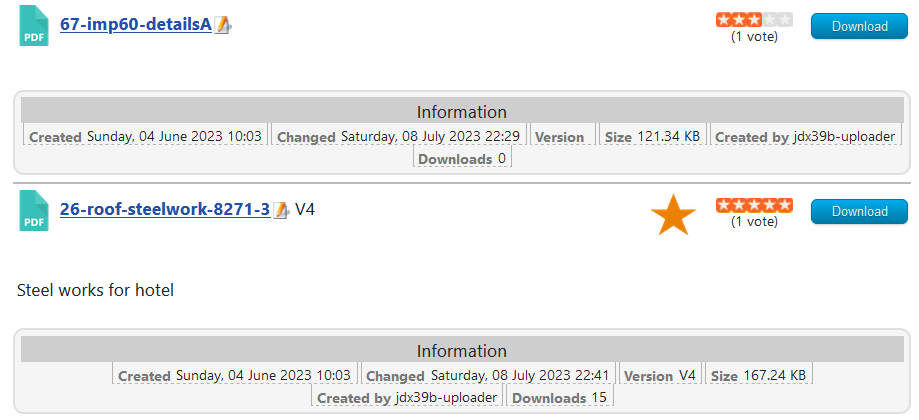
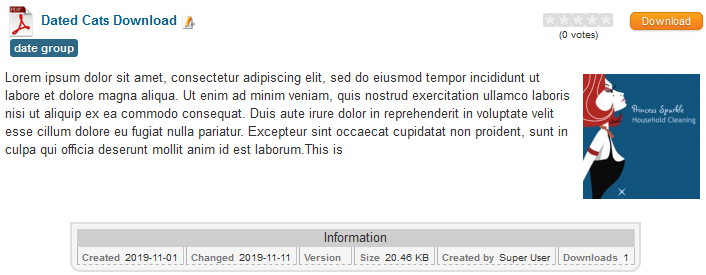
The first image opposite is a regular unfeatured Download
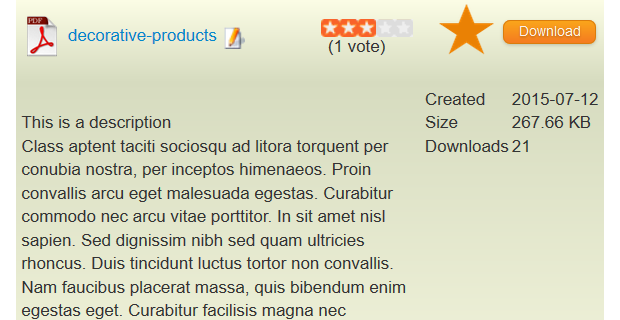
The second image opposite illustrates the simplest level of 'featuring' with just an orange star,
, to indicate 'featured'.As noted later there are additional styling possibilities to make a featured Download even more evident.
Option Settings
The settings for featured are found in  -
-  -
-  tab. Scroll down to the Featured Settings section.
- - tab. Scroll down to the Featured Settings section.The first setting allows you to select the symbol itself. The available options are eleven different coloured stars and a 'None Selected' option, which shows nothing.
The next two settings select the width and height of the symbol respectively
When set to Yes, the 'Use the additional Placeholders' allows setting background colours as described later.
Selecting 'No' will just show the featured star symbol in the title bar.
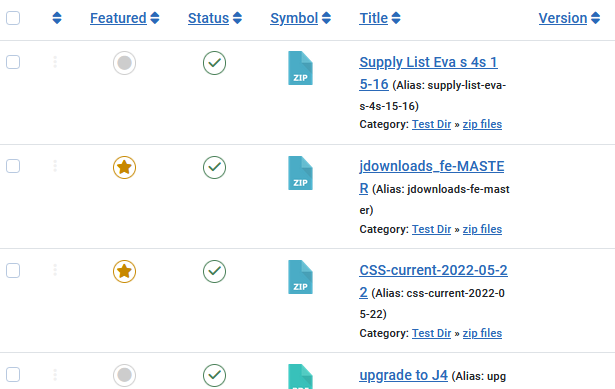
A typical example is shown opposite
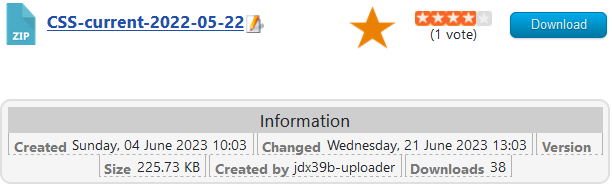
Assuming that the relevant CSS classes have been setup then selecting 'Yes' could add a coloured background to the featured Downloads to really make them really stand out.
Making a Download featured
The next question to answer is how to do you make a Download featured? This is straight forward in either the Frontend or the Backend.
Frontend
In the frontend either whilst editing an existing Download or creating a new one go to the Publishing tab and, using the pulldown, change the Featured option to Yes for 'featured'.
Backend
If editing or creating a Download then, in the  tab on the righthand side change the setting of the Featured option from No to Yes by clicking on the button as indicated opposite.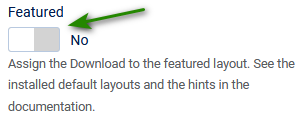
tab on the righthand side change the setting of the Featured option from No to Yes by clicking on the button as indicated opposite.Obviously this is very tedious if you have several Downloads to set to featured.
So in the backend on a listing of the Downloads you can select the relevant Downloads by clicking the button next to the title.
Featured Downloads Enhanced Appearance
The following notes are about changing the structure of the layout you use to show the frontend views.
If you are unfamilar with layouts and their code then please see the Layouts articles section (opens in new window/tab),
in particular articles Layout Place Holders (opens in new window/tab) and Anatomy of a Layout (opens in new window/tab)
If you are unfamilar with layouts and their code then please see the Layouts articles section (opens in new window/tab),
in particular articles Layout Place Holders (opens in new window/tab) and Anatomy of a Layout (opens in new window/tab)
A typical bock of code in the layout is shown opposite

The 'code' to show the featured 'star' is shown by the placeholder {featured_pic} in the title section of the layout. There are two other placeholders {featured_class} and {featured_detail_class} which may be used to give background colouring to different parts of the Download and Download Details views of featured Downloads.
The standard Downloads and Downloads Details layouts support all three 'featured' placeholders so there is no need to edit the layouts.
The standard Downloads and Downloads Details layouts support all three 'featured' placeholders so there is no need to edit the layouts.
For reference the image opposite is an example of a 'regular' frontend view, that is it has not been marked as featured.
The second image opposite shows a 'featured' views using all three placeholders.
This shows a linear gradient background in (featured_class) shows
 to
to  .
. The (featured_class_detail) was selected as the same background colour
 thoughout.
Note the use of ( and ) being used in place of { and }. This avoids featured class being interpeted in the article!!
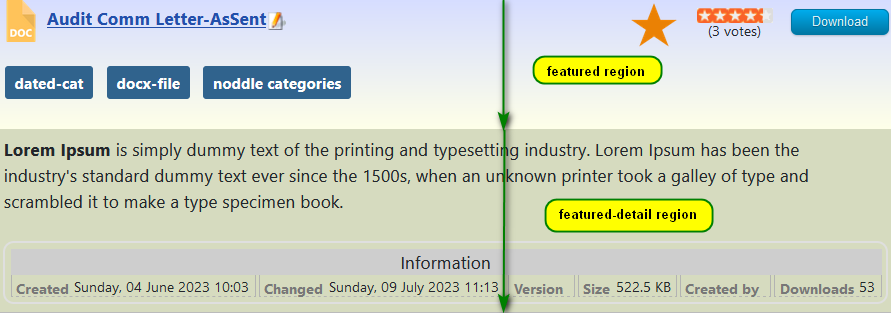
A more obvious difference between the featured class and the featured_detail class region, shown in a bright green, and the featured region shown with a lighter green is illustrated opposite.

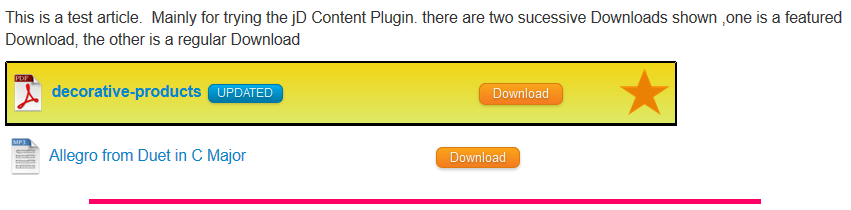
The same effect happens when showing a Download in an article or similar using the Content Plugin and the Content button as illustrated below. The layout used was "Files Layout Single Line" as selected as the default layout for Content in Options - Content Plugin tab.
Changing the Featured Background.
The simplest way to modify the coloured backgrounds from featured Downloads is to add some extra CSS to the jdownloads_custom.css file. There is a article explaining how to edit jdownloads_custom.css so see there for the details Export/Edit/Import (opens in a new window/tab).
The actual CSS code required is itself quite straight forward as noted below. Basically in these examples it is just setting background image colours and linear gradients the CSS code shown. But you could be more adventurous!
The actual CSS code required is itself quite straight forward as noted below. Basically in these examples it is just setting background image colours and linear gradients the CSS code shown. But you could be more adventurous!
In the examples here, the CSS code shown opposite was copied to jdownloads_custom.css to show the first example above.
Note that for the {featured_detail_class} region there are multiple classes involved because of the different CSS in various layouts./* CSS for featured heading region*/
.jd_featured {
background-image: linear-gradient(0deg, #feffe8, #d6db6f)!important;
}
/* css for featured detail region */
.jd_featured_detail,
.jd_featured_detail .jd_minipic_wrapper,
.jd_featured_detail .jd_fields_wrapper_compact,
.jd_featured_detail .jd_fields_wrapper {
background: #d6dbbf !important;
}
To get just single colours as in the second example above then copy the CSS as shown opposite into jdownloads_custom.css./* CSS for featured heading region*/
.jd_featured {
background-image: #91ddf4 !important;
}
/* css for featured detail sections */
.jd_featured_detail,
.jd_featured_detail .jd_minipic_wrapper,
.jd_featured_detail .jd_fields_wrapper_compact,
.jd_featured_detail .jd_fields_wrapper
{
background: #c1df96 !important;
}
.jd_featured {
background-image: #91ddf4 !important;
}
/* css for featured detail sections */
.jd_featured_detail,
.jd_featured_detail .jd_minipic_wrapper,
.jd_featured_detail .jd_fields_wrapper_compact,
.jd_featured_detail .jd_fields_wrapper
{
background: #c1df96 !important;
}
Adding Your Own Featured symbol
You can also use your own symbols by uploading them as png files with either FTP or the web site control panel into directory /images/jdownloads/featuredimages.
It should have a name like featured_yellow_rose2.png and should be 64px wide and 64px high. Note that the pull down list is ordered alphabetically.
It should have a name like featured_yellow_rose2.png and should be 64px wide and 64px high. Note that the pull down list is ordered alphabetically.
Inselect the tab. Tthe option "Select 'Featured' Symbol" will now include the extra symbol in the pull down list.
The frontend view will now look something like that shown opposite.
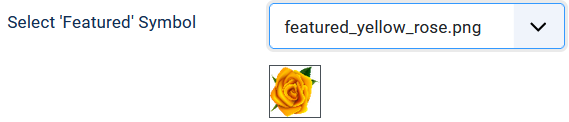

select the tab. Tthe option "Select 'Featured' Symbol" will now include the extra symbol in the pull down list.The frontend view will now look something like that shown opposite.
ColinM Nov 2019, updated July 2020, July 2023, March 2025, May 2025
 jDownloads is an extensive Download Manager for the award winning Content Management System (CMS) Joomla. It is a free GPL Extension with many