
Upgrading from jDownloads v3.9.x to jDownloads v4.x
Introduction
It is assummed that you have a regular jDownloads 3.9 site that you wish to update to jDownloads 4.0 .
Further is is assumed that your site is using the most recent version of Joomla 3, which at the time of writing is Joomla! 3.10.12
The process is somewhat tedious but is reliable. DO NOT ATTEMPT TO HURRY - Allow plenty of time, it may help if you make notes as you go!!! In the process which follows your site will be updated to the latest Joomla! version 4.
Please note the last item in this article about setting up a menu item.
There are two principle stages: (1)Upgrading Joomla ; (2)Updating jDownloads.
Further is is assumed that your site is using the most recent version of Joomla 3, which at the time of writing is Joomla! 3.10.12
The process is somewhat tedious but is reliable. DO NOT ATTEMPT TO HURRY - Allow plenty of time, it may help if you make notes as you go!!! In the process which follows your site will be updated to the latest Joomla! version 4.
Please note the last item in this article about setting up a menu item.
There are two principle stages: (1)Upgrading Joomla ; (2)Updating jDownloads.
However before you start it is essential to take an Akeeba Backup or similar. If something goes wrong then you could be left with a site that has faults or even with a site that does not work at all ! For example when up updating jDownloads one of the first things that is done is to update the jD database. The jD 3.9 and early versions of jD4 have slightly different database items from the later jD versions.
So if the update fails and you do not have a backup then there is a possibility that jD may not work properly.
So if the update fails and you do not have a backup then there is a possibility that jD may not work properly.
Minimum Requirements
You need to ensure your site meets the minimimum requirements as noted below.
Whilst PHP 8 is not absolutely required (yet) most of our testing with jDownloads has been with PHP 8 so we strongly recommend you set your site to PHP 8.
Whilst PHP 8 is not absolutely required (yet) most of our testing with jDownloads has been with PHP 8 so we strongly recommend you set your site to PHP 8.
- PHP 7.2.5 (8.0 recommended) PHP 7.4.33 used in this example
- MySQL 5.7+ or equivalent MariaDB level (10.2) - 10.3 prefered
- Joomla 3.10.11
- jDownloads at least version 3.9.8.7 (you can get it here)
Start Joomla update
From the existing Joomla 3 site select the Joomla Control Panel and then click on Components.

This will bring up a panel such as shown opposite.
Click on 'Joomla Update' as indicated.
The system will then automatically show the pre upgrade check.
This shows the results of the pre-upgrade checker.
This is a long display so it is shown in several Parts - part 1 is opposite.
The 'orange coloured' message for the PHP Settings is because Error reporting had been set.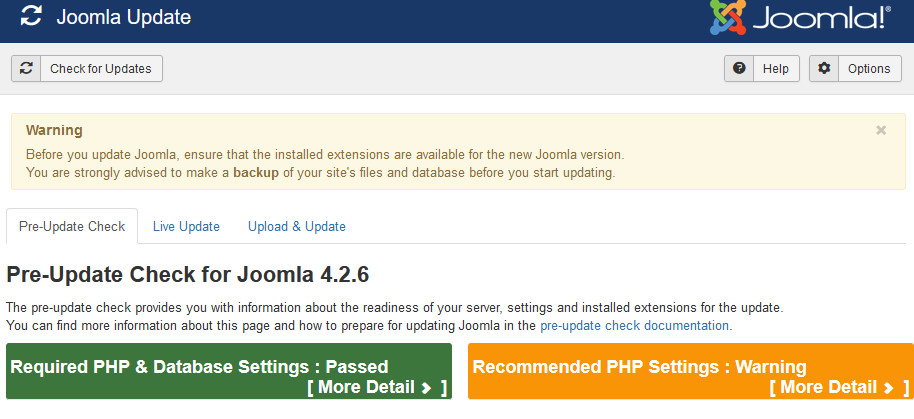
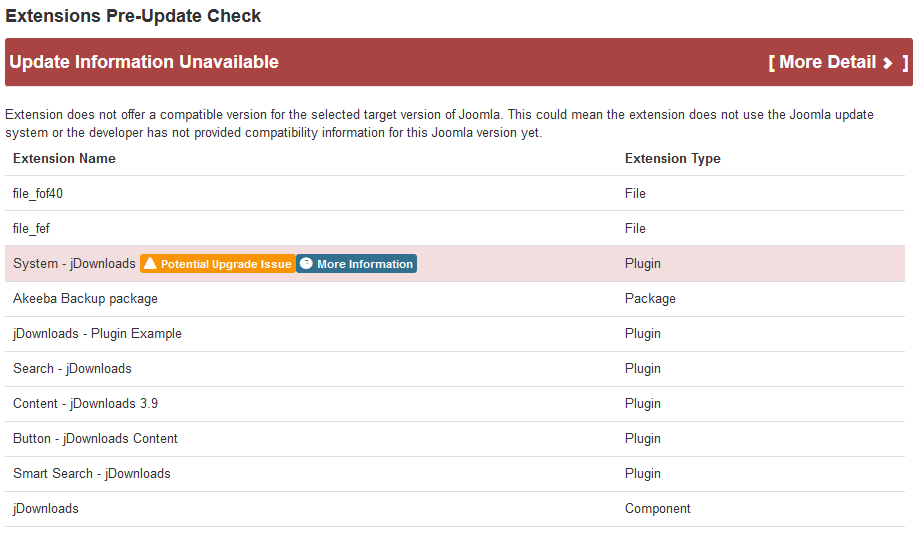
Part 2 two of the the check shows that the jDownloads 3.9 System Pluging is not compatible with Joomla 4.
So we need to disable it as described below.
To do this select Extensions - Plugins. This will show all the plugins so use the search facility to locate the jDownloads Plugins.
Disable the jDownloads 3.9 System Plugin by clicking on the 'tick'. This will change to a 'cross' as shown below..

But leave the Tags Fix Enabled.
After disabling the System-jDownloads plugin, select Components in the top bar and then reselect 'Joomla Update'.
This returns you to the Pre-Update Check. Note that the Warning about the jDownloads System Plugin in now not shown.
There may be other warnings about various components, modules or plugins that are installed that need to be resolved. Take the suggested advice,if any, or if unsure contact the item supplier about what action should be taken.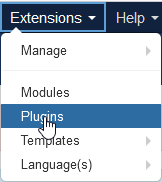

and click on Live Update Tab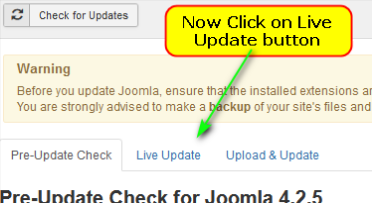
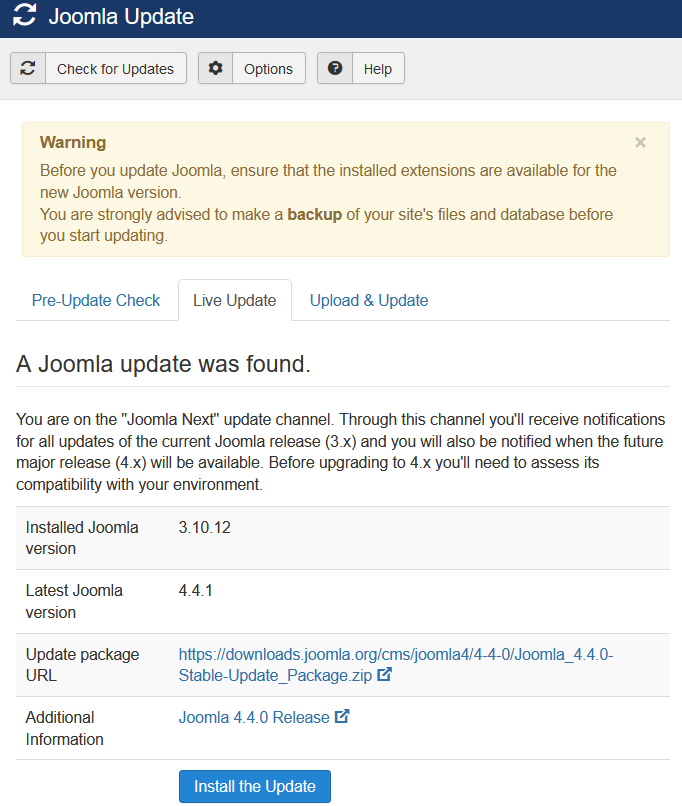
This will bring up a panel such as shown opposite.
Click on 'Joomla Update' as indicated.
The system will then automatically show the pre upgrade check.
Pre upgrade Check
This shows the results of the pre-upgrade checker.
This is a long display so it is shown in several Parts - part 1 is opposite.
The 'orange coloured' message for the PHP Settings is because Error reporting had been set.
Part 2 two of the the check shows that the jDownloads 3.9 System Pluging is not compatible with Joomla 4.
So we need to disable it as described below.
Disable System Plugin
To do this select Extensions - Plugins. This will show all the plugins so use the search facility to locate the jDownloads Plugins.
Disable the jDownloads 3.9 System Plugin by clicking on the 'tick'. This will change to a 'cross' as shown below..
But leave the Tags Fix Enabled.
After disabling the System-jDownloads plugin, select Components in the top bar and then reselect 'Joomla Update'.
This returns you to the Pre-Update Check. Note that the Warning about the jDownloads System Plugin in now not shown.
There may be other warnings about various components, modules or plugins that are installed that need to be resolved. Take the suggested advice,if any, or if unsure contact the item supplier about what action should be taken.
The final part of the Report is a list of installed extensions that are compatible with Joomla 4.
Now go back to Components - Joomla Update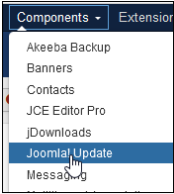
and click on Live Update Tab
Install Update
We can now Install the Update by clicking on the "Install the Update" as shown in the image opposite.
The process takes a while but the progress is shown as below.
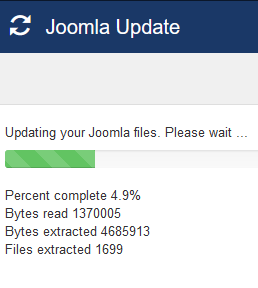
The process takes a while but the progress is shown as below.
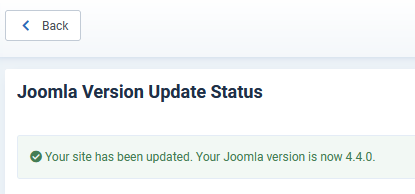
When the update process completes then there is a message that the site is now at Joomla 4. Update: It will now be Joomla 5
You may of course have extensions other than jDownloads but in principle the update procedure is the same.
You may of course have extensions other than jDownloads but in principle the update procedure is the same.
Update jDownloads
The next step is to Download the Latest version of jDownloads 4, which at the time of updating this article, is 'jDownloads 4.0.47' to your device from the jDownloads main site https://www.jdownloads.com (opens in a new window/tab). Next click on
To update jDownloads to the latest jD 4 version, go to  Menu - then click on
 and select
  tab. This gives a view as opposite.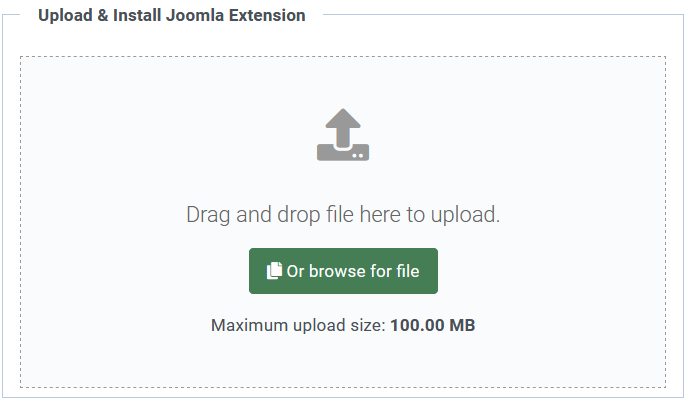
Menu - then click on and select tab. This gives a view as opposite.Now browse for or drag the jD zip file. jD will be installed and will show an Installing view such as opposite.
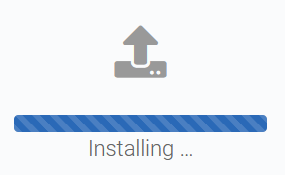
When the installation is completed you will see a message such as the one opposite.
Finally click on the
 button.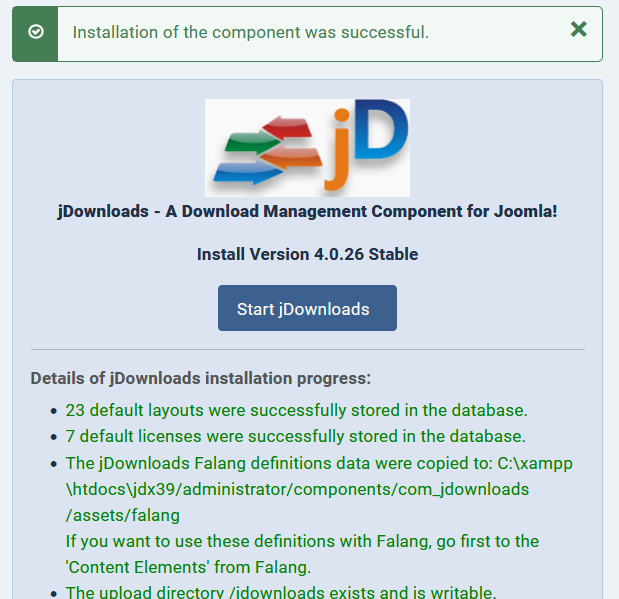
Create Menu Item
jDownloads uses the 'List All Categories' menu item as a means of internal navigation to the categories an Downloads. It may be a Hidden menu item. The menu item entry in your choosen Menu would look similar to the image opposite

If you are unsure of how to do this see Create Menu Item (opens in new window/tab). Failure to setup this menu item will lead to 'unexpected faults'.
Colin M April 2023, upated December 2023, November 2024



