
Introduction
ATTENTION As at 2nd April 2026 there are problems with Google reCAPTCHA - basically it does not appear to work !!!
See Forum post https://www.jdownloads.com/forum/index.php?msg=53116
See Forum post https://www.jdownloads.com/forum/index.php?msg=53116
There are multiple types of Captcha -Recaptcha. The original type, v1 which presented a "distorted" set of characters, has been shut down since March 2018. The next type, v2, use an image picture with multiple sub-images where some of the subimages had a common feature such as part of a motor cycle that had to be identified. This is supported in Joomla 3 and in early versions of Joomla 4.
The most recent type is the so called V3 Invisible type. This is the only type supported in Joomla 5, it is also supported in early versions of Joomla 4. However from jD 4.0.38 only the V3 - invisible type is supported.
The most recent type is the so called V3 Invisible type. This is the only type supported in Joomla 5, it is also supported in early versions of Joomla 4. However from jD 4.0.38 only the V3 - invisible type is supported.
This note gives advice on the steps needed to include and use the v3 'invisible' type in jDownloads.
As a preliminary you will need to have a Google account - use link https://accounts.google.com (opens in a new window/tab). If you already have an account the link will take you to the sign in page.
There are three steps to implement the Captcha-Recaptcha as noted below.
- Getting the Captcha 'keys' from Google.
- Setting up the standard Joomla! Captcha-ReCaptcha Plugin.
- Enabling use in jDownloads.
However before detailing these steps we present below examples of the v3 check box type Captcha-ReCaptcha working in jDownloads.
Example
Note that the Captcha sequence appears in the jDownloads Summary view. When you have requested that a User Group may only download after using a Captcha then the Summary view will always apear, even if you have not selected it in the Options.
So after clicking on the Download Button, or perhaps the Download title then depending on your configuration the Details View may appear with its Download Button.
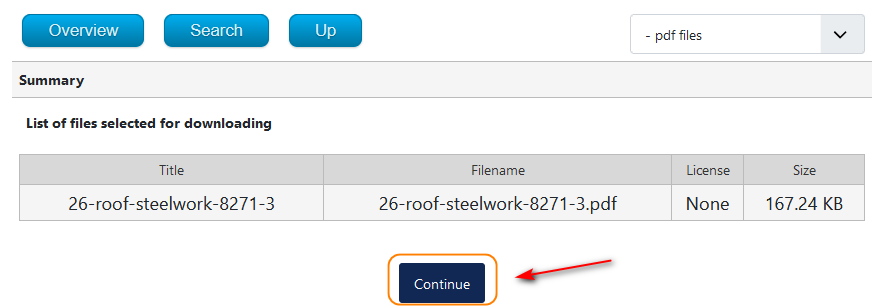
So after clicking on the Download Button, or perhaps the Download title then depending on your configuration the Details View may appear with its Download Button.
After a short delay whilst the 'keys' are checked the  button is replaced by the regular
  button.
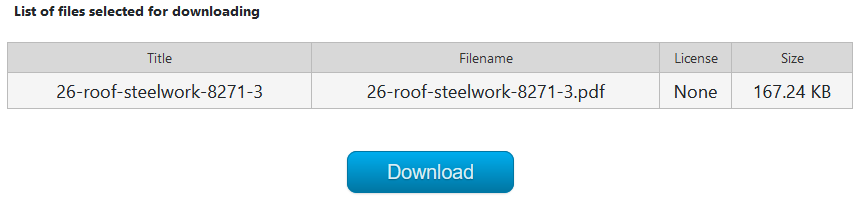
button is replaced by the regular button.There is an exception when the Captcha does not appear even if you have set it up to appear.
This is when the specific Download requires a Password.
In this case the need for a password is deemed more significant than a Captcha so the Captcha is bypassed.
What happens next depends on whether or not the password matches. If the password does NOT match then the same view is repeated.
This is when the specific Download requires a Password.
In this case the need for a password is deemed more significant than a Captcha so the Captcha is bypassed.
What happens next depends on whether or not the password matches. If the password does NOT match then the same view is repeated.
Getting the Captcha keys
The most challenging part, especially for a novice, is getting the Captcha keys from Google. There are two 'keys' required that will be used by the Joomla! Captcha-Recaptcha plugin.
These are the Site Key and the Secret Key. Each key is typically 40 or so characters long.
Note: In this example we will be using keys that are totally fictitious and meaningless. If you use them they will not work!
As noted earlier the first step is to create a Google account if you do not already have one, and of course to login. The next step is to go to the Google ReCaptcha site https://www.google.com/recaptcha/admin (opens in a new window/tab). The principle objective here is to register your site for Captcha keys.
When using the link then you will initially be taken to the login page. After logging in you are taken directly to the "Register a new site" page. The address of this site is specific to your login.
These are the Site Key and the Secret Key. Each key is typically 40 or so characters long.
Note: In this example we will be using keys that are totally fictitious and meaningless. If you use them they will not work!
As noted earlier the first step is to create a Google account if you do not already have one, and of course to login. The next step is to go to the Google ReCaptcha site https://www.google.com/recaptcha/admin (opens in a new window/tab). The principle objective here is to register your site for Captcha keys.
When using the link then you will initially be taken to the login page. After logging in you are taken directly to the "Register a new site" page. The address of this site is specific to your login.
Actually the site is your specific reCAPTCHA 'control panel'.
To add a new reCAPTCHA click on the button. This opens up the 'Register a new site' page.

To add a new reCAPTCHA click on the
button. This opens up the 'Register a new site' page.Give the reCAPTCHA a label to distinguish it from other reCAPTCHAs. As shown in the image above there are already 3 other reCaptchas.
Next select the reCAPTCHA type, in this case it is a v3 tpye that is required.
Then select the Domain. In this example it is for an XAMPP site so use localhost. If for example your site was www.TestSite.com then the Domain would be TestSite.com . It could also be a subdomain.
After filling in the details then click on the button at the bottom of the page.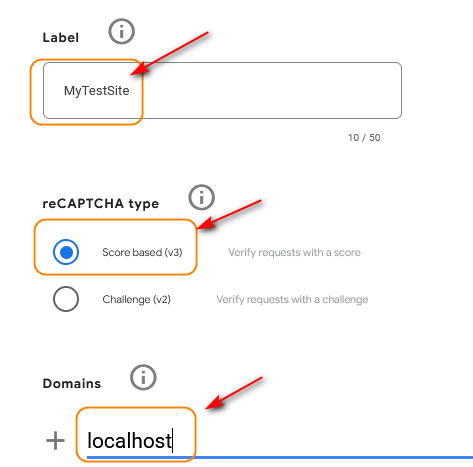
Next select the reCAPTCHA type, in this case it is a v3 tpye that is required.
Then select the Domain. In this example it is for an XAMPP site so use localhost. If for example your site was www.TestSite.com then the Domain would be TestSite.com . It could also be a subdomain.
After filling in the details then click on the
button at the bottom of the page.After clicking on Submit you are taken directly to the view of the Site and Secret keys page.
Take a copy of each one and store in a safe place. For security the last part of each key has been 'blacked out'.
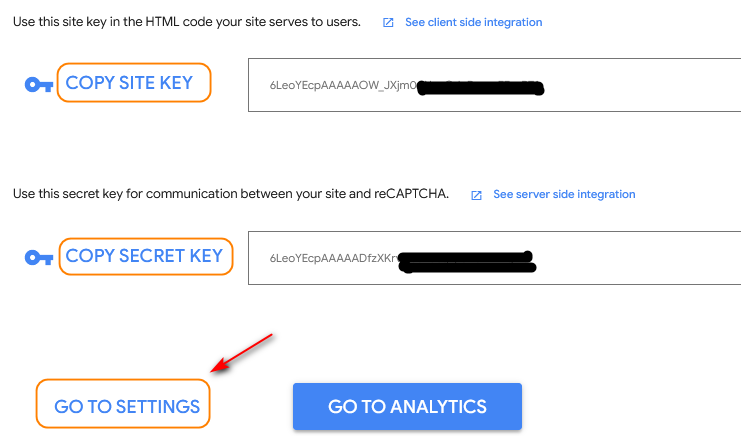
If you go back later then use the settings  to get to the keys or use
  to add another site.
to get to the keys or use to add another site. Configure Joomla!
Captcha - Invisible Captcha Plugin
Int the main Joomla Administrator Menu Click on  . Then in the
  Section click on
  . Scroll down to find and open the 'CAPTCHA - Invisible reCAPTCHA' plugin.
. Then in the Section click on . Scroll down to find and open the 'CAPTCHA - Invisible reCAPTCHA' plugin. After ensuring the plugin is enabled, that is the plugin has a
 , open the plugin and copy the Site and Secret keys into the relevant fields.
There are additional parameters, such as 'Theme' and 'Size', which may be left at their default settings. Then set the remaining plugin specific setup fields may be left blank.
Access would normally be left as 'Public' as jDownloads controls when the Captcha- reCapture is visible.
.Note the keys shown opposite are invalid!!
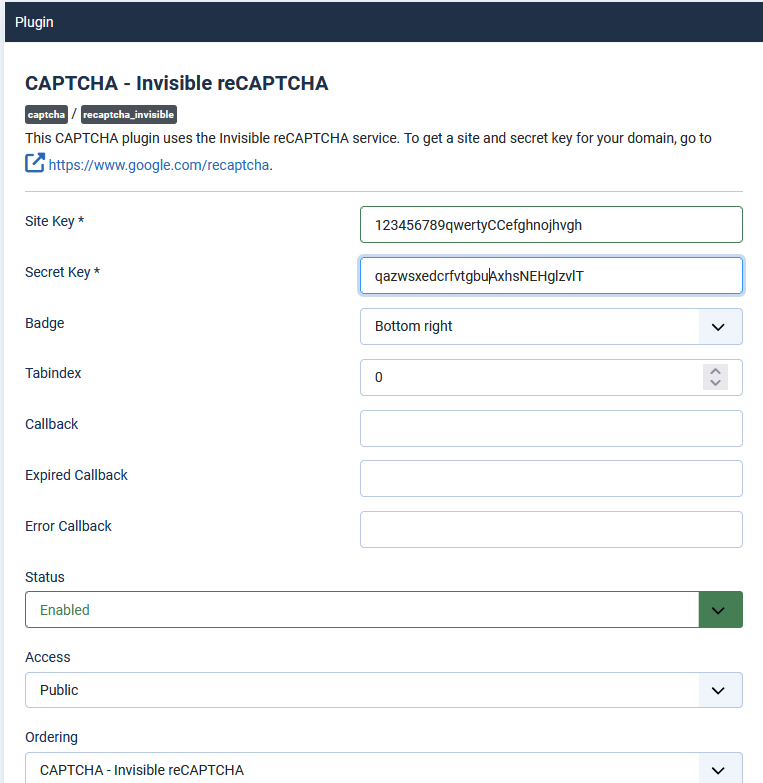
User Manager Options
The next step is to go to the Joomla! -  -
- then select the
  tab at the top right and then the
  .
.
- then select the tab at the top right and then the .Now set the Captcha option to CAPTCHA-reCAPTCHA as the user default.
Next use the button.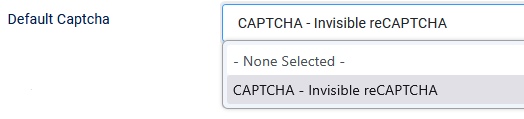
Next use the
button.Set in Global Configuration
Also set the Default Captcha option in the Joomla! - -
-  tab.
tab.
-- tab.
Also finally use the button.
button.Enabling use in jDownloads
jDownloads allows selection of which User Groups (UGs) will or will not need to use a Captcha sequence through the User Groups Settings.
Each User Group is treated independently, and there is no implied parent or inheritance. So for example if you set Captcha-reCaptcha for just the Public User Group then Registered users will not have to respond to a Captcha 'test'.
Each User Group is treated independently, and there is no implied parent or inheritance. So for example if you set Captcha-reCaptcha for just the Public User Group then Registered users will not have to respond to a Captcha 'test'.
In  select
  then for each User Group that you decide should respond to a Captcha set the View Captcha field in the
  tab to Yes.
The default setting for this field is No so the other User Groups will not have Captcha set.
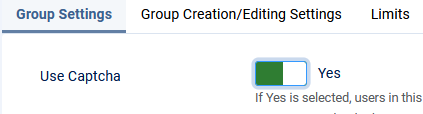
select then for each User Group that you decide should respond to a Captcha set the View Captcha field in the tab to Yes.The default setting for this field is No so the other User Groups will not have Captcha set.
To repeat, the administrator has to positively set the View Captcha field to Yes to enable Captcha-ReCaptcha for each UG required to use a Captcha sequence.
It may be necessary to exit from the Joomla! admin and clear your browsers cache before the Captcha takes effect for the first time.
It may be necessary to exit from the Joomla! admin and clear your browsers cache before the Captcha takes effect for the first time.
ColinM, July 2019 updated August 2020, June 2023, December 2023, May 2023, July 2025, April 2026


