
Introduction
This article applies to both the jD3.9 and the jD4 series.
NOTE Joomla 5 does not support native Cronjobs. This is still the situation at May 2025.
So use a CPanel Cronjob as described below or a Cronjob 'service'.
NOTE Joomla 5 does not support native Cronjobs. This is still the situation at May 2025.
So use a CPanel Cronjob as described below or a Cronjob 'service'.
One potental situation is that you would like to allow certain users to upload files into relevant directories that are categories or sub categoies in jDownloads. The objective is that these uploaded files need to become Downloads. But you do not wish to give access to the jDownloads backend.
Another situation is that you need to create a large number of Downloads. These could have been setup on a test site and now they need to be uploaded and published.
Transfering a large number of files in a directory structure from your PC to your website is readily achieved using your an ftp program such as FileZilla. These downloads, and possibly new folders (directories), will need creating into Downloads and Categories.
Doing this automaticly on a scheduled or one time basis is known as a 'Cron job'.
Another situation is that you need to create a large number of Downloads. These could have been setup on a test site and now they need to be uploaded and published.
Transfering a large number of files in a directory structure from your PC to your website is readily achieved using your an ftp program such as FileZilla. These downloads, and possibly new folders (directories), will need creating into Downloads and Categories.
Doing this automaticly on a scheduled or one time basis is known as a 'Cron job'.
jDownloads Options
Before doing anything else you need to look at the settings in the  section of the jD
  button. So on the
  go to
go to  then select
  . Next click on
 and then at top right click on . Now click on the tab.
The various settings include 'Use Test Run First', 'Monitor all file types', 'Monitor All Folders' and 'Automatically publish new found items'. So set those up first to suit your current needs as they will be used by the monitoring.
Clearly we do not want to do a Test Run so set 'Use Test Run First' to No.
If 'Monitor all file types' is set to No then another option becomes available that allows you to specify file types.
Similarly if 'Monitor All Folders' is set to No then further options allow specifying which Categories are to be included or excluded.
For more details on the Monitoring options please see the article Monitoring Options and Checking the Download Area (opens in a new window/tab).
section of the jD button. So on the go to then select . Next click on and then at top right click on . Now click on the tab. The various settings include 'Use Test Run First', 'Monitor all file types', 'Monitor All Folders' and 'Automatically publish new found items'. So set those up first to suit your current needs as they will be used by the monitoring.
Clearly we do not want to do a Test Run so set 'Use Test Run First' to No.
If 'Monitor all file types' is set to No then another option becomes available that allows you to specify file types.
Similarly if 'Monitor All Folders' is set to No then further options allow specifying which Categories are to be included or excluded.
For more details on the Monitoring options please see the article Monitoring Options and Checking the Download Area (opens in a new window/tab).
If you, as the administrator, are initially copying over large number of files you probably would set "Automatically publish Downloads?" to Yes. But later if you open it up to some general users then you may wish to review each Download before publishing it by setting "Automatically publish Downloads?" to No. That is set it to whichever way suits your current needs.
This is not always convenient. A solution is to have the scanning scheduled to run periodically or at some fixed time from your web site services. Such a facility is referred to as a 'Cron job'.
Uploading directories and files
In this example audio and video folders 'Audio clips' and 'Video clips' respectively together with their files were uploaded into the existing folder TopB. Previously TopB only had regular jDownloads sub-categories SubcatB1 and Subcat2.
FileZilla was used for the actual uploading. It only sees the contents in what may be described as a File Manager view as shown opposite.
The objective of the Cronjob is to convert the Audio Clips and Video Clips folders into Categories and their contents into Downloads.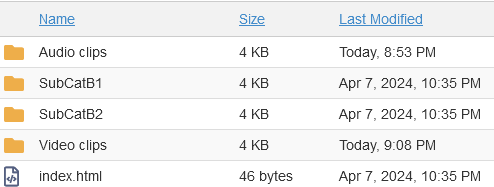
FileZilla was used for the actual uploading. It only sees the contents in what may be described as a File Manager view as shown opposite.
The objective of the Cronjob is to convert the Audio Clips and Video Clips folders into Categories and their contents into Downloads.
Looking at Category TopB with jDownloads shows a view such as illustrated opposite. Only the existing Categories are shown.

The Audio Clips folder has just two files as shown opposite that the Cron Job will turn into Downloads.

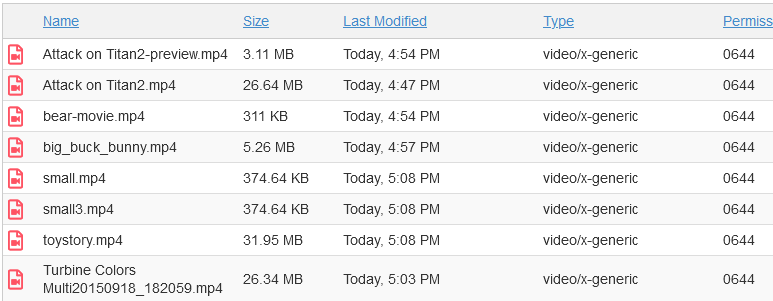
In this example the Video Clips folder has eight files as shown opposite, each such file is typically several megabytes in size. So we will get another eight Downloads
A Cron job or similar is actually a way of executing a php script on your web site at periodic intervals. The objective is to convert directories and files into new Categories and Downloads respectively. This requires a 'command' to the existing scan.php script which will convert directories and files into jDownloads Categories and Downloads respectively.
As descibed later the actual 'Cron job' itself is often setup in your site CPanel. There are also several 'Cron job' providers.
This 'command' will include what is known as the 'key' as a security check. The form of the command is:
"http://<your-site>/administrator/components/com_jdownloads/helpers/scan.php?key=this-is-a-key&mode=0&test=0" where the 'this-is-a-key' part is unique to your site.
As descibed later the actual 'Cron job' itself is often setup in your site CPanel. There are also several 'Cron job' providers.
This 'command' will include what is known as the 'key' as a security check. The form of the command is:
"http://<your-site>/administrator/components/com_jdownloads/helpers/scan.php?key=this-is-a-key&mode=0&test=0" where the 'this-is-a-key' part is unique to your site.
This secret key, this-is-a-key, is the one created by Joomla! for your site. So with the Cpanel - File Manager  seach in the website root
 - then scroll down to and click on
 . Next scroll down to find the
  file and click on it. Choose to open it with a suitable application such as Notepad++ as indicated opposite. (do not use Notepad).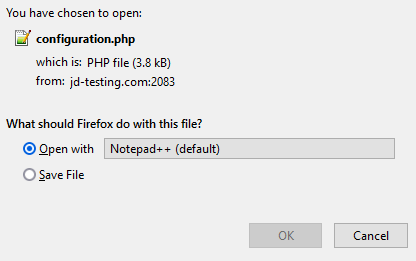
seach in the website root - then scroll down to and click on. Next scroll down to find the file and click on it. Choose to open it with a suitable application such as Notepad++ as indicated opposite. (do not use Notepad).Scroll down until you find the Secret key. It is usually a 32 character sequence in a line such as
public $secret = 'stoAs118BoemlusWO1mlaxoesPl9wrlU'; - (in this example the secret key is artificial and not real).
With this secret key the full version of the command would look like
"http://<your-site>/administrator/components/com_jdownloads/helpers/scan.php?key=stoAs118BoemlusWO1mlaxoesPl9wrlU&mode=0&test=0"
However as the default values for mode and test are zero then the following command, which is compatible with the one used in jD 3.2 series, will also work:
"http://<your-site>/administrator/components/com_jdownloads/helpers/scan.php?key=stoAs118BoemlusWO1mlaxoesPl9wrlU"
jDownloads compares the key supplied in the command with the one in your Joomla! configuration file so that no one else can initiate a Cron on your site.
public $secret = 'stoAs118BoemlusWO1mlaxoesPl9wrlU'; - (in this example the secret key is artificial and not real).
With this secret key the full version of the command would look like
"http://<your-site>/administrator/components/com_jdownloads/helpers/scan.php?key=stoAs118BoemlusWO1mlaxoesPl9wrlU&mode=0&test=0"
However as the default values for mode and test are zero then the following command, which is compatible with the one used in jD 3.2 series, will also work:
"http://<your-site>/administrator/components/com_jdownloads/helpers/scan.php?key=stoAs118BoemlusWO1mlaxoesPl9wrlU"
jDownloads compares the key supplied in the command with the one in your Joomla! configuration file so that no one else can initiate a Cron on your site.
scan.php settings
Actually you can control what actions scan.php will take by setting the mode as shown below.
(a) &mode=0 : do all (default setting)
(b) &mode=1 : only search for new Categories
(c) &mode=2 : only search for new Files
(d) &mode=3 : only check existence of Categories
(e) mode =4 : only check existence of Files
The value of test should always be 0 that is &test=0
(a) &mode=0 : do all (default setting)
(b) &mode=1 : only search for new Categories
(c) &mode=2 : only search for new Files
(d) &mode=3 : only check existence of Categories
(e) mode =4 : only check existence of Files
The value of test should always be 0 that is &test=0
Using cPanel Cron job
Most cPanel implementations have an Advanced section with a Cron job icon, such as  . Clicking on it takes you to the setup page.
These notes apply to cPanel version 88.0.33 but all recent versions are very similar.
. Clicking on it takes you to the setup page.These notes apply to cPanel version 88.0.33 but all recent versions are very similar.
Most cPanels have the ability to send an email every time the cron job runs.
You just put in your email address into the appropriate field.
You can either use the current email or select a new one.
If you have multiple cron jobs there is a way of selectively setting which cron jobs will not send an email.
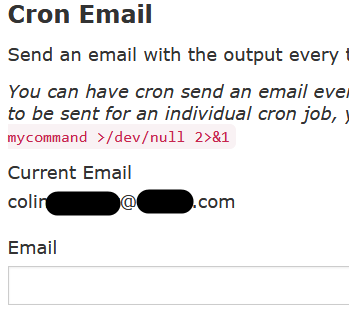
After scrolling down a 'setup' view such as shown opposite appears.
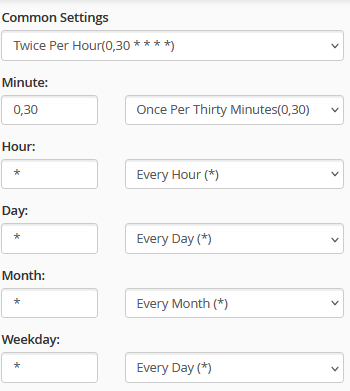
Setting up the schedule times for the cron to run is reasonably simple.
The easiest way is to use is the common settings which can be readily adjusted in the individual time parts.
In the example shown opposite the schedule is twice an hour at 00 and 30 minutes past the hour on every day.
One could edit the hour part to say 1 and 5 to give an unequal spacing.
The Command part is simply
"http://<your-site>/administrator/components/com_jdownloads/helpers/scan.php?key=your-key"
where your-key is the Joomla! Secret key specific to your site (see System - Site Information - Configuration tab Secret field), and the <your_site> is replaced by www.yoursite.com as appropriate.
Setting up the schedule times for the cron to run is reasonably simple.
The easiest way is to use is the common settings which can be readily adjusted in the individual time parts.
In the example shown opposite the schedule is twice an hour at 00 and 30 minutes past the hour on every day.
One could edit the hour part to say 1 and 5 to give an unequal spacing.
The Command part is simply
"http://<your-site>/administrator/components/com_jdownloads/helpers/scan.php?key=your-key"
where your-key is the Joomla! Secret key specific to your site (see System - Site Information - Configuration tab Secret field), and the <your_site> is replaced by www.yoursite.com as appropriate.
After clicking on the 'Add New Cron Job' button a line appears something like that shown opposite where some parts have been hidden. This command runs every 30 minutes

The resultant schedule and command are quite obvious. Importantly one is able to edit the 'cron line' to change say the schedule. For initial testing setting I set the cron job to run every five minutes with just a few files. It was then edited to run just twice a day.
If the cron job does not run then you should initially check with yout host site provider as they may have imposed some restricions such as a minimum time interval.
However the most likely problem is getting the initial part of the command line correct so seek advice from your hosting service.
The final part of the command, that is 'public_html/administrator/components/com_jdownloads/helpers/scan.php' is correct.
If the cron job does not run then you should initially check with yout host site provider as they may have imposed some restricions such as a minimum time interval.
However the most likely problem is getting the initial part of the command line correct so seek advice from your hosting service.
The final part of the command, that is 'public_html/administrator/components/com_jdownloads/helpers/scan.php' is correct.
Most Cronjob implementations also provde a facility to send an email at the time the Cronjob was executed.

Colin Mercer July 2019, updated August 2020, June 2023, October 2024, Dec 2024, May 2025 -AA
Joomla! Extensions for Cronjobs
At the time of writing there are no 'self-contained' cron job in Joomla! extensions. There are some that are incorporated in other applications, for example Komento.
There are also some such as the JoomlaShack jPrc (opens in new window/tab) and No Boss Cron (opens in new window/tab) which have an effective way of simulating a cron job.
There are also some such as the JoomlaShack jPrc (opens in new window/tab) and No Boss Cron (opens in new window/tab) which have an effective way of simulating a cron job.
Web based Cron Jobs
Another alternative is to use a web based cron service. There are a whole host of services, many free.
To find some try searching with a phrase like 'cron services'.
They just need to know the url of the jDownloads scan software and of couse the frequency at which a scan is to occur.
Some free ones require you to renew every month.
But there are others such as https://cron-job.org/ (opens in new window/tab) that allow you permanent access.
Setup is simple as illustrated opposite.
There are also some additional options about email notification should a cron job fail.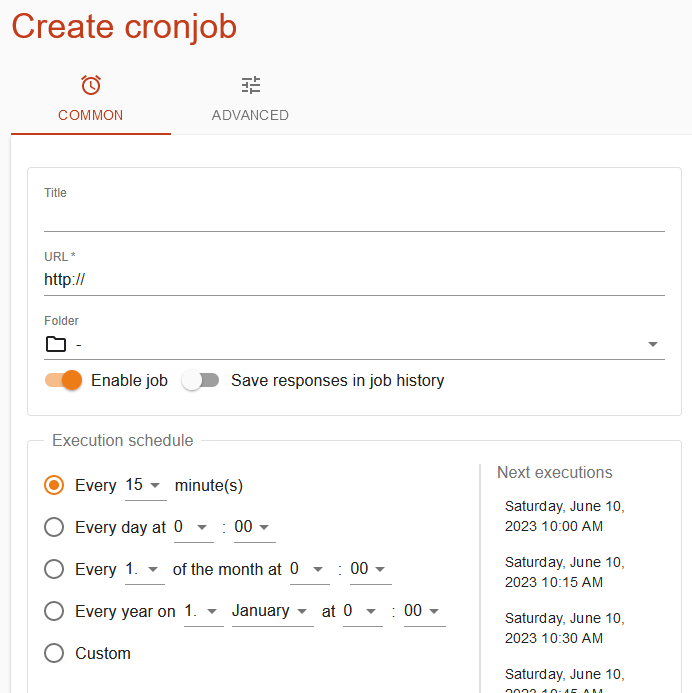
To find some try searching with a phrase like 'cron services'.
They just need to know the url of the jDownloads scan software and of couse the frequency at which a scan is to occur.
Some free ones require you to renew every month.
But there are others such as https://cron-job.org/ (opens in new window/tab) that allow you permanent access.
Setup is simple as illustrated opposite.
There are also some additional options about email notification should a cron job fail.
Background Notes
Any Cron job consists of two parts: the scheduling time string, and the command which eventually get combined.
The time string is made up of 5 items specifying: minutes, hours, days, months and weekdays. The syntax is five space separated 'values'; but the values are not always obvious!
Some examples are given below but if you want to determine other time strings then you could look at http://crontab-generator.org/ (opens in new window/tab). All times are usually UTC based so you may need to take that into account.
Time string */30 4 * * * would cause execution every day at 4:00 and 4:30.
Time string 3 4 * * * is once a day at 4:03 am
Time string */20 * * * * is every 20 minutes
The general structure of the command part for use with jDownloads is the unix command: "curl -s /dev/null http://websitename/script-name"
Specifically something like:
curl -s /dev/null http://<your_site>/administrator/components/com_jdownloads/helpers/scan.php? key=qwertySS1zW0kIdQ1VZ7xxxyyy
which also includes the Secret key specific to your site as described above. The key shown above is of course not a real one!
The time string is made up of 5 items specifying: minutes, hours, days, months and weekdays. The syntax is five space separated 'values'; but the values are not always obvious!
Some examples are given below but if you want to determine other time strings then you could look at http://crontab-generator.org/ (opens in new window/tab). All times are usually UTC based so you may need to take that into account.
Time string */30 4 * * * would cause execution every day at 4:00 and 4:30.
Time string 3 4 * * * is once a day at 4:03 am
Time string */20 * * * * is every 20 minutes
The general structure of the command part for use with jDownloads is the unix command: "curl -s /dev/null http://websitename/script-name"
Specifically something like:
curl -s /dev/null http://<your_site>/administrator/components/com_jdownloads/helpers/scan.php? key=qwertySS1zW0kIdQ1VZ7xxxyyy
which also includes the Secret key specific to your site as described above. The key shown above is of course not a real one!
Colin Mercer July 2019, updated August 2020, June 2023, October 2024, Dec 2024, May 2025 -AA



