
Print Articles
When unfamiliar with a process it is often useful to be able to have a hard copy of the relevant article.
Because Joomla 4 and above no longer support article printing, this short note advises on how to print in a reasonable format. Using Ctrl-P by itself is not sufficient!
Because Joomla 4 and above no longer support article printing, this short note advises on how to print in a reasonable format. Using Ctrl-P by itself is not sufficient!
Use the browser 'Print Friendly & PDF' extension
Print Friendly & PDF is available for Chrome, Firefox, Edge, and Safari. Click Print Friendly site (opens in a new window/tab) to visit site. The article shown is quite old but it is not cluttered with adverts and content about pdf's.
Please note that Print Friendly will output to a pdf as well as printing.
After installing or activating you can show an icon such as  on the browser toolbar. Actually this step may be a little "fiddly" as each browser is different in the way you are able to add permanently to the 'tool bar'
on the browser toolbar. Actually this step may be a little "fiddly" as each browser is different in the way you are able to add permanently to the 'tool bar'One of the many advantages of 'Use Print Friendly & PDF' is that it does not include any adverts in the printed copy. It also excludes other Joomla modules that maybe showing in side bars.
Printing
First, load the webpage you want to print and scroll down to the bottom.
The purpose here is to load all of the article content and the images.
Next Click on the
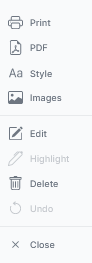
icon in the toolbar. This shows the Print Friendly & PDF tool bar, so click on Print and select your Printer. When Printing is completed then click on the X at the bottom of the tool bar. This returns you to the article.
Steps to Set Up PrintFriendly in Your Browser
1. Install the Extension
Go to the PrintFriendly website and find the extension for your specific browser (Chrome, Firefox, Safari, etc.).
Follow the instructions on the website to install the extension from your browser's extension store.
Go to the PrintFriendly website and find the extension for your specific browser (Chrome, Firefox, Safari, etc.).
Follow the instructions on the website to install the extension from your browser's extension store.
2. Enable the Extension
Once installed, the extension should appear in your browser's extensions list or toolbar.
Make sure the extension is enabled (usually a toggle switch or checkbox within the extension settings).
Once installed, the extension should appear in your browser's extensions list or toolbar.
Make sure the extension is enabled (usually a toggle switch or checkbox within the extension settings).
3. Add to Toolbar
Some browsers allow you to drag and drop the extension button onto your toolbar for quick access.
For example, in Firefox, you can drag the PrintFriendly button to the bookmarks toolbar. In Chrome, you can drag it to the bookmark bar.
Have not tried all browsers as I am not familiar with using them!!
Some browsers allow you to drag and drop the extension button onto your toolbar for quick access.
For example, in Firefox, you can drag the PrintFriendly button to the bookmarks toolbar. In Chrome, you can drag it to the bookmark bar.
Have not tried all browsers as I am not familiar with using them!!
4. Use the Extension
When you visit a web page, you should see the PrintFriendly button in your toolbar.
Click the button to open PrintFriendly's interface, where you can clean up the page by removing ads, navigation bars, and other unwanted elements. You can then print the cleaned-up page or save it as a PDF.
When you visit a web page, you should see the PrintFriendly button
in your toolbar.Click the button to open PrintFriendly's interface, where you can clean up the page by removing ads, navigation bars, and other unwanted elements. You can then print the cleaned-up page or save it as a PDF.
ColinM December 2023, April 2025, July 2026


