
Introduction
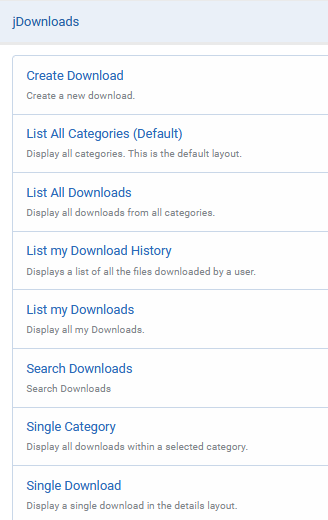
jDownloads has a variety of menus as listed below. The objectives of this article is to discuss the general aspects of adding a jD menu item; and then to give details on each menu type.
There are currently eight menu types available:
- List All Categories
- List All Downloads
- List my Downloads
- Single Category
- Single Download
- Create a Download
- Search Downloads.
- List My Download History
Note that the way the Categories and Downloads are shown depends on which jDownloads Layouts you have activated. Please see the articles in Layouts (opens in new window/tab) for more details.
Also of course which Categories or Downloads are shown depends on both their view Access level and User Group Permissions attributes associated with them. The view Access level determines if the user can see the Category or Download whilst the Permissions control aspects such as being able to download, edit and similar. We will not be dealng with those aspects here as they are discussed in other articles.
Note that the view Access level of a menu item enables who may or may not see the Menu item itself.
Another general point is that in jDownloads menu items then the 'Category Options' tab and the 'List Layouts' tab allow overriding some setup configuration Options.
Note that the view Access level of a menu item enables who may or may not see the Menu item itself.
Another general point is that in jDownloads menu items then the 'Category Options' tab and the 'List Layouts' tab allow overriding some setup configuration Options.
Adding a jDownloads Site Menu Item
This is of course the same as adding any menu item to an existing menu. So just for completness this is only described briefly in the following.
For convenience we assume here you are adding menu items to the site Main Menu.
On the
 click on
  . Next click on
 , then click on the
  to add a menu item.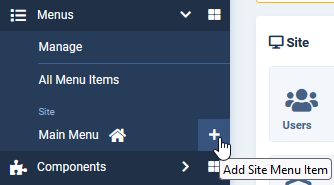
This brings up the the main menu creation page.
There are several items that need to be completed.
These include the Menu Title, the Menu Item Type, the view Access level, Status and so on.
It is the Menu Item Type that is discussed in more detail here as that selects what the menu item is to do!
Note: On some sites the new menu may not appear until you select another menu item.
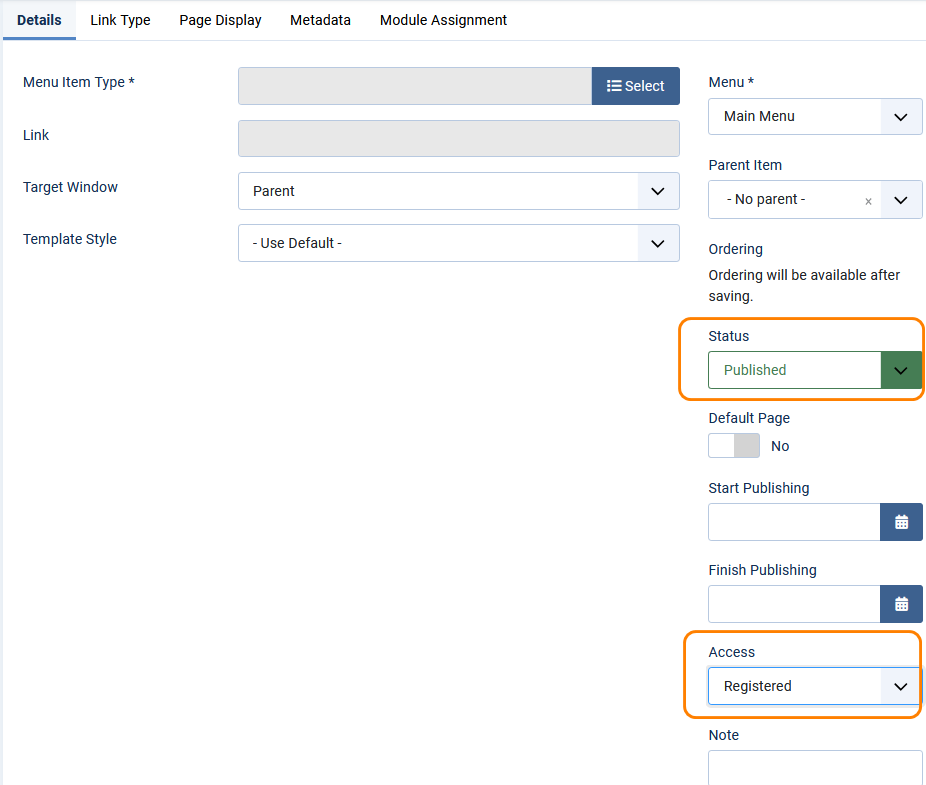
In the  tab clicking on
  will give a list of the various menu item 'categories' broadly in alphabetic order. Obviously select
  .
. 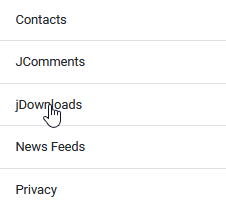
tab clicking on will give a list of the various menu item 'categories' broadly in alphabetic order. Obviously select . After clicking on jDownloads we get to the specific jDownloads menu item types. These are listed in alphabetic order as shown opposite.
Each menu item type is discussed separately below.
It is perhaps helpful to recall that when a user clicks on a menu then only those Categories and Downloads that have view Access levels compatible with the User Group membership of the front end user will be shown.
Users that are not logged in are automatically members of the Public group.
Similarly only if the user has the appropriate permission will they be able to download or edit.
Hiding Menu Items
There are occasions when you do not wish to show jDownloads menu items, for instance if your site is just using the content plugin to show Downloads.
However jDownloads does need at least one of the main menus. The best one to use is the "List all Categories" menu item.
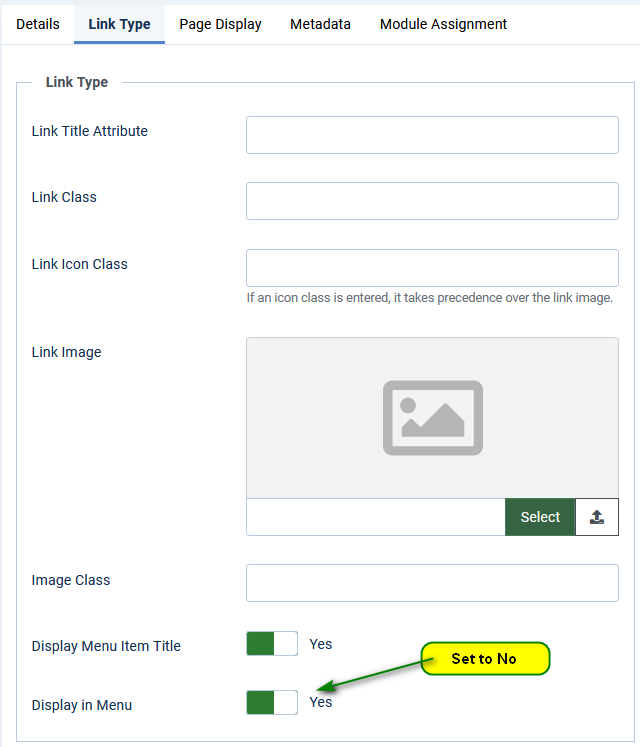
So when creating a menu item as outlined below, also go to the Link Type tab.
Select the 'Display in Menu' option and set it to 'No' as shown below.

List All Categories
This is the default menu item. A menu item of this type is always required. It is used when forming a link to a Download. It may of course be a hidden menu item if you do not wish users to see this menu item or maybe set a view Access so that only specific User Groups can see it.
To hide a menu item go to the 'Link Type' tab and set option 'Display in Menu' to No as described above in the Hiding Menu items (opens in new window/tab) section.
Many of the options in the List All Categories menu item are the same in other menu items so we will only describe them once. The tabs that are related to jDownloads aspects are the Details, Category Options and the List Layouts tabs. The other tabs, Link Type, Page Display and Metadata, are 'regular' Joomla! menu set up parameters so they are not discussed here.
To hide a menu item go to the 'Link Type' tab and set option 'Display in Menu' to No as described above in the Hiding Menu items (opens in new window/tab) section.
Many of the options in the List All Categories menu item are the same in other menu items so we will only describe them once. The tabs that are related to jDownloads aspects are the Details, Category Options and the List Layouts tabs. The other tabs, Link Type, Page Display and Metadata, are 'regular' Joomla! menu set up parameters so they are not discussed here.
Menu Details Tab
This applies to all menu types
On the Details page it is usually only necessary to set the view Access appropriately.
Check that Status is set to Published.
If it is a Multilingual site then it will also have a Language field that needs to be set appropriately.
On the Details page it is usually only necessary to set the view Access appropriately.
Check that Status is set to Published.
If it is a Multilingual site then it will also have a Language field that needs to be set appropriately.
Category and List tab options
This also applies to all menu types
As noted earlier the Category Options and List Layouts tabs allow overriding some of the main jDownloads Options for this menu item only.
These options are similar for all the jDownloads menu types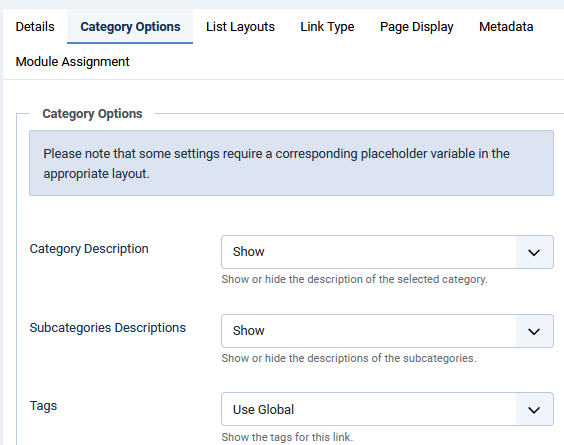
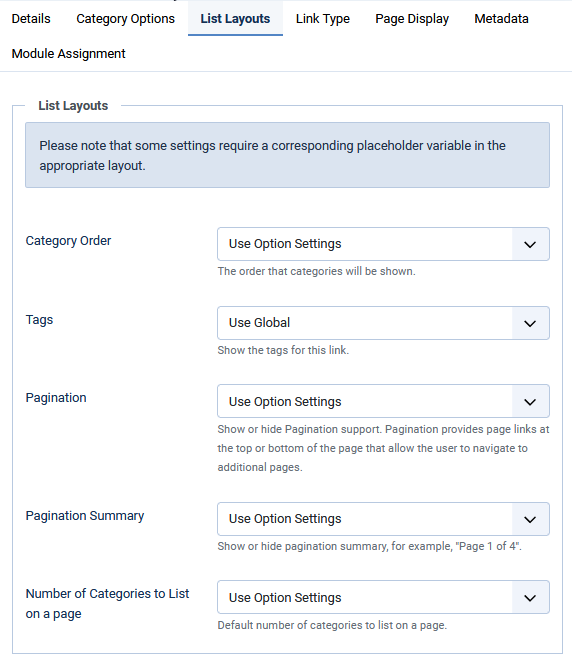
As noted earlier the Category Options and List Layouts tabs allow overriding some of the main jDownloads Options for this menu item only.
These options are similar for all the jDownloads menu types
List All Downloads
This menu item just lists all those Downloads for which the user has view Access rights. And only those with Download Permission are downloadable.
The main Details tab is very similar to the List All Categories setup, except of course for the Menu Item Type.
Note that there is no Category Options tab.
One of the restrictions of List All Downloads is that it does not support 'checkbox' layouts, even if one of that type of Files layout has been selected. That is only one Download at a time may be selected for downloading.
The List Layouts in List All Downloads has some additional options but is generally similar to the List All Categories menu item as above.
Note that you can limit the number of Downloads to show on a page.

List my Downloads
This is a very useful menu item as it allows selection of only those Downloads that have been created by the logged on user, that is it uses the "Created by" field to find the relevant Downloads to show.
It does NOT mean the Downloads that have been downloaded by the logged on user; for that function see My Downloads History below.
When a Download is created in the Front End then jD will automatically insert the current user into the "Created by" field of the Publishing tab.
When creating a Download, you can manually override and select from a list of users.
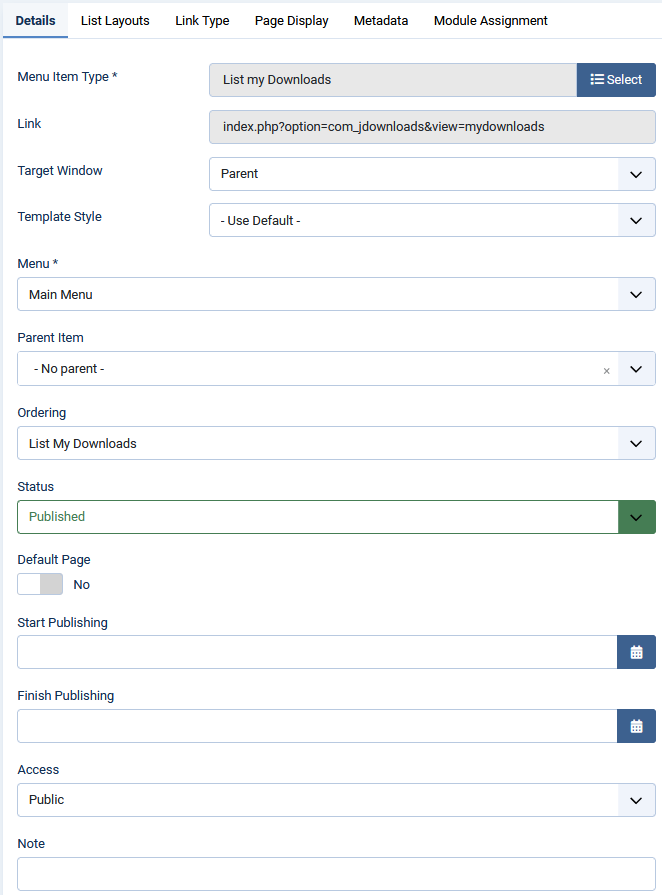
With this menu type it would be usual to set view Access to Registered or similar. If you leave Access as Public then when a non logged in user clicks on it then jDownloads will either generate an error or divert the user to the login page.
To repeat List my Downloads will only show those Downloads belonging to the Current logged in user.
You can use 'checkbox' layouts with this menu item.
The List Layouts tab is the same as for List All Categories as noted above.
To repeat List my Downloads will only show those Downloads belonging to the Current logged in user.
You can use 'checkbox' layouts with this menu item.
The List Layouts tab is the same as for List All Categories as noted above.
List My Download History
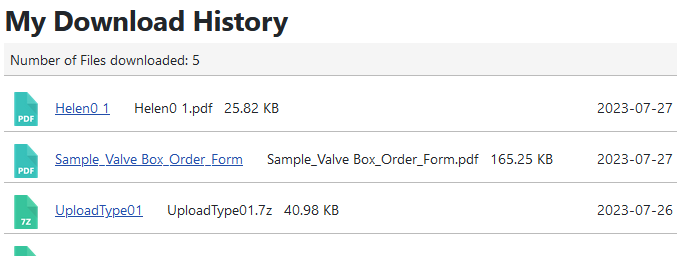
This menu item analyses the log file and finds which Downloads have been downloaded by the logged on user.
A typical display is illustrated opposite.
.Note if the user is not logged in, then there will be a system error. To avoid this ensure that view Access level is set to Registered when setting up this type of menu item.
The setup on the Details tab is much the same as any other of the menu items but note that the Access should be set to at least Registered.
If the menu item is visible to a non-logged in user then clicking on it will cause an error message.
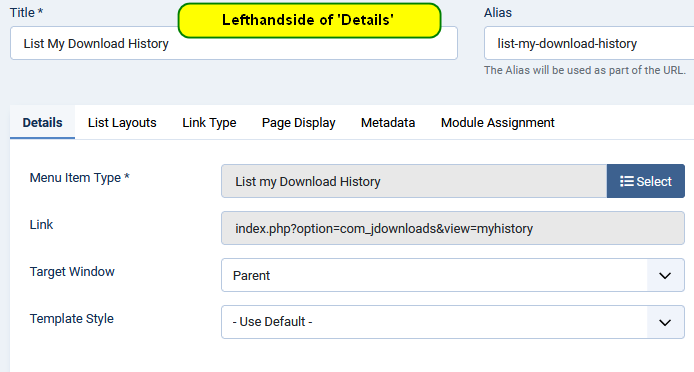
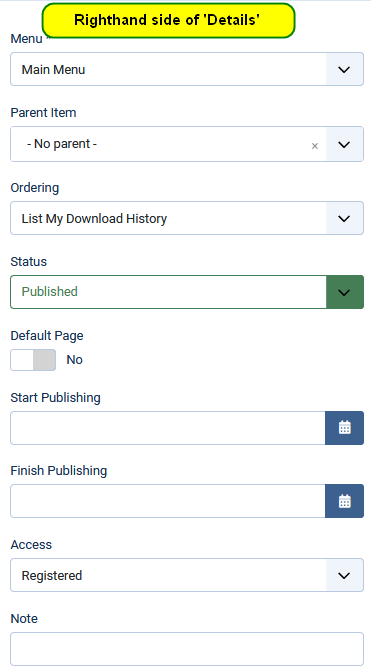
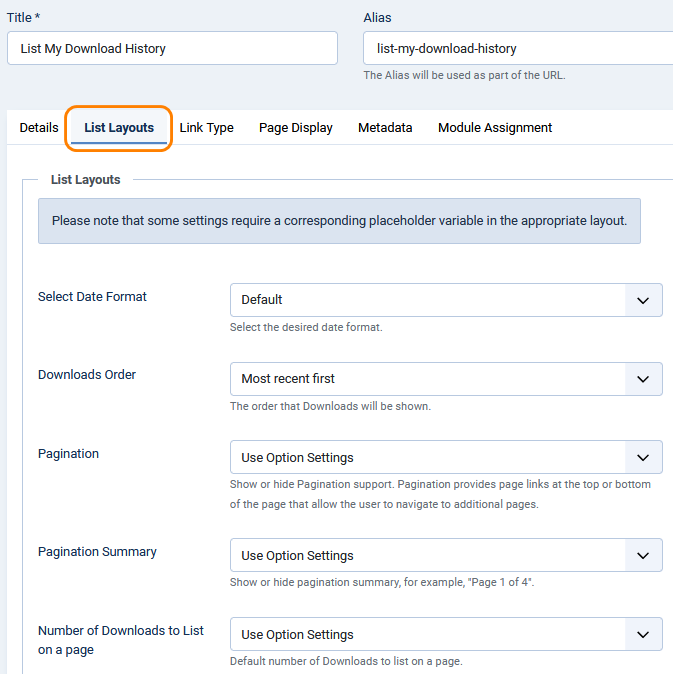
The Lists Layouts tab enables overriding the Options, including the how many Downloads are shown on a page.
Single Category
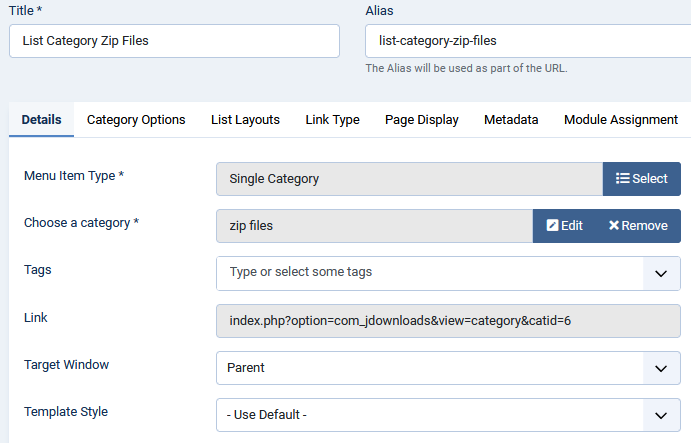
This menu item is like List All Categories but allows you to select the starting Category on the Details Tab.
That is it will show any subcategories,and so on, of the base category.
See above for Category Options and List Layouts.
Single Download
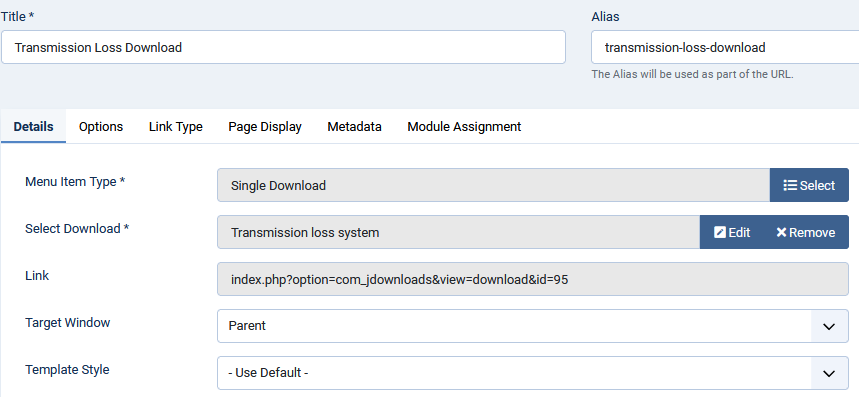
As the name indicates this menu item displays a single Download using the current active Download Details layout. Either use the Select button to choose from a list of all Downloads, or type in the exact Download name.
Note that the Download will only be shown if the user has view Access to the Download, so it is suggested you set the view Access of the menu item to the same as that of the Download.
Also of course it will only be downloadable if the user has the relevant Download permission.
Create a Download
This menu item allows a Download to be created from the front end. Clearly one should set the view Access such that only those User Groups that are permitted to create a Download are able to see this menu item.
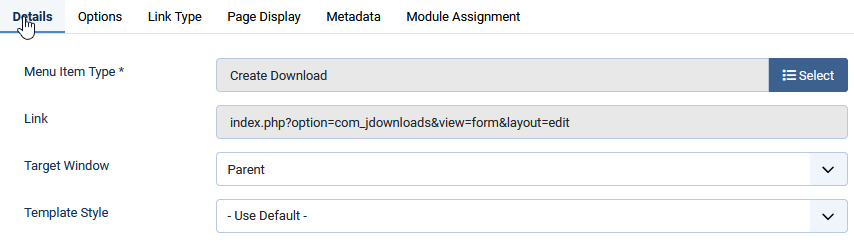
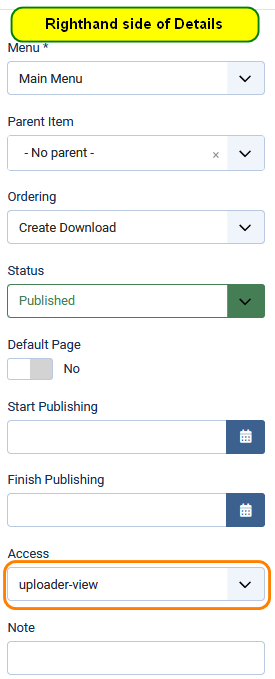
The Create Download menu item is similar to setting up any of the other menu items. The important item in the Details tab is to set the Access view level appropriately.
If you use this menu the it is strongly advised that you create a special User Group such as UploaderUG. You will also need to setup that User Group. Please see User Groups Settings Overview. and Create Download. (both links open in a new window/tab)
The Options tab allows you to specify the Category in which the Download is placed. One could have several such menu items specific to various User Groups.
Search Downloads
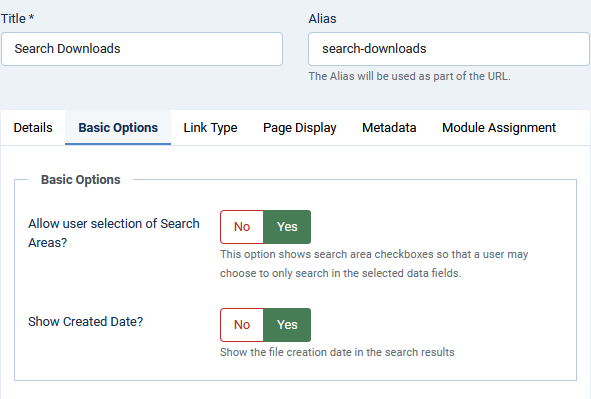
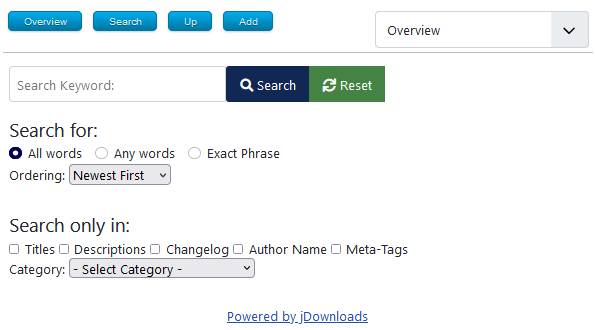
The Search menu item brings up a form in the front-end that allows selecting various criteria to search in the Downloads.
The available search criteria are shown in the image on the far right.
See also Smart Search (opens in new window/tab)
The available search criteria are shown in the image on the far right.
See also Smart Search (opens in new window/tab)



