
Introduction
This article is a guide to the configuration Options for the frontend views. The options are available in both jDownloads 3.9 and V4. There are notes on all the available options.
But the article does not cover:
A. creating or editing from the frontend.
B. The Content Plugin
But the article does not cover:
A. creating or editing from the frontend.
B. The Content Plugin
The frontend Options are grouped into 15 sections and this tutorial article has notes on all the settings in each section. With one exception, the settings in a section are separate from those in other section.
Throughout each section options, such as 'Default Sort Order', are in bold and underlined.
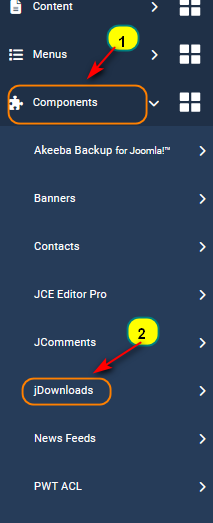
To access the Front End options first in the main Joomla panel click on then on
  as indicated opposite. This opens up access to the various jDownloads sections.
So click on the button. Next click on the
  button at top right. Select the
  tab. This shows the various sections in the Front End options
Throughout each section options, such as 'Default Sort Order', are in bold and underlined.
To access the Front End options first in the main Joomla panel click on
then on as indicated opposite. This opens up access to the various jDownloads sections.So click on the
button. Next click on the button at top right. Select the tab. This shows the various sections in the Front End optionsGeneral
Activate Maintenance
The default setting for this option is No.
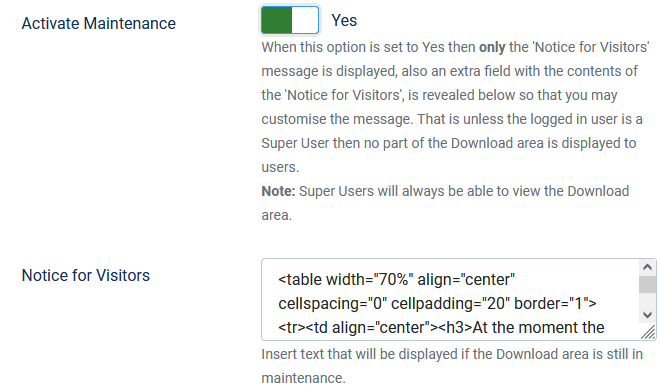
If it is set to Yes then another option, 'Notice for Visitors' appears as shown at top right. This has HTML code that will display a suitable message such as illustrated at bottom right. Obviously you may change the code as required to suit your site, perhaps to show in another language.
No part of the Download area is displayed in the front end to users except to logged in Super Users who are always able to view the Download area in the frontend.


The backend is of course unaffected. However there is a message that is on the jD Control Panel as illustrated opposite.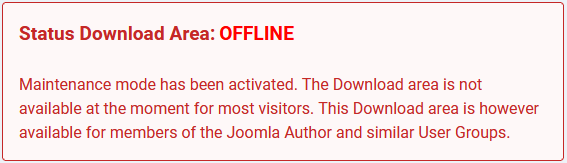
Component Description and Footer Text options
Suitable descriptive text may be put in the 'Component Description' and 'Footer Text' options if required.
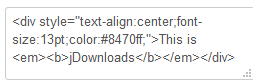
Both Options may include HTML code. For example the Component Description shown above was generated with the code shown opposite.
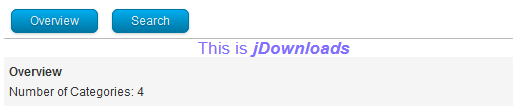
Suitable descriptive text may be put in the 'Component Description' and 'Footer Text' options if required.
Both Options may include HTML code. For example the Component Description shown above was generated with the code shown opposite.
Both Options may include HTML code. For example the Component Description shown was generated with the code shown above.
If you are using multiple languages then you need to include a description for each of the languages. For example if you wished to use the phrase 'This is jDownloads' for English, French and German then for example insert
{en-GB}This is jDownloads{/en-GB} {fr-FR}C'est jDownloads{/fr-FR} {de-DE}Dies ist jDownloads{/de-DE}
If you are using multiple languages then you need to include a description for each of the languages. For example if you wished to use the phrase 'This is jDownloads' for English, French and German then for example insert
{en-GB}This is jDownloads{/en-GB} {fr-FR}C'est jDownloads{/fr-FR} {de-DE}Dies ist jDownloads{/de-DE}
URL Routing
This may be a future addition. It is not yet implemented.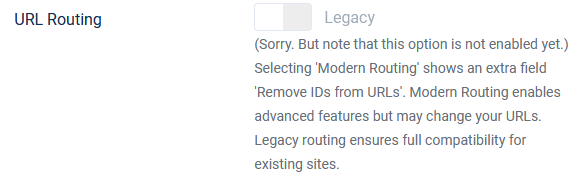
Multilingual Associations
The default setting is No.
If set to 'Yes',an additonal option, 'Use Image Flags' is shown.


Selecting Yes in the 'Use Image Flags' shows a message and the flags, for example  .
.
Selecting No shows a message and the approprate language codes such as .
.
Clicking on a flag or a language code will take you to the Download Details view of the associated Download.
. Selecting No shows a message and the approprate language codes such as
.Clicking on a flag or a language code will take you to the Download Details view of the associated Download.
CSS
The Default setting is Yes. This will then use the standard jDownloads CSS.
If you select No then the option 'Your CSS file' appears. Specify the name of the file, for example 'mystyling.css'

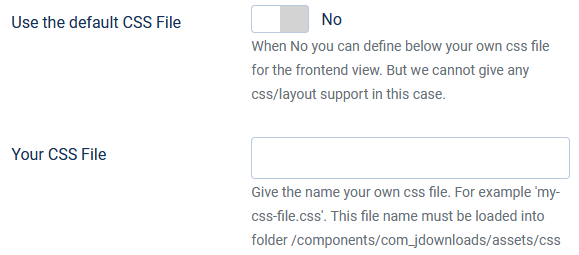
You then need to ensure that your CSS file is placed in /components/com_jdownloads/assets/css/
But please note in this case we cannot give any css or layout support.
But please note in this case we cannot give any css or layout support.
Items per Page
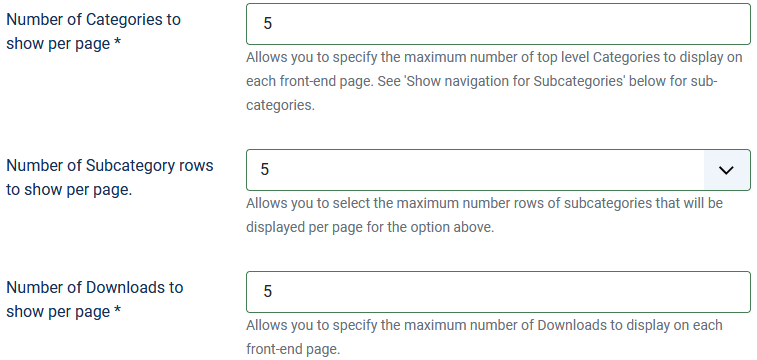
These three options control how many items of each type are shown on a page. When there are more items of the particular type on a page then a navigation bar will be shown.
For example
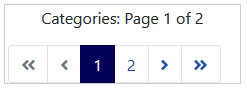 would be shown for Categories.
Note that the Option 'Number of Subcategories rows to show per page' relates to the number of rows, not items. This is only significant if you are using the layout 'Multi-Column Subcategories Layout'.
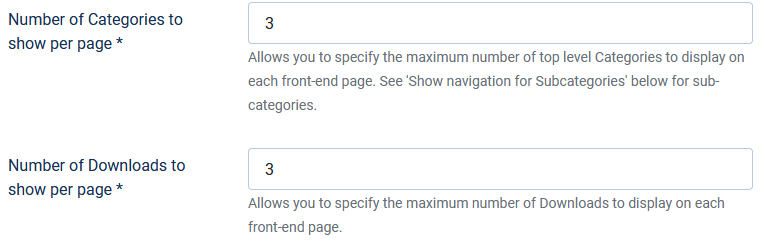
Sometimes the 'Number of Subcategories rows to show per page' option is not visible.
This is because both options 'Show navigation for Subcategories' in the Navigation section below is set to No.
Navigation
There are four options in the Navigation section as illustrated opposite.
The three types of navigation 'bar' are shown below. The first two are the Categories and Downloads types; they may be selected to appear at either the top or bottom or both as set by options 'Show navigation at top' and 'Show navigation at the botom'.
 The third type is the subcategories navigation. This will only appear when option 'Show navigation for Subcategories' is set to Yes. Also it only appears at the top part of the view.
When set to Yes the option 'View back button' shows a
 button in the Footer part of the view.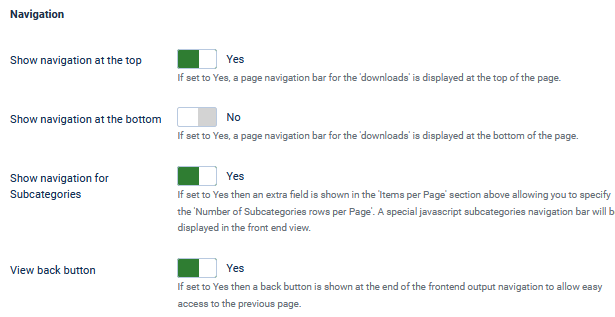


Default Sort Order
The two options 'Categories default frontend sort order' and 'Downloads default frontend sort order' specify the initial way Categories or Downloads will be shown in the frontend.
There are three options for the sequence of Categories and ten for Downloads.
Categories and Downloads may also be sorted in the backend. So the choices Category Manager Order and Downloads Manager Order will show the same sequence as currently used in the backend.
See also the Header Sort Options section below.


There are three options for the sequence of Categories and ten for Downloads.
Categories and Downloads may also be sorted in the backend. So the choices Category Manager Order and Downloads Manager Order will show the same sequence as currently used in the backend.
See also the Header Sort Options section below.
Header Sort Options
The default setting for option 'View sort option in the header' is Yes.
This shows option 'Select the fields for the sort bar' which allows allows adding various sort methods by clicking in the box to reveal the dropdown list of available types. Each type is selected one at a time.
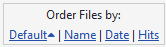
The result is a sort bar in the header section such as shown below.
.
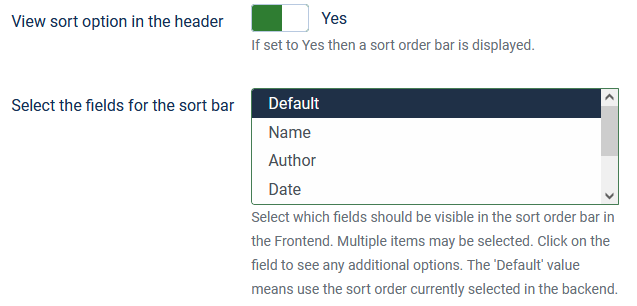
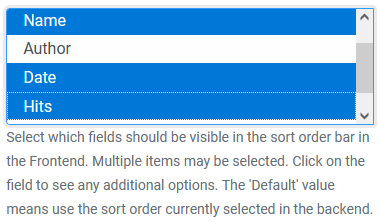
This shows option 'Select the fields for the sort bar' which allows allows adding various sort methods by clicking in the box to reveal the dropdown list of available types. Each type is selected one at a time.
The result is a sort bar in the header section such as shown below.
.
Download Sequence
The default settings for the four options 'Activate direct downloading', 'View Download detail page' , 'Use Downloads title as download link' and 'Use Link in Symbols' are shown opposite.
The two options 'Use Download Title as download link' and 'Use Link in Symbols' simply control whether the symbol or the title have an active link.
If both links are active then they will have the same link. This is not WCAG compliant.
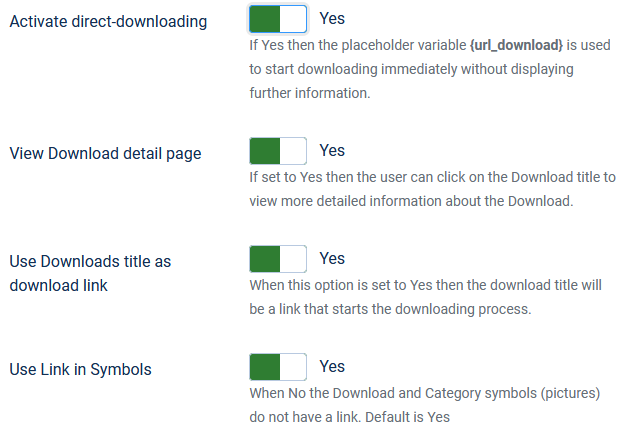
The addition of 'Use Link in Symbols', which also applies to Category symbols, has been introduced to improve Accessiblility criteria (WCAG).
What happens when you click on either the Download title or the Download symbol or the Download button  is a combination of the 'Activate direct downloading' and 'View Download detail page' is shown in the table below.
The upper half of the table shows the results of clicking on either the symbol link or the title when active. The lower part shows the result of clicking on the Download button if it is being shown.
is a combination of the 'Activate direct downloading' and 'View Download detail page' is shown in the table below.The upper half of the table shows the results of clicking on either the symbol link or the title when active. The lower part shows the result of clicking on the Download button if it is being shown.
Whilst there are 4 combinations of these two setting, the actual resultant view also depends on whether the Download requires the user to agree a license, or to give a password or to respond to a Captcha.
For a license to be operative, it has to be selected from the Download setting 'License' pulldown and the 'Confirm License' has to be Yes. (If Confirm License is not set it is treated as if there were no license)
Additionally the resultant view also depends on whether the Download has a downloadable file or is a simple Download without a file.
For a license to be operative, it has to be selected from the Download setting 'License' pulldown and the 'Confirm License' has to be Yes. (If Confirm License is not set it is treated as if there were no license)
Additionally the resultant view also depends on whether the Download has a downloadable file or is a simple Download without a file.
| Direct Downloading |
View Download Detail |
Click on Symbol or Title when active | |||
| Download with File | Download with no File | ||||
| No License* | With License* | No License* | With License* | ||
| Yes | Yes | Details | Summary | Details | Details |
| Yes | No | Direct | Summary | Details | Details |
| No | Yes | Details | Details | Details | Details |
| No | No | Summary | Summary | Details | Details |
| License* implies user needs to agree a license, give a password or answer a Captcha | |||||
| Direct Downloading |
View Download Detail |
Click on Download Button |
|||
| Download with File | Download with no File | ||||
| No License* | With License* | No License* | With License* | ||
| Yes | Yes | Direct | Summary | Not shown | Not shown |
| Yes | No | Direct | Summary | Not shown | Not shown |
| No | Yes | Summary | Summary | Not shown | Not shown |
| No | No | Summary | Summary | Not shown | Not shown |
The only exception is if you have a Single Download menu item. This type of menu item takes you directly to a Download Details view. The Sumary view will be shown if it has a file and a license.
NOTE: Option 'File Types in Browser' in Global Settings options lists those extensions which will add target="_blank" to the link so that it opens in a new tab/window. The option is called 'File Types in Browser' (opens in new window/tab).
Category Listbox
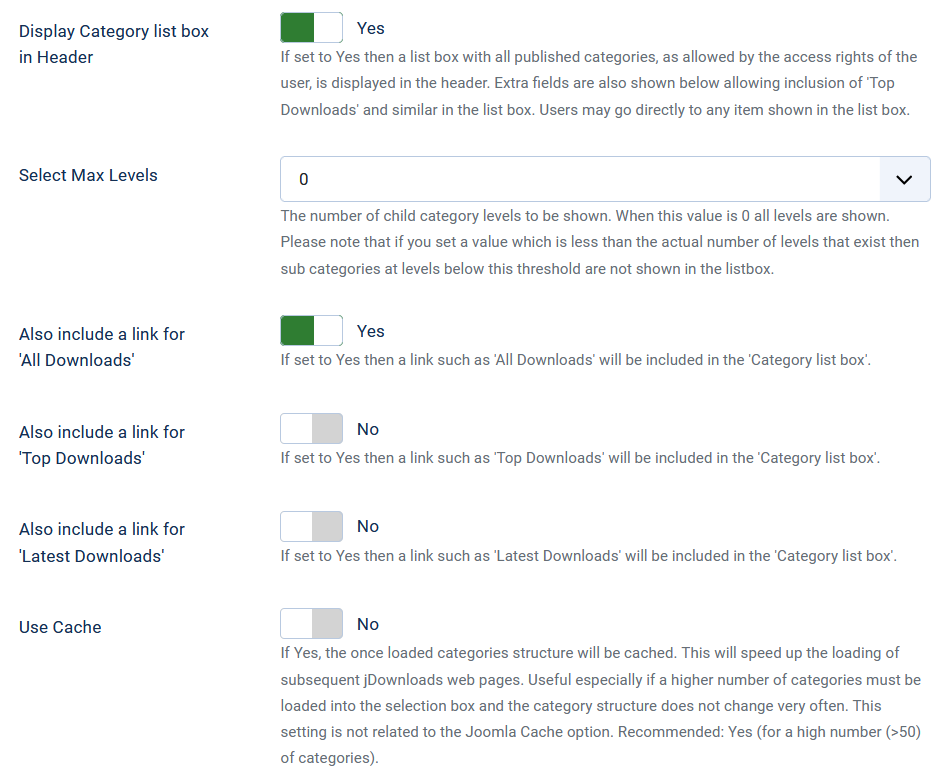
If the 'Display Category list box in Header' is yes then a pulldown listbox such as
 is shown. This will have a list of all the categories, subcategories and so on to the category level as defined in option 'Set Max Levels'. If this option is left at the default value zero then all categories are included.
The other three options:, 'Also include link for All Downloads', 'Also include link for Top Downloads' and 'Also include link for Latest Downloads' provide additional entries in the pulldown list.
If the 'Display list box in Header' is set to No then all four of the other options are no longer visible.
For the Use Cache option see the noes below.
Use Cache option
If you have a large number of categories and sub-categories, say the total is 50 or more, then it recommended that this option is set to Yes.
This will speed up the loading of subsequent jDownloads web pages. Useful especially if a higher number of categories must be loaded into the selection box and the category structure does not change very often.
This setting is not related to the Joomla Cache option.
This will speed up the loading of subsequent jDownloads web pages. Useful especially if a higher number of categories must be loaded into the selection box and the category structure does not change very often.
This setting is not related to the Joomla Cache option.
Category Header Info
If option 'Show Category Info' is set to Yes then the category information is repeated again under the navigation bar. As the name of the category is already visible in the navigation bar, this is not always welcome. But if you want to show the category description then you must set this to Yes.
Note: This option only works for layouts that have a single column.
An example of a category description is shown opposite.
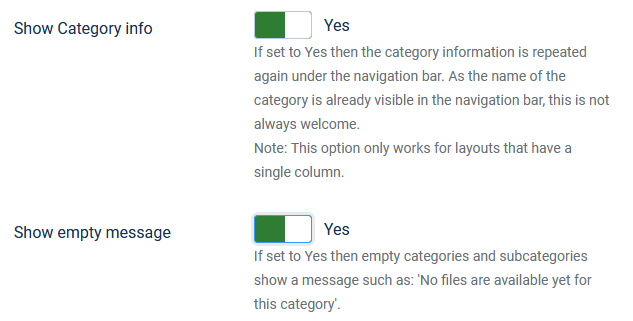

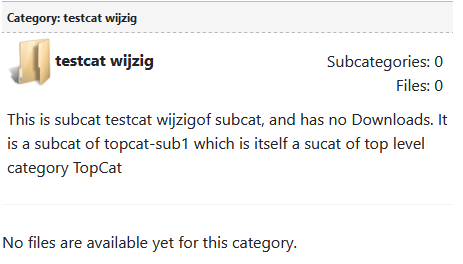
If the option 'Show empty message' is set to Yes then empty categories and subcategories show a message such as: "No Downloads are available yet for this category".
The message shown is set in the 'COM_JDOWNLOADS_FRONTEND_NOFILES' entry of the current front end language file. That is for example if current language is English then it is in file 'en-GB.com_jdownloads.ini' .
Other Options
This is a miscellany of various options that do not fit into any more specific section! So they are discussed individually. The mage below shows all of the options, which are discused individually below the image.

Use Caching
If Yes, the results of some database queries are cached.
This may cause jDownloads to load web pages faster. This is especially useful for large sites that have a significantly high number of categories and downloads may cause the loading to take a little longer.
This setting is not related to the Joomla Cache option.
This may cause jDownloads to load web pages faster. This is especially useful for large sites that have a significantly high number of categories and downloads may cause the loading to take a little longer.
This setting is not related to the Joomla Cache option.
Remove empty label & HTML tags
This is best illustrated with an example.
Suppose the Remove Empty Label Fields option is set at its default value 'No'. The part of an information display could look like the view opposite. Note that the Version has no value.
If now the Remove Empty Label Fields Option is set to Yes then the view becomes as below but there are two obvious empty gaps.
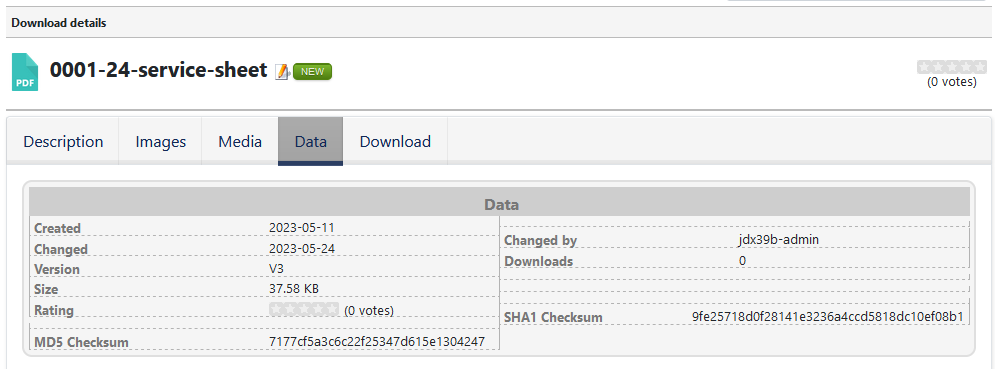
Example Description and Data tab views are shown opposite.

Examples of a Media tab and a Download tab are shown opposite.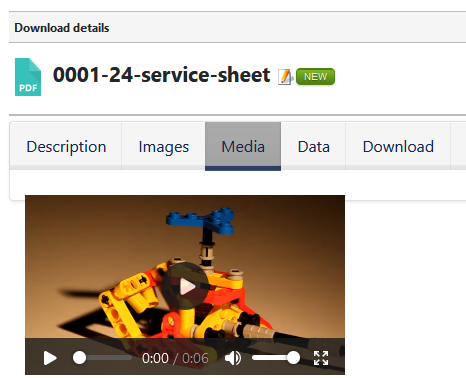
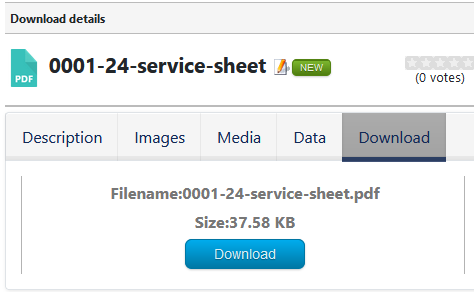
But suppose the option 'Remove empty HTML tags' is also set to Yes. The view now becomes as opposite where the empty gaps have also been removed.
Use jDownloads Lightbox
The next option is 'Use jDownloads Lightbox'. Sometimes you may have already installed a lightbox plugin. If that is the case then you can set this option to No. It is suggested that you test with and without the jDownloads lightbox function enabled to be certain!
Support for Joomla Content Plugins
The option 'Activate support for all Joomla content plugins' is important. When set to Yes then you can use placeholder variables from other installed Joomla plugins in the jDownloads generated script, for example .
However because not all content plugins are 'equal' it is essential to test if the plugin you are using causes broken or blank pages in jDownloads.
However because not all content plugins are 'equal' it is essential to test if the plugin you are using causes broken or blank pages in jDownloads.
Use Real Name
The option Use real user name allows choice of using either the Name (if Yes) or the Login Name (if No) in jDownloads.
Show Shortened Filename
Show a Shortened Filename sets the maximum number of characters used when displaying the filename. The actual filename is of course unchanged. Set to zero to disable this feature. A filename such as 'Sample_Valve Box_Order_Form.pdf ' would appear as 'Sampl...orm.pdf' when the selected length is 15. The objective is to show the start and end of the filename, including the extension. Note that lengths of 5 and 10 are not effective - they are scheduled to be removed in a future update.
Truncate Download Description
Show a truncated Download Description allows you to automatically truncate the view length of the short descriptions to the maximum number of characters as specified here. This is used in the Download list view in the frontend. The Short Description itself is not truncated, only the view length. Leave zero to disable this feature.
Redirect after downloading
Redirect after downloadingWhen you want the user to be redirected to a category after the start of downloading, you must specify the waiting time before redirection in seconds. Setting the value to zero (0) turns the function off.
Note: This only works when the Global Settings option 'Send Downloads over PHP Script?' is set to: Yes.
Note: This only works when the Global Settings option 'Send Downloads over PHP Script?' is set to: Yes.
Tabs in Details view
The default setting for option 'Use tabs in the Download Details view' is No.
If you use the pulldown and select either Sliders or Tabs then three further options are available to add additional sliders or tabs. You also need to select a Downloads Details layout that supports tabs.
These extra options: 'First custom tab title', 'Second custom tab title' and 'Third custom tab title' will show anothe tab or slider with the given name in the front end Download Details view.

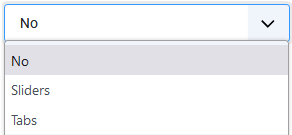
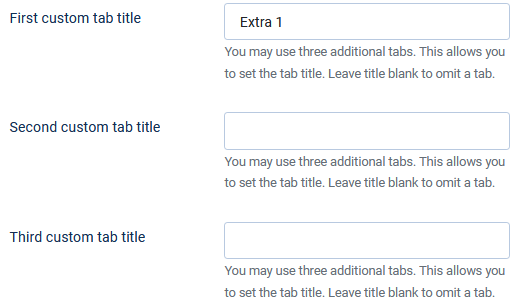
If you use the pulldown and select either Sliders or Tabs then three further options are available to add additional sliders or tabs. You also need to select a Downloads Details layout that supports tabs.
These extra options: 'First custom tab title', 'Second custom tab title' and 'Third custom tab title' will show anothe tab or slider with the given name in the front end Download Details view.
Example Description and Data tab views are shown opposite.
Examples of a Media tab and a Download tab are shown opposite.
Ratings
The default setting for option 'Activate ratings' is No.
If Yes is selected then another option 'Only Registered users may rate' becomes available. This is usually desirable as it enables jDownloads to restrict users to vote just once for each Download.
When activated each Download will now have a box with five empty stars .
.
After voting it will look like . The user will briefly see a message thanking them for voting.
The header of the Download will now look like the image opposite.

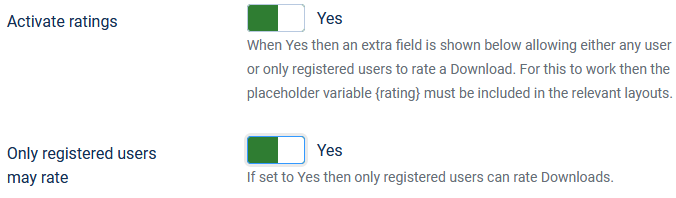

If Yes is selected then another option 'Only Registered users may rate' becomes available. This is usually desirable as it enables jDownloads to restrict users to vote just once for each Download.
When activated each Download will now have a box with five empty stars
. After voting it will look like
. The user will briefly see a message thanking them for voting.The header of the Download will now look like the image opposite.
If the same user attempts to vote on the same Download again then the user will be informed that they have already voted.
Note that all non registered users are treated as a single user. As a result if option 'Only Registered users may rate' is set to No then once a non registered user has voted for a Download then no other non registed user may vote for that Download.
Note that all non registered users are treated as a single user. As a result if option 'Only Registered users may rate' is set to No then once a non registered user has voted for a Download then no other non registed user may vote for that Download.
Comments
The default setting for 'Support JComments' is No. If you select Yes another option 'View number of comments' appears.
Because comments are supported using the extension JComments the set up, whilst simple, has several steps. The JComments author has now retired so the original JComments is not available. However Martin Brampton in his site. Click on the link below for more information and details'
Enabling comments on Downloads with JComments (exsrteme) (opens in a new window/tab)
Note that Comments may also be added by using the paid extension Komento.
For details click on Komento article. (opens in a new tab/window)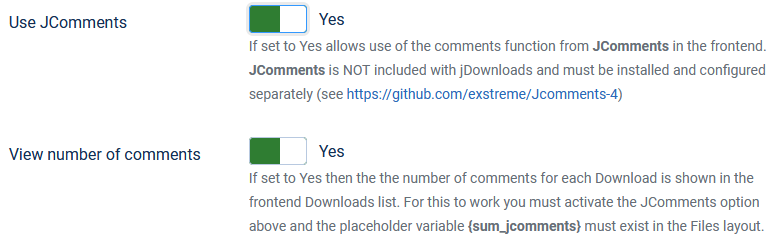
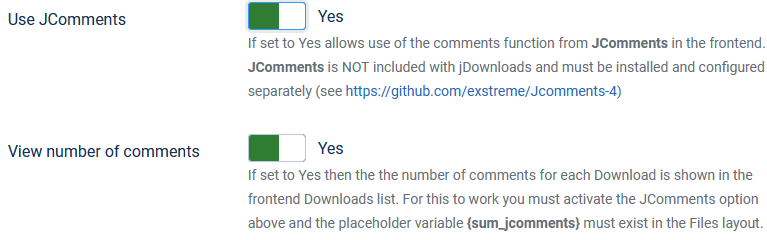
Because comments are supported using the extension JComments the set up, whilst simple, has several steps. The JComments author has now retired so the original JComments is not available. However Martin Brampton in his site. Click on the link below for more information and details'
Enabling comments on Downloads with JComments (exsrteme) (opens in a new window/tab)
Note that Comments may also be added by using the paid extension Komento.
For details click on Komento article. (opens in a new tab/window)
ColinM May 2020, updated October 2021, May 2023, July 2023, October 2023, May 2025, June 2026


