
Introduction
A simple introductory example with a Category, its Downloads, and a menu item that can only be seen by specific users.
For Individual User Access see Private User Access (opens in separate tab/window).
For Individual User Access see Private User Access (opens in separate tab/window).
Here by a private category we mean that only people belonging to a specific Joomla User Group are able to see the category, and as a result only those people would be able to access any Download within that category. The reason why this is quite simple is because jDownloads fully implements the Joomla ACL scheme.
This example will outline what needs to be done to create a Private Category, or rather will show a way in which a Private Category may be implemented.
Much of the setup is within Joomla!. We will have a user called Sam who will belong to a Joomla User Group called SamUG. We will also create a View Access called 'sam-view'. So first let us do the Joomla part.
This example will outline what needs to be done to create a Private Category, or rather will show a way in which a Private Category may be implemented.
Much of the setup is within Joomla!. We will have a user called Sam who will belong to a Joomla User Group called SamUG. We will also create a View Access called 'sam-view'. So first let us do the Joomla part.
Setting up User Groups and View Access Levels
The first step is to create a new Joomla User Group. On the  click on
  then click on
  . This shows all the existing User Groups.
click on then click on . This shows all the existing User Groups.To create a new group then at top left, click on  which will give an entry form such as shown opposite.
Give it the appropriate name, which in this example is 'PrivateUg-abc' and assign Registered as its Parent Group.
Then .
.
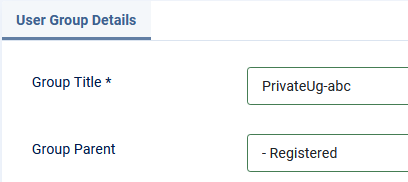
which will give an entry form such as shown opposite.Give it the appropriate name, which in this example is 'PrivateUg-abc' and assign Registered as its Parent Group.
Then
. If you need to make more than one Private Categoy the the next on could be say 'PrivateUg-def'. In practice one would probally use a more meaningfull name that related to the type or subject of the Dowloads in the category.
You may also query why use the Registered group as the 'base' group? The reason is that if you give Edit or higher as the parent group then those users in the 'PrivateUg-abc' group may be able to edit articles and other non jDownloads content.
You may also query why use the Registered group as the 'base' group? The reason is that if you give Edit or higher as the parent group then those users in the 'PrivateUg-abc' group may be able to edit articles and other non jDownloads content.
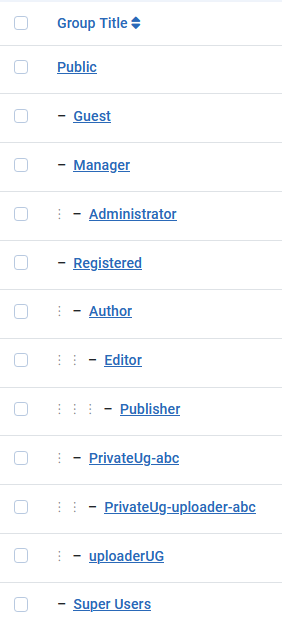
The result of creating the PrivateUg-abc with Registered as its parent group, and if appropriate the PrivateUg-Uploader-abc with PrivateUg-abc as its parent, are shown opposite.
It is not the position in the list but the degree of indenting that indicates the ‘parent group’.
Once we have created the group we can assign users to it, and, most importantly, add the user group(s) to a view Access Level.
Note also there is an uploaderUG which is for 'regular' uploaders into other categories
The next step is to create a suitable view Access level so that only members of the PrivateUg-abc will be able to see the Private Category.
On the click on . Next click on  and then, at top left, click on . Next create an access level called say 'abcView'.
Add PrivateUg-abc as its only user group member.
If you have created a 'PrivateUg-uploader-abc' User Group then another view Access Level, called say 'abcUploaderView', will be required with 'PrivateUg-uploader-abc' as the only member.
On the
click on . Next click on and then, at top left, click on . Next create an access level called say 'abcView'. Add PrivateUg-abc as its only user group member.
If you have created a 'PrivateUg-uploader-abc' User Group then another view Access Level, called say 'abcUploaderView', will be required with 'PrivateUg-uploader-abc' as the only member.
Create Test Users
At this point it is useful to create some test users, one as a member of the PrivateUg-abc and, if appropriate, another user as a member of the uploaderUG usergroup.
In my testing I called one user Tester-abc with an email ofThis email address is being protected from spambots. You need JavaScript enabled to view it. ' and the other as TesterUploader-abc with an email This email address is being protected from spambots. You need JavaScript enabled to view it. '.
(1) User 'Tester-abc' was allocated to the PrivateUg-abc user group
(2) User 'TesterUploader-abc' was allocated to the PrivateUG-uploader-abc user group.
In my testing I called one user Tester-abc with an email of
(1) User 'Tester-abc' was allocated to the PrivateUg-abc user group
(2) User 'TesterUploader-abc' was allocated to the PrivateUG-uploader-abc user group.
In Detail to create, or edit, a User click on the '+' This opens up the New User Details which has five sections as shown opposite.
For present purposes we just need to use the first two sections: Account Details and Assigned User Groups.
User 'Tester-abc' was created as usual and was assigned to the 'PrivateUg-abc' usergroup.
User 'TesterUploader-abc' is allocated to the 'PrivateUG-uploader-abc' usergroup.
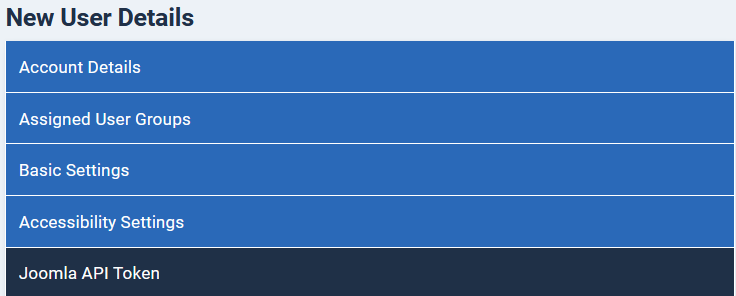
This opens up the New User Details which has five sections as shown opposite. For present purposes we just need to use the first two sections: Account Details and Assigned User Groups.
User 'Tester-abc' was created as usual and was assigned to the 'PrivateUg-abc' usergroup.
User 'TesterUploader-abc' is allocated to the 'PrivateUG-uploader-abc' usergroup.
Menu Link to Create/Edit Downloads from Frontend
(This section is only required if you are allowing Downloads to be created in a 'private' category in the front-end.) Create a jDownloads menu in the usual way - for more information see Create jD Menu Item (opens in a new window/tab).
On the Details tab select menu item type as 'Create Download', and ensure you set view Access as 'abcUploaderView'.
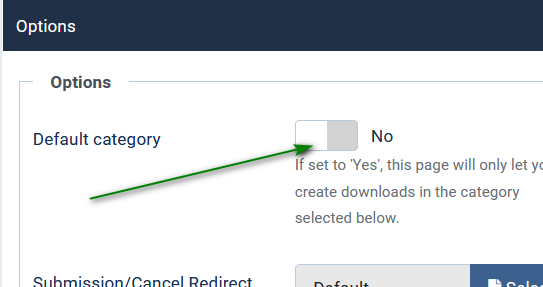
On the Options tab ensure you set 'Default Category' to No (this is the default setting).
If you set to Yes then you will ONLY be able to create or edit in that particular category and not any of its subcategories. See notes on User Groups Settings below.
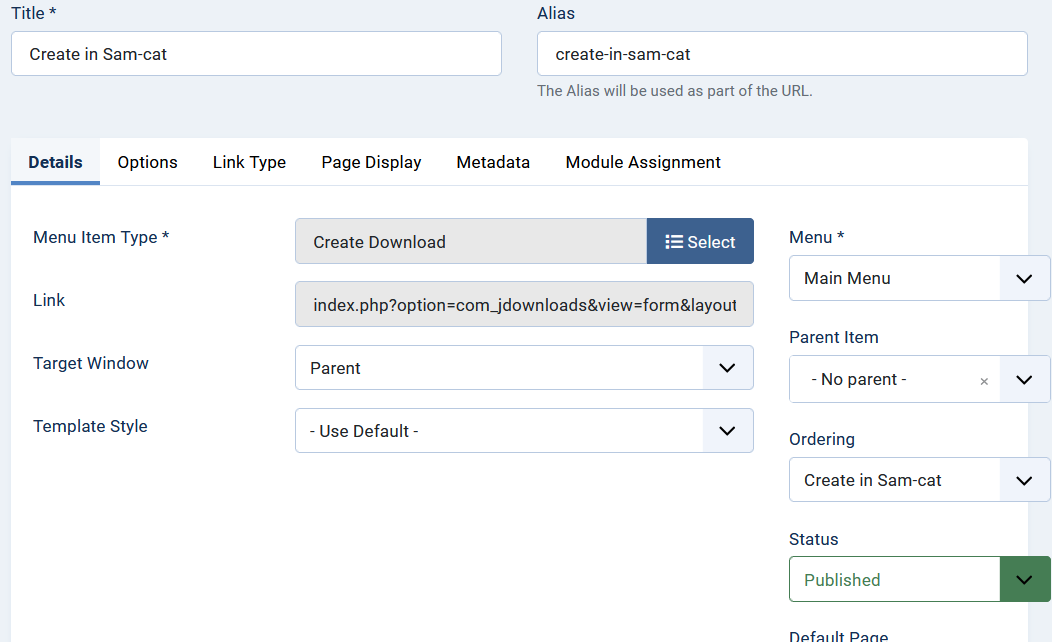
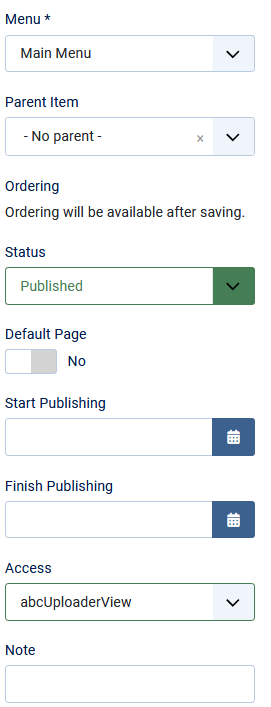
On the Details tab select menu item type as 'Create Download', and ensure you set view Access as 'abcUploaderView'.
On the Options tab ensure you set 'Default Category' to No (this is the default setting).
If you set to Yes then you will ONLY be able to create or edit in that particular category and not any of its subcategories. See notes on User Groups Settings below.
The Joomla! parts are now done. So the next step is to create or modify a jDownload Category. In keeping with the rest of this example we will call the category ‘sam-cat'.
Create the jDownloads Category and Set Permissions
The simplest organisation is to create 'abc-Cat' as a top level category, that is one with no parent category. Ensure it is 'Published' and the Access is set to abcView.
If you create a sub category of 'abc-cat-sub1' then when it is saved the Access Level will automatically be set to ‘abcView’.

If you create a sub category of 'abc-cat-sub1' then when it is saved the Access Level will automatically be set to ‘abcView’.
After creating the category select the Permissions tab, then select the 'PrivateUg-uploader-abc' user group.
Then as illustrated, in the 'Select New Setting' column choose Allowed for Create, Edit and Edit Own. If you wish to allow the uploader to be able to change the Pubished state then also select the Edit State. A tick will appear along side each permission as it is selected for modification.
Next click on the button in the tool bar.
This will show the permssions again but the black marks are no longer present.
This indicates that the permission have been saved and will propogate to any sub categories or Downloads.
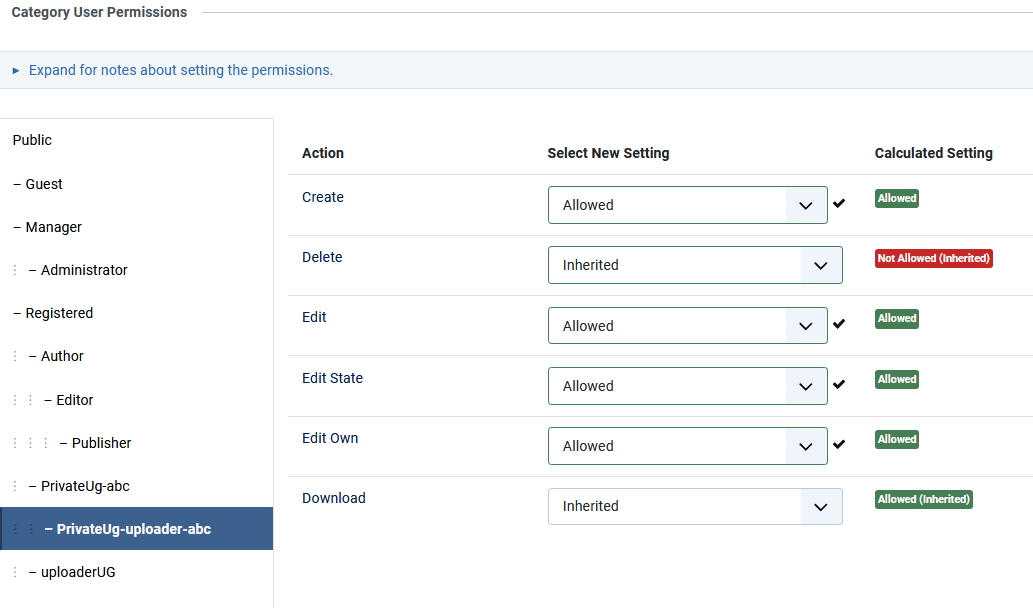
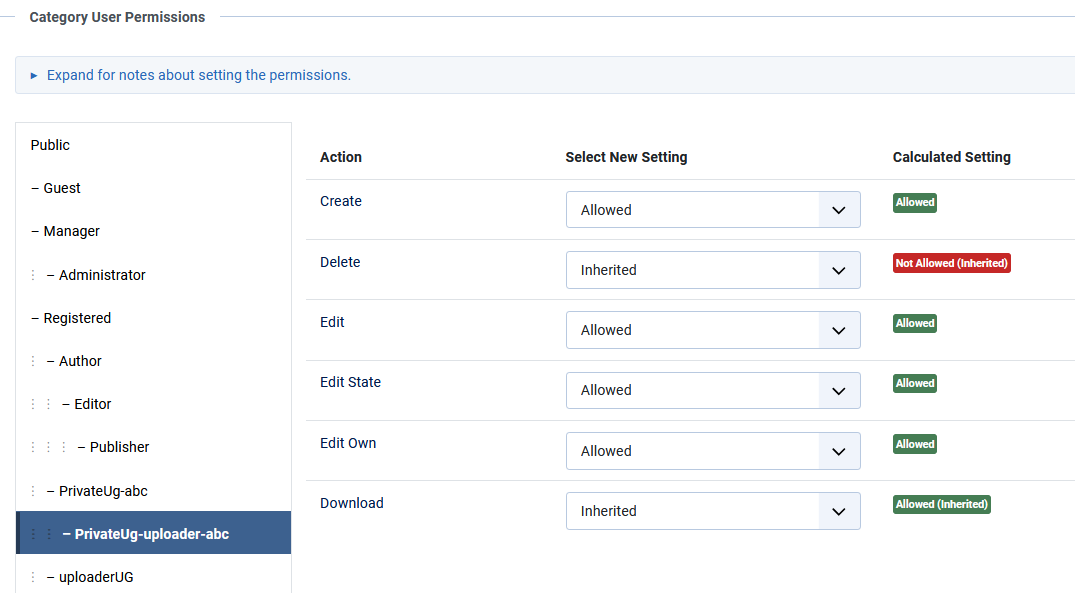
Then as illustrated, in the 'Select New Setting' column choose Allowed for Create, Edit and Edit Own. If you wish to allow the uploader to be able to change the Pubished state then also select the Edit State. A tick
will appear along side each permission as it is selected for modification.Next click on the
button in the tool bar.This will show the permssions again but the black
marks are no longer present. This indicates that the permission have been saved and will propogate to any sub categories or Downloads.
Setting jDownloads User Group Ranking values and the Default Category
(This section is only required if you wish to allow Downloads in the 'private' category to be created or edited in the frontend.)
So that the correct jDownloads User Groups settings apply then 'SamUploaderUG' must have a jDownloads ranking value larger that that of the Registered usergroup.
Please see Initial view of permissions (opens in a new window/tab) if you need more information about the importance of jDownloads ranking values.
So that the correct jDownloads User Groups settings apply then 'SamUploaderUG' must have a jDownloads ranking value larger that that of the Registered usergroup.
Please see Initial view of permissions (opens in a new window/tab) if you need more information about the importance of jDownloads ranking values.
To set the Ranking value go to Components and select jDownloads.
Then select
 .
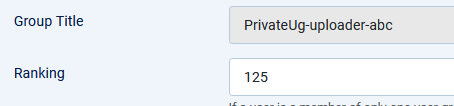
.The Ranking entry is at the top of the page just under the Group Title and before the tabs.
A suitable value for the 'PrivateUG-uploader-abc' would be say 125.
User Group Settings
We can use the User Groups Settings to specify what items the SamUploaderUG users can set when creating or modifying a Download in the private category, 'sam-cat'.
There is one particular setting which is most important for our 'private' category in order to let it have private subcategories.
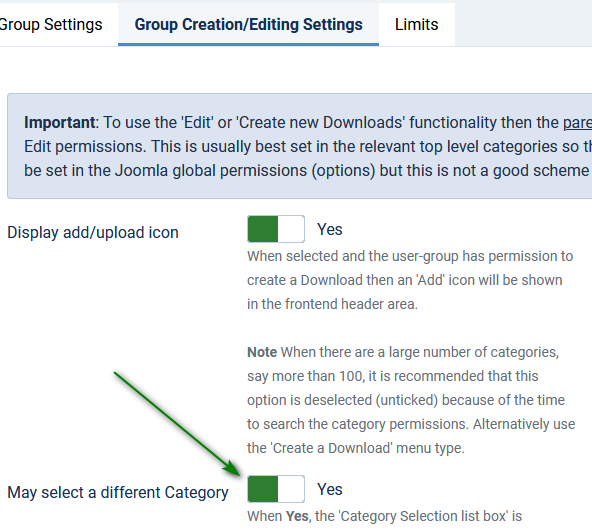
This is in the 'Group Creation/Editing Settings'. Make sure that the option 'May select a different Category' is set to Yes as indicated opposite.
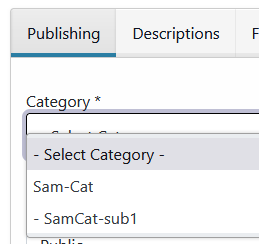
To demonstrate this a subcategory of 'Sam-cat' called 'Samcat-sub1' was created in the backend. NOTE Categories and Sub Categories can only be created in the Back End.
Sub category 'Samcat-sub1' automatically acquires the permissions and view access of its parent, 'Sam-cat'.
Similarly when Downloads are created they acquire the permissions and view access of their containing category.
So when creating a new Download from the front end, jDownloads will only show the appropriate categories as illustrated opposite.
Front End View
We are now done, but let us see what happens from the front end.
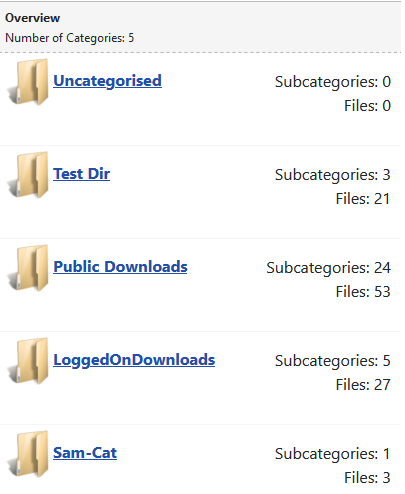
The first image on the right shows the results of List All Categories menu item when user sam is Logged in.
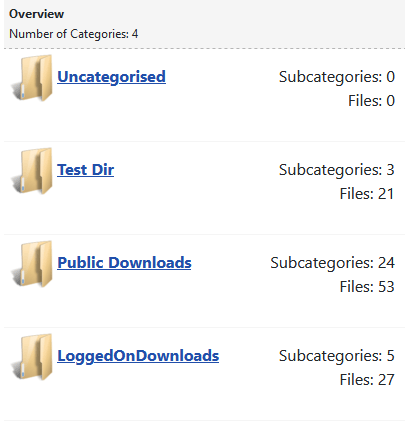
The image on the far right is when sam is not Logged In
This can obviously be extended so that different groups have different 'Private Categories' and they have their own menu item for creating/editing Downloads from the frontend. Some users could belong to multiple groups.
ACL and View management can be "challenging" at first. Many tutorials concentrate on just the ACL permisions themselves but it is the combination of that with View Access that creates the flexibility.
ColinM November 2019, updated May 2023, Sept 2024,May 2025, February 2026 -qq



