
Permissions - an initial view
This article is a first look at Permissions. It provides a broad overview that will help with the detailed use of permissions in jDownloads.
The article includes three simple examples:
1. a public site where all Downloads are available for downloading;
2. a private site were members are required to login;
3. a mixed site with some Downloads publically available and others only available to logged in members.
It is useful here to first distinguish between Access Levels and Permissions. Briefly Access Levels determine what you are able to see on the front end so if you can see a category or a Download then you have the relevant Access Level. Permissions determine what you can do, for example Download, Edit and so on.
The article includes three simple examples:
1. a public site where all Downloads are available for downloading;
2. a private site were members are required to login;
3. a mixed site with some Downloads publically available and others only available to logged in members.
It is useful here to first distinguish between Access Levels and Permissions. Briefly Access Levels determine what you are able to see on the front end so if you can see a category or a Download then you have the relevant Access Level. Permissions determine what you can do, for example Download, Edit and so on.
The Root Permissions
The root or Component permissions is where the permissions begin. They are 'granted' when the Component is installed.
A simple way of seeing the root Permissions for the jDownloads component is to go to  and select
  and then select the jD
  . Next click on the
  button near top right and then click on the
  tab.
tab.
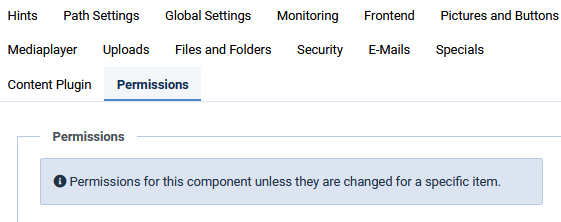
and select and then select the jD . Next click on the button near top right and then click on the tab.This set of permissions are often referred to as the Component Permissions or root permissions. Before looking further into permissions it is important to understand that permissions are inherited in two ways:
(1) from the root to the Public user group and through the child user groups as noted below;
(2) from each user group to the top level categories, through the sub categories eventually to the Downloads, also as illustrated later.
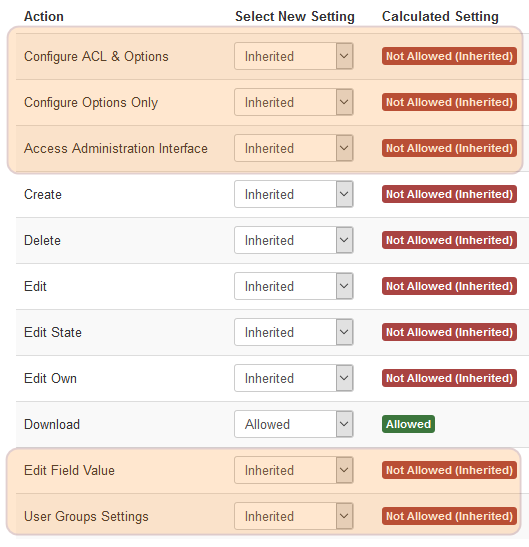
Another important aspect of understanding the way permissions work is that the system assumes permission is not allowed, that is permissions have to be positively allowed. This is seen below where the basic Calculated permissions in the root are except where they have been explicitly
  as shown in the Calculated Setting column for the Download action.
(1) from the root to the Public user group and through the child user groups as noted below;
(2) from each user group to the top level categories, through the sub categories eventually to the Downloads, also as illustrated later.
Another important aspect of understanding the way permissions work is that the system assumes permission is not allowed, that is permissions have to be positively allowed. This is seen below where the basic Calculated permissions in the root are
except where they have been explicitly as shown in the Calculated Setting column for the Download action.This shows the jDownloads root or Component Permissions; these are the 'initial' starting setup for the Public user group when jDownloads is first installed.
The three top and the two bottom items, which have been highlighted, are only available at the root level. They are useful if you are allowing backend access to a usergroup.
The other six permissions provide the basis of what the Categories and Downloads will inherit. These are the significant items for what is permitted in the frontend.
The permissions shown here are those automatically set up by jDownloads when it is installed for the first time. That is they are not changed by a jDownloads update.
This means that after initially installing jDownloads then by default all Downloads are downloadable. This may not be desirable and more details are given later in this article.
User Group Inheritance
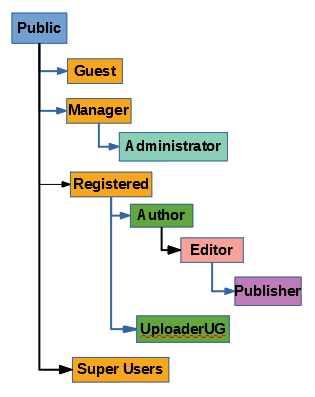
The standard Joomla User Goups are Public, Guest, Manager, Administrator, Registered, Author Editor, Publisher and Super Users. In this example we have added another user group called UploaderUG.
The relationship and inheritance between the various usergroups (UGs) is shown opposite. As an illustration the Author UG inherits all the permissions in the Registered UG as well as any permissions of its own; then the
Note that the Public UG is the top level one. So any permission set in the Public UG is inherited by all the other UGs. The Public UG inherits its initial setting from the Root.
Having the UGs arranged this way means for instance that Publisher may have more permissions than Editor, which in turn may have more permissions than Author. This is because, for example, the Publish user group inherits the settings of Editor, Author, Registered and Public user groups.
One additional UG, the UploaderUG has been created. It is positioned as a child of Registered and may have appropriate permissions relating to Downloads without necessarily interferring with permissions in the Author or other permission 'chains'.
The relationship and inheritance between the various usergroups (UGs) is shown opposite. As an illustration the Author UG inherits all the permissions in the Registered UG as well as any permissions of its own; then the
Note that the Public UG is the top level one. So any permission set in the Public UG is inherited by all the other UGs. The Public UG inherits its initial setting from the Root.
Having the UGs arranged this way means for instance that Publisher may have more permissions than Editor, which in turn may have more permissions than Author. This is because, for example, the Publish user group inherits the settings of Editor, Author, Registered and Public user groups.
One additional UG, the UploaderUG has been created. It is positioned as a child of Registered and may have appropriate permissions relating to Downloads without necessarily interferring with permissions in the Author or other permission 'chains'.
In this and other articles, it is this UploaderUG usergroup that will allow creating and editing of Downloads from the frontend.
To repeat, as a general rule it is advisable to introduce separate user groups to provide any required facilities for jDownloads activities rather than attempt to include them in the existing Author - Editor - Publisher usergroups. Users who Author articles may be different users from those who create or edit Downloads. If a particular user will be editing articles and creating Downloads it is much simpler, and a cleaner design, to make that user a member of both user groups.
That is keep it simple!
Categories And Downloads Inheritance
Categories, Subcategories and Downloads form a tree structure as illustrated opposite.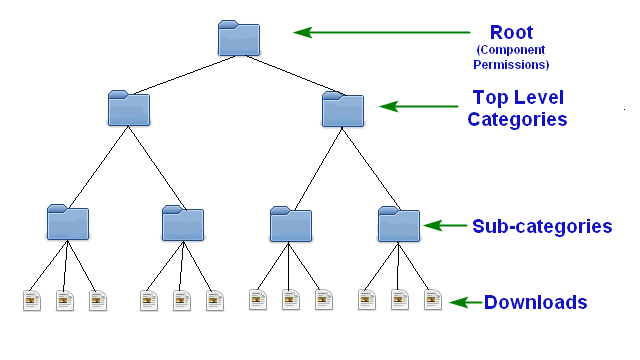
In this very simple example the Root (component permissions) is followed by two ‘main’ categories, each with two sub categories, and each sub-category has three downloads. Of course we can have sub-sub-categories and so on. Also we can have Downloads at any level except at the root. The actual structure may be, and usually is, much more complex than the one illustrated.
In this very simple example the Root (component permissions) is followed by two ‘main’ categories, each with two sub categories, and each sub-category has three downloads. Of course we can have sub-sub-categories and so on. Also we can have Downloads at any level except at the root. The actual structure may be, and usually is, much more complex than the one illustrated.
This tree structure is the way a regular file system is organised; it is also the way the download files are stored in directories. One may think of permissions cascading down the tree. If a permission is set to Allowed in say a top level Category then that permission will cascade down the tree to the bottom 'leaves', that is to the Download.
More significantly in the present context it represents the way in which new subcategories and downloads get their default Permissions. New sub categories and downloads get their default Permissions for each user group from their immediate parent.
More significantly in the present context it represents the way in which new subcategories and downloads get their default Permissions. New sub categories and downloads get their default Permissions for each user group from their immediate parent.
Note on Deny
As is usual for permission schemes, the Joomla Permissions scheme is based upon ‘not allowed’. If a Permission as shown in the Calculated Permissions column as at one level then it may be regained at a subsequent child level by simply setting an permission. This Allow will cascade down the tree and be shown in subsequent 'leaves' as  in the Calculated Permissions column.
The situation is totally different if a particular permission is 'denied' then that permission cannot be revoked in susequent layers further downstream. For example if ‘Download’ access at the root level is denied, then that group cannot execute a download of anything! That is Download or any other permission has to be allowed somewhere in the permission chain. If you have a Deny then Allow cannot be set when saved. If one were to set Deny on Download permission in the for the Public group root then no one can Download except a super-user.
Basically when setting up permissions for jDownloads never use Deny as it is most likely to have unwanted and unexpected side effects.
at one level then it may be regained at a subsequent child level by simply setting an permission. This Allow will cascade down the tree and be shown in subsequent 'leaves' as in the Calculated Permissions column. The situation is totally different if a particular permission is 'denied' then that permission cannot be revoked in susequent layers further downstream. For example if ‘Download’ access at the root level is denied, then that group cannot execute a download of anything! That is Download or any other permission has to be allowed somewhere in the permission chain. If you have a Deny then Allow cannot be set when saved. If one were to set Deny on Download permission in the for the Public group root then no one can Download except a super-user.
Basically when setting up permissions for jDownloads never use Deny as it is most likely to have unwanted and unexpected side effects.
Examples
As indicated previously most sites may be put into one of three types in terms of permissions. These are noted below.
1. Any user may download any file, this is a public site.
2. Only logged on users may download a file, this is a private site.
3. Some files are publically downloadable and others are only downloadable by logged on users, this is a mixed site.
1. Any user may download any file, this is a public site.
2. Only logged on users may download a file, this is a private site.
3. Some files are publically downloadable and others are only downloadable by logged on users, this is a mixed site.
Public Site
A Public site is the simplest permissions set up.
One just sets the Download perrmission of the Public user group in the root permissions to 'Allowed' as shown opposite.
Actually this is the default setting on the first time install of jDownloads.
If you change any permission it is essential to do a Save, or Save & Close, as the permissions are propogated when the Save occurs.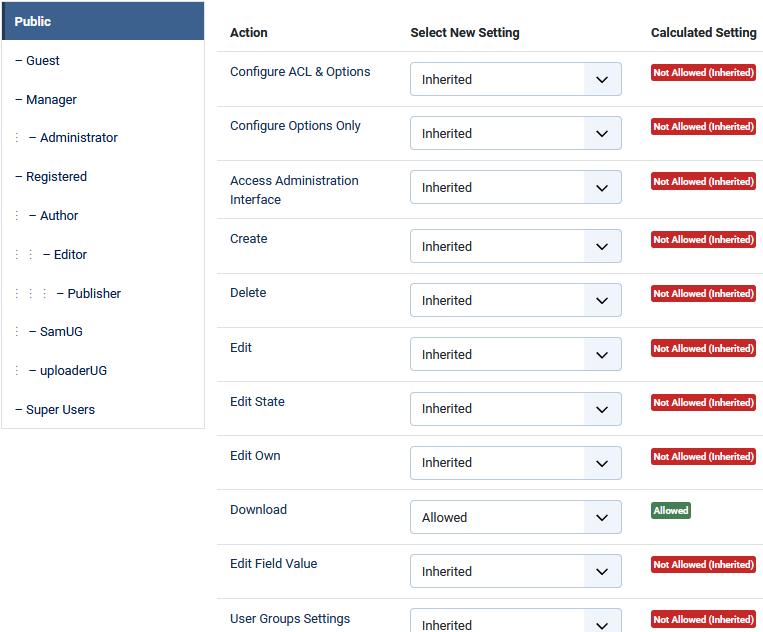
One just sets the Download perrmission of the Public user group in the root permissions to 'Allowed' as shown opposite.
Actually this is the default setting on the first time install of jDownloads.
If you change any permission it is essential to do a Save, or Save & Close, as the permissions are propogated when the Save occurs.
Private Site
A Private site is simarly simple to setup and again just needs setting the root permissions.
In this case the Public user group Download permission is left at inherited.
The Registered user group is selected and the Download permission set to Allowed. Do not use Deny.
In this example the image shown opposite is before the Save so there is a tick alongside the changed permission indicating it has not yet been saved.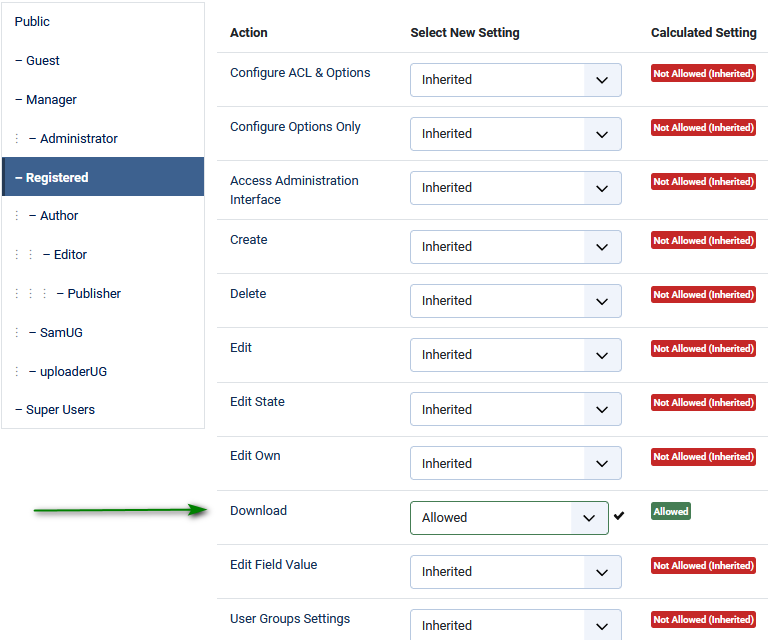
In this case the Public user group Download permission is left at inherited.
The Registered user group is selected and the Download permission set to Allowed. Do not use Deny.
In this example the image shown opposite is before the Save so there is a tick alongside the changed permission indicating it has not yet been saved.
Mixed Site
For a mixed site we change the root permissions. The first step in any arrangement is to change the root Download permission for the Public group to 'inherited'. So at that time no one except a Super User can download.
The Next Step is to change the root Permission of Download for the Registered group to Allow. This means the Default setting is that only Registered users can download. Then change the permission of the those top level Categories which have Downloads, and subcategories with Downloads, that the Public are allowed to download.
The Next Step is to change the root Permission of Download for the Registered group to Allow. This means the Default setting is that only Registered users can download. Then change the permission of the those top level Categories which have Downloads, and subcategories with Downloads, that the Public are allowed to download.
In this simple example two top level categories were created, one called 'Public Downloads' and the other 'LoggedOnDownloads'. The Access Level for both Categories is set to Public.
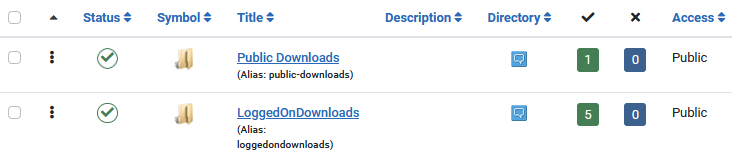
This means that when the permissions have been set up public users will see the Downloads In both the Public Dowloads and the LoggedOnDownloads but will only be able to download from the Public Downloads category. So this could be used to 'promote' membership.
If you do not wish public users to see the 'LoggedOnDownloads' then set the Access to Registered.
If you do not wish public users to see the 'LoggedOnDownloads' then set the Access to Registered.
The next step is setting the Download permission of the Public Usergroup of category 'Public Downloads' to Allowed as indicated opposite.
This will have propogated through all its subcategories and to the Downloads so members of the Public UG will now be able to download those Downloads in the 'Public Downloads' category and its subcategories.
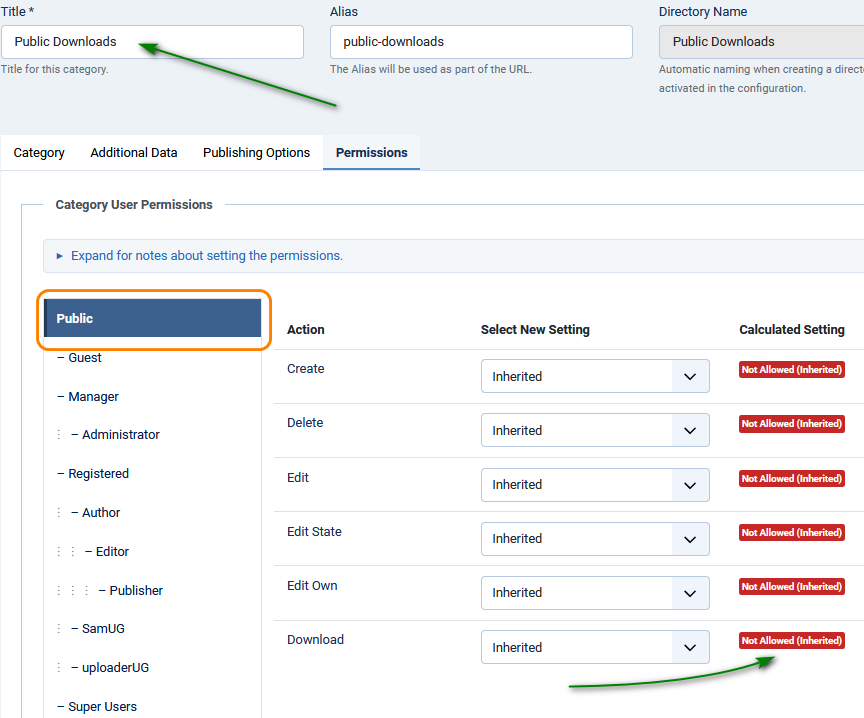
For the 'LoggegOnDownloads' category the first step is to check that the Public usergroup does not have Download permission.
If it is set it probably means you have left some permission in the root permissions.
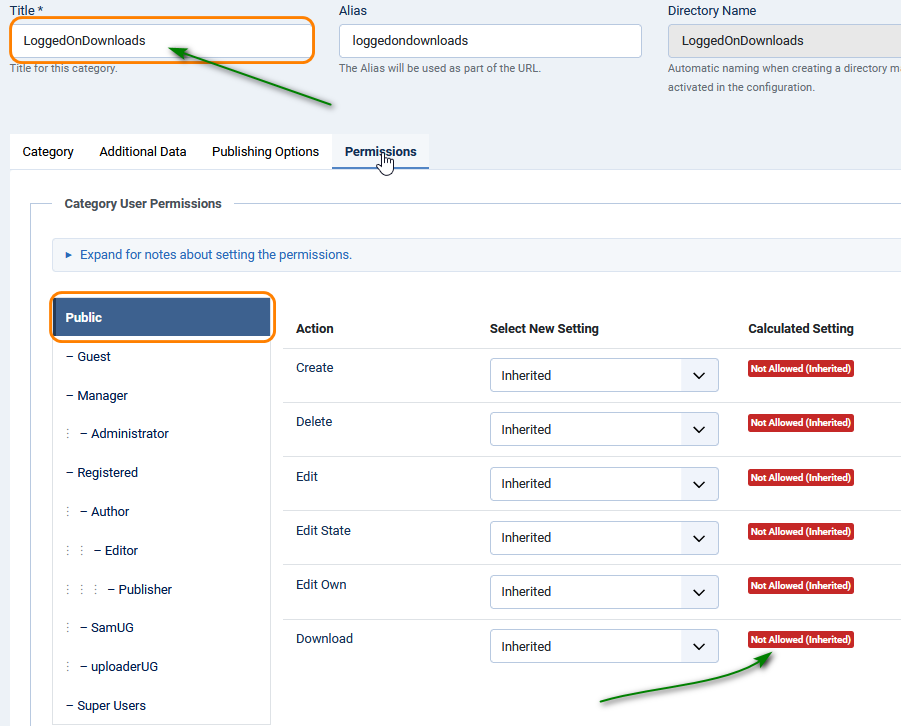
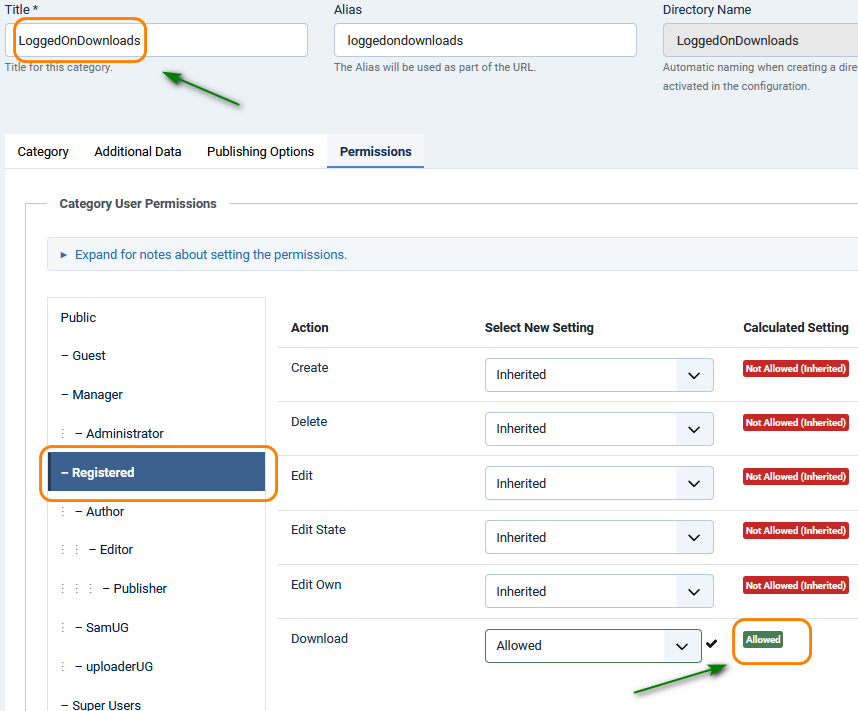
Next check that the computed permission of the Registered usergroup is 'Allowed (Inherited)'.
Only Registered users will now be able to download from the Downloads in the 'LoggedOnDownloads' category tree.
A typical message shown to a public or guest user if the Access Level is Public is: "Only registered and logged in users can download files from this category.".
Frontend Create & Edit Permissions
There is one other set of permissions that is useful to set in the root.
This is for the usergroup that will be allowed to create and edit Downloads from the frontend.
In this example it is the uploaderUG which is setup as shown. Generally my personal preference is that Downloads cannot be Deleted from the front end.
Note that changing the downloadable file is part of the editing abilities.

Also note that Download permision has not been given as it will be inherited from either the Public or Registered usergroups, but it does no harm if Download permission is also allowed here.
Recovery (or StartAgain!)
Sometimes, particularly when first setting up permissions, it may happen that the permissions are not working as required. Or they may be getting seemingly over complicated.
There is a way out! First set up the root permissions for each User Group as required. Then go to the jD Control Panel and Select Tools.
There you will find and
and  buttons. Use these in turn and all is back to a clean situation.
For more details see the article Using Permission Reset Tools. (opens in a new window/tab)
There is a way out! First set up the root permissions for each User Group as required. Then go to the jD Control Panel and Select Tools.
There you will find
and buttons. Use these in turn and all is back to a clean situation.For more details see the article Using Permission Reset Tools. (opens in a new window/tab)
ColinM, March 2020, revised December 2024



