
Introduction
REQUIRES UPDATE FOR 4.1 LAYOUTS
One of the facilities of jDownloads is the ability to retain your own css style rules across different jDownloads releases and upgrades. This uses a css file called jdownloads_custom.css which is located in the component assets directory, /components/com_jdownloads/assets/css along with the main css file, jdownloads_fe.css, and the button css, jdownloads_buttons.css.
When being installed or upgraded jDownloads checks to see if file /components/com_jdownloads/assets/css/jdownloads_custom.css exists. If it does not then it loads in a 'blank' jdownloads_custom.css file, otherwise it leaves the existing one in place.
When jDownloads items are being loaded in the active website by the active template then jdownloads_custom.css is loaded last. Thus any css statement in jdownloads_custom.css will normally override or add to any corresponding css in either jdownloads_fe.css or jdownloads_buttons.css or, usually, in the site template as well. This applies to both the Component and to the Content Plugin.
To access the existing jdownloads_custom.css file please see the Appendix below.
To access the existing jdownloads_custom.css file please see the Appendix below.
Illustrative Examples
Just for illustrative purposes two very simple examples are shown below.
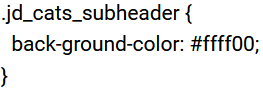
In this example the background colour of the subheader is changed by just including the css opposite in jdownloads_custom.css
The change maybe not desirable but it illustrates the point!


Another simple example is making the download button have a 3-D look. The effect makes the button standout better.
The additional css added to jdownloads_custom.css is shown opposite.


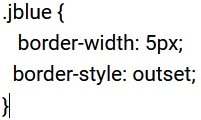
CSS in jdownloads_custom.css
The CSS added into jdownloads_custom.css is just the additional or modified css, there is no need to replicate the original from jdownloads_fe.css.
The statements added into jdownloads_custom.css will remain across updates.
If you were to change jdownloads_fe.css then it may well be overwritten on each update. Hence in this way you can maintain your customising without it being changed by jDownloads updates.
Sometimes however the template may load in some of its css last. In general the last ccs statement loaded replaces or adds to any existing css. The exception to this is if an earlier css statement had the !important text added to the css statement.
The priciples of which css applies is quite complex. It is called CSS specificity and is calcuated as a numeric value with the highest value taking precedence. There are numerous references on the web and a few useful ones are listed below for a better explanation
However as a simple approximate working guide in the present context, the CSS rules are essentially that preference is given, in order, as noted below.
The statements added into jdownloads_custom.css will remain across updates.
If you were to change jdownloads_fe.css then it may well be overwritten on each update. Hence in this way you can maintain your customising without it being changed by jDownloads updates.
Sometimes however the template may load in some of its css last. In general the last ccs statement loaded replaces or adds to any existing css. The exception to this is if an earlier css statement had the !important text added to the css statement.
The priciples of which css applies is quite complex. It is called CSS specificity and is calcuated as a numeric value with the highest value taking precedence. There are numerous references on the web and a few useful ones are listed below for a better explanation
However as a simple approximate working guide in the present context, the CSS rules are essentially that preference is given, in order, as noted below.
- Inline CSS statements have top priority.
- The next priority is the last loaded CSS attribute with the Shrike '!important' qualifier.
- The lowest priority is the last loaded attribute without a Shrike.
To illustrate consider the following. Suppose the generated code contained an html statement such as
<div style="padding-bottom: 3px; text-align: left;">.
Because the CSS is inline then there is nothing we can do to either the padding-bottom or text-align by changing anything in any of the css files.
From the examples above it is clear one can both change existing attributes and add new ones.
Because the CSS is inline then there is nothing we can do to either the padding-bottom or text-align by changing anything in any of the css files.
From the examples above it is clear one can both change existing attributes and add new ones.
References to CSS specificity
The refernces below all open in new window or tab.
- A good general article http://www.smashingmagazine.com/2007/07/27/css-specificity-things-you-should-know/
- Specificity Calculator - a visual aid http://specificity.keegan.st/
- Definition from w3 http://www.w3.org/TR/css3-selectors/#specificity
Appendix Accessing jdownloads_custom.css
There are several ways in which you can access jdownloads_custom.css. We will note three of them here.
- Directly in jDownloads Admin
- Using your cPanel
- Using ftp - recommended
Note After editing jdownloads_custom.css using any of the methods you will almost certainly need to clear both your browsers cache and if you use it the Joomla! cache. This is because there is a high probability that the pre-edited version is cached. So if you do not clear your caches then you will not see the effect.
Accessing directly in jDownloads Admin
From the main Joomla control panel select  then select
 . Now click on the
  link. The four css files used in the frontend are listed. Obviously click on the jdownloads_custom.css tab.
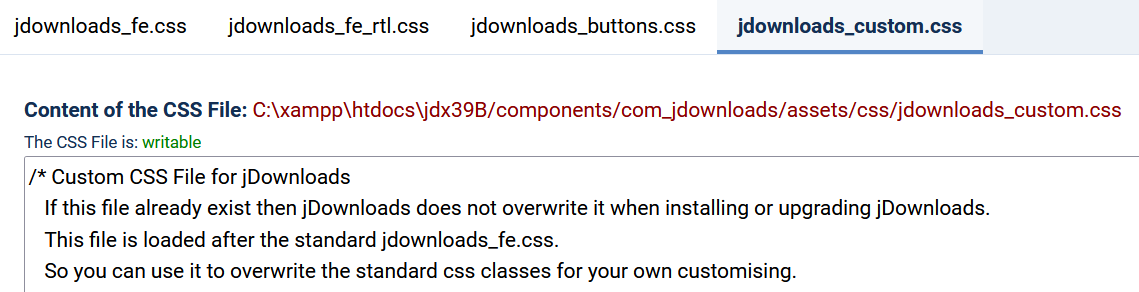
then select. Now click on the link. The four css files used in the frontend are listed. Obviously click on the jdownloads_custom.css tab. You can edit this directly but note it is a very simple text editor. After editing then click on the  button, this is on the Tool bar at the top of the page.
button, this is on the Tool bar at the top of the page.Accessing with cPanel
Using the regular cPanel File Manager navigate to <site-root>/components/com_jdownloads/assets/css where you will find six css files. Four of these, jdownloads_buttons.css, jdownloads_custom.css, jdownloads_fe.css and jdownloads_fe_rtl.css
are the regular css files. Select jdownloads_custom.css, apply any edits then Save.
The css file 'jdownloads_modules.css' is used in jDownloads modules and 'w3.css' is used in Download Details layout
W3 CSS Layout: Two-Column - Text Right - Blue Header v3.9 .
are the regular css files. Select jdownloads_custom.css, apply any edits then Save.
The css file 'jdownloads_modules.css' is used in jDownloads modules and 'w3.css' is used in Download Details layout
W3 CSS Layout: Two-Column - Text Right - Blue Header v3.9 .
Accessing with ftp
In this case the scheme is to use ftp to download the jdownloads_custom.css file from '<site-root>/components/com_jdownloads/assets/css' to your local device.
Actually it is probably wise to keep a copy of the original version you have downloaded!
It is also useful to download jdownloads_fe.css so you can use it as a reference.
Then edit jdownloads_custom.css using a text editor such as Notepad++.
NB. Notepad++ may be found here. (opens in a new window/tab)
Upload to overwrite the existing 'jdownloads_custom.css' file. And remember to clear the cache or otherwise reload the page.
Personally I prefer this way as I can then use the Notepad++ editor which will highlight the code and make finding "mistakes" easier.
Actually it is probably wise to keep a copy of the original version you have downloaded!
It is also useful to download jdownloads_fe.css so you can use it as a reference.
Then edit jdownloads_custom.css using a text editor such as Notepad++.
NB. Notepad++ may be found here. (opens in a new window/tab)
Upload to overwrite the existing 'jdownloads_custom.css' file. And remember to clear the cache or otherwise reload the page.
Personally I prefer this way as I can then use the Notepad++ editor which will highlight the code and make finding "mistakes" easier.
ColinM January 2020, updated May 2023, May 2025


