
Introduction
jDownloads supports Multilingual Modules. In this article it is assummed you have already set up your site for multilingual Categories and Downloads.
For more information see Article on Multilingual Support (opens in a separate window/tab)
Here we will be using the jDownloads Top module as an example. This module lists those Downloads that have been downloaded the most number of times.
Before starting it is worthwhile creating all the jDownloads 'menu' items in each language menu that you intend to make available to your users.
Note: In order to display the Top Module at least one file has to have been downloaded. This applies to each language.
Important You will still need the default jD menu item 'List All Categories' in the regular Main menu. This may be a 'hidden' menu item.
Create Multilingual Module
The first step is to click on the  section in the main Joomla 4 menu as shown on the first image opposite.
Next, as indicated on the second image opposite, click on .
.
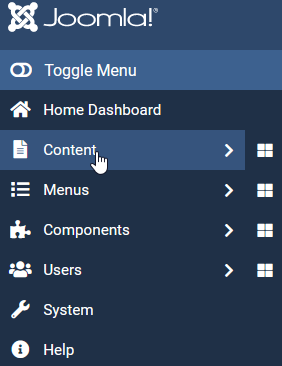
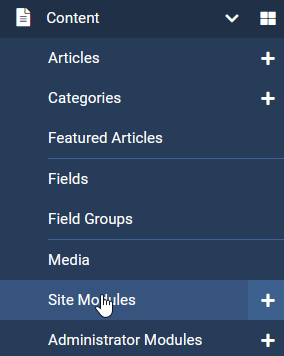
section in the main Joomla 4 menu as shown on the first image opposite.Next, as indicated on the second image opposite, click on
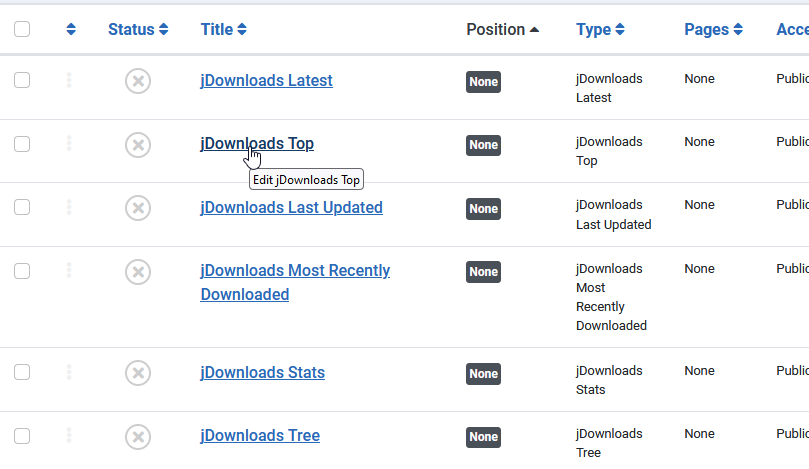
. As expected, this shows the list of all the site modules.
Now click on the jDownloads Top module.
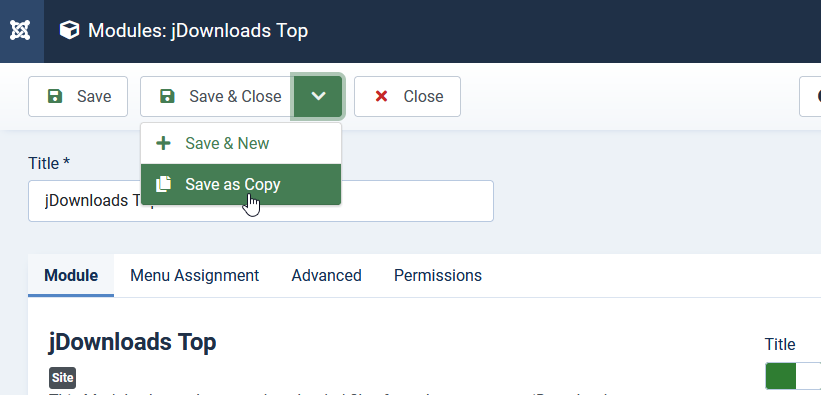
 Before editing anything click on the
  button as indicated opposite. This saved copy will become one of the multilingual Top modules. It will have a name jDownloadstop(2).
There are some essential parameters that must be setup.
There are also other parameters, which are refered to here as 'optional parameters'. These 'optional' parameters define what extra information is shown such as 'Number of Downloads', 'Show creation date', 'Text Before' and so on. Some optional parameters set styling.
It is sensible to set all of the 'optional parameters' in the first multlingual module so when it is copied for further languages then there is a consistency of look and style.
Later we will make a copy of this first multilingual Top module for each of the other languages. Only the Essential parameters and the 'Menu Assignment' settings will need to be adjusted.
Of course the 'optional parameters' may be setup for each module individually if preferred.
It is sensible to set all of the 'optional parameters' in the first multlingual module so when it is copied for further languages then there is a consistency of look and style.
Later we will make a copy of this first multilingual Top module for each of the other languages. Only the Essential parameters and the 'Menu Assignment' settings will need to be adjusted.
Of course the 'optional parameters' may be setup for each module individually if preferred.
After clicking on the 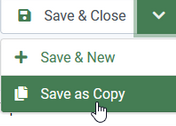 button, a new invocation of the module will be automatically created with a name such as
jDownloads Top (2) as illustrated opposite.
button, a new invocation of the module will be automatically created with a name such as jDownloads Top (2) as illustrated opposite.
If you have more than 2 languages you could do the Save As Copy again for the other languages. This will give jDownloads Top (3) and so on. In this example we have 4 languages: English (EN), French (FR), German (DE) and Arabic (AR). The Arabic is included to test a right to left language.
Remember that in order to display the Top Module for a particular language at least one file in that language has to have been downloaded previously.
Remember that in order to display the Top Module for a particular language at least one file in that language has to have been downloaded previously.
Essential Module Tab settings
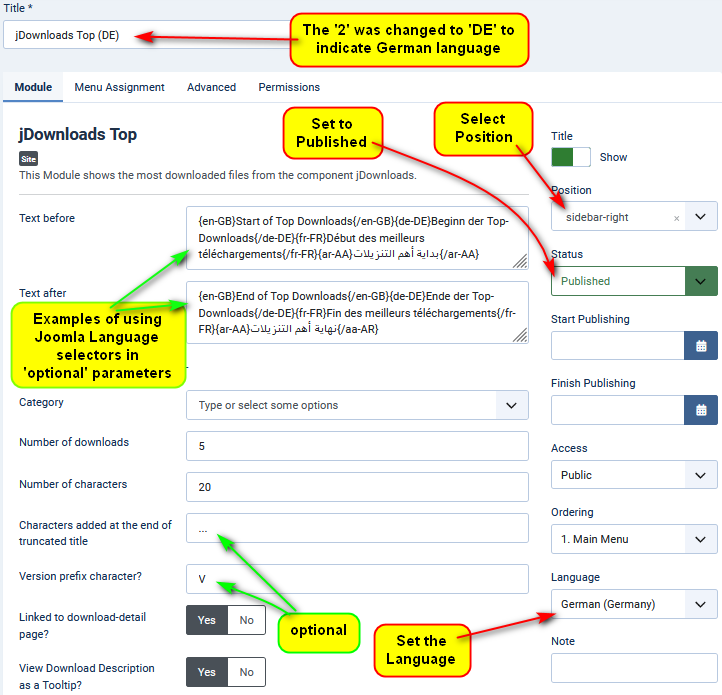
In this example the 'Essential' parameters are indicated by a red arrow.
The 'optional' parameters are indicated with green arrows.
1. Change the Title field to something appropriate. In this example the '2' has been replaced by 'DE' to denote the language is set to German.
2. Select the target position in your template. This is usually Sidebar Right.
3. Change the Status to Published.
4. And most importantly, select the target Language which in this case is German.
The Text Before and Text After options, which appear at the start and end of the list respectively, both support the language selection as illustrated below.
When later setting up another Top Module for a different language it is simpler to make a copy of the first language module and edit that copy as appropriate.
The 'optional' parameters are indicated with green arrows.
1. Change the Title field to something appropriate. In this example the '2' has been replaced by 'DE' to denote the language is set to German.
2. Select the target position in your template. This is usually Sidebar Right.
3. Change the Status to Published.
4. And most importantly, select the target Language which in this case is German.
The Text Before and Text After options, which appear at the start and end of the list respectively, both support the language selection as illustrated below.
When later setting up another Top Module for a different language it is simpler to make a copy of the first language module and edit that copy as appropriate.
Because we will be making a copy of this 'multilingual' module for other languages then it is convenient to add any required text for these 'optional parameters' in all the languages used on your site as illustrated below.
jDownloads supports the 'language selector' pairs such as {en-GB}...{/en-GB}, {de-DE}...{/de-DE} and so on.
The test example used in writing this article was set for four languages: English, French, German and Arabic. The Arabic is used to check the "right to left" jDownloads CSS.




The test example used in writing this article was set for four languages: English, French, German and Arabic. The Arabic is used to check the "right to left" jDownloads CSS.
Menu Assignment Tab
This is a key step as it controls which pages the module will appear upon.
First make sure that you select the option 'Only on the pages selected'. In this example, which is setting the English Language version, then ensure that only the EN-GB menu items, as indicated with the relevant flag.
 , are selected.
Ensure those for any other language are NOT selected.
BUT Always set a 'List All jD Categories' with languaguage set to 'All' in the Main Menu.
When Done then do a after adjusting any of the other options in the Module tab.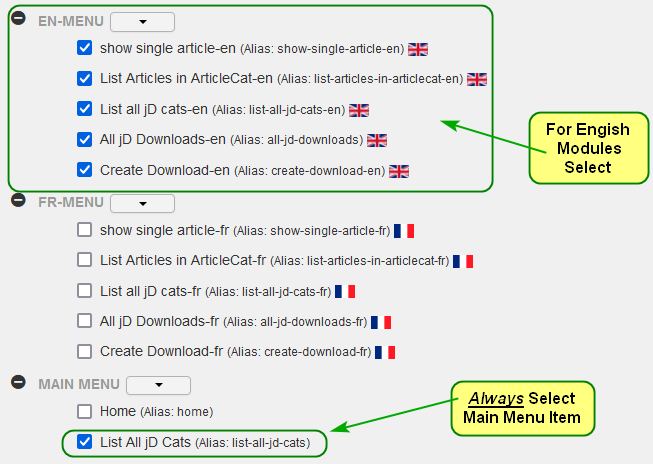
First make sure that you select the option 'Only on the pages selected'.
In this example, which is setting the English Language version, then ensure that only the EN-GB menu items, as indicated with the relevant flag. , are selected.Ensure those for any other language are NOT selected.
BUT Always set a 'List All jD Categories' with languaguage set to 'All' in the Main Menu.
When Done then do a
after adjusting any of the other options in the Module tab.Note: If you subsequently create a new menu item then the module will not show on that page until you include it in the relevant Menu in the Menu Assignment tab.
Further Language Modules
To create a module in other languages then start by making a copy of the first language module. If you have used the 'language selectors' as suggested then you only need to set the the Essential module tab parameters and select the menu items in the Menu assignment tab.
Example Views
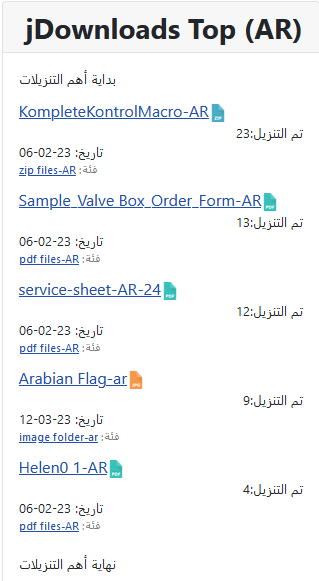
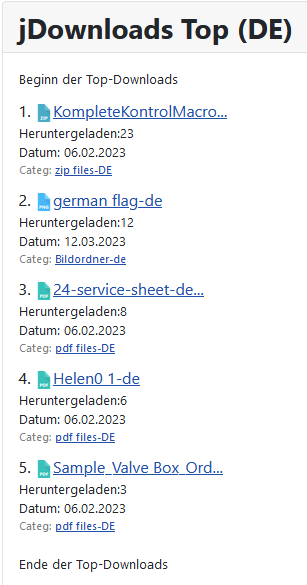
The two images opposite illustrate using the 'Text before' and Text After' options with the Joomla language selectors.
Also shown are text for number of times downloaded (Hits), Date and Category. Also the category has been set as a link.
The German language TOP module has also been set to show as a numerical listing and to use a limited number of characters in the Download name.
ColinM March 2023 modified June 2023, November 2024, May 2025, July 2026


