
Show Logged On users their Download Limits.
The jDownloads View Limits module will display the standard limits that have been set up for the logged on user in their highest ranked User Group together with how many downloads remain before one or more limits are exceeded.
The User Groups Settings allows setting limits on how many Downloads and limits on the total accumulated size in Mbytes, that a member of a user group may make within a day, a week and a month. There is also a limit available to specify the maximum number of new Downloads that may be created in a day. Additionally there are two special limits, namely "Download Duration Restriction" and "Transfer Speed Restriction". The module does not show these special limits.
For more details on setting up limits please see Setting User Limits (opens in a new tab/window)
It should be noted that the module only operates for Logged On users; public and guest users do not have limits.
Further note that users may belong to multiple User Groups. In this case the limits are taken from the User Group that has the highest jDownloads Ranking from all of those User Groups to which the user belongs. For example if a User belongs to a User Group called say UG45 whose Parent User Group is Registered then if Registered has a higher jDownload Ranking than that of User Group UG45 then the limits for the member will be shown as belonging to the Registered User Group and those limits are used.
For more on jDownloads Ranking see the articles Which User Group is Used and An Overview of User Group Settings (both links open in a new window/tab). This is particularly obvious when using a new User Group as, by default, jDownloads sets a new group to have a zero ranking.
If a limit for the User Group is exceeded then the user is shown a message telling them they have exceeded their permitted level. The message itself may be customised within the User Groups Settings.
This could be incredibly annoying so the objective of the View Limits module is to be able to show users how many Downloads or how much Volume is available before they attempt to download a file.
The User Groups Settings allows setting limits on how many Downloads and limits on the total accumulated size in Mbytes, that a member of a user group may make within a day, a week and a month. There is also a limit available to specify the maximum number of new Downloads that may be created in a day. Additionally there are two special limits, namely "Download Duration Restriction" and "Transfer Speed Restriction". The module does not show these special limits.
For more details on setting up limits please see Setting User Limits (opens in a new tab/window)
It should be noted that the module only operates for Logged On users; public and guest users do not have limits.
Further note that users may belong to multiple User Groups. In this case the limits are taken from the User Group that has the highest jDownloads Ranking from all of those User Groups to which the user belongs. For example if a User belongs to a User Group called say UG45 whose Parent User Group is Registered then if Registered has a higher jDownload Ranking than that of User Group UG45 then the limits for the member will be shown as belonging to the Registered User Group and those limits are used.
For more on jDownloads Ranking see the articles Which User Group is Used and An Overview of User Group Settings (both links open in a new window/tab). This is particularly obvious when using a new User Group as, by default, jDownloads sets a new group to have a zero ranking.
If a limit for the User Group is exceeded then the user is shown a message telling them they have exceeded their permitted level. The message itself may be customised within the User Groups Settings.
This could be incredibly annoying so the objective of the View Limits module is to be able to show users how many Downloads or how much Volume is available before they attempt to download a file.
Module Configuration
Configuring the View Limits module is the same as configuring most modules. Basically in the Joomla backend go to the . Next click on
  , then in the
 section, click on
 . Next scroll down or seach for
  then click on it to open the View Limits Module.
First ensure you give a title of your choice such as . The default is 'jDownloads View Limits'.
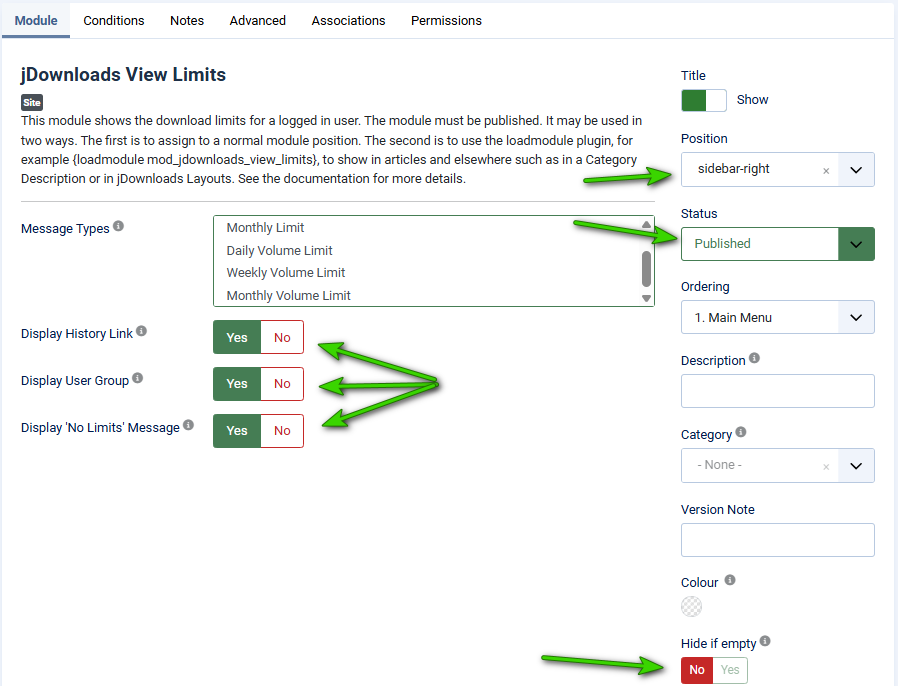
Most settings are on the tab and its sidebar as shown below.
. Next click on , then in the section, click on. Next scroll down or seach for then click on it to open the View Limits Module.First ensure you give a title of your choice such as
. The default is 'jDownloads View Limits'.Most settings are on the
tab and its sidebar as shown below.Ensure the module is 'Published' and that a suitable 'Position', such as sidebar-right is set.
As it is usual that only members of the Registered User Group that create or edit Downloads in the Frontend then set the Access to 'Registered'.
Setting 'Display History Link', 'Display User Group' and 'Display No Limits Message' to Yes is very helpful to users.
Because the module only shows limits for 'logged-on' users then it is best to set Access to Registered.
As it is usual that only members of the Registered User Group that create or edit Downloads in the Frontend then set the Access to 'Registered'.
Setting 'Display History Link', 'Display User Group' and 'Display No Limits Message' to Yes is very helpful to users.
Because the module only shows limits for 'logged-on' users then it is best to set Access to Registered.
Selecting the relevant 'Message Types' is discussed below.
Tip: Holding down the Control key allows selecting several items.
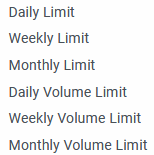
There are six limit types as shown in the first image opposite. To select a limit just click on it. The selected limit will have a blue background
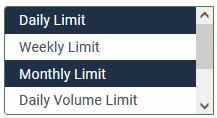
There are six limit types as shown in the first image opposite. To select a limit just click on it. The selected limit will have a blue background
The actual limits are set in the User Group Settings. For more information see Limits in User Group Settings (opens in a new window/tab).
In this example the limits were set in the User Group Settings for user group 'uploaderUG'.
Specificaly the Daily Download limit was set to 5, the weekly limit to 8 and the monthly limit to 10.
In this example the limits were set in the User Group Settings for user group 'uploaderUG'.
Specificaly the Daily Download limit was set to 5, the weekly limit to 8 and the monthly limit to 10.
Menu Asignment
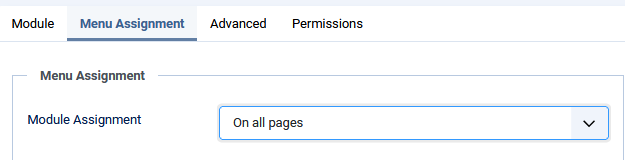
Ensure that on the Menu Assignment Tab you set the view to 'On All Pages' as shown opposite.
Examples
In this example all limits were set for user group 'uploaderUG' in the User Group Settings.
To set limits then on thepage, click on  , then on
  . Next click on
  .
.
Now click on the User Group for which you wish to have Limits. In this example it is the uploaderUG that is used. There are three tabs, Group Settings, Group Creation/Editing and Limits as shown below.
In the tab ensure you set
  to Yes.
Next select the tab and set the limits to an appropriate value.
Leaving a limit at the default setting 0 means that limit is 'unlimited'.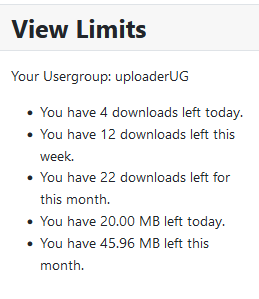
To set limits then on the
page, click on , then on . Next click on .Now click on the User Group for which you wish to have Limits. In this example it is the uploaderUG that is used. There are three tabs, Group Settings, Group Creation/Editing and Limits as shown below.
In the
tab ensure you set to Yes.Next select the
tab and set the limits to an appropriate value. Leaving a limit at the default setting 0 means that limit is 'unlimited'.
The Super User user group had no limits set.
Note the Edit button, . If you hover over the Edit Button it gives a summary status as shown on the far right.
This is available in any user group that has the relevant permissions.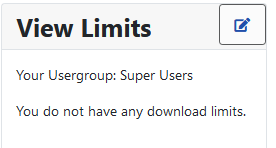
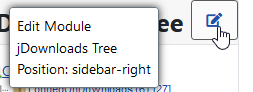
Note the Edit button,
. If you hover over the Edit Button it gives a summary status as shown on the far right.This is available in any user group that has the relevant permissions.
Note: To see the Download history you need to have an active jDownloads menu type 'List my Download History'. This could be in a 'hidden' menu.
See article Show Download History Menu Item (opens in new tab/window) for more details.
Using the Show Limits module in a jDownloads Layout
A very convenient place to show a logged on user the remaining file and volume limits is at the Overview page of say a List All Categories view.
We can do this using the Joomla! loadmodule plugin. This will involve creating a copy of one of the existing layouts and editing it.
But it also requires that jDownloads supports Joomla! content plugins. On theclick on and then on  . Next click on
  then, at top right, click on
  which turns blue
  when the mouse hovers over it. Next click on the
  tab, which is the fifth tab from the left. Next scroll down to the
  section and set "Activate support for all Joomla! content Plugins" to Yes.
We can do this using the Joomla! loadmodule plugin. This will involve creating a copy of one of the existing layouts and editing it.
But it also requires that jDownloads supports Joomla! content plugins. On the
click on and then on . Next click on then, at top right, click on which turns blue when the mouse hovers over it. Next click on the tab, which is the fifth tab from the left. Next scroll down to the section and set "Activate support for all Joomla! content Plugins" to Yes. As an example we will use a copy of the "Standard Categories Layout v3.9" layout . This is simply done by opening the layout in the backend, clicking on  . This will then create a new layout with the title "Standard Categories Layout v3.9 (2)". so then again click on . Next Click on
  .
.
For more details on editing layouts you are advised to see article: An Introduction to Layouts (opens in new tab/window).
. This will then create a new layout with the title "Standard Categories Layout v3.9 (2)". so then again click on . Next Click on .For more details on editing layouts you are advised to see article: An Introduction to Layouts (opens in new tab/window).
The Subheader part of that Layout is shown opposite.
Just add the line
loadmodule mod_jdownloads_view_limits enclosed in { } at the end as shown opposite.
Save & Close and then Activate the modified layout.

Just add the line
loadmodule mod_jdownloads_view_limits enclosed in { } at the end as shown opposite.
Save & Close and then Activate the modified layout.
The result is as shown opposite.
It may be worthwhile configuring the module to disable showing the the Title.
Placing the
line in the sub header means it will only show in the Overview. This is the default view for 'List All Categories'.
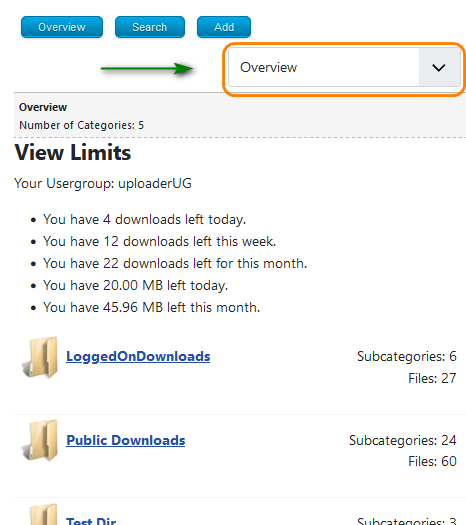
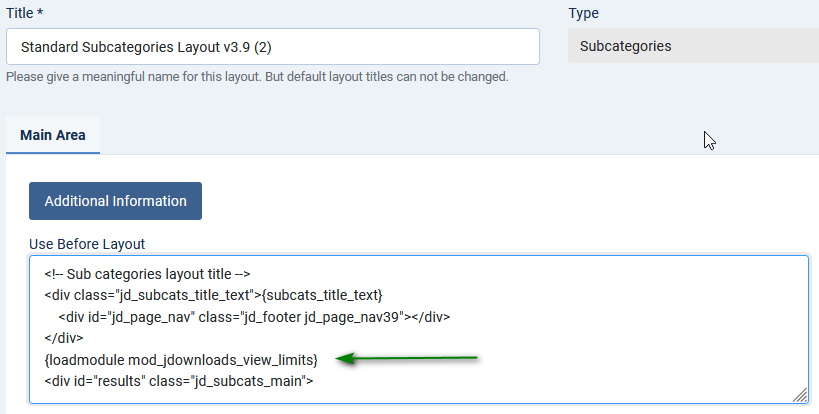
Another suitable place to modify is in the 'Use Before Layout' section in a copy of the Standard Subcategories Layout v3.9.
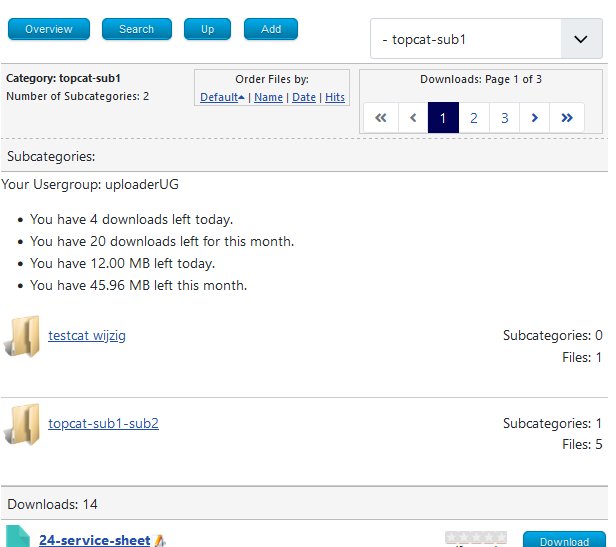
This will then show whenever a Category is being shown as illustrated below.
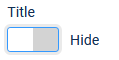
Note. Prior to capturing the image opposite the module was modified to hide the Title.
ColinM 8 January 2019, updated March 2021, July 2023, April 2025, May 2025, May 2026, July 2026, Sept 2026 -AA
